YouTube TV not working on your Firestick is frustrating, especially when you just want to watch live TV. The good news? Most problems come down to a handful of causes, and you can fix them yourself in minutes.
This guide covers the most common reasons YouTube TV fails on Fire TV Stick and walks you through eight solutions to get it running again.
- Clearing the YouTube TV cache fixes the majority of streaming glitches on Fire TV Stick within 30 seconds
- Outdated app versions cause crashes and freezing, so check for updates under Settings > Applications
- Internet speeds below 3 Mbps will cause buffering on YouTube TV; 13 Mbps or higher is needed for stable 1080p
- Wrong time zone settings can block YouTube TV entirely since the service verifies your location against your account region
- Factory reset is the last resort and erases all installed apps, saved passwords, and personal preferences from your Firestick
#Why Does YouTube TV Stop Working on Firestick?
YouTube TV streams live TV from over 100 popular cable networks. It runs on various devices, including the Amazon Fire TV Stick. But it doesn’t always work correctly on Firestick hardware.
If you experience issues with your YouTube TV app, there are several reasons behind it. Here are the most common ones:
#1. The Internet Is Not Working
A weak or dropped Wi-Fi connection is the number one cause. Try holding down the power button for 20 seconds, then release it. Wait another 30 to 40 seconds before turning the device back on.
If that doesn’t work, contact your internet service provider (ISP). They will check for outages or send a technician to inspect your router or modem. This process can take hours or even days depending on how busy they are.
If your Peacock TV is not working, similar network troubleshooting steps apply there as well.
#2. Bugs with the Fire TV Stick
Firmware bugs on the Firestick itself can prevent YouTube TV from launching or streaming. The most common cause is that the Fire TV Stick has not been updated to the latest firmware version.
No amount of app-level troubleshooting will help until the device firmware is current. Go to Settings > My Fire TV > About > Check for Updates and install any available patches.
If you wonder whether you can use Roku and Firestick on the same TV, that guide explains how to set up both devices together.
#3. Corrupted Fire TV Stick Data
Sometimes the Fire TV Stick’s internal storage gets corrupted, which breaks app functionality across the board. This is more common after interrupted updates or sudden power loss.
You can fix it by performing a factory reset. Keep in mind that a factory reset deletes all installed apps, login credentials, and personal settings. Back up anything important before you proceed.
#4. Outdated Version of YouTube TV
Running an old version of the YouTube TV app leads to crashes, black screens, and playback errors. The app store may not always auto-update your apps.
Check the current version by going to Settings > Applications > Manage Installed Applications > YouTube TV. If an update is available, install it and restart the device. After updating, reopen YouTube TV and test playback.
Is your Firestick stuck on the loading screen? That guide covers several causes and quick fixes for that issue.
#5. Cache Buildup on the Firestick
Over time, cached data from the YouTube TV app piles up and causes playback errors, freezing, and slow load times.
To solve this, clear the cache on your Firestick through Settings > Applications > Manage Installed Applications > YouTube TV > Clear Cache. This does not delete your account data or sign you out.
If your Firestick remote volume is not working, there are 14 tested solutions for that problem as well.
#How Do You Fix YouTube TV on Fire TV Stick?
There are eight methods to get YouTube TV running again on your Firestick. Start with the easiest fixes first and work your way down the list.
#1. Unplug and Replug Fire TV Stick and Your Router
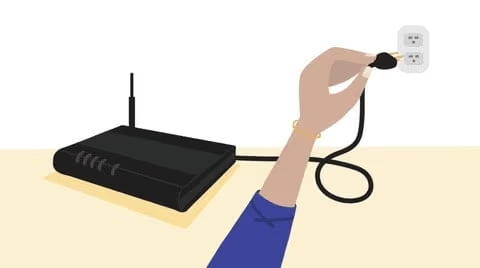
Unplug your Fire TV Stick and router, then plug them back in. Your router might be the problem. To test this:
- Unplug the power cable from the router and wait 30 seconds before reconnecting it.
-
Check if YouTube TV loads after the router fully restarts (usually 1 to 2 minutes).
-
If it still doesn’t work, try connecting the Fire TV Stick to the router using an ethernet adapter for a more stable connection.
#2. Check Your Internet Connection
Go to the Fire TV Stick home screen and select Settings > Network. Under Wi-Fi, tap your wireless network name and then tap Disconnect. Reconnect after a few seconds and note any changes in YouTube TV’s loading time.
If you’re using a wired connection, make sure both ends of every cable are firmly connected. Try plugging directly into the router rather than through a power strip or extension cord, which can cause interference with nearby electronics.
YouTube TV recommends at least 3 Mbps for streaming, and 13 Mbps or more for reliable 1080p playback.
#3. Restart Fire TV Stick
Restarting your Fire TV Stick clears temporary memory and can resolve many streaming issues. Go to Settings > My Fire TV > Restart and let the device reboot completely.
If a soft restart doesn’t help, unplug both the Fire TV Stick and your router at the same time. Wait 30 seconds, then plug the router in first. Once the router’s lights stabilize, plug the Fire TV Stick back in.
Your modem will begin downloading configuration data from your ISP as soon as it reconnects. If there was a glitch during the initial setup, this power cycle usually resolves it.
#4. Update Your YouTube TV App
An outdated app version is a frequent cause of YouTube TV problems on Firestick. To update:
-
Go to Settings on your Fire TV Stick.
-
Select Applications, then find YouTube TV.
-
Select Force Stop, then check for an available Update. The update can take 10 to 15 minutes depending on your internet speed. Once complete, restart your device.
#5. Choose the Correct Time Zone and Region
YouTube TV checks your location and time zone to verify you are in a supported area. If these settings are wrong, the app may refuse to load content.
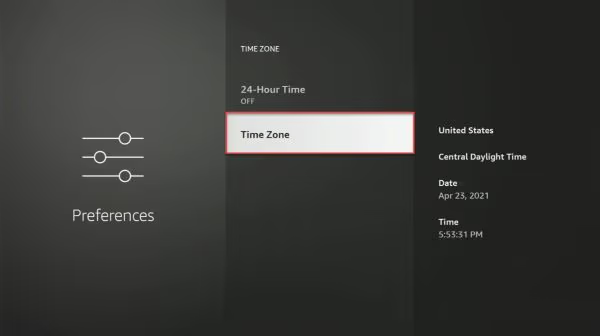
Go to Settings > Preferences > Time Zone on your Fire TV Stick and make sure it matches your actual location. If you use a VPN, disable it temporarily to see if that fixes the problem.
#6. Clear the Cache on the YouTube TV App
Clearing cached data is one of the most effective fixes. To do it:
-
Go to Settings > Applications > Manage Installed Applications.
-
Select YouTube TV from the app list.
-
Tap Clear Cache first. If the problem continues, tap Clear Data as well.
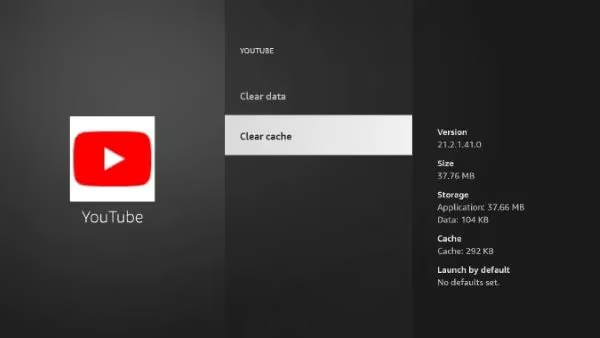
After clearing data, you will need to sign in again. Open the YouTube TV app and log in with your Google account to test playback.
#7. Reinstall the YouTube TV Application
If clearing the cache didn’t work, a full reinstall replaces any corrupted app files. Here’s how:
-
Go to Settings > Applications > Manage Installed Applications > YouTube TV > Uninstall.
-
Open the Amazon Appstore, search for YouTube TV, and tap Install.
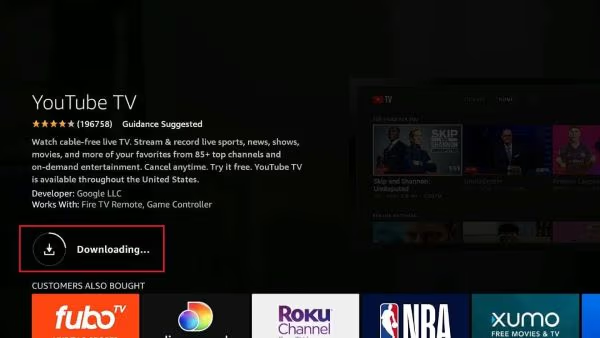
- Once installed, launch YouTube TV from your home screen and sign in. If it still fails, go to Settings > Applications > Manage Installed Applications, find Google Play Services, and tap Uninstall Updates. Then try launching YouTube TV again.
#8. Factory Reset Fire TV Stick
This is the last resort. A factory reset erases everything on your Firestick and returns it to out-of-the-box condition. Back up your settings and note which apps you have installed before proceeding.
To factory reset your device:
- Go to Settings > My Fire TV > Reset to Factory Defaults. The exact path may vary depending on your Fire TV Stick model.
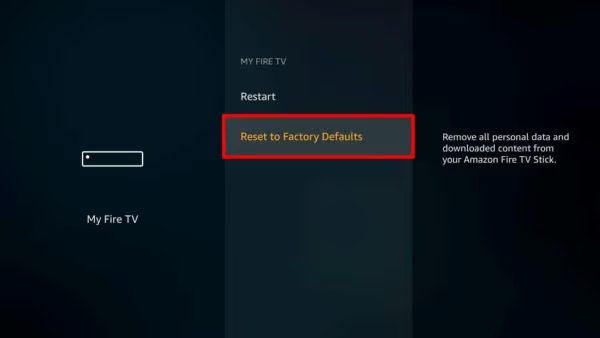
- Confirm the reset and wait for the device to reboot. Set it up again, install YouTube TV from the Amazon Appstore, and test playback.
If you want to change location on YouTube TV, that guide covers three reliable methods.
#FAQ
#How do I fix buffering issues on YouTube TV?
Check your internet speed first. YouTube TV needs at least 3 Mbps for standard definition and 13 Mbps for 1080p. Restart your router, move the Fire TV Stick closer to the router, or switch to a wired ethernet connection using an adapter. Closing other bandwidth-heavy apps on your network also helps.
#Why does YouTube TV keep freezing on my Firestick?
App freezing usually points to an outdated app version, a full cache, or low device memory. Update the YouTube TV app, clear its cache under Settings > Applications, and uninstall any apps you no longer use to free up storage. If none of that works, reinstall YouTube TV.
#Can I watch YouTube TV on multiple devices at the same time?
Yes, YouTube TV allows up to three simultaneous streams per household. All three streams can watch different channels at the same time. There is no limit on how many devices you can register to your account, but only three can stream at once.
#How do I check my internet speed on Fire TV Stick?
Open the Silk Browser or Firefox app on your Fire TV Stick and visit fast.com or speedtest.net. The test takes about 30 seconds and shows your download speed. You need at least 13 Mbps for smooth 1080p playback on YouTube TV.
#Does YouTube TV work on older Fire TV Stick models?
YouTube TV requires Fire TV Stick 2nd generation or newer. The original 1st generation Fire TV Stick does not support the YouTube TV app. If your device is from 2014 or earlier, you will need to upgrade to a newer model.
#What should I do if YouTube TV shows a black screen?
A black screen usually means the app crashed during startup. Force stop the app through Settings > Applications > YouTube TV > Force Stop, then relaunch it. If the black screen returns, clear the app cache and data, or uninstall and reinstall YouTube TV entirely.
#Why does YouTube TV say my location is wrong?
YouTube TV uses your device’s GPS, IP address, and time zone to verify your location. Make sure your Fire TV Stick time zone matches your actual location under Settings > Preferences. Disable any VPN or proxy service, as YouTube TV blocks connections that appear to come from outside the United States.
#Bottom Line
Most YouTube TV issues on Firestick come down to internet problems, an outdated app, or cached data that needs clearing. Start with the quick fixes like restarting your device and clearing the cache. Only move to a factory reset after you have tried everything else.
Keep your Fire TV Stick firmware and YouTube TV app updated to avoid running into these problems again. Regular cache clearing every few weeks also helps maintain smooth playback.