YouTube TV’s “Are you still watching?” prompt stops playback after roughly 4 hours of no remote activity. If you use YouTube TV for background noise, sports marathons, or long binge sessions, this interruption gets old fast. The good news: several workarounds exist depending on your device, and most take under two minutes to set up.
- Inactivity triggers the prompt — YouTube TV pauses after approximately 4 hours with no remote or controller input
- App settings offer partial control — the Playback section in YouTube TV settings lets you toggle auto-pause behavior on supported devices
- Clearing cache resets stuck prompts — wiping app data on your smart TV forces YouTube TV to reload its default configuration
- Streaming devices handle it better — Roku and Apple TV 4K users report fewer interruptions than built-in smart TV apps
- Sleep timers work independently — disabling the YouTube TV prompt does not affect your TV’s own sleep timer or power-off schedule
#What Triggers the “Are You Still Watching?” Prompt?
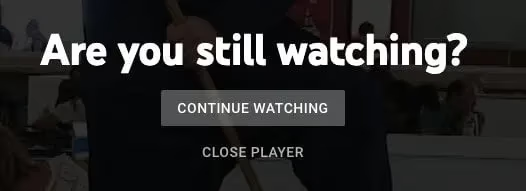
YouTube TV monitors remote input during playback. When it detects no button presses, no channel changes, and no volume adjustments for about 4 hours, it pauses the stream and asks if you’re still there.
Google designed this behavior for three reasons. First, it conserves bandwidth for users on metered internet connections. Second, it reduces electricity consumption when nobody is actually watching. Third, it prevents automated or unattended streaming from inflating view counts, which matters for YouTube TV’s advertising and content licensing agreements.
The prompt is server-side, not a local app feature. That means there is no single toggle that permanently disables it across every device. But you can minimize how often it appears.
#How Do You Turn Off the Auto-Pause on YouTube TV?
There is no guaranteed permanent fix because Google controls this behavior from their servers. However, these four methods reduce or eliminate the interruption for most users.
#Adjust Playback Settings in the YouTube TV App
The most direct approach. Open the YouTube TV app on your smart TV and follow these steps:
- Tap your profile icon in the top-right corner
- Go to Settings > Playback
- Look for the “Are you still watching?” toggle
- Switch it off and restart the app
Not every device shows this option. Google has rolled it out gradually, and some older smart TV apps still lack the toggle. If you don’t see it, try the next method.
#Update the YouTube TV App
Older app versions may not include the playback toggle at all. Updating ensures you have access to any new settings Google has released.
On Samsung Smart TV, open the Apps panel, find YouTube TV, and select Update. On LG Smart TV with webOS, go to the LG Content Store and check for updates. Roku and Fire TV Stick users can update through their device’s app management menu.
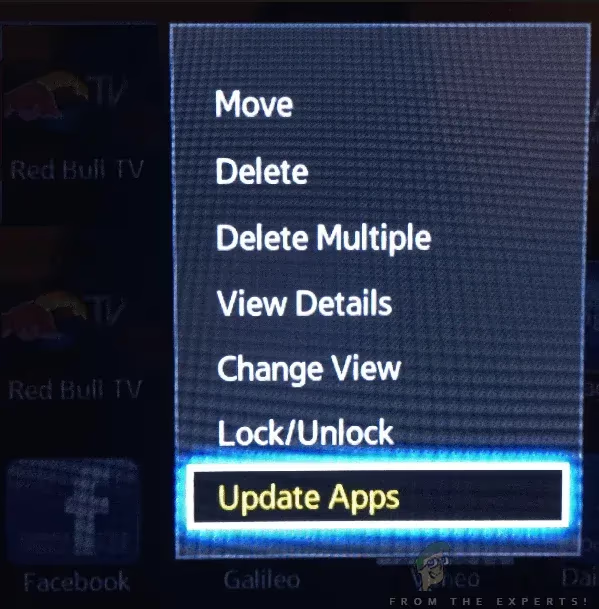
After updating, relaunch YouTube TV and check Settings > Playback again. The toggle may now appear.
#Clear Cache and App Data
Sometimes the YouTube TV app gets stuck in a state where it ignores your preferences. Clearing cached data forces a fresh start.
The steps vary by platform:
- Samsung Smart TV: Settings > Support > Device Care > Manage Storage > YouTube TV > Clear Cache
- LG Smart TV: Settings > Apps > YouTube TV > Clear Data
- Android TV / Google TV: Settings > Apps > YouTube TV > Clear Cache and Clear Data
- Roku: Go to Home, highlight YouTube TV, press Star (*) on the remote, and select Remove Channel, then reinstall it
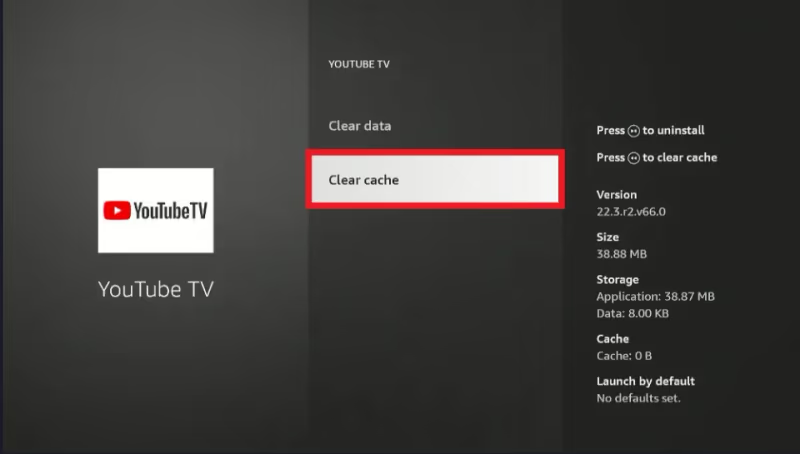
You will need to sign back in after clearing data. Your DVR recordings and account settings are stored on Google’s servers, so nothing is lost.
If your Samsung TV app keeps crashing after clearing cache, a full reinstall usually fixes it.
#Use a Streaming Device Instead of the Built-In App
Smart TV manufacturers update their built-in apps less frequently than dedicated streaming hardware. A Roku Streaming Stick or Apple TV 4K runs the latest YouTube TV version and tends to receive new features months before built-in smart TV apps do.
Several users on Reddit and Google’s support forums report that the auto-pause prompt appears less frequently on Roku and Apple TV 4K compared to Samsung or LG built-in apps. The reason likely comes down to faster app updates and better background activity detection on dedicated hardware.
If you already own a Roku and YouTube TV freezes or buffers on it, check our guide on YouTube TV not working on Fire TV Stick for troubleshooting steps that apply to most streaming devices.
#Does the Prompt Behave Differently on Live TV vs DVR?
Yes. Live TV channels tend to trigger the prompt more aggressively than DVR recordings. When you watch a recorded show, YouTube TV tracks your position in the recording and recognizes active viewing patterns like fast-forwarding through commercials. That counts as interaction.
With live TV, especially if you tune to a channel and walk away, there is zero input for the system to detect. Sports fans who leave a game running while doing other things around the house hit this wall regularly.
One workaround for live TV: set a recurring reminder on your phone to tap any button on the remote every 3 hours. It resets the inactivity timer without requiring you to sit in front of the screen.
#Why Can’t You Fully Disable the Prompt?
Google has not provided a permanent opt-out, and they likely never will. The feature serves multiple purposes beyond user convenience.
According to Google’s YouTube TV support page, the auto-pause mechanism helps manage server load across their infrastructure. YouTube TV carries over 100 live channels, and each active stream consumes bandwidth on Google’s CDN. Millions of idle streams would increase costs significantly.
There is also a regulatory angle. Cable TV replacement services like YouTube TV, Sling TV, and fuboTV must report viewership data to networks. Unattended streams distort those numbers, which affects advertising rates and content deals.
So while the prompt can feel annoying during a lazy weekend, it exists for reasons that go beyond saving your electricity bill. The workarounds above minimize the frequency, but they cannot eliminate it entirely.
#How Location Settings Affect YouTube TV Playback
YouTube TV requires accurate location data to serve the correct local channels. If your location is set incorrectly, the app may behave unpredictably, including showing the auto-pause prompt more often than expected.
This happens because a location mismatch forces YouTube TV to re-verify your account status more frequently. Each verification check can reset the inactivity timer inconsistently. Make sure your device’s GPS or IP-based location matches the home area registered in your YouTube TV account settings.
Users who travel frequently and watch YouTube TV on hotel Wi-Fi encounter this issue more than most. YouTube TV allows streaming outside your home area for up to 90 days, but the app checks your location periodically during that window.
#Bottom Line
The “Are you still watching?” prompt on YouTube TV cannot be permanently disabled because Google controls it server-side. Your best options are toggling off the setting in Playback preferences, keeping the app updated, clearing cache when the prompt gets stuck, or switching to a Roku or Apple TV 4K for more reliable app performance. For Samsung TV owners, our YouTube TV troubleshooting guide covers additional fixes when the app itself stops responding.
#Frequently Asked Questions
#Does turning off the prompt increase data usage?
Yes. YouTube TV uses approximately 3 GB per hour for HD streaming. If playback continues unattended for 8 hours instead of stopping at 4, you could use an extra 12 GB in a single session. Monitor your usage through your router’s admin page or your ISP’s data tracker if you have a monthly cap.
#Can you disable the prompt on the YouTube TV mobile app?
No. The mobile app does not include a playback toggle for the auto-pause feature. Google applies the same server-side check to phones and tablets, and there is no known workaround on iOS or Android as of early 2026.
#How long before YouTube TV asks if you’re still watching?
The prompt appears after roughly 4 hours of continuous playback with no remote interaction. Some users report it appearing closer to 3 hours on live TV channels, while DVR playback sometimes goes longer before triggering the check.
#Will a sleep timer conflict with the auto-pause setting?
No. Your TV’s built-in sleep timer operates at the hardware level and is completely separate from YouTube TV’s software-based inactivity check. Both can run at the same time without interfering with each other.
#Does using a VPN affect how often the prompt appears?
VPN connections can cause YouTube TV to flag your session for additional verification, which sometimes triggers the auto-pause prompt sooner than expected. For the most reliable experience, connect directly without a VPN and ensure your registered home location matches your actual network location.
#Is there a browser extension that auto-dismisses the prompt?
A few third-party Chrome extensions claim to auto-click the “Yes” button when the prompt appears on the YouTube TV web player. These extensions work inconsistently because Google updates the prompt’s HTML structure periodically, breaking the automation. They also pose a security risk since they require broad page access permissions.
#Do other live TV services have the same auto-pause feature?
Hulu + Live TV, Sling TV, and fuboTV all use similar inactivity detection. Hulu’s version triggers after about 4 hours. Sling TV is more aggressive at roughly 2 hours. fuboTV checks at approximately 4-hour intervals. The behavior is an industry standard, not unique to YouTube TV.
#Can you set a custom inactivity timer instead of the default?
No. YouTube TV does not offer a way to customize the inactivity window. You cannot change it from 4 hours to 6 hours or any other interval. The timer is fixed on Google’s servers and applies uniformly to all subscribers regardless of plan or device.