Having issues getting sound from your Xfinity TV? This troubleshooting guide covers 12 proven fixes to restore audio on your Xfinity cable box and TV setup. As one of the largest cable TV and internet providers in the US, Xfinity offers reliable equipment and programming, but audio problems can still crop up unexpectedly.
- Loose HDMI or audio cables account for most Xfinity TV sound failures and take under a minute to fix
- Power cycling your Xfinity box for 60 seconds clears cached errors that cause sudden audio loss
- Switching audio output mode between Stereo, Dolby Digital, and Auto Detect in Device Settings forces a driver refresh
- Bluetooth devices and wireless speakers can silently hijack audio output without any on-screen warning
- Factory resetting your Xfinity box resolves persistent sound bugs when all other troubleshooting steps fail
#What Causes No Sound on Xfinity TV?
Before digging into fixes, it helps to understand what triggers the audio silence. Here are 5 of the most common reasons sound suddenly stops on Xfinity TVs:
#1. Loose Cable Connections
The obvious place to start is by checking that all of your HDMI and audio cables are properly plugged in at both ends. Cords can work loose over time, interrupting signal transmission.
Examine connections on the back of your Xfinity cable box, TV set, sound bar, and any other devices. If you spot a loose wire, securely reconnect it.
While you’re back there, also check cables for any damage, fraying, or crimping that could block the signal.
#2. Incorrect Sound Output Settings
Another easy error is having the wrong sound settings selected on your devices. The audio output mode could be switched to external speakers that aren’t connected or set to the incorrect format.
Navigate to the Audio portion of your Xfinity box’s Settings menu. Toggle between options like Stereo, Dolby Digital, and Auto Detect to restore sound. We’ll cover how to adjust this later in more detail.
#3. External Audio Devices Interfering
Do you have headphones, earbuds, soundbars or speakers plugged into your TV or Xfinity box? If so, audio will automatically route to that external device rather than your television’s built-in speakers. If you’re weighing standalone speakers against a soundbar, check out this comparison of soundbars vs TV speakers.
Check all ports for connected accessories that could be pulling system sound. Unplug any wired gear that you aren’t currently using.
Similarly, if you have previously paired any Bluetooth audio accessories with your TV, disconnect them within your device settings so sound outputs properly from the TV speakers again.
#4. Network Connection Issues
Your Xfinity box relies on maintaining a steady broadband internet connection for optimal performance. Any drops, instability, or congestion in your home’s Wi-Fi can interrupt media transmission, including sudden loss of audio. Check out this guide to resolving issues with Xfinity boxes stuck on one channel.
Test if network problems are the culprit by connecting your Xfinity box temporarily via ethernet cable rather than wirelessly. If sound resumes, you know Wi-Fi glitches are to blame.
#5. Damaged Audio Ports
While less common, the physical audio ports on your Xfinity cable box, TV set, or other hardware can become damaged. This could happen due to contamination build up over time or accidentally plugging in the wrong type of cable. Similar port issues affect HDMI connections on other TV brands as well.
Inspect all your ports closely for bent or broken pins, corrosion, blockages, and other signs of damage. If you spot anything suspicious, switch to alternate ports to determine if that was the root of the no sound issue.
#How Do You Fix No Sound on Xfinity TV Quickly?
If you suddenly lose audio from your Xfinity TV, try these 4 quick troubleshooting steps before diving into advanced settings:
#1. Check Volume Settings
Start with the obvious to rule it out. Make sure volume on your Xfinity remote is turned up high enough to hear. Tap the volume up button several notches.
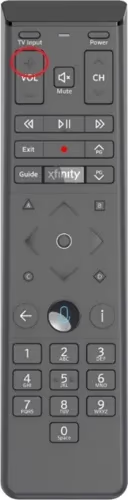
While you’re at it, verify volume on your paired TV or other speakers is also not muted or too low.
If you utilize a universal remote, something could have gotten switched to control a different device. Re-program if needed. Having trouble with your remote? See our guide on fixing an unresponsive Xfinity remote.
#2. Change Channels
Sound issues coming from just one or a few channels points to a source problem with that broadcaster rather than your equipment.
Flip through various stations to pinpoint if the problem persists on some versus all content. If sound loss seems random in nature or isolated to certain channels, contact Xfinity support so they can escalate with that media provider.
#3. Reseat Cables and Power Cycle Devices
A straightforward wiring fix can be to unplug then firmly reconnect all HDMI and audio cords linking your devices. While the gear is powered down during swapping cables, you might as well power cycle them too.
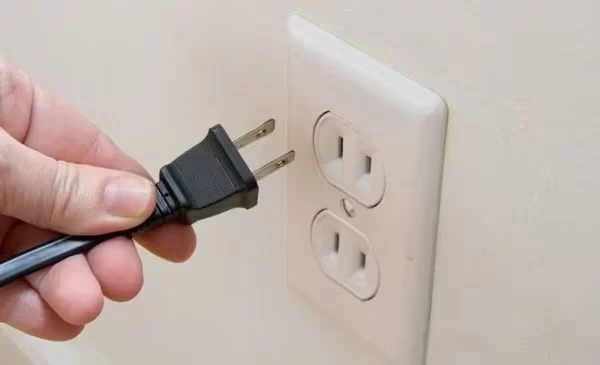
Turn off your Xfinity cable box, television, and any external speakers or sound bars at the main switch. Unplug them from power entirely and wait 60 seconds. This clears any cached memory or software errors. Plug back in and power on to see if sound returns.
#4. Disable External Speakers
If you utilize wireless Bluetooth speakers or sound bars with your Xfinity TV, try temporarily disconnecting them. Turn off and un-pair external accessories within your settings while you troubleshoot.
This reveals whether connectivity issues with secondary gear could be the audio culprit. If sound returns from your native TV speakers, the problem lies with the additional speakers.
#How Do You Adjust Xfinity Audio Settings to Restore Sound?
If you’re still stuck without sound, it’s time to get more advanced with your audio diagnostics and equipment adjustments.
Dive deeper by walking through these steps:
#5. Inspect All Sound Connections
We touched on loose wires earlier, but it’s worth thoroughly re-examining every single HDMI, audio, optical, and other cable linking your TV, Xfinity box, and external devices.
-
Carefully unplug then firmly re-insert each connector at both ends
-
Use a flashlight to peer inside ports and ensure no damage or blockages
-
Check audio splitter cables for any unplugged branches
-
Test cables one-by-one to identify any faulty wires
-
Replace suspect cords with fresh, high-speed HDMI or audio cables
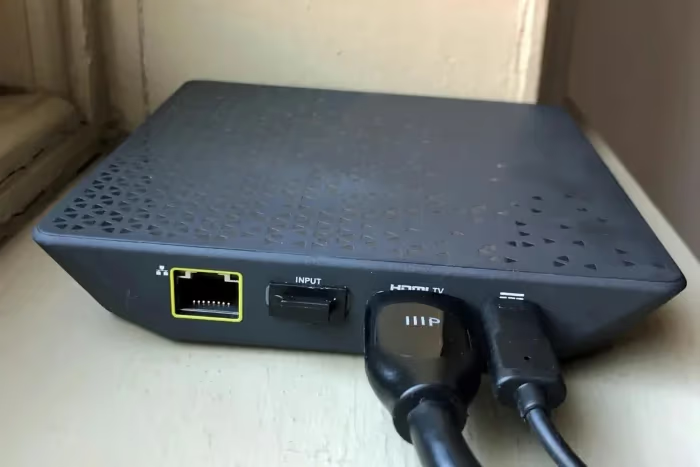
Be methodical to uncover any potential connectivity issues that could mute sound transmission.
#6. Adjust Audio Settings on Xfinity Box
Your Xfinity box has several audio adjustments that could help restore lost sound. Access audio options through the Settings menu:
-
Press the Xfinity button on your remote
-
Select the gear icon to enter Settings
-
Choose “Device Settings” then select Audio
-
Toggle options for HDMI Audio and Digital Audio
-
Try changing modes like Dolby Digital, Stereo, Auto Detect
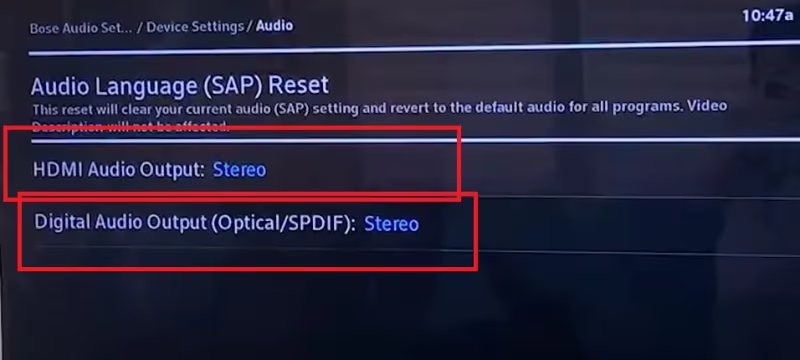
Switching modes here forces a refresh of audio drivers and ports so your devices re-establish connectivity. Experiment with different modes and menu options.
#7. Check TV Audio Settings
Sound problems may stem from incorrect sound modes on your television rather than the Xfinity box.
Navigate into Audio adjustments through your TV’s main Settings. Flip through various menu options like Sound Mode, Output Mode, Speaker Select, and so on.
Switching modes resets audio drivers, which could resolve glitches muffling sound. Review your TV manual for specifics on which settings to tweak.
#8. Update Cables and Hardware
If tinkering with settings doesn’t unlock audio, aging cables or gear could be the root issue.
Test connectivity by swapping high-speed 4K HDMI cords or upgrading to optical audio cables. For older TVs, instead run audio directly from the Xfinity box rather than passing through the television.
Also update firmware for your TV, Xfinity box, and related devices in case software bugs are interfering with proper sound functionality.
#9. Reset Xfinity Box to Factory Defaults
Still having Xfinity sound problems? Try restoring your cable box to factory condition:
-
From Settings menu choose the Reset tab
-
Select “Reset to Defaults” and confirm when prompted
-
Set back up the Xfinity box from scratch
Resetting deletes any corrupted sound drivers so fresh software can be installed. As frustrating as starting over can be, this step cures all sorts of quirky technical issues.
#10. Contact Xfinity Customer Support
At this point, you likely need professional troubleshooting assistance from Xfinity experts. Contact customer service via live online chat or by scheduling a service call.
Tech support can remotely access diagnostic menus and logs from your Xfinity equipment to uncover problems. This lets them pinpoint whether replacement parts, wiring repairs, or other solutions are needed.
Describe all steps taken so far to help support better identify the cause of your missing audio. Note error messages appearing on-screen like the infamous Xfinity XRE-03007 message so support staff understand what your devices are reporting.
#What Should You Know About Wireless Sound Devices?
More homes now have sound bars, Bluetooth speakers, and headphones integrated with their entertainment systems. While convenient, these wireless audio devices can introduce connectivity issues that prevent sound output. Dish TV users run into similar no-sound problems caused by wireless accessories.
If you’ve paired wireless sound gear with your Xfinity TV, be sure you:
-
Position speakers and headphones within optimal range
-
Clear any pairing errors by reconnecting accessories
-
Disable battery-saving modes that disrupt streaming
-
Make sure batteries have adequate power
-
Resolve any interference from other wireless signals
-
Update speaker and headphone firmware if possible
Also try wiring speakers temporarily via HDMI or audio cables to rule out Wi-Fi transmission problems.
#Contacting Xfinity Customer Support
Should you continue experiencing sound loss from your Xfinity TV after exhausting self-troubleshooting, promptly engage Xfinity tech experts for assistance.
Xfinity offers customer support 24/7 year-round via:
-
Live online chat — Fast access to chat agents through your account
-
Phone — Call (800) XFINITY for automated solutions or speak to a live representative
-
Service visits — Schedule in-home consultations with Xfinity repair technicians as needed
Some best practices when seeking Xfinity help:
-
Clearly describe the audio issue and when it began
-
Note error messages appearing on-screen
-
Detail troubleshooting steps attempted
-
Have model numbers of your devices handy
-
Ask if firmware needs updating
-
Request advanced diagnostics of equipment
-
Inquire about signal levels and connectivity metrics
-
Have technicians examine all cabling and ports
Thorough details will help Xfinity agents rapidly resolve what’s causing sound loss and prevent frustration on your end. In many cases the problem lies with wiring or settings rather than hardware defects.
#FAQ
#Why did my Xfinity TV suddenly lose audio?
Sudden sound loss usually stems from loose connections, wrong audio settings, interference from Bluetooth or wireless devices, or network connectivity issues. Run through basic troubleshooting of cables, ports, and settings before contacting Xfinity support.
#How can I get audio back on my Xfinity box?
Try adjusting audio output mode, toggling HDMI modes, checking volume, reseating cables, power cycling devices, updating entertainment equipment, or performing a factory reset on the Xfinity box. Checking external speakers and headphones for connectivity problems can also restore missing sound.
#What should I do if only some Xfinity channels have no audio?
Issues with only select channels point to a broadcasting problem at the media source, not your equipment. Note which stations lack sound and report them to Xfinity customer support so they can investigate signal issues upstream.
#Why does my Xfinity TV have sound but no picture?
If you suddenly lose video but retain audio, this points to a physical connectivity problem with the HDMI cable linking your devices. Securely reconnect HDMI cords at both ends. If there’s still just sound over a black screen, replace faulty HDMI wires.
#How can I improve muffled or low sound from my Xfinity TV?
Muffled or muted sound could stem from incorrect audio output settings, Wi-Fi interference, failing speakers or components, or incorrect cables causing a short. Troubleshoot each element to pinpoint what needs swapping or adjusting to resolve the poor sound quality.
#Can a factory reset fix Xfinity TV audio problems?
Yes, a factory reset clears corrupted audio drivers and cached software errors that cause persistent sound issues. Go to Settings, select the Reset tab, and choose Reset to Defaults. You will need to set up your Xfinity box again from scratch after the reset completes.
#Does the Xfinity Flex have the same no-sound issues?
The Xfinity Flex streaming box can experience similar audio problems, including HDMI handshake failures and incorrect output settings. The same troubleshooting steps apply: check cables, toggle audio modes in Device Settings, and power cycle the device for 60 seconds.
#Should I use HDMI ARC or optical for Xfinity box audio?
HDMI ARC is generally the better choice because it carries higher-quality audio formats like Dolby Digital 5.1 and supports CEC remote control. Optical cables work as a backup but are limited to stereo or basic surround sound. If HDMI ARC causes issues, switching to optical can help isolate the problem.
#Bottom Line
-
Always start troubleshooting with easy wiring checks before tweaking advanced settings
-
Rule out Wi-Fi congestion, Bluetooth interference, and incorrect volume levels
-
Methodically test connectivity of each cable and port linking devices
-
Update entertainment equipment firmware and swap aging cables
-
Experiment with HDMI, Optical, and Stereo audio modes in Settings
-
Factory reset equipment after trying other troubleshooting to clear bugs
-
Contact Xfinity customer support to run diagnostics checks if self-fixes fail
By following this start-to-finish sound troubleshooting guide for Xfinity TV issues, you should be able to resolve audio problems quickly. We covered quick fixes like checking volume and cables, along with more advanced tactics like changing audio settings, updating equipment firmware, and factory resetting your cable box.
With the right combination of self-troubleshooting steps and assistance from skilled Xfinity tech experts when needed, you’ll get clear sound back fast.