If you just bought a Vizio TV and can’t find the power button, you’re not alone. Modern Vizio sets hide physical buttons to keep the design clean, which makes manual control tricky when the remote goes missing.
- Newer Vizio TVs (2015+) have the power button on the back panel, bottom-right corner near the HDMI ports
- Older Vizio TVs (pre-2015) have the power button on the front-left bezel surrounding the screen
- Hold the power button for 10 seconds to force-reboot a frozen or unresponsive Vizio TV
- Vizio Mobile app is free on Android and iOS, turning your phone into a full remote control
- Replacement remotes cost under $10 — XRT136 fits newer models, XRT020 fits older sets
#Where Is the Vizio TV Power Button Located?
The Vizio TV power button location depends on when your model was manufactured:
-
On newer Vizio TVs (2015 and later), the power button is on the back bottom-right corner underneath the HDMI ports.
-
On older Vizio TVs (pre-2015), the power button is on the front-left side of the bezel or frame surrounding the screen.
Scroll down to see step-by-step instructions for finding the power button based on your Vizio TV’s age.
#Vizio TV Model Numbers and Series Explained
Before looking for the power button, it helps to understand Vizio’s naming conventions and model types.
#Main Vizio TV Series
Vizio groups their televisions into different “series” that indicate the quality tier and features:
-
D-Series: Entry-level HD TVs
-
V-Series: Mid-range 4K TVs
-
M-Series: High-end 4K QLED TVs
-
P-Series: Premium 4K OLED TVs
Within each series are different model lines released on a yearly basis.
#Vizio TV Model Numbers
Vizio TV model numbers look like this:
P65Q9-J01
-
P = The series (P stands for premium picture quality)
-
65 = The screen size (65 inches)
-
Q9 = The model line and year (Q = 2022, 9 = top tier for that year)
-
J01 = Additional model variant codes
A full model number reveals a lot about that specific television. Now let’s find the power button on both older and newer Vizio TVs.
#Where Is the Power Button on Newer Vizio TVs?
Any Vizio television released in 2015 or later has the power button hidden on the rear right side underneath the ports.
#Step-by-Step Instructions
-
Turn your Vizio TV around to see the back panel.
-
Look underneath the HDMI and input ports on the bottom-right corner.
-
Run your fingers along the edges to locate a small, discreet button. That’s the power button.
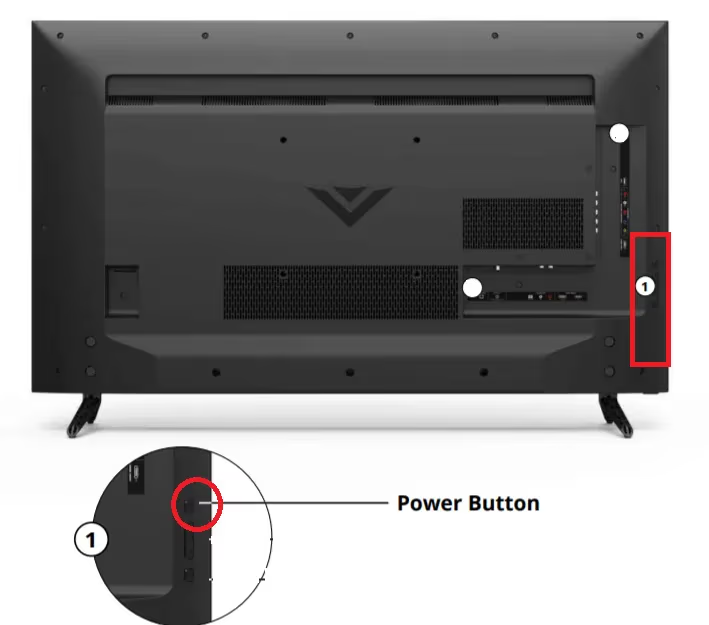
You may also find tiny volume and input buttons lined vertically with the power button.
The power button on new Vizio TVs is purposefully subtle and not meant for frequent use. Consider getting a replacement remote or using the Vizio phone app if you’ve lost your original TV remote control.
#Where Is the Power Button on Older Vizio TVs?
On Vizio Smart TVs manufactured in 2014 or earlier, the power button is placed more conveniently on the bezel framing the screen.
#Step-by-Step Instructions
-
Face the front of your older Vizio television.
-
Look at the bottom-left corner of the plastic frame surrounding the screen.
-
You should see a small cluster of buttons. The top one is the power button.
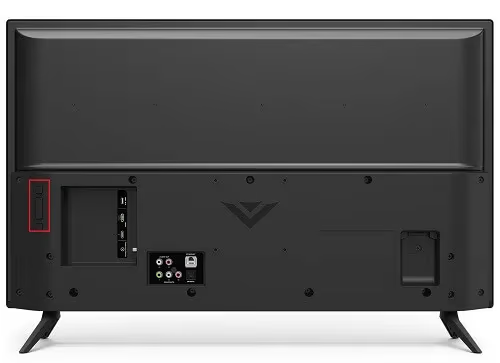
The button cluster may also be on the side-left edge of the bezel instead. Power buttons on older Vizio TV models tend to be more prominent and easier to access.
#What Are Those Other Vizio TV Buttons For?
Alongside the power button, Vizio TVs often have 1-2 other control buttons. Here is what they do:
-
Top Button: Power on/off
-
Middle Button: Volume control up/down
-
Bottom Button: Changes input source signal
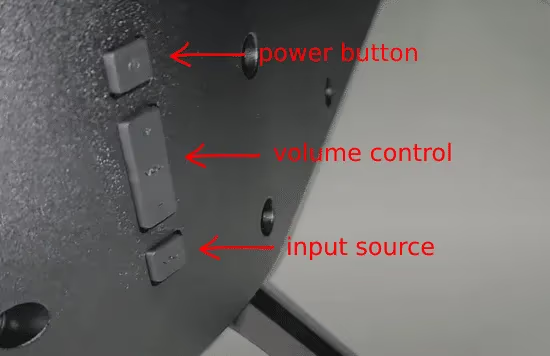
On older Vizio TVs with these buttons on the frame, you can handle basic functions even without the remote. The buttons are small and awkward for daily use though, so keep reading for better alternatives.
#What If You’ve Lost Your Vizio TV Remote?
Once you’ve found those tucked-away Vizio TV buttons, you’ll realize fast they weren’t built for everyday use. Here are two ways to control your Vizio without the remote:
#1. Vizio Mobile App
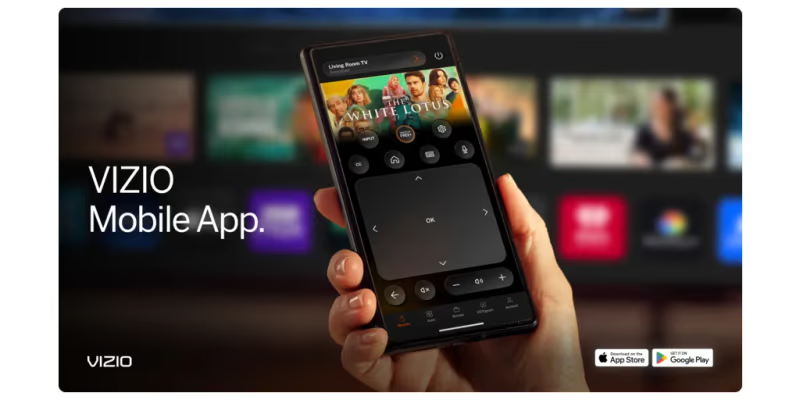
Vizio offers a free Android and iPhone app called Vizio Mobile that turns your phone into a smart remote:
-
Download the Vizio Mobile app to your phone
-
Connect phone and TV to the same Wi-Fi network
-
Open app and select your Vizio TV
-
Enter pairing code shown on TV
-
Full remote control enabled
The mobile app can turn your Vizio on and off, adjust volume, switch inputs, navigate menus, and more. If you run into issues, see troubleshooting for Vizio SmartCast problems.
#2. Replacement Vizio TV Remote
If you prefer a physical remote, pick up a replacement instead of fighting with the built-in buttons:
-
XRT136 Remote for newer Vizio Smart TVs
-
XRT020 Remote for older Vizio Smart TVs
Choose an exact model match remote from the product listings. Generic universal remotes may not fully pair with Vizio sets.
Keep 1-2 backup replacement remotes on hand in case you lose your main one. If your Vizio remote isn’t working at all, that’s a separate issue worth checking.
#Expert Tips for Using Vizio TV Power Buttons
Here are pro tips from electronics technicians on using the built-in Vizio TV buttons:
-
Don’t press the physical buttons too hard or too often. They are an emergency backup, not meant for daily use.
-
Hold the power button in for 10 seconds to force reboot a frozen or unresponsive Vizio TV.
-
If you use a universal remote and it’s out of sync, try the power button to do a factory reset.
-
If the power button itself stops working, contact Vizio support about possible hardware repairs.
#FAQ
#Does every Vizio TV have a physical power button?
Yes. Every Vizio TV model ships with a physical power button, though its position varies between older and newer sets. It acts as a backup when the remote stops working or goes missing.
#Why did Vizio hide the power button?
Vizio prioritized thin bezels and a clean look over easy button access. Hiding physical controls lets the TV appear nearly borderless from the front, but the trade-off is that manual controls become harder to reach.
#Can I turn on my Vizio TV without a remote or power button?
You can, but only if CEC (Consumer Electronics Control) is enabled on the TV. Plug in an HDMI-CEC device like a Roku or game console, and powering that device on will wake the TV automatically.
#How do I force restart a Vizio TV that is frozen?
Press and hold the physical power button on the back or side of the TV for a full 10 seconds. The TV will shut off, then power back on after a few moments. If the screen stays black afterward, check our guide on Vizio TV black screen fixes.
#What should I do if my Vizio TV won’t turn on at all?
First, confirm the TV is plugged into a working power outlet. Unplug the power cord, wait 60 seconds, then plug it back in and press the power button. If it still won’t respond, the issue may be internal hardware. See our full walkthrough for Vizio TV won’t turn on troubleshooting.
#Is the Vizio Mobile app free to use?
Yes, the app is free on both Android and iOS. It connects over Wi-Fi and gives you full remote control including power, volume, input switching, and Vizio SmartCast app navigation.
#Can a universal remote work with a Vizio TV?
Most universal remotes work with Vizio TVs once you enter the correct programming code. Check our Vizio universal remote codes list for the right code for your specific model and remote brand.
#Bottom Line
Finding the Vizio TV power button doesn’t need to be a guessing game. On newer models (2015+), check the back lower-right side near the ports. On older models, look at the front-left bezel. Those buttons are fine for an occasional power cycle, but if your remote is gone for good, grab the free Vizio Mobile app or a $7 replacement remote for a much better experience.