Vimeo is a popular platform for uploading and sharing high-quality videos. With 4K streaming, editing software integration, and monetization options, it appeals to both viewers and creators. While Roku doesn’t have an official Vimeo channel or app, this guide walks through all the methods for streaming Vimeo on Roku using any device in just a few quick steps. For those interested in watching Vimeo on Apple TV, check out our dedicated guide to streaming Vimeo on Apple TV devices.
- No official Vimeo app on Roku — screen mirroring from a phone, tablet, or computer is the only way to watch Vimeo on your Roku device
- Both devices need the same Wi-Fi network — your Roku and source device must share one local wireless connection for mirroring to work
- iPhone, Android, Windows, and Mac all supported — each platform has built-in casting or mirroring tools that connect to Roku
- Vimeo subscriptions start at $12/month — the Starter plan (billed annually) includes 60 videos, basic analytics, and privacy controls
- Troubleshooting is straightforward — most mirroring issues resolve with a router restart, Wi-Fi reconnect, or Roku power cycle
#What Does Vimeo Offer Creators and Viewers?
As a premier platform for uploading and sharing high-quality video, Vimeo gives users and creators an array of useful tools, including:
-
4K Ultra HD Streaming: High-fidelity viewing through support for 4K formats and resolutions.
-
Creative Tools Integration: Editing workflow enabled by integration with programs like Adobe Premier Pro.
-
Monetization Opportunities: Options to sell videos or offer paid channel subscriptions to earn money.
-
Exclusive Content Controls: Ability to restrict content access through geo-blocking or domain filtering.
However, to take full advantage of everything Vimeo has to offer requires an account and the ability to easily access the platform across devices.
That’s where Roku comes in. As one of the most popular streaming devices available today, Roku opens up a world of entertainment to viewers. It provides access to great free streaming services like YouTube and Twitch as well as paid apps for sports like NBA and MotoGP. But does Roku offer native access to Vimeo?
Unfortunately, Roku does not have an official Vimeo channel or app available for installation.
But don’t worry! While you can’t add Vimeo like a regular streaming channel, there are methods to mirror Vimeo from other devices onto your Roku in just a few quick steps. This guide will also explore alternative ways to watch Vimeo on other popular streaming platforms like Apple TV.
#Methods to Access Vimeo on Roku
The key to unlocking Vimeo on Roku lies in screen mirroring.
Screen mirroring is a process that wirelessly transmits or “casts” the display from a separate device directly onto a Roku player. This on-screen mirroring happens in real-time, so anything shown on the source device will simultaneously be shown on the TV connected to the Roku.
Here are the devices that allow screen mirroring to Roku:
-
Mobile: iPhone, iPad, Android smartphones and tablets
-
Computer: Windows 10 laptops/PCs, Mac laptops/desktops
As long as you can access Vimeo on one of those devices, you can mirror it to watch video on the big screen! This same mirroring process also works for other popular video apps not natively available on Roku like TikTok.
#How Do You Set Up Vimeo Screen Mirroring on Roku?
Follow these steps to start watching Vimeo videos, channels and other content directly on your Roku player:
#Activating Screen Mirroring on Roku
First, ensure your Roku device has screen mirroring enabled:
-
From the Roku home screen, go to Settings > System > Screen Mirroring Mode.
-
Select Prompt or Always Allow (for automatic connections without prompts).
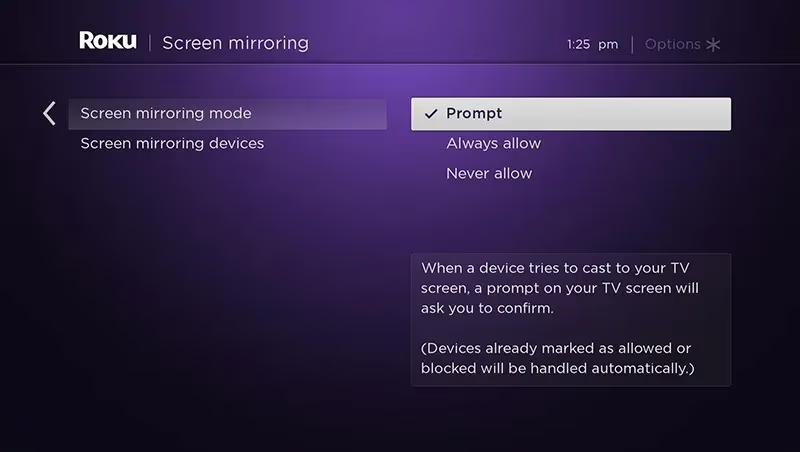
That’s it! Roku is now ready to receive mirrored content. For more tips on optimizing Roku settings, see our guides on expanding Roku connectivity to watch services like MeTV and FS1.
#Downloading Vimeo App on Source Device
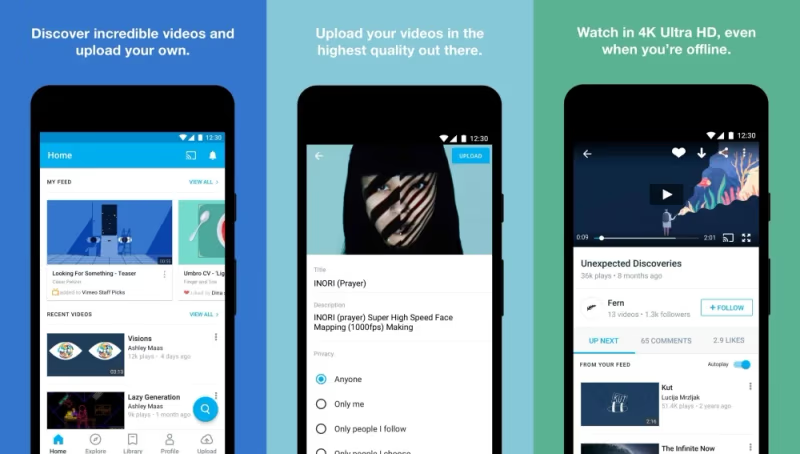
While Vimeo can be accessed directly through a web browser, using the mobile or desktop app provides the best experience.
On iOS/Android:
- Install the free Vimeo app from the App Store or Google Play Store
On Windows:
- Install the free Vimeo Desktop App from the Microsoft Store
On Mac:
- Install the free Vimeo Mac App from the official website
Once installed, log into the app using your Vimeo account credentials.
#Connecting Devices to the Same Wi-Fi
Both the device you want to mirror FROM (phone, tablet, computer) and the Roku player must be on the same local wireless network.
So connect both to the same Wi-Fi router prior to starting the screen mirroring process. Using Ethernet on either device can cause issues.
#Initiating Screen Mirroring
The steps to activate casting/mirroring are mostly similar across mobile and computer platforms with only small OS-specific differences:
#From iOS Device:
-
Swipe down from top edge to access Control Center
-
Long-press the Screen Mirroring icon
-
Select your Roku device from the list
-
Allow the connection prompt on Roku if it appears
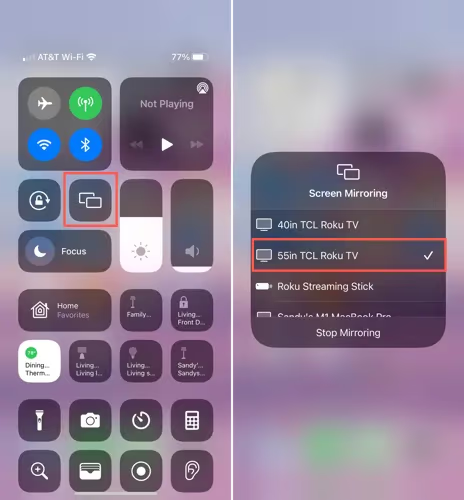
The iOS or iPadOS device screen will now be mirrored onto the TV powered by Roku!
#From Android Device:
-
Open quick settings panel
-
Tap Cast icon
-
Choose your Roku device to initiate pairing
-
Accept the prompt on Roku if it pops up
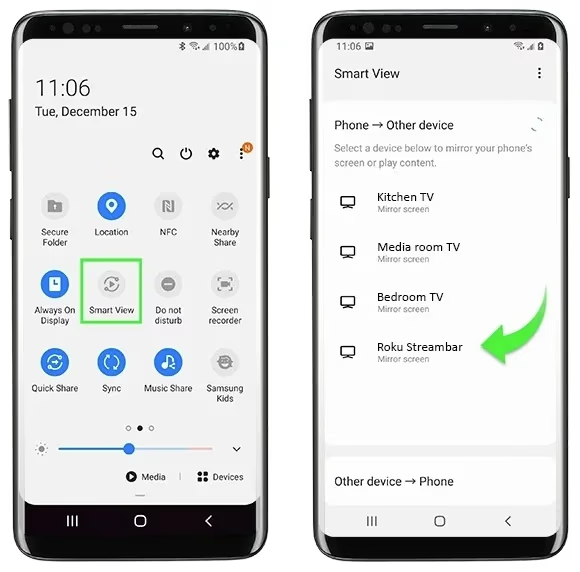
Android’s screen will instantly start mirroring on the Roku player.
#From Windows 10 Laptop/PC:
-
Click action center icon in taskbar
-
Click Connect tile
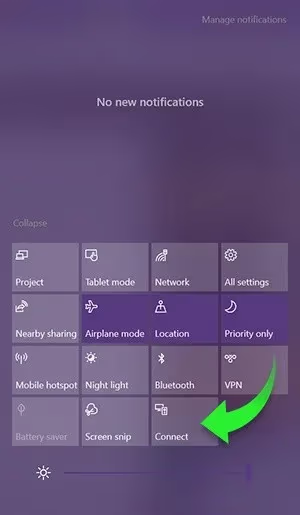
- Select the Roku device from the list
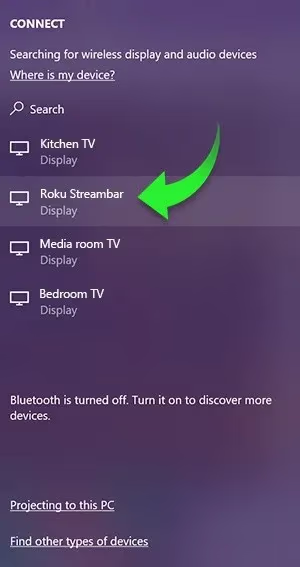
- Confirm the connection on Roku if prompted
The Windows screen will now be cast to Roku!
#From Mac:
- Click AirPlay icon in menu bar
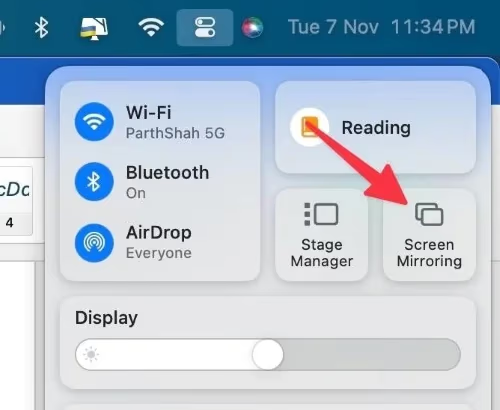
- Select appropriate Roku device
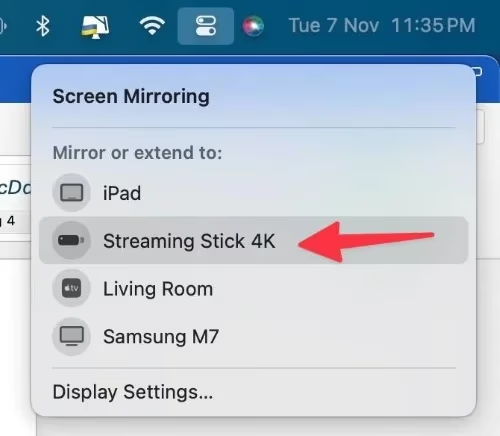
- Approve connection request on Roku television if needed
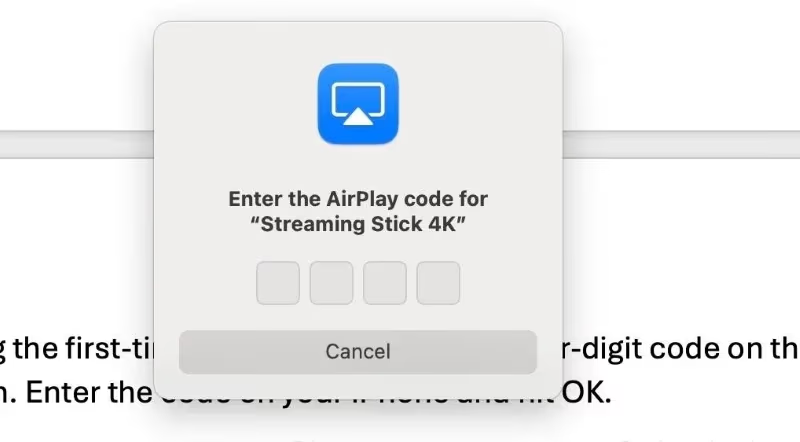
The Mac’s display will now mirror onto the connected Roku hardware.
As soon as a connection is successfully established, load Vimeo in the app or browser on the source device. Everything visible there should instantly become viewable on the TV attached to the Roku.
Start watching any publicly accessible Vimeo videos immediately!
#Troubleshooting Tips
If unable to initiate or maintain a reliable screen mirroring connection, try the following fixes:
-
Restart the Roku device
-
Reconnect both devices onto the same Wi-Fi
-
Ensure no VPNs or firewalls block communication
-
Reset network settings on mirroring device
-
Update Roku and mirroring apps to latest versions
-
Position Roku player closer to router
-
Reduce interference by turning off other nearby wireless devices
-
Factory reset Roku to purge and reinstall OS
These basic troubleshooting steps resolve most screen mirroring difficulties quickly so Vimeo can again be enjoyed!
#What Are the Vimeo Subscription Options?
While Vimeo’s free membership tier grants access to basic functionality, unlocking the full suite of advanced tools and premium content requires a paid subscription plan.
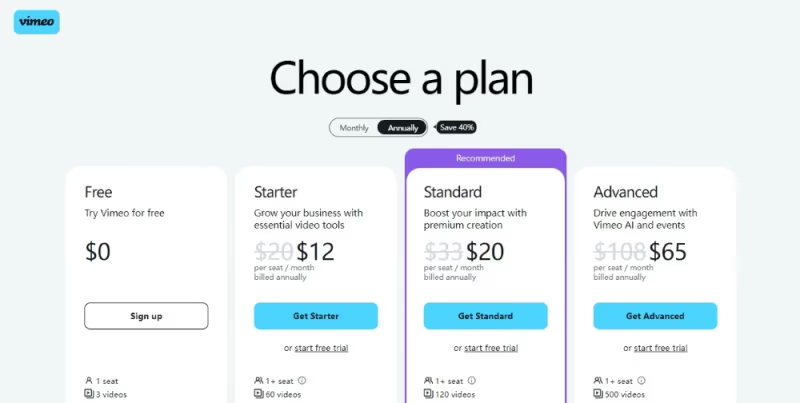
Here is an overview of what’s included across Vimeo’s Starter, Standard and Advanced pricing packages:
#Starter Plan
-
$20/month ($12/month if billed annually)
-
60 videos
-
5 team members
-
Basic analytics
-
Video privacy controls
#Standard Plan
-
$33/month ($20/month annual billing)
-
120 videos
-
25 team members
-
Advance analytics
-
Review & collaboration tools
#Advanced Plan
-
$108/month ($65/month prepaid annually)
-
500 videos
-
Unlimited team members
-
Premium analytics & insights
-
Advanced collaboration & control tools
Vimeo also offers custom Enterprise plans for companies or large organizations with specialized needs.
No matter which paid tier fits best, they all come with perks like:
-
Ad-free viewing
-
Uncapped viewing limits
-
Mobile app streaming
-
Offline viewing options
-
Video review & analytics
-
Customer support access
And every paid plan is covered by a 7-day money-back satisfaction guarantee, making it easy to test risk-free before committing long-term.
#Unique Content on Vimeo
Beyond the subscription perks, Vimeo gives creators and viewers specialized functionality not found on other video platforms:
#4K Ultra HD Streaming
The high resolution and bitrates supported on Vimeo enable next-level viewing in up to 4K quality. Crisp visuals transport audiences closer to the action.
#Integrated Creative Tools
Through partnerships with editing software like Adobe Premier Pro and DaVinci Resolve, Vimeo lets creators upload videos straight from timeline to platform for a faster workflow.
#Monetization Opportunities
Creators can generate income from original material through tips, rentals, subscriptions or merchandise sales right within Vimeo’s ecosystem.
#Exclusive Content Options
Password-protected videos, geo-blocking, domain restrictions and member-only channels allow controlling access for niche audiences willing to pay a premium for specialized content.
Vimeo functions as an end-to-end host for both distributing and monetizing quality video content to engaged viewers.
#Bottom Line
While Roku devices don’t natively support Vimeo integration, that amazing library of video content remains easily accessible thanks to wireless screen mirroring functionality built into mobile platforms and computer operating systems.
In just a few quick steps, iOS, Android, Windows and Mac users can transmit full-screen Vimeo playback to Roku for enjoyment on the big screen. Subscription members gain access to premium tools and original content not available elsewhere.
#FAQ
#Can you install Vimeo directly on a Roku device?
No, Roku does not have an official Vimeo channel or app in its Channel Store. The only way to watch Vimeo content on a Roku is through screen mirroring from a phone, tablet, or computer. This means you need a secondary device to cast the Vimeo feed to your TV.
#Does screen mirroring affect Vimeo video quality on Roku?
Quality depends on your source device resolution, Wi-Fi bandwidth, and TV display specs. On a strong 5GHz Wi-Fi connection, most users see minimal quality loss during mirroring. Keeping both devices close to the router helps maintain a stable, high-quality stream.
#Do you need a paid Vimeo subscription to mirror content to Roku?
No. Vimeo’s free tier lets you browse and watch publicly available videos, and you can mirror those to Roku at no cost. Paid plans unlock extras like ad-free viewing, offline downloads, and access to premium creator content. The Starter plan begins at $12/month with annual billing.
#What should you do if Roku screen mirroring keeps disconnecting?
Start by restarting both your Roku and the source device. Then confirm they are on the same Wi-Fi network and that no VPN is active on either device. If the issue persists, move the Roku closer to your router or switch to a less congested 5GHz Wi-Fi band.
#Can you mirror Vimeo to Roku from a Mac using AirPlay?
Yes, many Roku models released after 2019 support AirPlay. Click the AirPlay icon in your Mac’s menu bar, select your Roku, and approve the connection on the TV. Once connected, open Vimeo in a browser or the Mac app and your screen will appear on the Roku-connected TV.
#Is there any lag when mirroring Vimeo to a Roku device?
A slight delay of about 0.5 to 1 second is normal with screen mirroring. For regular video playback this is barely noticeable. If you experience heavy lag, reduce interference from other wireless devices, close unused apps on the source device, and make sure your router firmware is up to date.
#What Roku models support screen mirroring for Vimeo?
Most Roku devices made after 2017 support screen mirroring from Windows and Android. AirPlay support for iPhone and Mac requires Roku OS 9.4 or later, which is available on Roku Streaming Stick+, Roku Ultra, and newer Roku Express models. Check your Roku’s software version under Settings > System > About to confirm compatibility.
#Can you watch Vimeo on Roku without Wi-Fi?
No, screen mirroring requires both the Roku and source device to be on the same Wi-Fi network. Without a wireless connection, there is no way to cast Vimeo to the Roku. As a workaround, Vimeo Premium subscribers can download videos for offline viewing on a phone or laptop, though those cannot be mirrored without Wi-Fi.