Roku Channel offers thousands of free movies, TV shows, and live channels, but it is not available as a standalone app on Apple TV. If you own an Apple TV and want access to Roku Channel’s free content library, AirPlay screen mirroring is the most reliable method.
This guide covers the full setup process for iPhone, iPad, and Mac, along with fixes for common issues like audio lag and disconnections.
- No native app exists — Roku has not released a Roku Channel app for Apple TV as of March 2026
- AirPlay mirroring works on all Apple TV models — including Apple TV HD and Apple TV 4K (1st, 2nd, and 3rd generation)
- iPhone and iPad users need the free Roku app — available on the App Store with a free Roku account
- Mac users can stream through any browser — visit therokuchannel.roku.com and mirror the screen to Apple TV
- Streaming quality tops out at 1080p — AirPlay mirroring does not support 4K passthrough from the source device
#Why Is There No Roku Channel App on Apple TV?
Roku and Apple are direct competitors in the streaming device market. Roku sells its own hardware (Roku Express, Roku Ultra, Roku-branded TVs), and releasing a Roku Channel app on Apple TV would drive users toward a rival platform. This is a business decision, not a technical limitation.
The Roku Channel app is available on iOS devices, Android, and web browsers. It just isn’t on tvOS. That gap is what makes AirPlay the go-to workaround for Apple TV owners who want Roku Channel’s free content.
If you’re weighing which device fits your setup better, our Apple TV vs Roku comparison breaks down the key differences.
#How Do You Set Up AirPlay on Apple TV?
Before mirroring anything, you need AirPlay turned on. Here is how to check:
- Open Settings on your Apple TV.
- Select AirPlay and HomeKit.
- Toggle AirPlay to On if it is not already enabled.
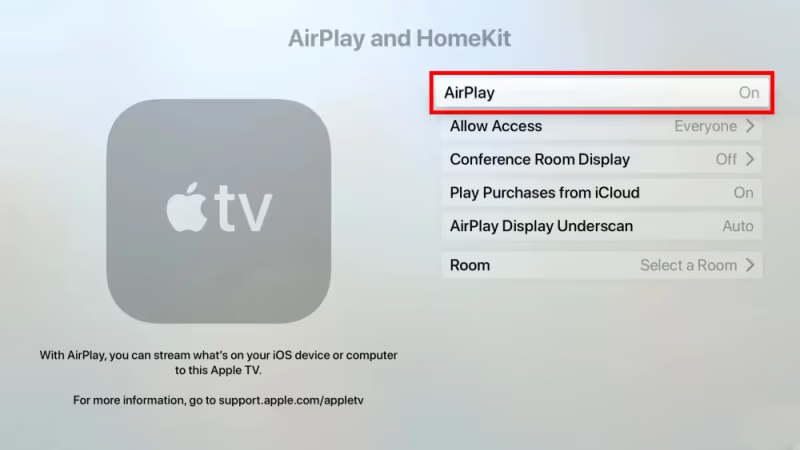
You can also set “Allow Access” to Anyone on the Same Network if your iPhone or Mac does not appear when trying to mirror. This setting controls which devices can connect without a pairing code.
Both your Apple TV and the device you are mirroring from must be on the same Wi-Fi network. Different networks (or a VPN on one device) will block the connection.
#Stream Roku Channel from iPhone or iPad
The Roku mobile app for iOS includes full access to the Roku Channel. You do not need a Roku device to use it.
- Download the Roku app from the App Store.
- Open the app and sign in with your Roku account (free to create).
- Tap The Roku Channel inside the app and start playing any movie, show, or live channel.
- Swipe down from the top-right corner of your iPhone or iPad to open Control Center.
- Tap Screen Mirroring and select your Apple TV from the list.
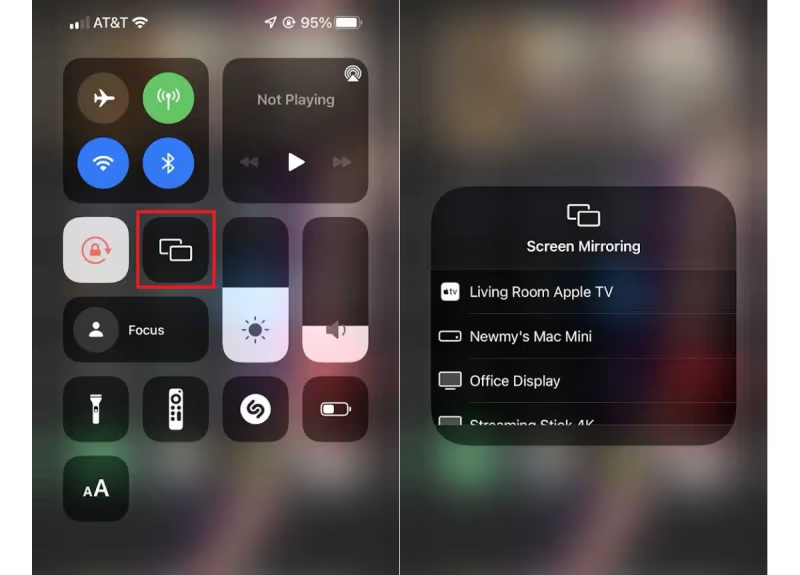
Your iPhone or iPad screen will appear on your TV within a few seconds. The video plays at up to 1080p, and audio routes through your TV speakers or connected soundbar automatically.
Keep your iPhone unlocked while mirroring. Locking the screen stops the AirPlay session. If you want to use your phone while watching, this method has that drawback.
#Stream Roku Channel from a Mac
Mac users do not need the Roku app. The Roku Channel is fully accessible through a web browser.
- Open Safari, Chrome, or Firefox on your Mac.
- Go to therokuchannel.roku.com and sign in.
- Click the AirPlay icon in the macOS menu bar (top-right, near the clock).
- Select your Apple TV to start mirroring your display.
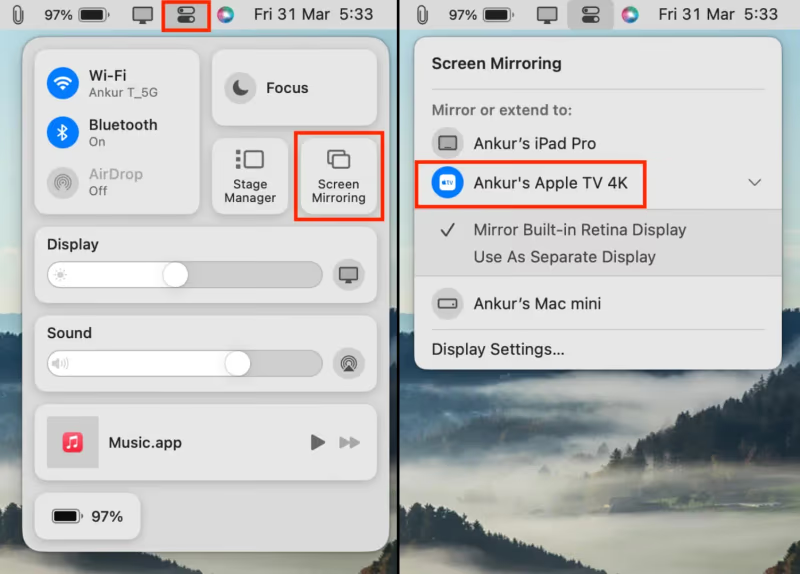
The advantage of using a Mac is that you can keep working in other windows while Roku Channel plays. AirPlay from a Mac mirrors the full screen by default, but you can switch to “Mirror Display” or “Extended Display” in the AirPlay dropdown to control what shows on your TV.
For the best video quality, use Safari. Apple optimizes AirPlay performance in Safari more than third-party browsers, and you will notice fewer dropped frames during playback.
#What Are Common AirPlay Issues and Fixes?
AirPlay is generally reliable, but a few problems come up regularly. Here are the most common ones and how to handle them.
#Apple TV Not Showing Up in AirPlay List
This almost always means a network mismatch. Confirm both devices are on the same Wi-Fi network. Restart your router if they are on the same network but still not connecting. On the Apple TV, go to Settings > AirPlay and HomeKit > Allow Access and set it to Anyone on the Same Network.
#Audio Delay or Lip Sync Issues
Audio lag during AirPlay mirroring happens because the video and audio streams are processed separately. Close other apps on your iPhone or Mac to free up processing power. If the lag persists, try restarting both the Apple TV and the source device. Switching from a 2.4GHz to a 5GHz Wi-Fi band can also reduce latency, as 5GHz handles video streaming traffic more efficiently.
#AirPlay Keeps Disconnecting
Frequent disconnections usually point to Wi-Fi interference or an overloaded router. Move your router closer to your Apple TV if possible. Check that your Apple TV is running the latest tvOS update under Settings > System > Software Updates, since older firmware versions have known AirPlay bugs that Apple has since patched.
For more AirPlay troubleshooting, see our guide on AirPlay keeps disconnecting from TV.
#Roku Channel Content Worth Watching
Roku Channel is entirely ad-supported. You pay nothing. The trade-off is commercial breaks every 10 to 15 minutes, similar to traditional TV.
The library includes movies from studios like Lionsgate and MGM, plus original Roku Channel series. Live channels cover news (ABC News Live, Reuters), sports highlights, and lifestyle content. Roku has been expanding its originals lineup since 2022, adding shows like “Weird: The Al Yankovic Story” that were well-received.
Compared to other free streaming services like Tubi and Pluto TV, Roku Channel tends to have newer movie titles in its rotation. If you already watch Hulu on Apple TV or Starz on Apple TV, Roku Channel fills a different niche as a free alternative for casual browsing.
#Alternatives to AirPlay Mirroring
AirPlay is the most convenient option, but it is not the only path.
#Use an HDMI Cable
You can connect a MacBook or iPad (with USB-C) directly to your TV using an HDMI adapter. This bypasses Apple TV entirely and gives you a wired, lag-free connection. Apple’s official USB-C to HDMI adapter costs about $69, but third-party options run $15 to $25.
#Get a Roku Streaming Stick
If you watch Roku Channel often, a dedicated Roku device might make more sense than mirroring every time. The Roku Express 4K+ costs under $40 and plugs into any HDMI port on your TV. You would have the native Roku Channel app with full 4K HDR support, which AirPlay mirroring cannot match.
If you want to go the other direction and use Apple TV+ on a Roku device, check out our guide on watching Apple TV on Roku.
#Bottom Line
Roku Channel is not coming to Apple TV as a native app anytime soon. AirPlay screen mirroring from an iPhone, iPad, or Mac is the most practical workaround, and it takes under two minutes to set up. The main limitation is the 1080p quality cap, but for free movies and live channels, that is a fair trade-off. If you find yourself mirroring frequently, consider picking up a Roku Express to skip the extra step altogether.
#Frequently Asked Questions
#Does Roku Channel cost anything to use?
No. Roku Channel is completely free and ad-supported. You need a Roku account to sign in, but creating one costs nothing and does not require a credit card.
#Can I AirPlay Roku Channel in 4K quality?
AirPlay screen mirroring maxes out at 1080p regardless of your source device or Apple TV model. Even if you have an Apple TV 4K, the mirrored content from Roku Channel will display at 1080p. For 4K Roku Channel playback, you need a native Roku device like the Roku Streaming Stick 4K.
#Will my iPhone battery drain fast while mirroring?
Yes, screen mirroring uses significant battery. Expect roughly 15% to 20% battery drain per hour on an iPhone 15, depending on screen brightness. Plug your iPhone into a charger during longer viewing sessions to avoid interruptions.
#Is there a way to mirror without Apple TV?
You can use a smart TV with built-in AirPlay 2 support. Many Samsung, LG, Sony, and Vizio TVs manufactured after 2019 include AirPlay 2 natively. Check your TV’s settings menu for an AirPlay option. Our guide on mirroring iPhone to TV without Apple TV covers this in detail.
#Do I need a Roku device to use the Roku app?
No. The Roku mobile app on iOS lets you access the Roku Channel without owning any Roku hardware. You just need a free Roku account. The app also works as a remote control if you do have a Roku player, but the streaming portion is independent.
#Can I use AirPlay while doing other things on my phone?
Not with screen mirroring. AirPlay screen mirroring sends everything on your display to the TV, so switching to another app will show that app on the TV instead. If you lock your phone, the mirroring session ends. A Mac is better for multitasking since you can use extended display mode.
#Why does the Roku Channel show different content than my Roku device?
The Roku Channel library can vary slightly depending on the platform. The mobile app and web version occasionally have different licensing agreements than the Roku device version. Most of the core catalog is the same, but you might notice a few titles missing or added on one platform versus another.