Watching Patreon content on Roku requires screen mirroring since there is no dedicated Patreon app in the Roku Channel Store. Over 200,000 creators use Patreon to share exclusive videos, podcasts, and live streams with paying subscribers. You can mirror all of that content from your phone, tablet, or computer to your Roku in just a few steps.
- No Patreon app exists for Roku — screen mirroring is the only way to display Patreon content on your TV
- Android mirroring uses the built-in Cast feature — both devices must share the same Wi-Fi network
- iPhone and iPad users mirror through Control Center — tap Screen Mirroring and select your Roku
- Windows PCs connect with the Win+K shortcut — works with Patreon.com in any browser
- Patreon takes 5-12% commission — over 200,000 creators use the platform across video, music, and podcasts
#What Is Patreon and Why Mirror It to Roku?

Patreon is a membership platform where creators run subscription services. Fans pay monthly for access to exclusive videos, behind-the-scenes content, early releases, live streams, and merch discounts. It works differently than traditional streaming services like ESPN or HGTV that offer a fixed lineup of shows.
A few things worth knowing about the platform:
- Over 200,000 creators use it globally
- Top creators earn more than $150,000 per month
- Content spans video, music, podcasts, writing, and art
- Patreon charges creators 5-12% commission depending on their plan
Since Roku does not have a Patreon channel, mirroring your device screen is the workaround. The process takes under two minutes regardless of which device you use.
#How Do You Mirror Patreon from an Android Device?
Mirroring your Android phone or tablet screen is the fastest way to get Patreon playing on your Roku. Here is the process:
- Open Settings > System > Screen mirroring on your Roku and set it to “Prompt” or “Always allow”
- Connect both your Android device and Roku to the same Wi-Fi network
- Install the Patreon app from Google Play and sign in
- Pull down Quick Settings on your Android and tap Cast or Screen Mirroring
- Select your Roku device from the list
- Play any video or podcast on Patreon and it will appear on your TV
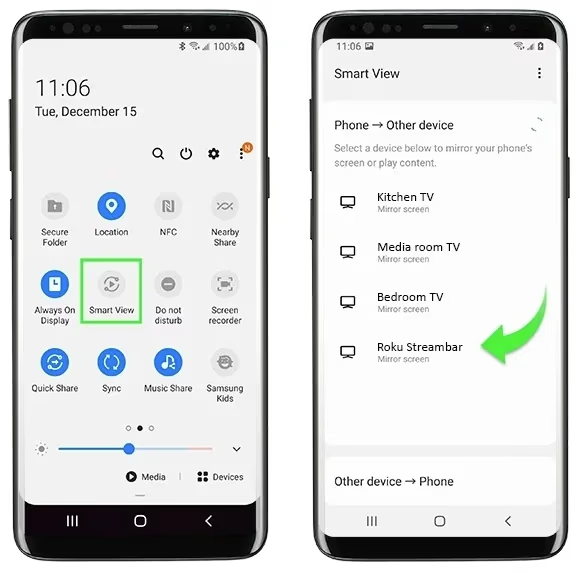
Your entire Android screen mirrors to the Roku, so you can browse different creators and switch between content without reconnecting. For more Android-to-Roku tips, check out our mirror Android to Roku guide.
#How Do You Mirror Patreon from an iPhone or iPad?
Apple devices use AirPlay to mirror screens. Roku added AirPlay support starting with Roku OS 9.4, so most current Roku models work. Follow these steps:
- Turn on AirPlay in your Roku settings under Settings > Apple AirPlay and HomeKit
- Connect your iPhone or iPad and Roku to the same Wi-Fi network
- Download the Patreon app from the App Store and log in
- Open Control Center by swiping down from the top-right corner
- Tap Screen Mirroring and select your Roku
- Enter the AirPlay code shown on your TV if prompted
- Open Patreon and start playing content
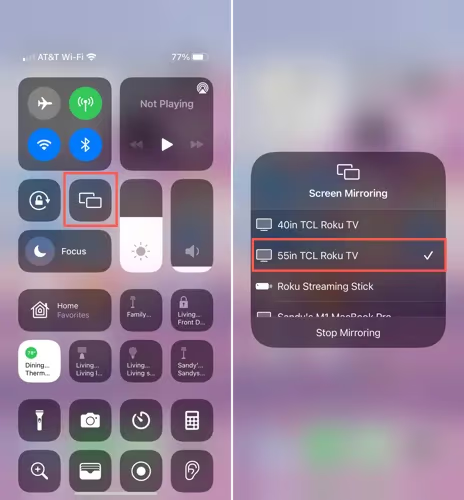
The connection stays active until you manually stop mirroring or disconnect from Wi-Fi. You can learn more about Apple’s casting features in our AirPlay on Roku TV guide.
#Mirror Patreon from a Windows PC
You can also mirror Patreon from a Windows laptop or desktop. This method uses the built-in Miracast wireless display protocol:
- Make sure your Roku and PC are on the same Wi-Fi network
- Open any browser and go to Patreon.com
- Log in and find the content you want to watch
- Press Windows + K to open the Connect panel
- Select your Roku device from the available displays
- Accept the connection prompt on your Roku
- The browser window now mirrors to your TV screen
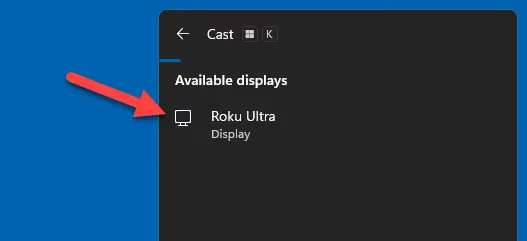
This method works best for longer-form content like video series or live streams where you want a bigger screen.
#What Should You Do if Mirroring Is Not Working?
Screen mirroring issues are usually caused by network problems or outdated software. Try these fixes in order:
- Restart both devices by unplugging your Roku for 30 seconds and rebooting your phone or PC
- Confirm the same Wi-Fi network on both the Roku and your mirroring device
- Update your Roku firmware under Settings > System > System update
- Re-pair the devices by disconnecting the mirror session and starting fresh
- Check Roku mirroring settings to make sure screen mirroring is set to “Prompt” or “Always allow”
- Move devices closer if your Wi-Fi signal is weak or the connection drops frequently
If none of these steps help, try a different mirroring device. Android devices and iPhones sometimes behave differently depending on the Roku model you own.
#Bottom Line
Roku does not have an official Patreon app, but screen mirroring fills the gap. Android users cast through Quick Settings, iPhone and iPad users mirror through Control Center with AirPlay, and Windows PC users press Win+K to connect. The whole setup takes under two minutes and lets you watch any Patreon content on your TV. Keep both devices on the same Wi-Fi network and make sure your Roku firmware is current for the best results.
#FAQ
#Is there a Patreon app available on Roku?
No, Patreon does not offer an app in the Roku Channel Store. Screen mirroring from a phone, tablet, or computer is currently the only way to display Patreon content on a Roku-connected TV.
#What devices can you use to mirror Patreon to Roku?
You can mirror from Android phones and tablets, iPhones, iPads, and Windows PCs. Mac computers also work through AirPlay if your Roku model supports it. Essentially any device with a screen and Wi-Fi can mirror to Roku.
#Do you need a paid Patreon account to watch content on Roku?
Browsing Patreon and viewing free posts does not require an account. However, most creator videos and exclusive content are behind a paywall, so you will need to subscribe to individual creators to access their full libraries.
#Does screen mirroring affect video quality?
Video quality depends on your Wi-Fi speed and signal strength. A stable connection of at least 10 Mbps produces smooth 1080p playback. Weak signals can cause lag, buffering, or lower resolution output on your TV.
#Can you still use your phone while mirroring Patreon?
No, screen mirroring displays everything on your phone screen. Opening another app or switching away from Patreon will change what appears on your Roku. Your phone screen stays active and visible on the TV the entire time.
#Does mirroring Patreon use more data than watching on your phone?
Mirroring itself does not increase data usage because the Patreon content streams to your phone first and then gets projected to the Roku over your local Wi-Fi. The data consumption stays the same as watching directly on your device.
#Will mirroring drain your phone battery faster?
Yes, screen mirroring uses more battery than normal phone usage. Both the display output and Wi-Fi transmission run simultaneously. Plugging your phone into a charger during longer viewing sessions is a good idea.
#Can you mirror Patreon audio-only content like podcasts?
Yes, audio-only content mirrors just fine. Your phone screen will show the Patreon player interface on the TV while the audio plays through your Roku speakers or connected soundbar. This works well for podcast episodes from creators you support.