Watching ESPN on your TV is easier than ever with Chromecast. This streaming device lets you cast ESPN from mobile devices and computers directly to your big screen.
- Chromecast streams ESPN via casting — open the ESPN app, tap the Cast icon, and your TV plays the content in seconds
- Works on iOS, Android, and computers — cast from any device with the ESPN app or Chrome browser installed
- ESPN+ subscription starts at $9.99/month — unlocks extra live games, original shows, and on-demand programming
- Same WiFi network is required — your casting device and Chromecast must share the same 2.4GHz wireless network
- Chromecast costs under $40 — the most affordable way to get ESPN on a big screen without a cable box
#What is Google Chromecast?
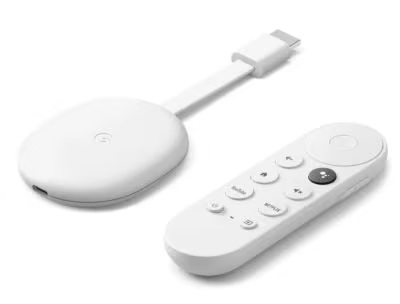 Chromecast is a small HDMI streaming device that plugs into the back of your TV. It connects to WiFi and works with compatible apps on your phone, tablet, or computer to stream media and mirror screens.
#Key Features:
-
Streams in up to 1080p HD quality
-
Simple setup – just plug it in
-
Casts media from hundreds of apps
-
Small and portable
With over 30 million sold, Chromecast has become the most popular streaming gadget. It starts at just $35, making it extremely affordable.
The Chromecast device itself doesn’t contain any internal apps or user interface. Instead, you cast content from supported mobile apps and web services like YouTube, Netflix, Apple TV+, ESPN, Disney Plus and thousands more.
Apps compatible with Chromecast feature a Cast button or Cast icon. Tapping this will send media from your device up to the TV. So you can browse shows on a phone or laptop while streaming on the big screen.
#Step-by-Step Guide: How To Cast ESPN With Chromecast
Watching ESPN on Chromecast only takes a few minutes to setup. Just connect your device, open the app, and start casting. Here’s how it works:
#1. Connect Chromecast To TV
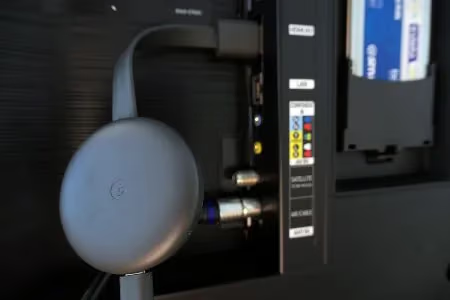
Plug the Chromecast into an open HDMI port on your television. Use the included power cable to connect it to a USB port or wall adapter.
The device will boot up and display a pairing code on your TV.
#2. Download ESPN App
Install the ESPN app on your casting device – like a phone, tablet, or laptop. Launch the app and login with your ESPN or ESPN+ account credentials.
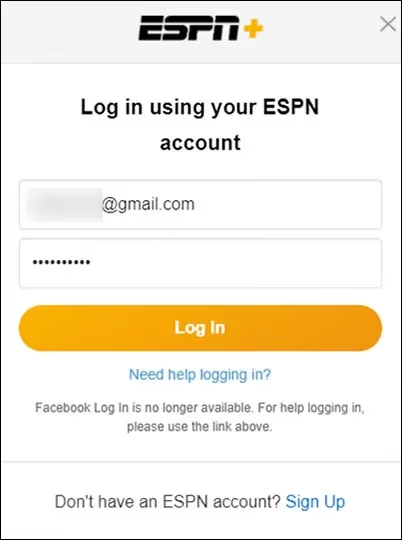
Having an ESPN+ subscription provides access to extra live games, original shows, and on demand programming.
#3. Connect Phone & Chromecast To Same WiFi
Make sure your phone and Chromecast device are both connected to the same 2.4Ghz WiFi network. The Cast feature will search for compatible gadgets on your local network.
#4. Tap The Cast Icon In The ESPN App
While playing a video in the ESPN app, tap the Cast icon in the corner. This looks like a TV with a WiFi symbol. Select your Chromecast device to connect it.
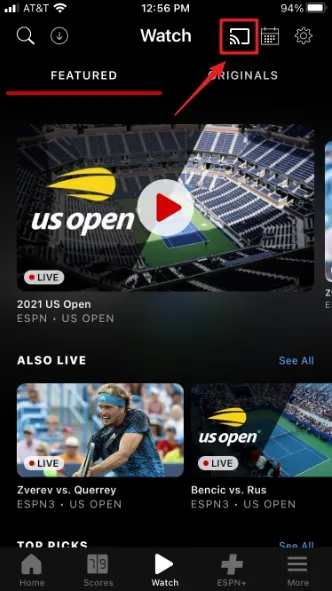
After a moment, the ESPN app will begin streaming on your TV. You can then control playback from your phone, tablet, or computer.
And that’s all there is to it! Chromecast will now mirror the ESPN app, allowing you to stream live sports, highlights, and analysis on the big screen.
#Casting ESPN From iOS Devices
iPhone and iPad owners can easily beam ESPN to their televisions with Chromecast using AirPlay.
To Cast From iPhone or iPad:
-
Connect Chromecast to TV
-
Open ESPN app and play video
-
Swipe down from top of screen to access Control Center
-
Tap AirPlay icon
-
Choose your Chromecast
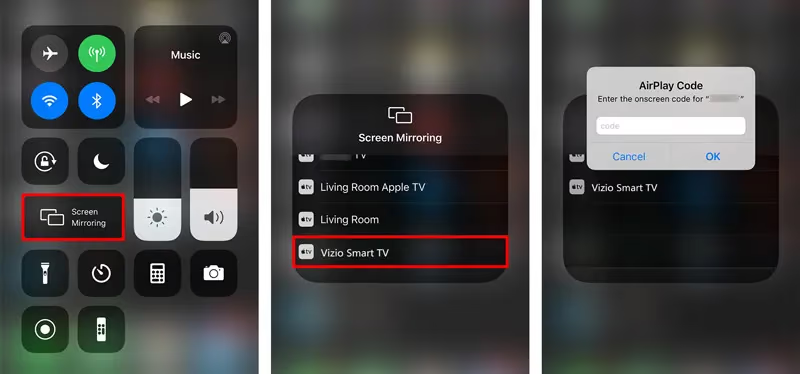
The video stream will switch over to your television. You can then control playback using your iOS device.
Note: Your iPhone/iPad and Chromecast must be on the same wireless network to cast.
Advantages of iOS devices include Cast support in other apps, screen mirroring, and AirPlay compatibility with earlier Chromecast models.
#Casting ESPN From Android Devices
Android phone and tablet users can cast ESPN using the built-in Cast feature:
To Cast ESPN From Android Device:
-
Plug In & Set Up Chromecast
-
Launch ESPN App, Play Content
-
Tap Cast Icon in Corner
-
Select Your Chromecast
The ESPN stream will begin instantly on your big screen TV while remaining connected to your Android mobile device.
Android Cast works identically to the native apps with the ability to control playback as well as access content and ESPN+ features on your smaller casting screen.
#Casting ESPN From Computers & Laptops
While mobile devices offer greater portability, you may prefer casting ESPN streams from a computer or laptop using Chrome browser.
Luckily Chrome desktop browser has Google Cast functionality for sending ESPN video to TVs.
To Cast ESPN From Chrome Browser:
-
Install Chromecast Plug-In For Chrome
-
Go To ESPN Website
-
Play Live Stream or Video Highlight
-
Click Cast Icon In Browser
-
Choose Your Chromecast From List
-
Select Cast Desktop Option
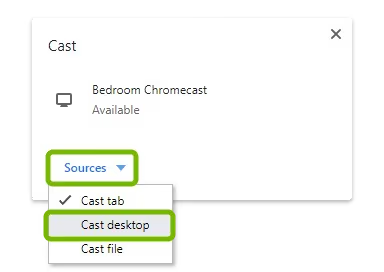
Once connected, the computer or laptop acts as the remote while streaming to television. This gives you the largest playback controls, ideal for navigating ESPN’s many live sporting events and replays.
#How Can You Improve ESPN Streaming Quality on Chromecast?
While getting ESPN up on Chromecast is straightforward, these pro tips will help your live sports streaming experience:
-
For highest video quality, plug Chromecast directly into an HDMI port instead of going through another device
-
Position WiFi router centrally so Chromecast and casting device have strong signal
-
Close unused apps and browsers tabs to devote more connectivity to ESPN
-
Pause casting instead of fully disconnecting to quickly resume streaming
-
Consider ethernet powering Chromecast for greater reliability
And if issues arise try rebooting devices, repositioning WiFi router closer to TV, double checking connections, or factory resetting Chromecast to refresh settings.
#Bottom Line
Chromecast makes enjoying ESPN’s in-depth sports coverage more convenient and cost effective than ever:
-
Affordable HDMI streaming stick for under $40
-
Wirelessly casts ESPN app from mobile devices
-
Also works with desktop browsers like Chrome
-
Easy plug and play setup
-
Controls ESPN and ESPN+ viewing on both big and small screens
-
Stream worldwide live sports and commentary 24/7
So unlock a front row seat to your favorite teams, events, analysis and highlights with ESPN on demand using handy Chromecast.
#Frequently Asked Questions
#How do I sign up for ESPN+?
Go to plus.espn.com to create an ESPN+ account and subscribe directly starting at $9.99/month. You get instant access to live games, original programs, and on-demand content. The Disney Bundle option also includes Disney+ and Hulu at a discounted rate.
#What if my Chromecast does not show up on the casting list?
Make sure your Chromecast and casting device connect to the same WiFi network. Reboot the Chromecast by unplugging it for 10 seconds and plugging it back in. If that does not work, try moving your WiFi router closer to the TV or restarting your phone’s WiFi connection.
#Can multiple devices cast to one Chromecast at the same time?
No, only one device can actively cast to a Chromecast at a time. You can switch the casting connection between different devices on the same WiFi network without needing to disconnect first. The new device simply takes over the stream.
#What sports are available on ESPN+?
ESPN+ covers UFC Fight Nights, NHL and MLB out-of-market games, PGA Tour Live, college football, and international soccer. The service also includes the full 30 for 30 documentary library. Live event availability varies by season and broadcast rights.
#Can I watch ESPN on other streaming devices besides Chromecast?
Yes, the ESPN app works on most major streaming platforms. You can watch ESPN on Roku, watch ESPN on Apple TV, or stream through services like Fubo TV and Pluto TV. Each platform offers the same ESPN and ESPN+ content library.
#Does Chromecast support 4K ESPN streaming?
The Chromecast with Google TV 4K model supports up to 4K resolution, but ESPN streams are typically capped at 1080p. You will still get a sharp picture on a 4K TV since the Chromecast upscales the signal. For the best results, make sure your internet speed is at least 10 Mbps.
#Do I need a cable subscription to watch ESPN on Chromecast?
You do not need cable to watch ESPN+ content, which is a standalone streaming subscription. However, accessing live ESPN and ESPN2 channels requires authentication through a cable, satellite, or live TV streaming provider. Services like YouTube TV, Hulu + Live TV, and Sling TV all include ESPN in their channel lineups.
#Why does my ESPN stream keep buffering on Chromecast?
Buffering usually happens because of a weak WiFi signal between your router and the Chromecast. Try connecting the Chromecast to a 5GHz WiFi band if your router supports it, since that band handles video streaming better. Closing other apps on your casting device and pausing downloads on the network can also free up bandwidth.