Disney Plus is available on most Roku devices, and setting it up takes just a few minutes. Whether you want to revisit childhood animated classics or binge the latest Marvel superhero series, Disney Plus offers an unrivaled collection of films and shows to entertain all ages.
As one of the most popular streaming devices available, Roku provides an easy way to watch the Disney Plus library on your television. With support for features like 4K and Dolby Atmos audio on select models, you can enjoy an immersive, cinematic experience.
This guide walks you through everything needed to start streaming Disney Plus through Roku.
- Disney Plus runs on most Roku devices released after 2015, including Roku Express 4K+, Streaming Stick 4K, and Roku Ultra
- Installation takes under 3 minutes through the Roku Channel Store with a simple search-and-add process
- 4K HDR and Dolby Atmos are supported on select Roku models when paired with compatible TVs and audio systems
- Minimum internet speeds are 5 Mbps for HD streaming and 25 Mbps for 4K Ultra HD content
- Buffering fixes usually involve rebooting your router, updating Roku firmware, or reinstalling the Disney Plus app
#Is Disney Plus Available on Roku?
The Disney Plus app can be installed on most modern Roku devices, with support added since the streaming service first launched in November 2019.
It provides access to thousands of Disney-owned movies and shows without any ads — the perfect entertainment option for families. You can also watch other popular channels like NBC, Fox, CBS, TBS, MSNBC, and The CW on Roku devices as well.
#What Roku Devices Support Disney Plus?
Disney Plus is compatible with the following Roku devices:
-
Roku Premiere
-
Roku Streaming Stick+
-
Select Roku TV models
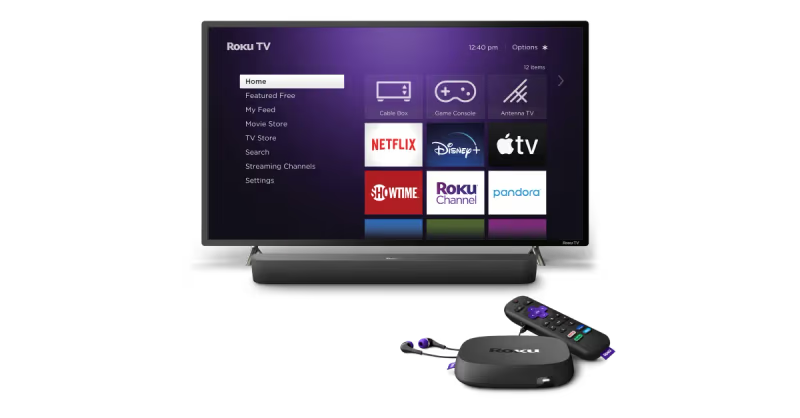
See Roku’s list of compatible devices for full details. Using this guide, you can check if your Roku model supports Disney Plus.
Key Takeaway: Disney Plus works on most newer Roku devices, but some older models are not supported. Refer to Roku’s compatibility list to confirm.
#How Do You Download Disney Plus on Roku?
Ready to unlock a world of Disney magic through your Roku device? Here are step-by-step instructions for installing and logging into the Disney Plus app:
-
From the Roku home screen, navigate to the Roku Channel Store.
-
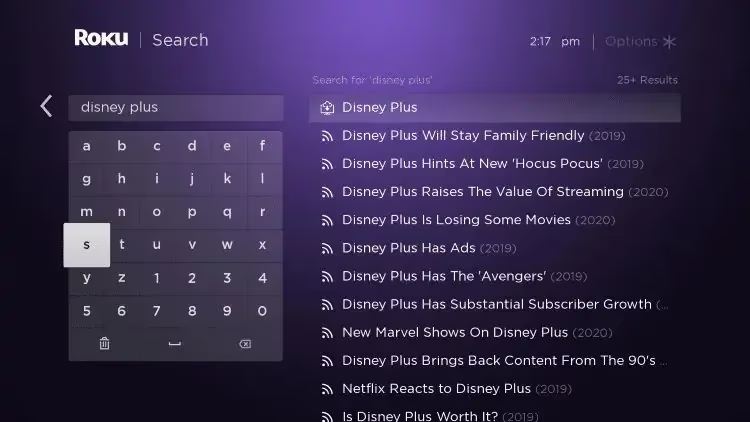
Use the Search function to find the Disney Plus app.
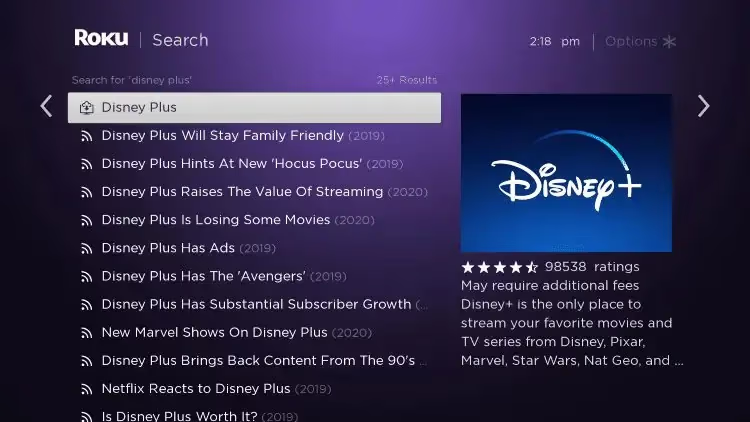
- Select “Add Channel” and the Disney Plus app will install.
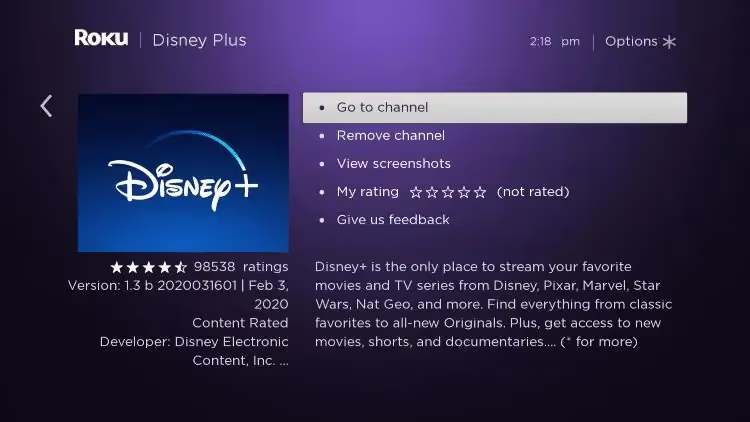
- Once installed, open the Disney Plus app from your home screen.
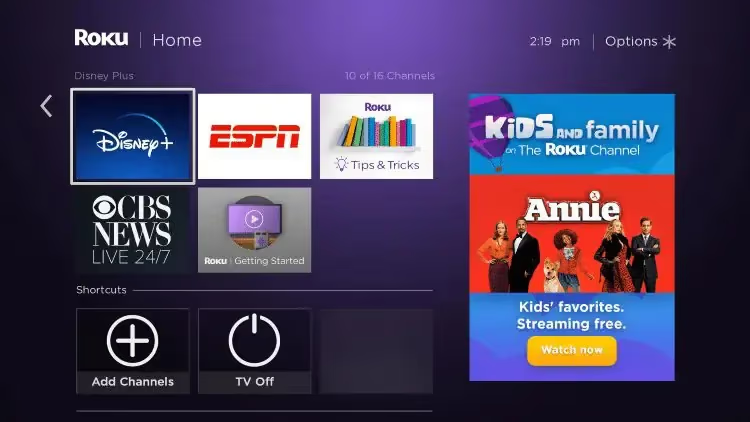
- Sign in using your Disney Plus login credentials.
Don’t have an account? Select the option to create one.

- Start streaming your favorite Disney films and series!
The channel store makes it simple to download in just a few minutes.
Pro Tip: Move the Disney Plus app to the top row on your Roku home screen for quicker access.
#What Internet Speed Do You Need for Disney Plus on Roku?
To avoid buffering issues or degraded video quality while streaming Disney Plus, Roku recommends a high-speed internet connection:
-
Minimum 5 Mbps for HD content
-
25 Mbps for 4K Ultra HD video
Use a speed test to check your network bandwidth. If it falls below these thresholds, especially for 4K streaming, consider contacting your ISP about upgrades.
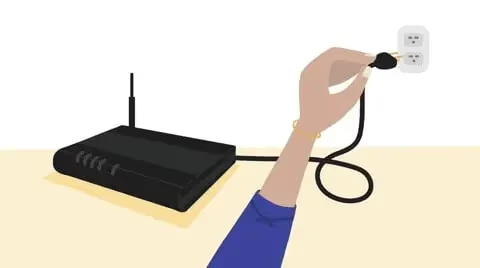
Wi-Fi interference or congestion can also disrupt streaming performance. Try restarting your router or connect Roku directly to your modem if issues occur.
Key Takeaway: For the best streaming experience, Disney Plus suggests minimum internet speeds of 5 Mbps for HD video and 25 Mbps for 4K Ultra HD.
#Enjoying 4K and Dolby Atmos
Want to watch Disney Plus titles in stunning 4K HDR quality with immersive Dolby Atmos audio? You’ll need a supported Roku player and compatible TV and sound system.
#Roku Devices with Disney Plus 4K Support
The following Roku models allow 4K streaming through Disney Plus when connected to a 4K television:
-
Roku Premiere
-
Roku Streaming Stick+
-
Roku Streaming Stick 4K
-
Roku Ultra LT
-
Select Roku TVs
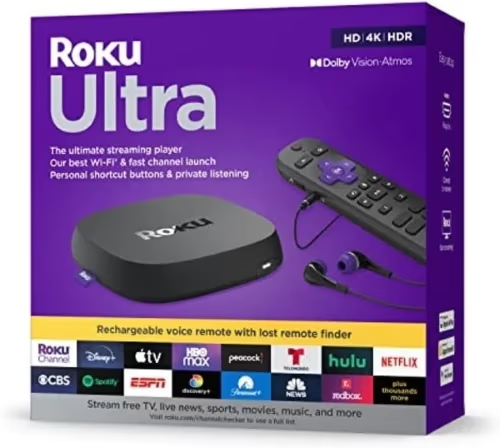
A 4K HDR compatible display is also required to view Disney Plus in ultra high definition 4K resolution.
#Dolby Atmos Audio
For immersive, theater-quality sound with Disney Plus, Roku devices with Dolby Atmos passthrough capability will transmit Dolby Atmos soundtracks if your audio system supports the format.
Enabling Dolby Atmos also requires connecting Roku to an A/V receiver or soundbar equipped with Dolby Atmos decoding technology.
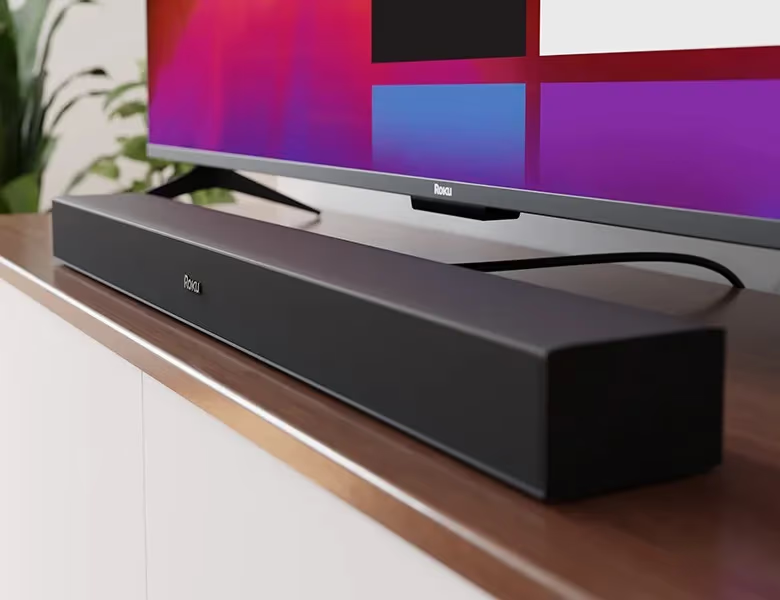
With advanced picture and audio capabilities, your Roku player can recreate the magic of the movies when set up properly!
Key Takeaway: Select newer Roku models allow Disney Plus viewing in stunning 4K HDR video and immersive Dolby Atmos audio when connected to capable displays and speakers.
#Troubleshooting Disney Plus on Roku
Frustrated by error messages or issues streaming Disney Plus through your Roku? Try these top troubleshooting tips:
-
Check Internet Speeds: Slow internet connectivity is the most common cause of buffering or streaming problems. Use a speed test and verify your network meets minimum requirements. Upgrade internet plans if needed.
-
Reboot Router: Cycle power on your router and modem to refresh the connection. Ensure other devices aren’t consuming bandwidth during streaming.
-
Reload App: Sign out and back into the Disney Plus app on Roku. Delete and reinstall if issues persist. This can clear app errors.
-
Update Roku Software: Navigate to Settings > System > System Update on your Roku to download the latest firmware. Updated software improves performance.
-
Contact Support: For additional troubleshooting help, Roku and Disney Plus provide 24/7 customer support via phone, email, forums and chat. Check their help sites for specialized assistance. You can also check out our guide comparing DisneyNow vs Disney Plus if you’re unsure which service is right for you.
Stuck buffering or dealing with error messages? Following the tips above should quickly get Disney Plus streaming smoothly on your television through Roku again.
Key Takeaway: Slow internet speeds are the most common cause of Disney Plus streaming problems on Roku. Rebooting the router, reloading the app, or contacting Roku/Disney Plus support can also help resolve issues.
#What to Watch on Disney Plus
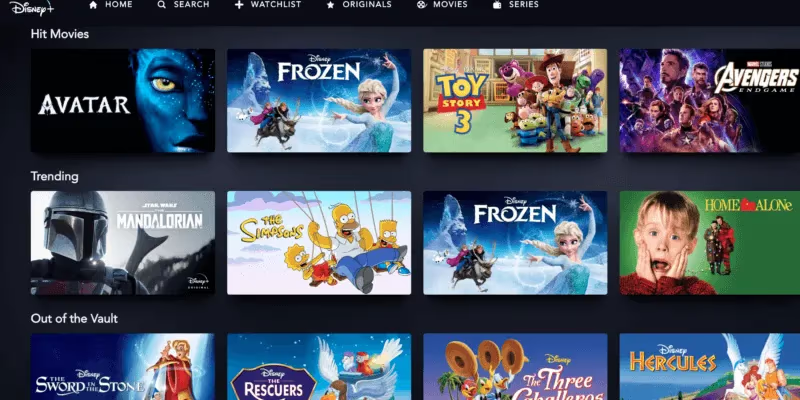
Disney Plus unlocks endless universes of magical movies and shows spanning animation, superheroes, sci-fi and more family-friendly genres.
With new titles added monthly, here are some current highlights available for streaming through your Roku device:
#Star Wars
-
The Mandalorian
-
Obi-Wan Kenobi
-
Andor
-
The Book of Boba Fett
#Marvel Cinematic Universe
-
Ms. Marvel
-
She-Hulk
-
Moon Knight
-
Guardians of the Galaxy Holiday Special
#Disney and Pixar Animation
-
Zootopia+
-
Disenchanted
-
Strange World
-
Pinocchio
From nostalgic classics to new spinoffs expanding famous franchises, Disney Plus offers unlimited escapism for all ages. Fire up your Roku to enter worlds of wonder! You can also stream Disney Plus on other devices like Chromecast or Apple TV if you have those instead of or in addition to a Roku.
Pro Tip: Create personalized watchlists and user profiles so each family member can easily track and find their favorite Disney Plus movies and series.
#Frequently Asked Questions
#Does Disney Plus have ads on Roku?
The standard Disney Plus plan on Roku is ad-free, so you can watch without interruptions. Disney does offer a cheaper ad-supported tier, but the premium plan removes all commercials.
#Do older Roku devices support Disney Plus?
Disney Plus is not available on Roku models released before 2015. Check Roku’s official compatibility list to confirm whether your specific streaming player or Roku TV supports the app.
#What Disney Plus bundles work with Roku?
Roku supports the Disney+/Hulu/ESPN+ bundle and the ad-free Disney Premium plan. Bundles that include ad-supported tiers may have limited compatibility, so check Disney’s current bundle options before subscribing.
#Why does Disney Plus keep buffering on my Roku?
Buffering usually results from slow internet speeds or Wi-Fi interference. Verify your network meets the 25 Mbps minimum for 4K streaming, restart your router, and make sure no other devices are using heavy bandwidth at the same time.
#What picture quality does Disney Plus support on Roku?
Select Roku devices can stream Disney Plus in 4K HDR when connected to a compatible 4K television. Dolby Atmos audio is also available on certain 4K Roku models paired with a supported soundbar or receiver.
#Can you watch Disney Plus on Roku for free?
Disney Plus does not offer a permanent free tier. However, some Roku promotions or bundled internet plans occasionally include a free trial period. Check the Roku Channel Store or your ISP for current offers.
#How do you fix Disney Plus not loading on Roku?
Start by restarting your Roku device and checking for software updates under Settings > System > System Update. If the app still won’t load, delete it from your Roku and reinstall it from the Channel Store. A router reboot can also resolve connection-related loading failures.
#Is Disney Plus worth it on Roku?
Disney Plus gives you access to thousands of titles from Disney, Pixar, Marvel, Star Wars, and National Geographic. For families or fans of these franchises, the monthly subscription cost is reasonable compared to other streaming services, especially with the bundle options available.