Want to watch Apple TV+ shows and movies on your Roku device? This step-by-step guide covers getting the Apple TV app, signing up for Apple TV+, and troubleshooting any issues. As a long-time Roku and Apple TV user, I will walk you through everything you need to know to start streaming Apple content on Roku. And if you’re looking for guides on watching other popular services like Disney Plus, MSNBC, Fox, TBS, or ABC on Roku, we’ve got you covered there too.
- Apple TV app works on most Roku devices — including streaming sticks, Express, Premiere, Ultra, and select Roku TVs
- Three ways to add the app — via Roku device Channel Store, Roku mobile app, or Roku website
- Apple TV+ costs $6.99/month — with a free trial available for new subscribers
- Sign in with your Apple ID — to access Apple TV+ originals and previous iTunes purchases
- Troubleshoot by updating software — restart your Roku, check internet speed, and reinstall the app if needed
#Is the Apple TV App Available on Roku?
The good news is that yes, the Apple TV app is available on most Roku streaming players and Roku TV models.
Apple has made their TV app widely available across platforms to reach more potential subscribers. Supporting competing devices like Roku makes good business sense to drive sign-ups.
Here is a quick list of supported Roku devices:
-
Roku streaming sticks, 4K sticks, Streaming Stick+
-
Roku Express, Express+, Express 4K+, Premiere, Ultra
-
Select Roku TV models
To confirm, check your Roku model number under Settings > System > About and compare to Roku’s list of supported devices.
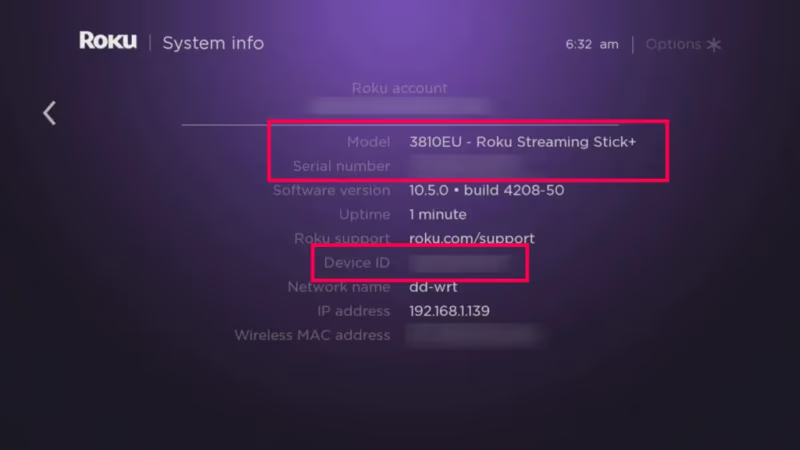
If you don’t see your device listed, Apple TV app compatibility may be limited. Check Roku and Apple’s sites for updates.
#Step-by-Step Guide to Getting Apple TV on Roku
I’ll walk you through 3 quick methods to add the Apple TV channel to your Roku home screen. The process is similar to adding other popular streaming channels like Newsmax, Yes Network or Patreon.
#Method 1: Add Channel via Roku Streaming Device
- Press the Home button on your Roku remote
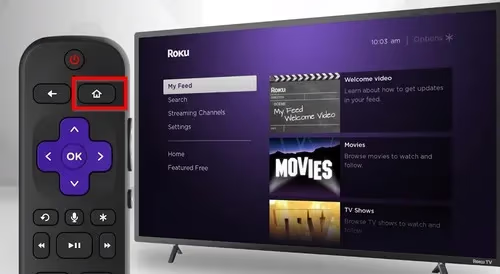
- Highlight and select Streaming Channels on the main menu
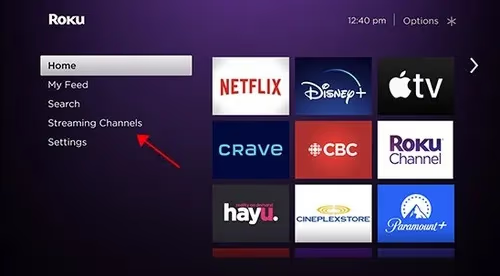
-
Choose Search Channels
-
Type in “Apple TV”
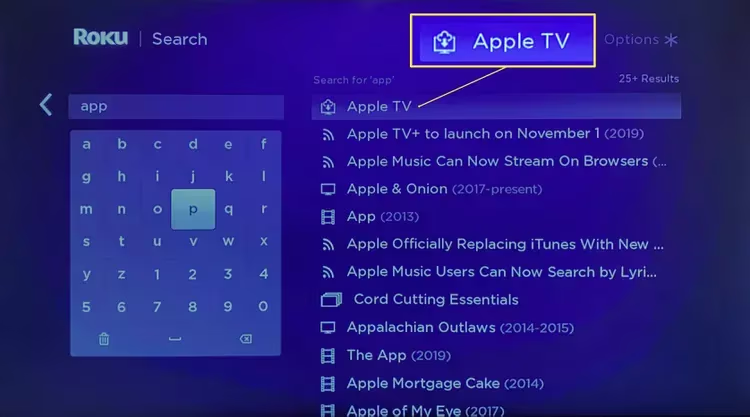
-
Highlight the Apple TV app and press OK
-
Select Add Channel
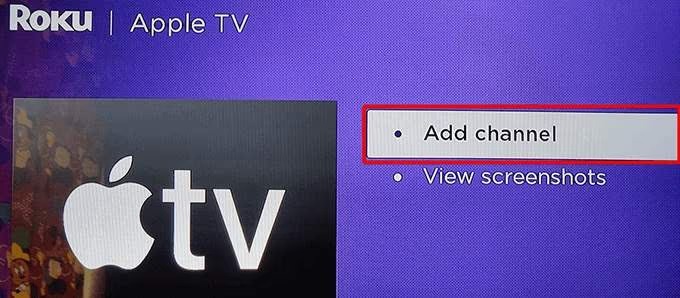
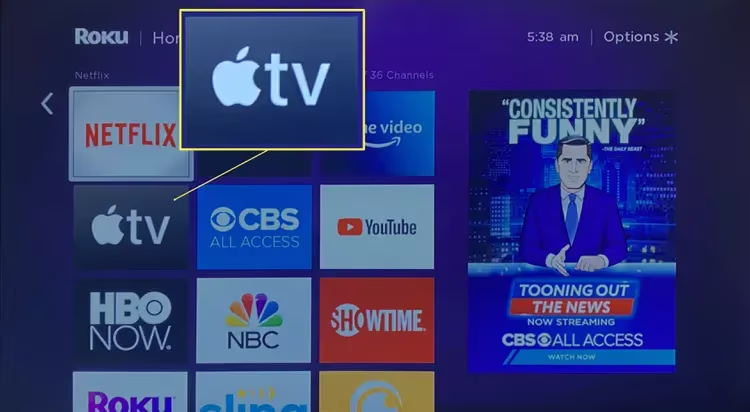
The Apple TV app will now install on your Roku device.
#Method 2: Install via Roku Mobile App
-
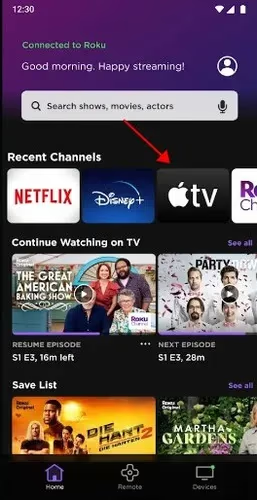
Open the Roku mobile app on your smartphone
-
Tap on Channels from the bottom menu bar
-
Choose Channel Store from the top menu
-
Search for “Apple TV”
-
Tap on Add Channel next to the app
-
Follow the prompts to add Apple TV to your Roku
#Method 3: Add via My Account on Roku Website
-
Go to channelstore.roku.com and sign into your Roku account
-
Search for the Apple TV channel
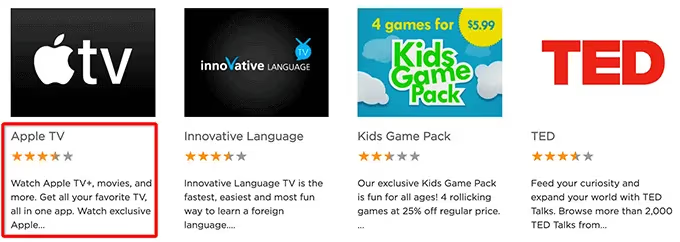
- Click Add Channel next to Apple TV
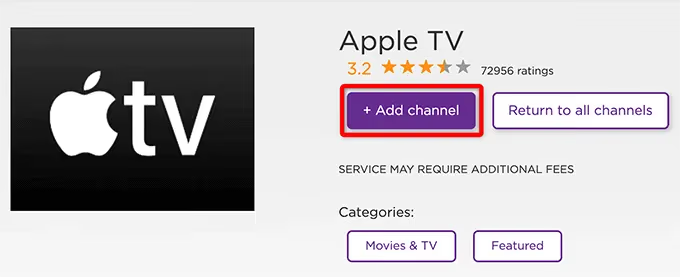
The Apple TV app will automatically be added to any Roku devices connected to your account.
#How Do You Sign Up for Apple TV+ on Roku?
Once you have installed the Apple TV app on your Roku, here is how to sign up for Apple TV+:
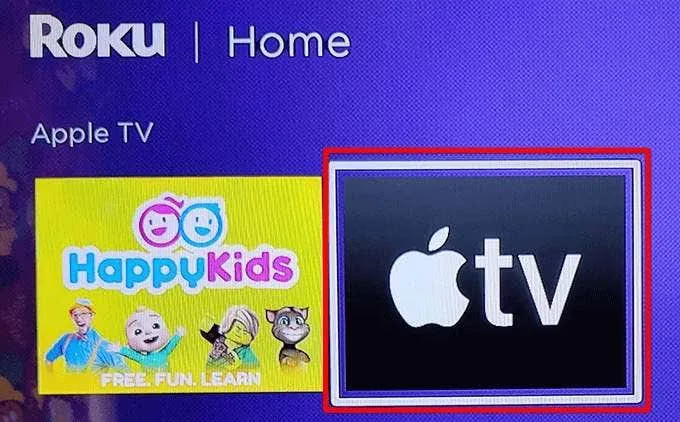
- Open the Apple TV app
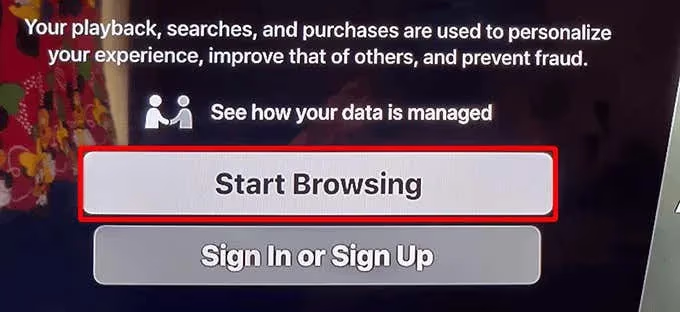
- You will be prompted to sign in or create an Apple ID account
-
Enter your Apple ID credentials or create a new Apple ID
-
Follow prompts to start Apple TV+ free trial or purchase subscription
-
Easiest method is to sign up at apple.com/apple-tv-plus
-
Subscription is $6.99/month after free trial
Now you’re all set to stream Apple Originals on your Roku!
#Troubleshooting Apple TV on Roku
Having issues getting the Apple TV app on your Roku or streaming content? Here are some troubleshooting tips:
-
Confirm your Roku device supports Apple TV
-
Try restarting your Roku device
-
Check for any Roku or Apple TV app updates
-
Make sure you have stable, high-speed internet
-
Double check Apple ID/TV+ subscription status
-
Re-install Apple TV app and re-sign in
This should resolve most common problems with using Apple TV on Roku players and smart TVs.
#Bottom Line
-
The Apple TV app lets you watch Apple TV+ and other purchased Apple content on Roku
-
Apple TV is available on most Roku streaming devices and select Roku TVs
-
Easily add Apple TV via Roku device, Roku mobile app or Roku website
-
Sign up for Apple TV+‘s exclusive shows & movies for $6.99/month
-
Troubleshoot issues by updating software, checking internet speed, reinstalling app
Now you have all the key steps to start streaming Apple content on your Roku player or smart TV. With the Apple TV app ready to go and an Apple TV+ subscription, enjoy hit shows like Ted Lasso, Mythic Quest, and Severance.
Happy streaming!
#Frequently Asked Questions
#Does Roku offer a free Apple TV+ trial?
Yes, Roku provides the standard Apple one-week free trial for new Apple TV+ subscribers. Some Apple device owners may be eligible for a 3-month extended free trial through Apple’s promotional offers.
#Can I access my previous iTunes purchases on Roku?
Yes. When you sign into the Apple TV app on your Roku with your Apple ID, you can stream most content purchased through iTunes. This includes movies, TV shows, and documentaries you already own.
#Does Roku support the Apple TV 4K box?
No, the Apple TV 4K box is a separate streaming media player. Roku only supports the Apple TV app to access Apple TV+ and other Apple content. If you want a physical Apple streaming device, consider the Apple TV 4K model instead.
#Can I download Apple TV+ shows for offline viewing on Roku?
The Apple TV app on Roku only supports streaming and does not allow offline downloads. To download shows for offline viewing, use the Apple TV app on an iPhone, iPad, or Mac instead.
#What internet speed do I need to stream Apple TV+ on Roku?
Apple recommends at least 8 Mbps for HD content and 25 Mbps for 4K video. If multiple people in your household stream at the same time, you will need faster speeds to avoid buffering.
#Is the Apple TV app free to install on Roku?
Yes, the Apple TV app itself is free to download and install on any compatible Roku device. You only pay when you subscribe to Apple TV+ at $6.99/month or purchase individual movies and TV shows through the app.
#Can I use AirPlay with Roku to stream Apple content?
Most Roku devices do not support AirPlay. You need to use the Apple TV app directly on your Roku to watch Apple TV+ content. Some newer Roku TVs have added AirPlay support, so check your specific model’s specs.