Has your Vizio TV started displaying videos and images with a bothersome yellowish tint? Before you panic and call customer service, there are several quick troubleshooting steps you can try yourself to fix this frustrating issue. This guide covers the most common reasons for Vizio TV yellow tint and walks through solutions to have your screen looking crisp and clear again.
- Loose or damaged HDMI cables are the most common cause of yellow tint on Vizio TVs
- Power cycling for 2+ minutes clears temporary software glitches that alter color output
- Color Temperature set to Cool adds blue tones that counteract yellowish hues in bright rooms
- Outdated firmware can contain bugs that shift color rendering toward yellow or green
- Factory reset wipes all custom settings and resolves persistent software-related color problems
#What Causes Yellow Tint on a Vizio TV Screen?
There are several potential root causes for a yellow tinted display on your Vizio TV:
-
Loose cable connections: If the HDMI or other cables connecting your devices are loose, damaged, or connected poorly, it can lead to color issues.
-
Outdated firmware: Bugs in outdated firmware can alter color settings and cause a yellowish hue.
-
Incorrect picture settings: Settings like low color temperature, high contrast, and incorrect tint can skew colors.
-
Enabled HDR mode: The expanded contrast and colors enabled in HDR mode don’t work well for all content and can create color issues.
-
Software bugs and glitches: Temporary software issues can also be the culprit behind sudden color changes like yellow tint.
Now let’s walk through the steps to troubleshoot and fix those root causes.
#How Do You Fix Yellow Tint on a Vizio TV?
#Step 1: Check Your HDMI Cables and Ports
Loose or damaged cables are one of the most common and easy issues to check when troubleshooting TV display problems.
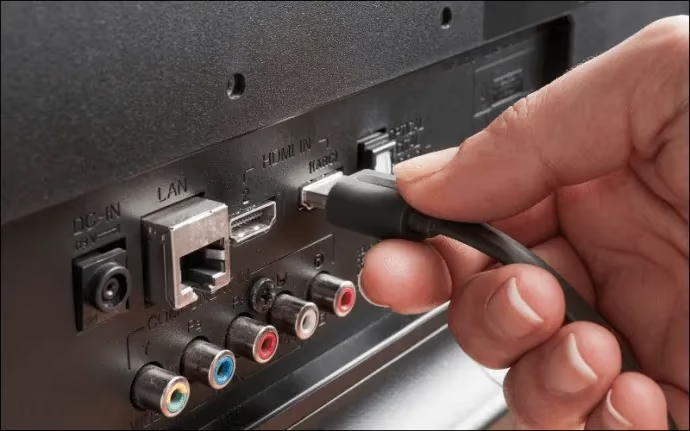
First, make sure all the cables connected to your Vizio TV are securely inserted in the ports. Check for any obvious damage to the cables as well.
Look closely at the ports themselves. Rusty or oxidized ports can prevent cables from making clean contact. Consider switching cable connections to alternate ports if needed.
When using devices requiring high bandwidth like game consoles and Blu-ray players, low quality HDMI cables can also cause color issues due to insufficient transmission capability. Upgrading to HDMI 2.1 or above cables may help.
#Step 2: Power Cycle Your Vizio TV
Temporary software glitches are another common source of seemingly random color problems.
To clear any potential bugs or errors, a simple power cycle reboot of your Vizio TV can help flush out the issue:
-
Unplug all cables from your Vizio TV, including power cable.
-
Press and hold the power button on the TV for 5 seconds to drain residual electricity.
-
Leave the TV unplugged for 2 minutes. This gives time for capacitors to fully discharge.
-
Finally reconnect all cables and power on your TV.
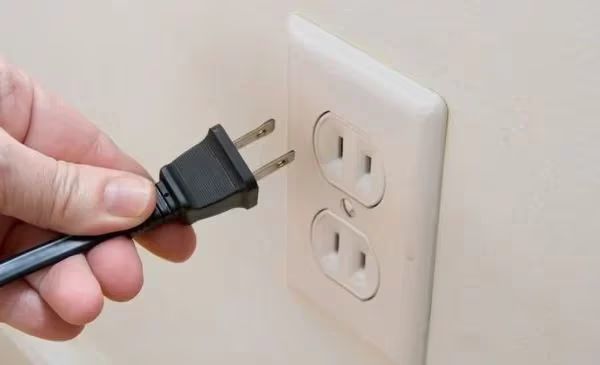
This power cycling process acts as a hard reboot to refresh your TV software and should resolve many intermittent or temporary issues causing yellow tint.
Be sure to try using your Vizio TV remote to power cycle the device, as this can often resolve temporary glitches.
#Step 3: Update Your Vizio TV Firmware
Outdated firmware leaves your Vizio TV vulnerable to issues like color distortions from newly discovered bugs and errors.
Updating to the latest firmware can patch those problems:
-
From the main Vizio TV menu, select System > Check for Updates.
-
If updates are available, select Download Updates.
-
After updates complete, select Restart to reboot your TV.
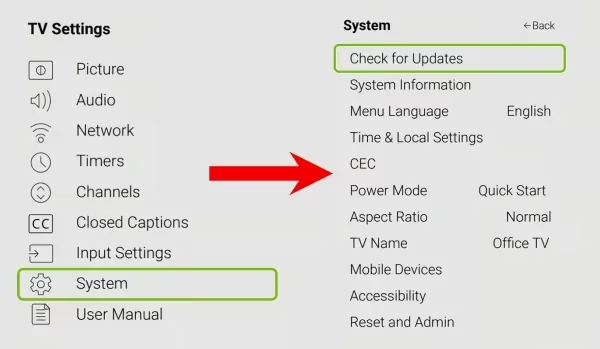
Updating firmware ensures your Vizio TV has the latest fixes and optimizations to prevent numerous problems like yellow tinted screens.
#Step 4: Adjust Your Vizio TV Picture Settings
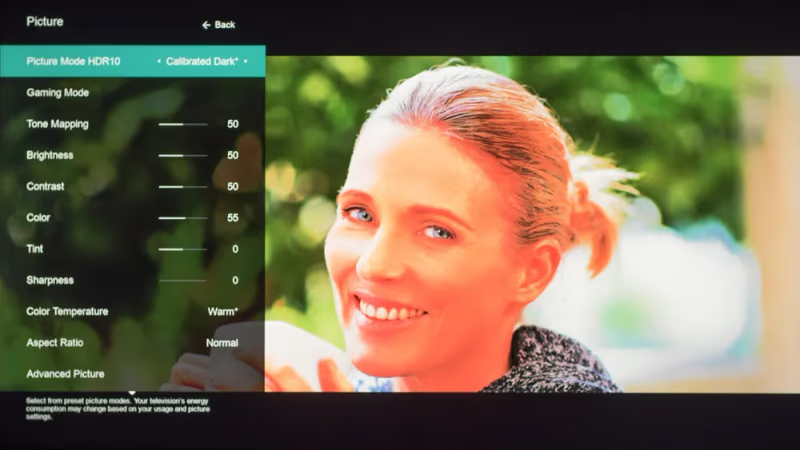
Sometimes yellow tint arises from incorrectly configured picture settings like brightness, contrast, color temperature, and tint.
Go through all related options under the Picture menu and make sure settings align with your viewing preferences and room lighting environment.
Here are the key options to check and adjust:
Contrast and Brightness
If colors appear faded or dull, try moderately increasing Contrast and Brightness settings. Avoid maxing them out though, as that can skew color balance.
Tint
Adjust the Tint setting until skin tones appear reddish-orange and neutral. Pushing tint too far towards green or magenta will create a yellow shift across the screen.
Color Temperature
Navigate down to Advanced > Color Temperature and select from preset options including Cool, Normal, Computer, and custom configurations. Cool tone has more blue for brighter light conditions while warm adds more yellow/red.
Reset Picture Settings
If unsure about ideal picture settings, you can select Reset Picture Mode to revert all custom changes back to factory defaults.
#Step 5: Turn Off HDR Mode
Vizio TVs work to optimize display settings for high dynamic range (HDR) content. But for non-HDR videos, this can actually create more color issues than it solves.
Disabling HDR when viewing standard dynamic range content prevents over-processing that might add yellow/green tint.
To deactivate, head to Picture > More Picture > HDR > Off
#Should You Factory Reset a Vizio TV With Yellow Tint?
Performing a factory reset will wipe all customizations and data from your Vizio TV. But it can definitively fix software-related issues like color problems.
Reset using onboard menu
-
Select System > Reset & Admin > Reset TV to Factory Defaults
-
Enter parental control code if needed
-
Select Reset TV
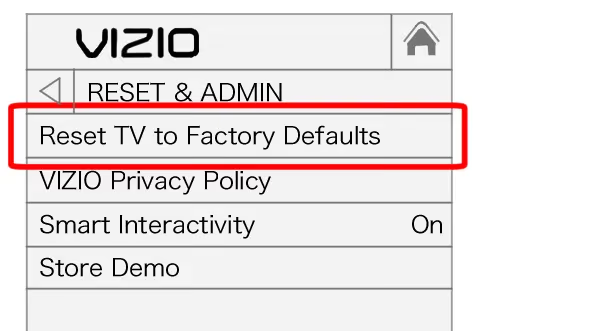
Reset button sequence
For SmartCast TVs:
-
Press and hold Volume Down + Input buttons for 10 seconds
-
Message appears prompting you to press Input
-
Press and hold Input button to trigger factory reset
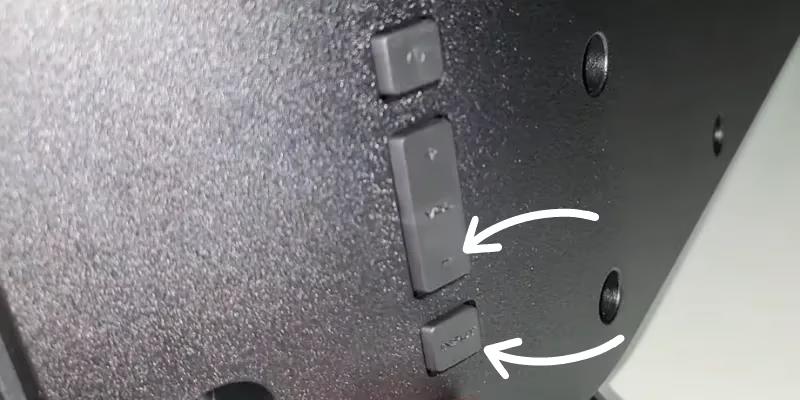
This acts as a clean slate, removing bugs or bad settings causing problems like yellow tinted screens.
Issues like vertical lines on Vizio TV screens or device randomly turning itself on tend to indicate component failures rather than software bugs. Review troubleshooting tips for Vizio TV won’t turn on situations.
#Bottom Line
-
Check cables, ports, and outlet power connections to rule out loose plugs shorting color signal.
-
Try power cycling unplugged TV for 2+ minutes to refresh software and clear errors.
-
Update firmware to most current release to patch bugs affecting color rendering.
-
Run through all picture adjustments to revert bad settings skewing color balance incorrectly.
-
Factory reset clears all issues stemming from software and user configuration problems.
With the tips above to troubleshoot yellow tinted Vizio screens, you should be able to resolve annoying color issues getting in the way of enjoyment of your TV.
#FAQ
#How do I improve Vizio TV color quality?
Adjusting Contrast, Color Temperature, and Tint in Picture Settings improves color reproduction on Vizio TVs. Enabling Calibrated Picture mode also helps color accuracy. You can find these options under the Picture menu in your TV settings.
#What causes a yellow tint on my Vizio TV?
Common reasons are loose cables, outdated firmware, and incorrect picture adjustments like low color temperature or wrong tint values. Still-enabled HDR mode or software bugs can also shift colors toward yellow.
#Why do some Vizio TVs have color issues?
Vizio TVs use advanced processors to optimize pictures on the fly. Bugs and compatibility issues can still alter color settings incorrectly in rare cases. Firmware updates usually resolve these processor-related glitches.
#Can a firmware update fix yellow tint on a Vizio TV?
Yes, firmware updates often patch bugs that cause color rendering problems including yellow tint. Go to System > Check for Updates in your TV menu to install the latest version. After the update finishes, restart the TV and check whether the tint is gone.
#Does changing color temperature remove the yellow tint?
Switching Color Temperature to Cool adds more blue tones and can counteract a yellowish hue. Navigate to Picture > Advanced > Color Temperature to try different presets. Normal or Cool settings work best for most rooms with standard lighting.
#Will a factory reset fix color problems on a Vizio TV?
A factory reset wipes all custom settings and returns the TV to its original configuration. This resolves yellow tint caused by misconfigured picture settings or software glitches. Keep in mind that you will need to sign back into all your apps afterward.
#How do I know if my HDMI cable is causing the yellow tint?
Try swapping the cable with a different one or plugging into a different HDMI port on the TV. If the yellow tint disappears after switching, the original cable or port was the problem. Damaged or low-quality cables are a frequent cause of color signal issues.
#Should I disable HDR to fix yellow tint on my Vizio TV?
HDR mode can cause color issues when watching standard dynamic range content. Turning off HDR through Picture > More Picture > HDR > Off often removes unwanted yellow or green tones. Re-enable HDR only when streaming actual HDR content from apps like Netflix or Disney+.