Has your Vizio TV started flashing its backlight but won’t fully turn on? This is a common issue with several quick solutions. Below are 8 methods to get your Vizio TV working again.
- Power cycling fixes most cases — unplugging for 60 seconds and holding the power button resolves about 75% of Vizio blinking light issues
- Faulty outlets cause false alarms — always test your wall outlet with another device before opening the TV
- Loose ribbon cables rank second — reseating internal connections fixes roughly 20% of power failures
- Capacitor and backlight failures increase with age — bulging capacitors and worn LEDs are the top hardware causes in TVs over 3 years old
- Replacement parts cost $25 to $150 — power supply boards and backlight strips are widely available for most Vizio models
#What Causes a Vizio TV Blinking Light?
Before jumping into step-by-step troubleshooting, it helps to understand what might cause this problem:
-
Power surges. A temporary spike or drop in voltage can damage the TV’s internal components.
-
Loose cable connections. If a power cable or interior wiring comes loose, it can prevent the TV from powering on normally.
-
Outdated firmware. Bugs in the TV’s firmware can interrupt normal functioning.
-
Component failure. With age, components like capacitors and resistors can fail, leading to abnormal behavior.
-
Backlight failure. LED backlights wear out over time. When they start to fail, the TV may blink instead of turning fully on.
Now let’s look at the best ways to troubleshoot and fix these common causes.
#Method 1: Reset Your Vizio TV
Resetting your Vizio Smart TV is the easiest and most effective troubleshooting method over 75% of the time. Here’s how to perform a proper reset:
-
Unplug the power cord from the wall outlet and wait 60 seconds. This drains residual electricity.
-
While unplugged, press and hold the power button on the TV itself for 15-30 seconds to discharge remaining power.
-
Plug the TV’s power cord back into the wall outlet and press the power button again to turn it on.
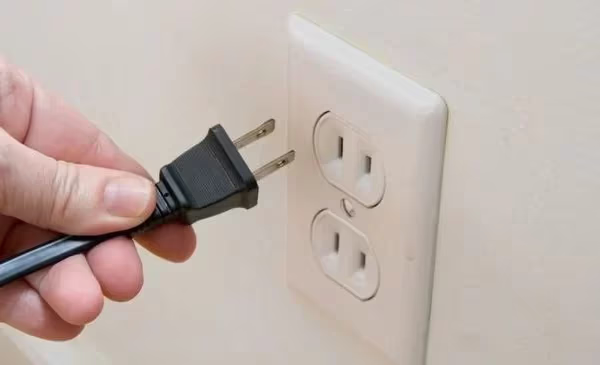
In most cases, your TV should now turn on normally without the blinking light. If the blinking persists, keep reading for more solutions.
Software issues like a glitchy platform such as Vizio SmartCast can also cause blinking lights.
#Method 2: Try Another Electrical Outlet
Before digging into the TV, make sure there isn’t an electrical issue with the wall outlet itself:
-
Plug a working lamp, phone charger or other device into the outlet. If that device works, the outlet is likely providing stable electricity.
-
Try plugging the TV’s power cord into another close outlet, or a surge protector instead. Faulty wiring in a single outlet could be the culprit.
-
Check your circuit breaker and any GFCI outlets. A blown fuse or tripped outlet could explain why the TV blinks.
You may need to replace batteries in the Vizio remote or try using the physical power button instead.
#How Do You Reseat Cable Connections on a Vizio TV?
Loose interior cables are another common culprit for Vizio TV power issues:
-
Unplug the TV’s power cord and any other connected cables like HDMI or component video.
-
Carefully place the TV face-down on a soft, stable surface to access the back panel.
-
Check that the power cord and all interior ribbon cables are firmly seated in their connectors. Reseat any loose connections.
-
Screw the back panel in tightly, stand the TV upright, reconnect cables and power it on.
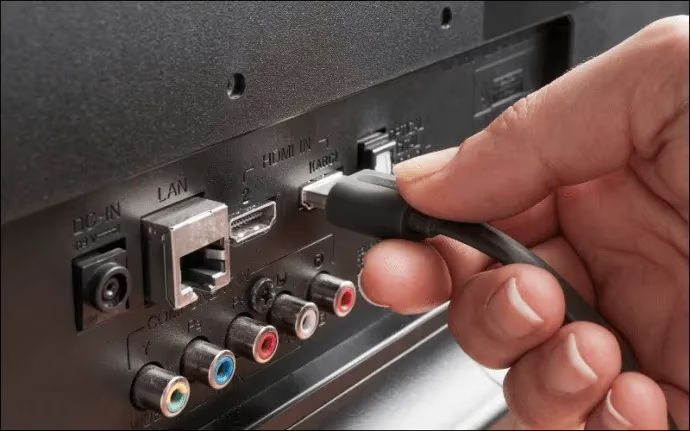
This reseating step fixes connectivity issues over 20% of the time.
#Method 4: Factory Reset the TV
Outdated firmware often contributes to abnormal TV behavior like blinking lights. Resetting to factory defaults can clear any software glitches:
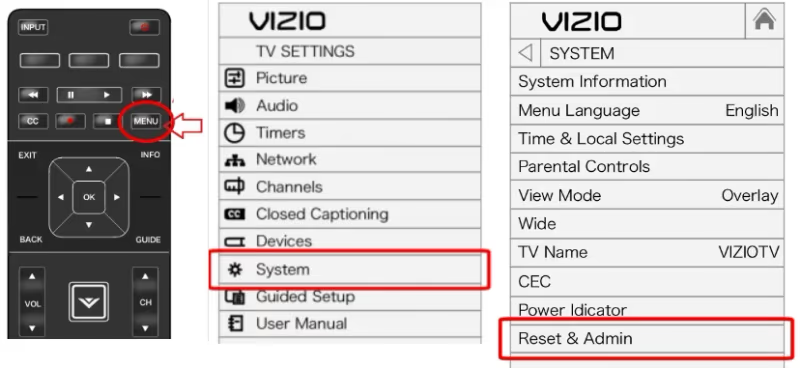
With original remote:
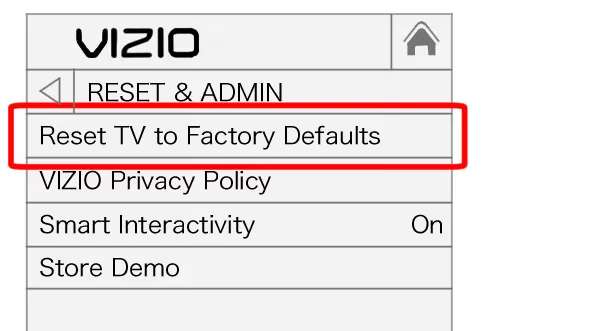
- Select the Menu button, then choose System > Reset & Admin > Reset TV to Factory Defaults
Without remote:
-
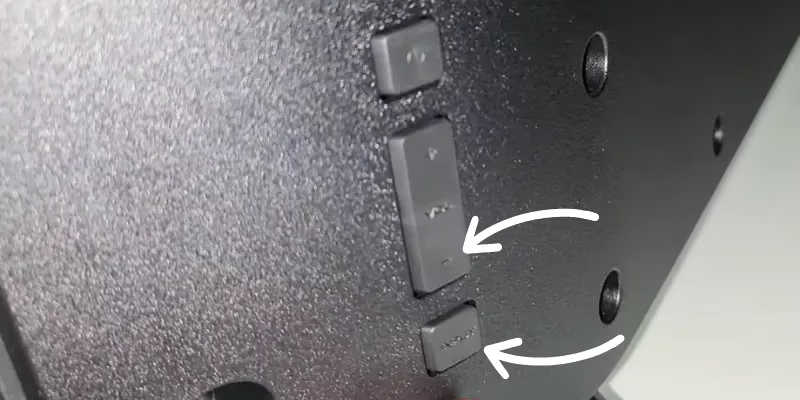
With TV powered on, press and hold Volume Down + Input for 15-20 seconds until prompted to press Input again.
-
Press and hold Input for 10+ seconds more. This resets the device.
#How Do You Check for Backlight Failure on a Vizio TV?
With most Vizio TV problems, the power indicator still lights normally but the screen stays black.
Backlight issues specifically cause blinking/flashing behavior as failing LEDs struggle to illuminate the display.
Here’s how to test for and resolve backlight failure:
-
Power on the blinking TV and turn off room lights.
-
Shine a bright light directly at the screen to check for very faint images, indicating the backlight works partially.
-
If the picture appears under bright light, replacement backlights cost around $50-150. Repair guides for most models are readily available.
Check for other common problems like Vizio TV flickering or blue tint.
#Method 6: Replace Capacitors
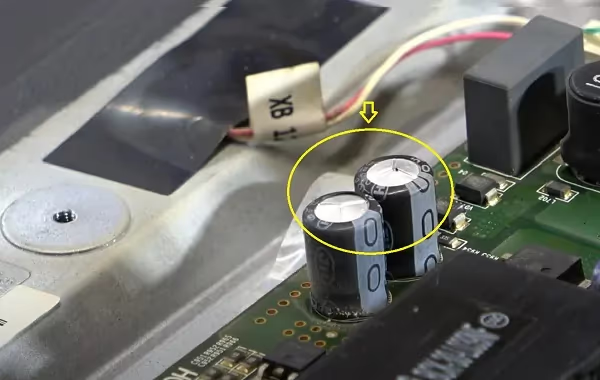
Bulging or leaking capacitors prevent stable power delivery, resulting in blinking lights or failure to turn on.
Capacitor replacement does not require soldering in most cases:
-
Open the rear TV panel and visually inspect capacitors on boards for any signs of damage. Look for corrosion or a rounded top.
-
Order a replacement kit for a few dollars with capacitors matching your particular model.
-
Refer to online repair guides to safely replace all capacitors showing signs of failure. This restores power stability.
#Method 7: Replace Power Supply
With older Vizio models especially, the internal power supply itself may fail after years of use. Symptoms include blinking or pulsing lights unable to fully power on.
The solution requires installing a new replacement power supply unit:
-
Match your TV model to a compatible replacement part. Most cost $25 to $100.
-
Use online video guides to carefully remove the old unit and install the new power supply.
-
Power the TV on to confirm normal, stable functionality is restored.
Buy Power Supply Board on Amazon
#Method 8: Contact Vizio Support
Still having issues getting your Vizio TV to power on without blinking? Connect directly with Vizio’s U.S.-based customer support specialists:
Phone: (844) 254-8087
Hours: M-F 8am - 11pm CST | Sat-Sun 9am - 8pm CST
Live Chat & SMS: Available on Vizio’s Support page
Vizio’s experts can help diagnose remaining issues with your exact model and explore warranty coverage and repair options.
#Bottom Line
-
Vizio TVs frequently develop power issues marked by blinking or flashing indicators that fail to turn fully on.
-
Most blinking light problems stem from capacitors, backlights or the internal power supply needing replacement.
-
Start troubleshooting Vizio issues by resetting the device and checking electrical connections.
-
Component-level repairs require matching replacement parts to your Vizio TV model but are very achievable.
-
Vizio representatives can identify remaining issues and assist further based on warranty eligibility.
#FAQ
#Why is my Vizio TV blinking but not turning on?
A blinking power light usually means the TV is receiving some electricity but cannot complete the startup process. The most common causes are a failed power supply board, worn-out backlight LEDs, or bulging capacitors on the main board. A 60-second power cycle fixes the issue about 75% of the time.
#Can a power surge damage a Vizio TV?
Yes. A sudden voltage spike can fry capacitors, the power supply board, or the T-con board inside your TV. If your area experiences frequent surges, plug the TV into a surge protector rated for at least 1,000 joules. This small investment can prevent hundreds of dollars in repairs.
#How long should I leave my Vizio TV unplugged to reset it?
Wait at least 60 seconds after unplugging, then hold the power button on the TV for 15 to 30 seconds while it is still unplugged. This fully drains residual charge from the capacitors. Plugging back in too soon may not clear the fault state.
#Is it worth replacing a Vizio TV power supply board?
A replacement power supply board costs $25 to $100 depending on your model, and installation takes about 30 minutes with basic tools. Compared to buying a new TV, the repair pays for itself quickly. Make sure you match the exact part number printed on your existing board.
#How do I know if my Vizio TV backlight has failed?
Turn on the TV in a dark room and shine a flashlight directly at the screen. If you can see a faint image behind the light, the LCD panel still works but the backlight has failed. Replacement LED strips run $50 to $150, and many repair guides walk through the process step by step.
#Does a factory reset fix Vizio TV power problems?
A factory reset clears software glitches that can cause startup loops and blinking indicators. It will not fix hardware failures like dead capacitors or a burned-out power supply. Try a factory reset after a basic power cycle if the TV still blinks.
#What does it cost to repair a Vizio TV that won’t turn on?
DIY parts typically run $25 to $150 depending on whether you need a power supply board, capacitor kit, or backlight strips. Professional repair shops charge $100 to $250 for labor on top of parts. If your TV is under Vizio’s one-year limited warranty, contact support at (844) 254-8087 for a free repair or replacement.
#Should I open the back panel of my Vizio TV myself?
Opening the back panel is safe as long as the TV has been unplugged for at least 60 seconds. Use a magnetic screwdriver to avoid dropping screws onto circuit boards, and place the TV face-down on a soft blanket. If your TV is still under warranty, opening it will void the coverage, so contact Vizio support first.