Have you ever noticed lag or input delay while gaming on your Vizio TV? Enabling game mode can significantly improve responsiveness for a smoother overall experience. This guide covers four different ways to activate game mode, plus tips for customizing your picture settings.
- Game mode reduces input lag to under 20ms on most Vizio TVs, making button presses register faster on-screen
- Four activation methods exist including the settings menu, Input button shortcut, voice commands, and the VIZIO Mobile app
- Game mode prioritizes response time over picture quality so colors and contrast may look slightly muted compared to cinema presets
- Higher refresh rates stack with game mode where 120Hz cuts an additional 8.33ms of lag versus standard 60Hz
- Switch back to a different picture mode for movies since motion smoothing and color processing are disabled in game mode
#What Is Game Mode on Vizio TVs?
Game mode is a unique preset picture setting on Vizio TVs optimized specifically for gaming.
It prioritizes fast response times and low input lag over picture quality, allowing your button presses and joystick movements to register quicker on-screen.
Without game mode enabled, you may experience lag between pressing a button and seeing the action happen in your game. This delay can negatively impact gaming performance.
Benefits of Using Game Mode for Gaming:
-
Decreased input lag for faster on-screen response
-
Smoother overall gameplay and graphics
-
Increased responsiveness for competitive online gaming
-
More precise control and quicker reaction time
Now let’s walk through the various methods for turning on game mode.
#Method 1: Enable Game Mode Via Settings Menu
The easiest way to enable game mode is through your TV settings:
-
Press Menu button on Vizio remote
-
Select “Picture” option
-
Choose “Picture Mode”
-
Scroll down and select “Game” mode
-
Confirm selection
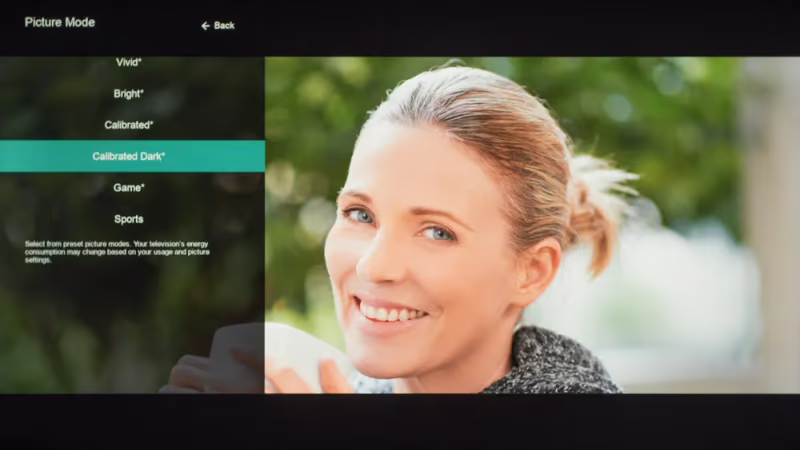
It’s that quick! Vizio TVs will now optimize settings like response time, input lag, and refresh rate to improve your gaming experience.
#Method 2: Quick Shortcut With Input Button
Here’s an even faster way to enable game mode using the Input button on your Vizio TV remote:
-
Ensure TV is on and game console connected
-
Press Input button repeatedly to select correct HDMI input
-
Press and hold Input button for 3 seconds
-
Select “Game” from pop-up menu
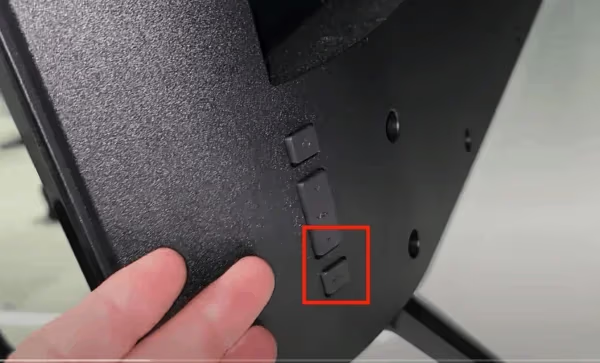
This handy shortcut is perfect for enabling game mode right as you start a gaming session.
#Method 3: Voice Command Activation
Newer Vizio TV models include voice control capabilities using the remote. Try these steps:
-
Press voice control button on remote
-
Wait for listening prompt
-
Clearly say “Enable Game Mode”
-
Confirm mode is activated on-screen
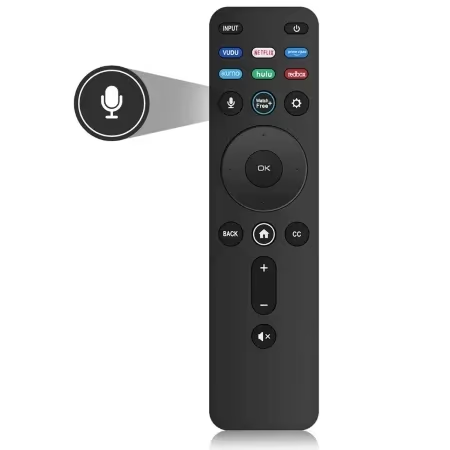
It doesn’t get much easier than hands-free voice activation!
#Method 4: Use the VIZIO Mobile App
The free Vizio SmartCast app allows full control over compatible Vizio TVs from your smartphone or tablet.
To enable game mode:
-
Ensure devices on same Wi-Fi
-
Download VIZIO Mobile app
-
Open app and set up TV
-
Select correct HDMI input
-
Choose “Game Mode” under Picture Mode
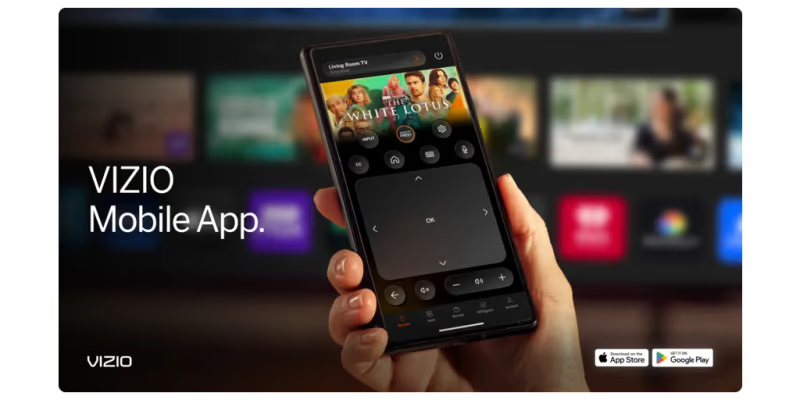
This makes it easy to enable game mode without having to touch the TV remote.
#How Do You Customize Game Mode Settings?
While game mode often uses optimized preset values, certain Vizio models allow customization of related settings like:
-
Refresh rate
-
Brightness
-
Contrast
-
Color tuning
-
Motion smoothing
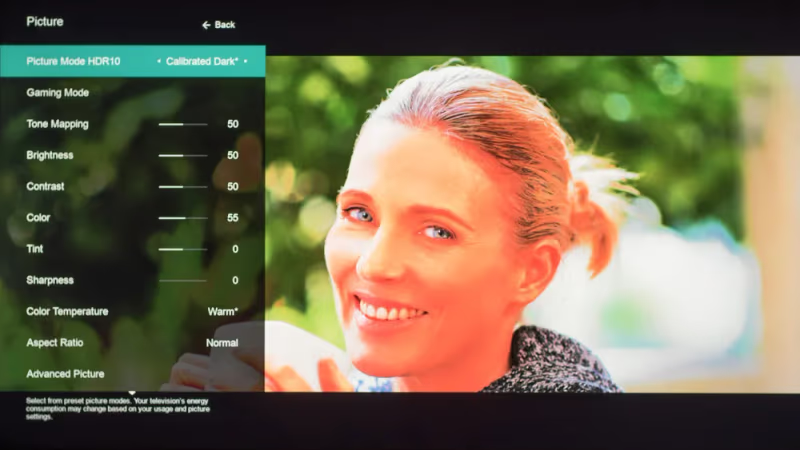
Tweak these picture adjustments to your personal preferences while still retaining key gaming benefits.
#When Should You Turn Off Game Mode?
Game mode prioritizes response time over visual quality, so colors and contrast may appear slightly more muted compared to cinema or calibrated picture presets. Motion smoothing is also disabled.
For watching movies or TV shows where lag is not an issue, switch back to a different picture mode. You will notice richer colors and smoother motion in non-gaming content.
#Bottom Line
-
Game mode significantly decreases input lag for smoother, responsive gameplay
-
Enable via settings menu, Input button, voice control, or smartphone app
-
Customize related picture settings based on your preferences
-
Turn off game mode when not gaming to enjoy better visual quality
#FAQ
#What types of games benefit most from game mode?
Fast-paced games that demand quick reflexes benefit the most, including first-person shooters, fighting games, rhythm games, sports titles like FIFA or Madden, and battle arena games. Cutting input lag by even a few milliseconds can make a noticeable difference in competitive matches.
#Does refresh rate impact input lag?
Yes, a higher screen refresh rate further reduces input lag. A standard 60Hz display has average input lag, while 120Hz cuts an additional 8.33ms. A 240Hz panel halves that again to roughly 4.16ms. Pair a high-refresh Vizio TV with a current-gen console or GPU to get the full benefit.
#Can I measure the input lag on my Vizio TV?
You can use a dedicated lag tester device or an app-based tool to measure input lag. With game mode on, most Vizio TVs deliver under 20ms of lag, and higher-end models can reach below 10ms. For context, most people cannot perceive delays shorter than about 50ms.
#Why is my controller drifting with game mode enabled?
Controller drift is usually a hardware issue, not a game mode side effect. Recalibrate your controller sticks and check for wireless interference from nearby Bluetooth or Wi-Fi devices. Fast polling rates between the controller and console can occasionally amplify signal noise.
#Does game mode reduce picture quality?
Yes, slightly. The TV disables post-processing like motion smoothing and reduces color enhancement to prioritize response time. For most games the trade-off is worth it, and you can always switch back to a cinema preset for movies and shows.
#Do I need to enable game mode on every HDMI input?
Game mode is applied per input on most Vizio TVs. If you have a console on HDMI 1 and a streaming stick on HDMI 2, you can set game mode on HDMI 1 while keeping a standard picture mode on HDMI 2. This way you do not need to toggle settings every time you switch devices.
#Does game mode work with all Vizio TV models?
Most Vizio TVs from 2018 onward include a game mode option. Older models may lack dedicated game mode but still allow you to reduce input lag by manually turning off motion smoothing and backlight scanning in the picture settings.
Make sure your gaming console or PC is connected to your Vizio TV via HDMI and that you are not experiencing no signal issues before troubleshooting lag.