Flickering, flashing, blinking — whatever you want to call it, an unstable picture on your Vizio TV is downright annoying. But before you toss it or call in the expensive pros, know that this problem is usually pretty easy to fix yourself. After dealing with countless malfunctioning TVs over the years, I’ve discovered that Vizio flickering issues boil down to just a handful of common causes. With a few basic troubleshooting steps, you can stop the headache and get back to watching your shows.
Below I’ll walk you through the troubleshooting process to determine exactly why your Vizio flashes on and off or displays horizontal/vertical lines. I’ll also provide step-by-step instructions to try on your own, before you resort to replacing parts or buying a new TV.
- Power cycle fixes most flickering — unplug the TV, hold the power button 30 seconds, wait 2 minutes, then reconnect
- Picture settings cause false alarms — Clear Action, Active Full Array, and Dynamic Contrast can trigger screen blinking on their own
- Loose HDMI cables rank among the top culprits — reseating every cable behind the TV resolves a surprising number of cases
- Firmware updates patch known flicker bugs — enable auto-update under Settings > System > System Update on SmartCast models
- Backlight and T-Con board failures — if software fixes don’t help, inspect LED strips and board solder joints before replacing the entire TV
#What Causes Vizio TV Screen Flickering?
Before jumping into fixes, it helps to understand what makes a Vizio TV picture start flickering in the first place. The most common culprits include:
#Software Bugs
Like any gadget running complex software, Vizios can experience crashes, laggy performance, freezes, black screens, and visual distortion from coding flaws. Power cycling usually resolves software issues.
#Backlight Failure
Vizio LCD screens use LED backlighting systems to illuminate the actual LCD panel. But these LED strips can overheat, lose voltage, or simply burn out over time.
#Bad Power Regulation
A failing voltage regulator preventing consistent power flow to the backlights manifests as random off/on blinking.
#Loose Connections
Unstable connections anywhere along the video processing pathway – from a jostled HDMI input to a dusty circuit board contact – introduces signal noise.
#Outdated Firmware
Firmware patches aim to fix bugs that cause flickering. Failing to update leaves you exposed.
#Failing Hardware
With age, components like power supply boards, inverters, and even the LCD panel itself eventually wear out and need replacement.
Now let’s get into the fixes!
#Step 1: Power Cycle Your Vizio TV
Start simple – surprisingly often, just restarting your Vizio TV will stop the flickering. Glitchy software can manifest unpredictable symptoms like screen flashing. A power cycle forces a cold reboot, clearing any temporary memory crashes.
Follow these steps exactly:
-
Fully unplug TV power cord from wall outlet
-
Press and hold physical power button on TV (not remote) for 30-60 seconds to discharge remaining energy
-
Leave unplugged for 1-2 minutes minimum
-
Plug power cord back into outlet and test
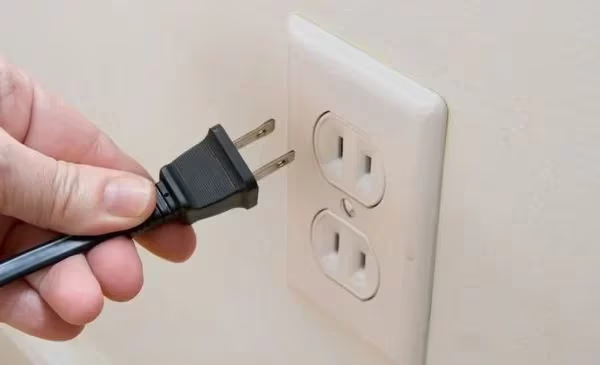
If the blinking persists, don’t lose hope. More likely than not the issue lies elsewhere, so continue down the troubleshooting list.
#Step 2: Check Vizio Picture Settings
Before getting into hardware, improperly configured picture settings could be causing your particular flavor of flickering.
Navigate using remote:
Picture Mode > Picture Mode Settings > More Picture Settings
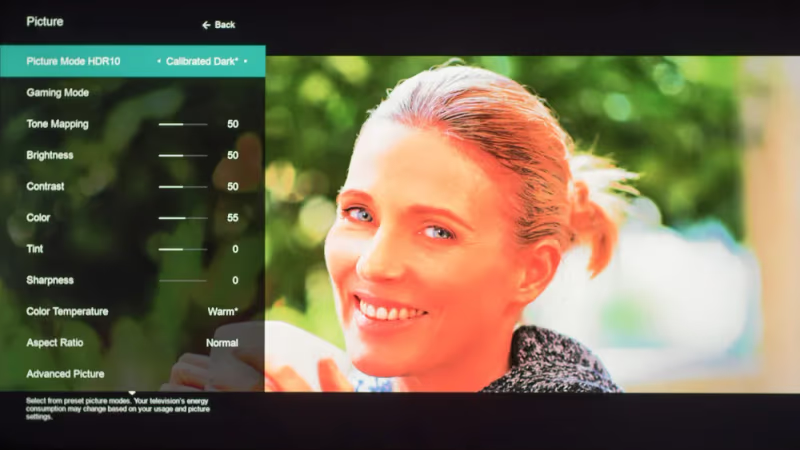
Under this advanced menu, disable/reset features known to sometimes conflict, inducing blinking or distorted video:
-
Clear Action Motion Control
-
Active Full Array
-
Dynamic Contrast
-
Black Detail Settings
Still seeing intermittent black screens on your Vizio? Flickering limited to specific content types like gaming or movies? Play around with preset picture modes as well:
Settings Wheel > Picture Mode > Calibrated / Game / Movie / Vivid

Customized options tend to cause more issues than balanced presets. Calibrated Dark also helps compensate for failing LED backlights.
#Step 3: Reseat Loose HDMI & AV Cables
Don’t overlook something simple – a slightly loose HDMI or coaxial input easily causes glitchy picture and blinking screens. Video signals are highly sensitive!
-
Inspect condition of all plugged in cables behind TV
-
Disconnect and firmly reseat each HDMI/AV cable
-
Power cycle devices to reestablish signal handshake
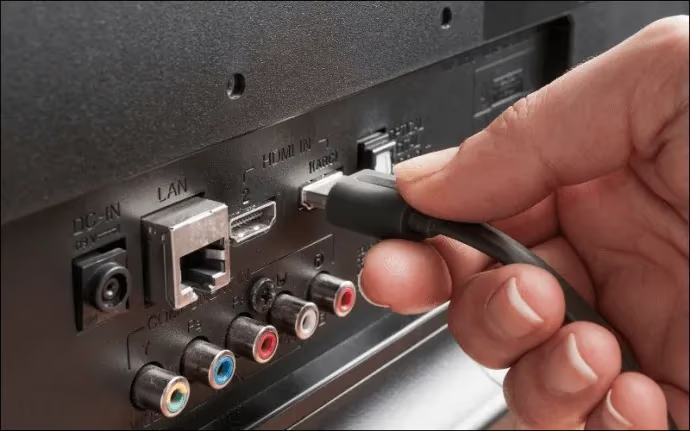
While you’re back there, confirm all side panel input ports are free of dust buildup. Clean gently using compressed air if dirty.
Loose inputs account for an astounding number of cases where “my Vizio TV turns off and on randomly.”
#Step 4: Update Outdated Vizio Firmware
Everyone knows to keep phones and computers up-to-date. Well, your Vizio Smart TV software needs attention too!
Failing to upgrade Vizio TV firmware leaves you vulnerable to known bugs that induce:
-
Screen flickering
-
Distorted/discolored video
-
Component compatibility issues with services like Disney Plus not working on Vizio Smart TV
-
Slow performance
Luckily, updating is easy.
#Vizio Smart TV (SmartCast OS)
Recent Vizio models automatically install updates if connected online. Enable auto-updates:
Settings > System > System Update
Select “Auto Update” checkbox to continuously patch bugs.
#Non-Smart Vizio TV
Manually check for system firmware updates:
Onscreen Menu > System > Check for Updates
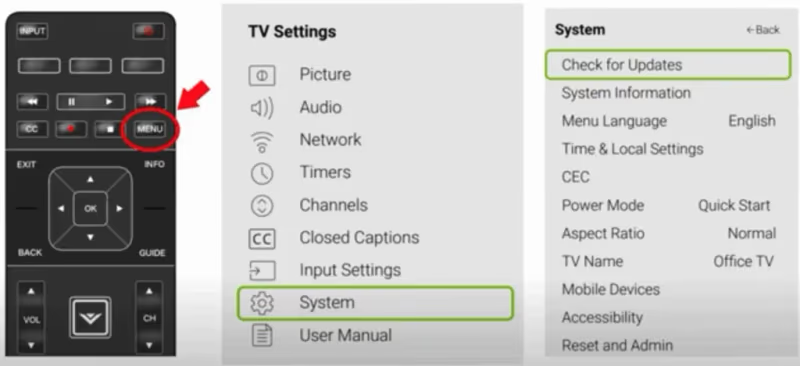
Install any available patches. Your Vizio will auto-restart when finished.
Still exhibiting quirky behaviors after updating? Reset your TV using one of the next methods.
#Step 5: Factory Reset Vizio TV
When all else fails, restoring factory default settings often resolves software-related flashing by fully reinstalling the operating system.
Yes, a factory reset erases saved video sources and custom preferences like Vizio TV remote pairings. But would you rather constantly fight screen flickering? I promise it’s worth it.
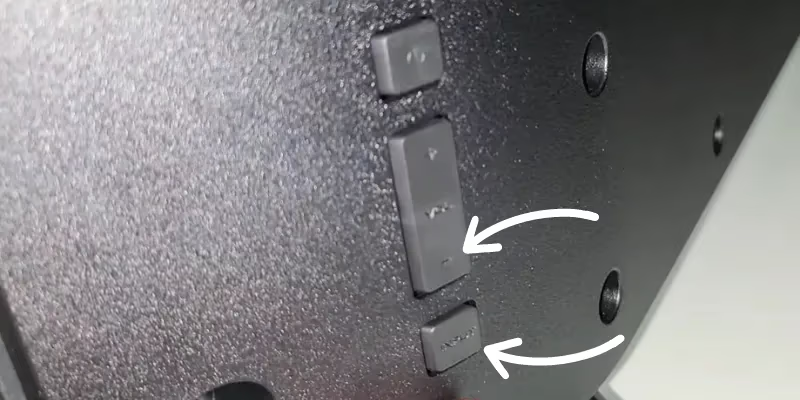
On SmartCast TVs:
-
Simultaneously press “Volume Down + Input” buttons
-
Follow prompts to reset
Non-Smart Vizios:
Onscreen Menu > System > Reset & Admin > Reset TV to Factory Defaults
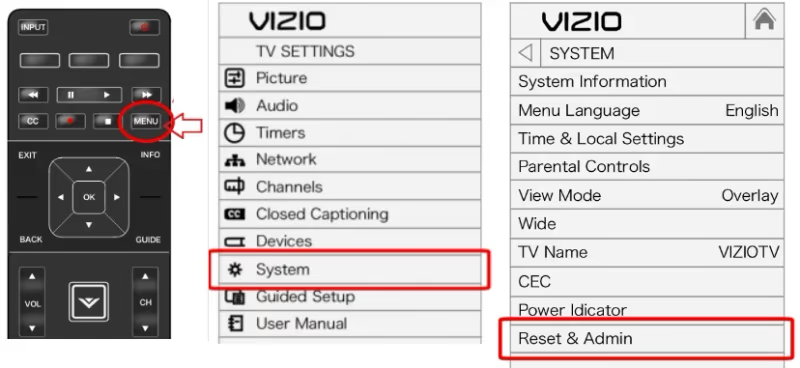
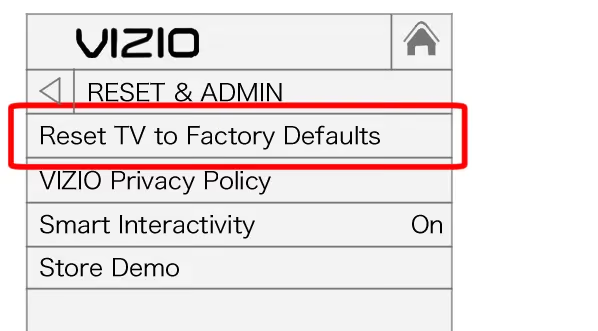
Perform full initialization using remote prompts. Expect TV to automatically restart itself twice when finished.
Give the reset a couple days to re-stabilize before passing final judgement on its effectiveness.
#Step 6: Inspect Failing Hardware
Warning – attempting DIY repairs inside invalidates warranties due to risk of electric shock and damaging components. If your Vizio is under coverage, request service instead. Know your limits!
That said, inspecting internal hardware provides valuable troubleshooting insight before replacing entire TVs.
Common culprits like the Vizio SmartCast system not working properly or a Vizio remote not working to control essential functions.
#Backlights
LED backlight systems allow LCD components to actually display images. But continually pushing LEDs with high current eventually degrades connections and bulbs. Result? Flickering or blinking screens when voltage dips.
Inspect backlight ribbon cables for any corrosion or loose connectors. Meticulously re-seat each fastener and clean gently using alcohol if corroded. Replace strips testing faulty with a multimeter.
Don’t just immediately assume the LEDs themselves have burned out – often it is merely a flaky solder joint you can resolder yourself with basic equipment.
#Boards
The various processing boards translate video input signals and power critical systems. But wear, dust contamination, and general aging frequently upsets signal transmission. Malfunction manifests as unpredictable blacking out or distorted, uneven images.
Closely check solder points, cable connections, and chipsets on following boards:
-
T-Con Board – Translates signal into images
-
Main Board – Primary video/data interface
-
Power Supply – Regulates electricity
#LCD Panel
Eventually the LCD layer generating images degrades with age, producing artifacts like screen blinking only fixable by replacing entire fragile component.
But this is among the LAST resorts – confirm you’ve inspected everything else first, as panel issues rarely cause intermittent blinking.
#When Should I Call Vizio Support?
Before shelling out $100s on replacement parts or new TVs, exhaust other options – especially if under 1 year factory warranty.
Contact Vizio customer support if:
-
TV under coverage – describe issue for free diagnosis/repairs
-
Unsure how to safely access internal hardware
-
Lack proper tools for electrical work
-
Parts replacement unsuccessful
Phone: (877) 698-4946
Email: support@vizio.com
Vizios may develop quirks over years of usage. But properly trained technicians can accurately troubleshoot problems and ensure full fixes.
#FAQ
#Why does my Vizio TV turn off and on randomly?
Frequent automatic restarts usually stem from faulty HDMI handshakes when devices reconnect. Try a different HDMI input port, swap in a newer HDMI cable rated for 4K/HDR, and toggle the HDMI Device Link setting off. If none of that works, a factory reset often clears the loop.
#What causes a Vizio TV screen to go black but still play sound?
This points to backlight failure rather than display panel damage. LEDs generate the brightness your LCD panel needs, so when strips burn out, images vanish while audio keeps playing. Start by raising the Backlight slider in picture settings, then inspect LED strip connectors for corrosion. Replacing the strips or resoldering loose joints usually brings the picture back.
#Why does my Vizio TV flicker every few seconds?
Brief but repeating screen blinking strongly indicates the voltage regulator is failing to deliver steady power to the LED backlights. Swollen or leaking capacitors on the power supply board are the most common cause. Replacing those capacitors (or the entire power supply board) typically stops the rhythmic flicker.
#How do I stop horizontal lines on my Vizio TV?
Horizontal lines suggest wiring problems between the T-Con board and the LCD panel. Check the ribbon cables running from the T-Con board for any loose or damaged connections. If reseating them doesn’t help, try different HDMI/AV cables and a separate video source to rule out signal issues.
#Can a firmware update fix Vizio TV flickering?
Yes. Vizio releases firmware patches that specifically address display glitches including flickering. On SmartCast models, go to Settings > System > System Update and enable Auto Update. Non-smart Vizio TVs require a manual check under Onscreen Menu > System > Check for Updates.
#What should I do if my Vizio TV flashes different colors?
Multicolored flickering without a clear pattern usually means the T-Con board has failed. This board translates the video signal into the image you see, so when it malfunctions, colors display erratically. Replacing the T-Con board and carefully reattaching ribbon cables resolves the issue in most cases.
#Is it worth repairing a flickering Vizio TV or should I replace it?
That depends on the TV’s age and the repair cost. A power supply board runs $20-$50 for parts, while a T-Con board costs $30-$70. If your TV is under three years old, replacing a single board is almost always cheaper than buying new. For older sets where multiple components show wear, putting that money toward a replacement makes more sense.