Dealing with the frustrating Netflix error code TVQ-Details-Menu-100? You’re not alone. Many Netflix users report seeing this error message pop up, preventing them from streaming their favorite shows and movies. The good news: there are several straightforward troubleshooting steps you can take to resolve it.
Whether you’re seeing error TVQ-Details-Menu-100 on your smart TV, streaming stick, game console, or mobile device, this guide covers every fix from a quick restart to a full app reinstall. And if you’re dealing with other common Netflix issues, check out our guides on what to do when Netflix is not working on your TV, Netflix is stuck on a loading screen, or Netflix isn’t working on your Apple TV, Sony TV, Vizio TV, or Hisense TV.
- TVQ-Details-Menu-100 signals a connectivity problem — your device has lost its link to Netflix servers
- A 60-second power cycle fixes most cases — unplug the device, wait a full minute, then plug back in
- Outdated Netflix app versions trigger this error frequently — check your app store for pending updates
- Clearing the Netflix cache removes corrupted data — go to Settings > Apps > Netflix > Clear Cache
- VPNs and proxy servers are a common hidden cause — disable them before troubleshooting further
#What Does the Netflix Error Code TVQ-Details-Menu-100 Mean?
First, let’s clarify what we’re dealing with. The TVQ-Details-Menu-100 error is an issue specific to Netflix that usually indicates a connectivity problem between your device and the Netflix service.
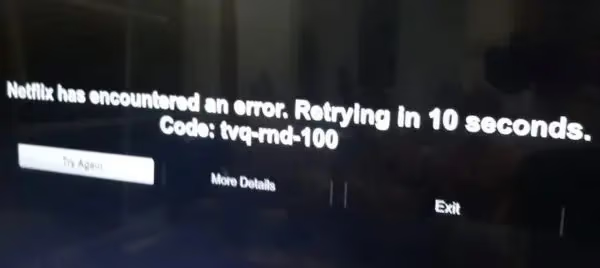
When you see this error, it typically means:
-
Your device has lost its connection to the Netflix servers
-
Data stored on your device is out of sync with your Netflix account
-
There’s a compatibility issue with your device’s current configuration
This pesky error code can appear at any time, even in the middle of your Netflix marathon. The good news is that by methodically troubleshooting potential causes, you can almost always resolve this issue at home without professional help.
#What Causes Netflix Error TVQ-Details-Menu-100?
So what’s actually causing this vague error message? While it can be triggered by a few different things, the most common culprits include:
-
Unreliable internet connection. Slow speeds, Wi-Fi signal interference, or intermittent connectivity can all disrupt your device’s link to the Netflix service.
-
Outdated Netflix app. Using an old version of the Netflix app that contains bugs or glitches can cause this error.
-
Corrupted data/cache. Temporary files and app data stored on your device can become corrupted, throwing Netflix out of sync.
-
Compatibility issues. Incorrect audio or video settings, outdated device firmware, or using a VPN can all create conflicts.
Once you know the potential triggers, you can start troubleshooting each cause one-by-one to resolve error TVQ-Details-Menu-100. Here’s how.
#How to Fix Netflix Error Code TVQ-Details-Menu-100
Follow these troubleshooting steps in order until you resolve the issue. We’ve ranked them from quickest and easiest to more advanced, so you can get back to Netflix fast.
#1. Check Your Internet Connection
First, confirm that your internet is working properly:
-
Run an internet speed test and compare the results to Netflix’s recommended speeds.
-
Power cycle your modem and router by unplugging them for 60 seconds.
-
Connect your device directly to the modem via Ethernet to rule out Wi-Fi issues.
If your connection is unstable or too slow, contact your internet provider for help. Purchasing a Wi-Fi extender or upgrading your router can also improve signal strength and speeds.
#2. Restart Your Device
Often, a simple restart is enough to clear any temporary glitches and corrupted files:
-
Close the Netflix app and turn off your device completely.
-
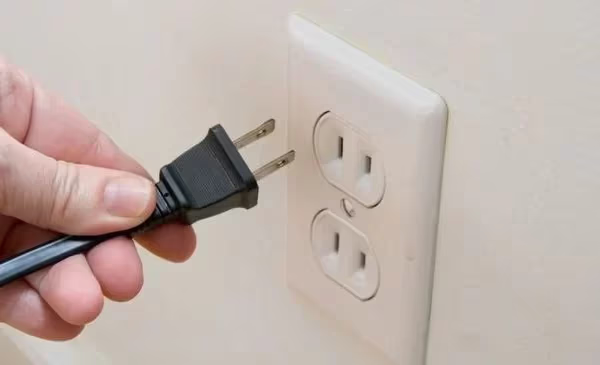
Unplug your device from power for at least 60 seconds.
-
Plug your device back in and power it on.
-
Re-launch the Netflix app and sign in.
This allows your device to refresh its connection and clear out any cached data that may be causing issues. For many users, this easy restart process resolves error TVQ-Details-Menu-100 right away.
#3. Update the Netflix App
Using an outdated app can trigger glitches and errors over time as the software becomes obsolete. Keeping Netflix updated ensures you have the latest bug fixes and features:
-
On most devices, go to the app store where you first downloaded Netflix.
-
Search for Netflix and look for an “Update” option.
-
If you see “Open”, the app is already up-to-date.
We recommend enabling automatic app updates on your device to prevent future issues caused by running old software. Set it and forget it!
#4. Sign Out of Netflix and Back In
Signing out of your account and back in can resolve errors caused by de-synced or corrupted account data:
-
Launch the Netflix app and go to the “Settings” menu.
-
Select “Sign Out” and confirm.
-
Once signed out, close the Netflix app and re-open it.
-
Enter your account credentials and log back in.
This refreshes your device’s link to your Netflix profile and can resolve errors related to out-of-date account information.
#5. Clear Netflix App Data
If restarting your device and updating the app didn’t work, try clearing the Netflix app data:
-
Go to your device’s “Settings” menu and select “Apps”.
-
Find Netflix in the list and select it.
-
Tap “Clear Data” and/or “Clear Cache.”
-
Once complete, launch Netflix and sign in.
Clearing the app data and cache removes any corrupted files or settings that could be causing the TVQ-Details-Menu-100 error without deleting the app itself.
#6. Disable VPN/Proxy
If you use a VPN or proxy server to access geo-restricted content on Netflix, try disabling it and re-launching the app. While VPNs can be very useful for Netflix power-users, they can also interfere with normal connectivity and trigger errors like TVQ-Details-Menu-100. We recommend at least temporarily deactivating your VPN while troubleshooting.
#7. Update Device Firmware
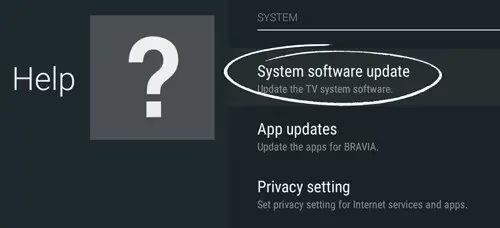
Out-of-date software on your streaming device, mobile phone, smart TV, or gaming console can cause a variety of Netflix errors and sub-par streaming performance. To manually check for firmware updates:
-
Go to your device’s “Settings” menu.
-
Select “System”, then “System Update” or “Software Update.”
-
Follow the prompts to check for and install any available updates.
We recommend enabling automatic software updates in your device settings to prevent issues caused by running outdated firmware.
#8. Adjust Audio/Video Settings
In rare cases, error TVQ-Details-Menu-100 occurs due to device compatibility issues with your current audio and video settings. To troubleshoot:
-
Go to your device’s “Settings” and select “Display & Sounds.”
-
Locate audio output settings and switch to “Stereo” if available, instead of “Surround Sound” or other formats.
-
If your device has an “HDR” or “Dolby Vision” setting, try temporarily disabling it.
These adjustments resolve error TVQ-Details-Menu-100 most often on gaming consoles and smart TVs. Just remember to switch back to your preferred A/V configuration once you’ve confirmed Netflix works in the basic stereo setting.
#9. Reinstall the Netflix App
If you’re still seeing the error after completing the previous steps, try uninstalling and reinstalling the Netflix app:
-
Navigate to your device’s “Settings”, then “Apps.”
-
Find Netflix in the list and select “Uninstall.”
-
Once uninstalled, open your device’s app store.
-
Search for Netflix and select “Install.”
-
Launch the freshly-installed Netflix app and sign in.
Reinstalling the app clears out any lingering corrupted files or incorrect configurations that could be triggering the TVQ-Details-Menu-100 error.
#FAQ About Netflix Error TVQ-Details-Menu-100
#How common is the TVQ-Details-Menu-100 error on Netflix?
This error is one of the more frequently reported Netflix issues. It can appear on any device, from smart TVs and gaming consoles to the Netflix mobile app. Connectivity problems and outdated software are the usual triggers.
#Can I fix the TVQ-Details-Menu-100 error by resetting my device to factory settings?
A factory reset can resolve error TVQ-Details-Menu-100 when corrupted files or settings are the root cause. Keep in mind that this process erases all data from your device, so treat it as a last resort. Write down your Netflix login credentials before you begin.
#How long does it typically take to troubleshoot error TVQ-Details-Menu-100?
Most users resolve this Netflix error in 15 minutes or less by following the troubleshooting steps above. The process may take a bit longer if you have slow internet speeds or an unusual device setup.
#What should I do if I still see error TVQ-Details-Menu-100 after trying all the fixes?
First, confirm that Netflix itself isn’t experiencing an outage by checking their official social media channels or Down Detector{:rel=“noopener” target=“_blank”}. If Netflix is down, you’ll need to wait for them to resolve the issue on their end.
If there’s no widespread outage, contact Netflix customer support{:rel=“noopener” target=“_blank”} directly. Be ready to tell them your exact device model and which troubleshooting steps you’ve already tried.
#Does error TVQ-Details-Menu-100 mean my Netflix account has a problem?
No. This error points to a device-side or network-side issue, not an account problem. Your subscription, payment, and profile data are unaffected. Signing out and back in can help re-sync your device with Netflix servers, but the error itself has nothing to do with billing or account status.
#Can a VPN cause the TVQ-Details-Menu-100 error even if it worked before?
Yes. VPN servers rotate IP addresses regularly, and Netflix actively blocks known VPN ranges. A VPN connection that streamed fine last week may trigger TVQ-Details-Menu-100 today if Netflix flagged that IP block. Disconnect the VPN, test Netflix on your regular connection, and try a different VPN server if you need one.
#Will reinstalling Netflix delete my downloaded shows?
Yes, uninstalling the app removes all offline downloads stored on your device. If you have downloads you want to finish watching, try the other fixes first (restart, clear cache, sign out/in). Reinstalling is best saved for after those steps have failed.
#Bottom Line
When you see the dreaded TVQ-Details-Menu-100 error on Netflix, remember:
-
This issue is caused by a disrupted link between your device and Netflix, typically due to internet issues, outdated software, or configuration problems
-
Start by checking your internet speeds and connection stability
-
Restart your device and update the Netflix app next
-
Clear the Netflix app cache and data to remove any corrupted files
-
Disable VPN and adjust A/V settings if all else fails
-
Reinstall Netflix or factory reset your device as last resorts
If you methodically follow the troubleshooting steps in this guide, you can almost always resolve error TVQ-Details-Menu-100 on your own in minutes. However, don’t hesitate to contact Netflix support if you’re still stuck after attempting all the DIY fixes.
With these expert tips in hand, you’re well equipped to tackle this common Netflix error code without breaking a sweat. Now get back to your Netflix queue with confidence!