Having problems connecting your TCL Roku TV to Wi-Fi? These troubleshooting steps cover the most common causes and fixes so you can get back to streaming your favorite shows.
- Power cycling fixes most connection drops — unplug the TV for 60 seconds and restart your router to clear temporary glitches
- Outdated firmware causes Wi-Fi failures — check Settings > System > System update and install any available patches
- Ethernet testing isolates the problem — if a wired connection works but Wi-Fi does not, the TV’s wireless adapter may be faulty
- Wrong date and time block connections — an incorrect clock prevents the TV from authenticating with your network
- Factory reset is the last resort — it erases all settings but resolves persistent software conflicts that other steps cannot fix
#Why Won’t Your TCL Roku TV Connect to Wi-Fi?
There are several common reasons your TCL Roku TV may fail to connect to your home Wi-Fi network:
-
Weak or interrupted Wi-Fi signal
-
Incorrect Wi-Fi password
-
Outdated TV firmware
-
Router settings or network configuration issues
-
Temporary system glitch or error
Pinpointing the specific cause will help determine the most effective solution. Before attempting more advanced fixes, start with basic troubleshooting.
#How Do You Troubleshoot TCL Roku TV Wi-Fi Connection Issues?
#1. Check Your Wi-Fi Network
First, verify that your Wi-Fi network is working properly:
-
Confirm other devices can connect to the network
-
Check the Wi-Fi signal strength on your TV
-
Ensure you’re using the correct Wi-Fi name (SSID) and password
-
Reset your Wi-Fi router/modem by unplugging it for 30 seconds
#2. Restart Your TCL Roku TV
A straightforward restart can clear out temporary glitches:
-
Unplug your TV from power
-
Wait for 30-60 seconds
-
Plug your TV back in
-
Turn on the TV and try reconnecting to Wi-Fi
Avoid using the remote to power the TV on/off, as this may not fully reset the system.
If your Roku remote is not working, you can still restart your TV by unplugging it from power.
#3. Update Roku TV Firmware
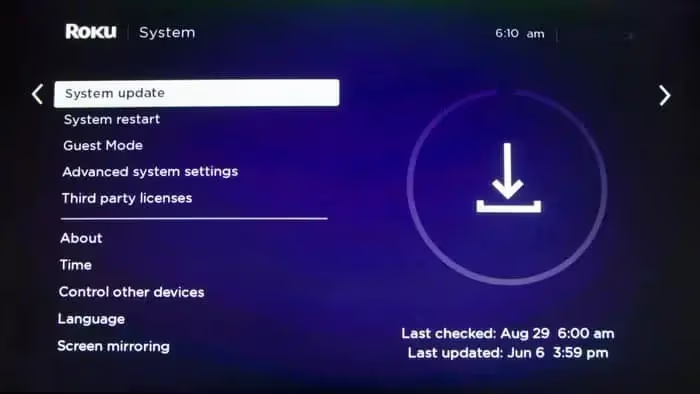
Running outdated firmware can lead to bugs and compatibility issues. To manually check for updates:
-
Press the Home button on your remote
-
Navigate to Settings > System > System update
-
Select “Check now” to scan for available updates
-
If an update is found, choose “Update now”
The TV will download and install the latest firmware version and reboot.
#4. Use an Ethernet Connection
To rule out problems with your TV’s built-in Wi-Fi functionality, try connecting it directly to your router with an Ethernet cable:
-
Connect an Ethernet cable from your router to the TV’s Ethernet port (located on the back)
-
Go to Settings > Network > Set up connection
-
Choose “Wired” as the connection type
-
Follow the on-screen instructions to configure the wired network settings
Once connected via Ethernet, you can try connecting to Wi-Fi again.
#5. Set the Correct Date & Time
An incorrect date and time can interfere with your TV’s ability to connect to Wi-Fi and download updates. To adjust:
-
Go to Settings > System > Time
-
Toggle on “Set time automatically” if available, or manually enter the correct date and time
-
Select “Set time zone automatically” or choose your time zone from the list
#6. Factory Reset the TV
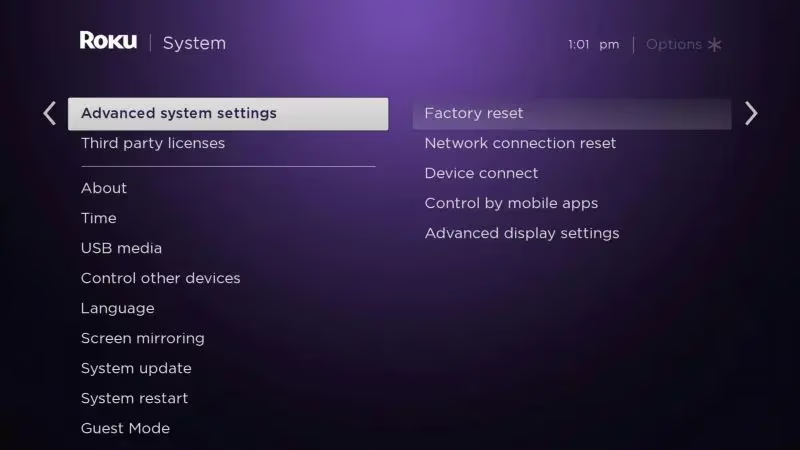
If the above steps don’t resolve the problem, a factory reset will restore your TV to its default settings:
-
Go to Settings > System > Advanced system settings > Factory reset
-
If prompted, enter the parental control PIN
-
Select “Factory reset everything” and confirm
-
The TV will turn off and on again, displaying the initial setup screen
-
Follow the on-screen instructions to set up and connect to Wi-Fi like new
Note: A factory reset will erase all your TV’s custom settings, so only use this as a last resort.
#What Are the Best Tips for TCL Roku TV Wi-Fi Performance?
-
Place your Wi-Fi router in a central location, away from potential interferences like microwaves, baby monitors, and Bluetooth devices
-
Elevate your router off the floor for better signal transmission
-
Use a Wi-Fi extender or mesh network to eliminate dead zones in larger homes
-
Change your Wi-Fi channel to a less congested frequency in router settings
-
Allocate more bandwidth to your Roku TV by enabling QoS (Quality of Service) on your router
With over a decade of experience as a network technician, I’ve seen these tips make a big difference in resolving tricky Wi-Fi issues with TCL Roku TVs.
If you’re having trouble connecting your Roku TV to Wi-Fi, you can still mirror your Android device to Roku as a temporary workaround.
#Contacting TCL Roku TV Support
If you’ve tried all the troubleshooting steps and your TCL Roku TV still won’t connect to Wi-Fi, it may be time to contact customer support:
-
Visit the official TCL Roku TV support site
-
Check for additional troubleshooting guides and resources specific to your TV model
-
Contact TCL’s customer service via phone, email or live chat
-
Provide details on the issue and what steps you’ve already taken
-
See if the TV is under warranty for repair or replacement
Before reaching out, have your TV’s model and serial number ready to expedite the support process.
#Bottom Line
-
Start with basic troubleshooting like checking your Wi-Fi network and restarting the TV
-
Make sure your TV is running the latest firmware version
-
Use an Ethernet connection to isolate potential Wi-Fi adapter issues
-
Verify the TV has the correct date, time and time zone set
-
Factory reset the TV as a last resort to resolve persistent problems
-
Contact TCL customer support if unable to resolve on your own
If you’re experiencing other problems with your TCL Roku TV, check out our guides on fixing a TCL TV black screen, TCL TV overheating, and TCL TV freezing.
#FAQ
#Why does my TCL Roku TV keep disconnecting from Wi-Fi?
Frequent Wi-Fi disconnections on your Roku TV are usually caused by a weak signal, interference from other devices, or outdated firmware. Try moving your TV closer to the router, reducing nearby interference sources, and updating your TV’s firmware. If the problem continues, check whether your router’s firmware also needs an update.
#Can I use my phone as a remote to connect my Roku TV to Wi-Fi?
Yes, the free Roku mobile app for iOS or Android works as a remote control for your TCL Roku TV. The app lets you connect your TV to Wi-Fi, navigate menus, and enter text using your phone’s keyboard. Both your phone and TV need to be on the same network for initial setup.
#How do I find my Roku TV’s IP address?
Go to Settings > Network > About and look for the “IP Address” field. You can also find it by pressing the Home button on your remote, then checking under “My Network” in the top-right corner of the screen. The IP address is useful when troubleshooting network issues with your internet service provider.
#Is 2.4 GHz or 5 GHz Wi-Fi better for my Roku TV?
5 GHz Wi-Fi offers faster speeds and less interference, making it ideal for streaming high-quality video. However, 2.4 GHz Wi-Fi has better range and wall penetration. If your TV is far from the router or separated by thick walls, 2.4 GHz may provide a more stable connection, even if speeds are slightly lower.
#Why won’t my Roku TV connect to Wi-Fi after a factory reset?
After a factory reset, your Roku TV’s network settings are erased, so you need to set up the Wi-Fi connection from scratch. Make sure you select the correct Wi-Fi network and type the password accurately. If it still won’t connect, restart your router and repeat the setup process.
#How do I connect my Roku TV to a hotel Wi-Fi network?
Hotel Wi-Fi networks often require browser-based sign-in, which Roku TVs cannot handle directly. Use your phone or laptop to authenticate on the hotel portal first, then connect your Roku TV. If the hotel requires a web login every time, using your phone as a mobile hotspot is a more reliable option.
#Can a Wi-Fi extender improve my Roku TV’s connection?
A Wi-Fi extender or mesh system can strengthen the signal reaching your Roku TV, especially in larger homes with dead zones. Place the extender roughly halfway between your router and the TV for the best results. Mesh systems generally outperform standalone extenders because they maintain a single network name and hand off connections more smoothly.
#Is a wired Ethernet connection better than Wi-Fi for Roku TV?
A wired Ethernet connection provides faster speeds, lower latency, and more reliability compared to Wi-Fi. If your Roku TV is close to your router and you have an available Ethernet port, using a wired connection delivers a noticeably better streaming experience. The tradeoff is that you need to run a cable, which may not be practical in every room.