Your Sharp TV has no audio when you’re trying to use an HDMI connection, and you’re not sure what went wrong. Many Sharp TV owners run into this frustrating issue. The good news is that with some basic troubleshooting, you can likely get your Sharp TV HDMI audio working again.
- Loose HDMI cables are the most frequent cause of Sharp TV audio dropout, and a 30-second reseat fixes it in many cases
- Digital audio output set to PCM: switching from Auto or Bitstream to PCM resolves most HDMI handshake failures
- HDMI ARC must be enabled on both devices for audio to pass through the TV and the soundbar or receiver
- Firmware updates fix known bugs since Sharp periodically patches HDMI compatibility issues through system updates
- Damaged ports or cables need replacement because bent pins or frayed cables block audio even when video still works fine
#What Causes Sharp TV HDMI Audio Problems?
Before jumping into the step-by-step troubleshooting, here are the most common culprits behind Sharp TV HDMI audio problems:
-
Loose HDMI cable connection: If the HDMI cable connecting your Sharp TV and audio device (soundbar, AV receiver, etc.) works itself slightly loose, it can cut out the audio transmission.
-
Outdated TV firmware: Sharp TVs rely on firmware to function properly. If your firmware is out-of-date, it can lead to HDMI compatibility issues.
-
Incorrect audio output setting: Modern TVs have a slew of audio output options, allowing you to toggle between internal speakers, external audio gear, and more. If the output is incorrectly set, no sound will come through HDMI.
-
Faulty HDMI ports: The actual HDMI ports on both your Sharp TV and connected devices can sporadically fail, again leading to no audio.
-
HDMI ARC issues: ARC (audio return channel) allows audio to be sent both ways through an HDMI cable. Turning this setting off can silence HDMI audio.
-
Conflicting device resolutions: If your Sharp TV and audio device don’t share a common resolution, it can create HDMI handshake issues that block sound.
Keeping these potential causes in mind, let’s walk through the top troubleshooting tips.
#How Do You Fix Sharp TV HDMI Audio Step by Step?
Follow these steps in order when your Sharp Aquos, Sharp Roku TV, or other Sharp television has no sound through HDMI connections:
#1. Confirm Devices Are Powered On
This may seem silly, but before doing anything else, confirm your Sharp TV, sound system, streaming device, etc. are all powered on. If your soundbar or AV receiver is off, for example, HDMI audio can’t transmit.
#2. Check Physical Cable Connections
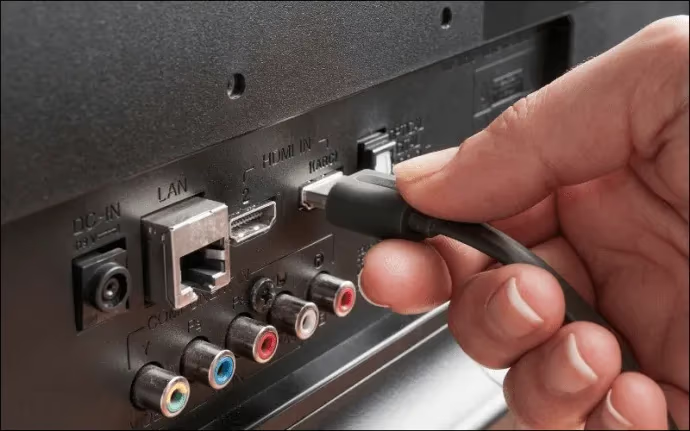
Loose HDMI cables are perhaps the most common cause of Sharp TV audio problems. Here’s how to check:
-
Inspect along the entire HDMI cable for any visible damage or crimping. A damaged HDMI cable can cut out sound.
-
Ensure the HDMI cable is firmly inserted into ports on BOTH the Sharp TV and connected audio device. It only takes a slight wiggle for sound to cut out.
-
Try using different HDMI ports on your devices. For example, if you’re using HDMI 1 on your Sharp TV, switch to HDMI 2.
-
Attempt using a different HDMI cable altogether. This will confirm if the issue is a damaged cable rather than problems with the TV or devices themselves.
If different Sharp TV HDMI ports result in a black screen, check out this advice on solving Sharp Roku TV black screen issues.
#3. Adjust Your Sharp TV’s Audio Outputs
Sharp TVs have settings that allow you to toggle between speakers for audio output. Navigate to Audio Output settings and:
-
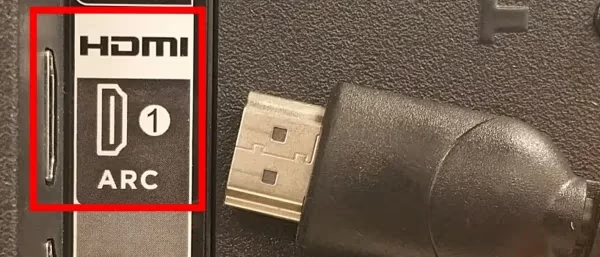
Confirm audio output is set to external speakers rather than Sharp TV speakers themselves. The settings verbiage varies between models but generally falls under options like “Audio System” or “HDMI ARC.”
-
Attempt toggling Digital Audio Output from Auto to PCM. This resolves many HDMI audio handshake issues.
-
If using HDMI ARC, confirm ARC is enabled on BOTH the Sharp TV and connected audio device (soundbar, AV receiver, etc.)
Navigating audio output options can be tricky. See this guide on troubleshooting Vizio TV sound problems for more details.
#4. Perform Sharp TV Factory Reset
Resetting your Sharp TV can clear out any corrupted settings that may be blocking HDMI audio. If your TV won’t power on at all, see this guide to Sharp TVs that won’t turn on before attempting a reset.
Power off your Sharp TV via remote, then unplug the TV power cable. Wait 1 full minute before plugging back in to drain residual electricity.
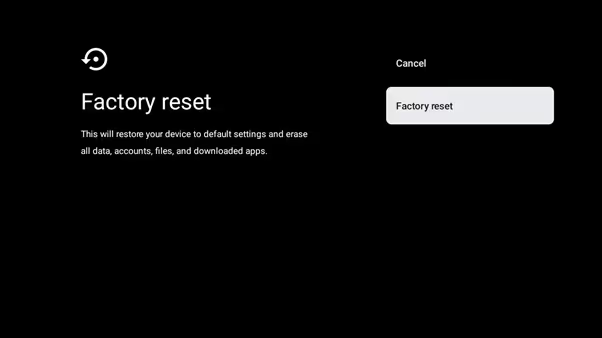
Next, access your TV menu using remote buttons and navigate to Settings > Device Preferences > Factory Reset. This will erase all custom settings and restore defaults.
If you need to setup a universal remote for your Sharp TV, this list of Sharp TV remote codes will help you get started.
#5. Update Your Sharp TV Firmware
Outdated firmware is a common source of HDMI compatibility problems. Updating to latest firmware can resolve multiple issues.
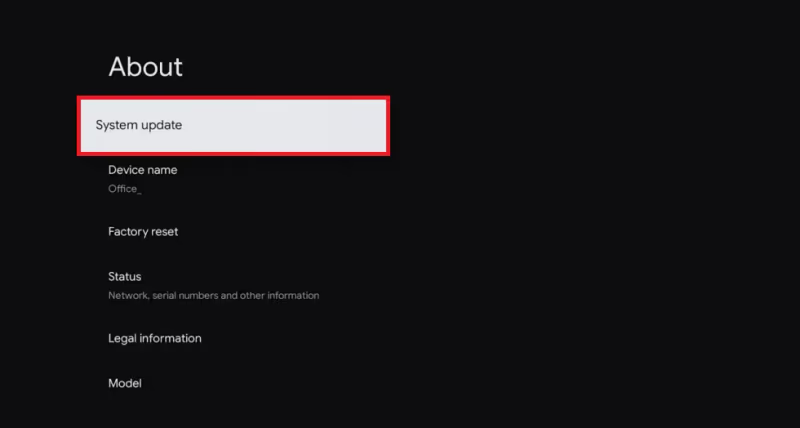
Access Sharp TV menu, navigate to Settings > About > System Update. Initiate automatic scan for latest firmware. Download and install any available updates.
#6. Adjust Connected Device Sound Settings
Issues can also stem from connected devices themselves.
If using cable/satellite box or streaming device, open their Audio Settings menus. Toggle digital audio formats, surround settings, and volume limits. This resolves many HDMI handshake problems.
#7. Swap Out Faulty Cables and Ports
If you still have no Sharp HDMI audio after the above steps, the issue may be damaged cables or ports. Try:
-
Use different HDMI input ports on both the Sharp TV and connected device.
-
Attempt new HDMI cables of varying quality.
-
Inspect all ports for broken/bent pins.
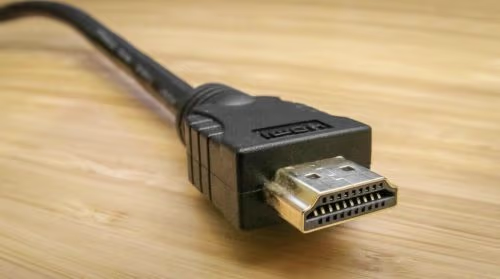
At this point if your Sharp TV still has no HDMI audio, there is likely an internal hardware problem requiring professional TV repair services.
#Bottom Line
Follow this prioritized checklist if your Sharp Aquos, Sharp Roku TV, or other model has no functioning sound through HDMI inputs:
-
Confirm all devices are powered on before anything else.
-
Inspect HDMI cables thoroughly and try different ports/cables to rule these out as the problem source.
-
Check Sharp TV audio outputs and toggle between PCM vs Bitstream, TV speakers vs external audio devices.
-
Perform both a power cycle and software factory reset on the Sharp TV itself.
-
Check for firmware updates from Sharp that may resolve HDMI bugs.
-
Open connected device sound menus (cable boxes, streamers, etc.). Adjust compatible digital audio formats.
-
As a last resort, HDMI ports themselves may be defective requiring professional repair or replacement.
Following these Sharp TV troubleshooting tips step-by-step will help isolate and fix your no HDMI audio problem.
#FAQ
#Why does my Sharp TV play video but not audio through HDMI?
HDMI handshake failures cause this. The TV displays video because it requires less bandwidth than audio. Adjusting your audio output settings to PCM, updating TV firmware, or using a different HDMI cable usually restores the audio connection.
#My Sharp TV HDMI sound works briefly then cuts out. What is wrong?
Intermittent sound typically points to a loose cable connection or a failing HDMI port that overheats. Reseat the cable firmly and test a different port. If the cutouts continue, try a new high-speed HDMI cable rated for your resolution.
#Does Sharp Roku TV need special HDMI audio settings?
Sharp Roku TVs can be more sensitive to HDMI compatibility than other models. Go to Settings > Audio > Digital Output Format and set it to PCM. You should also check that Dolby Digital is not forced on when your soundbar only supports stereo.
#How do I get audio from my cable box to Sharp TV speakers through HDMI?
Change the HDMI audio output on your cable or satellite box from “Bitstream” to “PCM.” This tells the box to send uncompressed audio that the TV’s built-in speakers can decode directly.
#Can a bad HDMI cable cause no sound but still show a picture?
Yes. HDMI cables carry audio and video on separate signal channels. A partially damaged cable can lose the audio channel while the video channel still functions. Replacing the cable with a certified high-speed HDMI cable fixes this.
#Should I use HDMI ARC or a regular HDMI port for my soundbar?
Use the HDMI ARC port whenever your soundbar supports it. ARC sends audio from the TV back to the soundbar through a single cable, eliminating the need for an optical cable. Make sure ARC is enabled in both the TV and soundbar settings.
#Will a factory reset fix Sharp TV HDMI audio problems?
A factory reset can fix audio issues caused by corrupted settings or failed firmware updates. It restores all TV settings to defaults, so you will need to reconfigure Wi-Fi, apps, and picture preferences afterward. Try a power cycle first since it is less disruptive.