Screen mirroring your iPhone to your Sony TV allows you to view content from your phone on the big screen. This guide covers everything you need to know to set up screen mirroring and get the best experience.
- AirPlay is the fastest wireless method — works on most 2013+ Sony Bravia TVs with a few taps from Control Center
- Google TV models need the AirScreen app — Sony TVs running Google TV don’t have built-in AirPlay support
- Wired HDMI gives zero latency — a Lightning Digital AV adapter mirrors everything with no quality loss
- Both devices must share the same Wi-Fi network — 5GHz band delivers the most stable wireless mirroring
- Battery drains faster during mirroring — keep your iPhone plugged in for extended viewing sessions
#Why Screen Mirror an iPhone to a Sony TV?
Here are some of the key benefits of screen mirroring an iPhone to a Sony TV:
-
View photos, videos, movies, gameplay and more in full HD quality on a large screen
-
Play games, use apps and surf the web with more immersive experience
-
Show presentations, documents, websites to groups easily
-
Watch streaming content together without crowding around a small screen
-
View vertically shot videos in proper orientation using Sony’s Vertical Mode
-
Control playback using Sony TV remote
#What You’ll Need
-
A compatible iPhone model (iPhone 5 or later)
-
Compatible Sony Bravia TV (2013 or newer models)
-
Both devices connected to same Wi-Fi network
-
Latest iOS and Sony TV firmware updates installed
Check Sony Bravia compatibility for AirPlay here.
#Top 4 Ways to Screen Mirror iPhone to Sony TV
#1. Using AirPlay
AirPlay is an Apple proprietary protocol that allows you to stream content wirelessly from Apple devices to compatible smart TVs.
Here are the steps to use AirPlay to screen mirror an iPhone to a Sony TV:
-
Enable AirPlay on your Sony TV by going to Settings > Network > Home Network > AirPlay.
-
Swipe down from top right to open Control Center on your iPhone and tap Screen Mirroring.
-
Select your Sony TV from the list.
-
Enter the AirPlay Passcode displayed on your Sony TV.
-
Accept the connection prompt on your TV.
Your iPhone screen will now be mirrored to the Sony TV. You can also directly AirPlay content like photos, videos and music to the TV from compatible apps.
Sony TVs running the newer Google TV interface require using an app like AirScreen to enable AirPlay reception.
#2. With AirScreen App (for Sony Google TVs)
If your Sony TV runs Google TV instead of Sony’s original smart TV interface, you’ll need to install the AirScreen app to allow AirPlay functionality.
Follow these simple steps:
-
Install and open the AirScreen app on your Sony Google TV.
-
Note down the AirPin code shown.
-
Open Control Center on your iPhone and select Screen Mirroring.
-
Choose your Sony TV.
-
Enter the AirPin code when prompted.
Make sure both devices are on same Wi-Fi network. The app offers additional features like screen recording.
#3. Using Mobile Apps
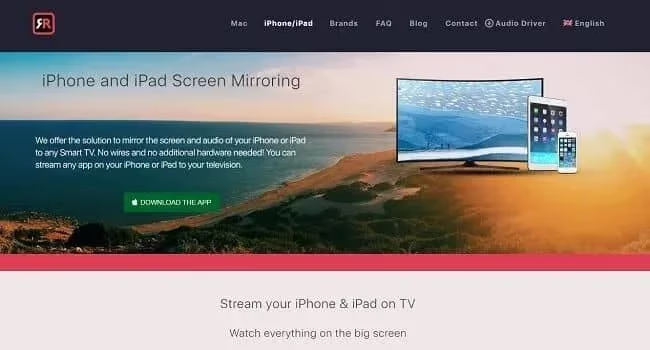
There are a few good mobile apps like AirBeamTV that can help screen mirror your iPhone to Sony TV without using AirPlay. You can also mirror your iPhone to a TV without Apple TV using several of these alternatives.
-
AirBeamTV – Easy to use app with screen mirroring, media playback and device/TV control features.
-
Google Home – Cast your iPhone’s screen directly from the Google Home app.
-
Miracast – Works like AirPlay for Android phones and iPhones. Needs external dongle.
These apps work by installing a client on your phone and receiver/casting software on your TV. Simply select your TV as the casting target from your iPhone. May require paid subscriptions.
#4. With Lightning Digital AV Adapter
You can mirror your iPhone’s screen to your Sony TV using a Lightning to HDMI adapter cable. This mirrors everything on your iPhone unlike AirPlay.
Here’s what you need to do:
-
Connect Lightning Digital AV adapter to your iPhone charging port.
-
Use an HDMI cable to link adapter to Sony TV’s HDMI port.
-
Connect both devices to power.
-
Select the correct HDMI input on your Sony TV.
This wired method delivers very low latency screen mirroring without any loss in quality. However, your iPhone must be close to the TV.
#Tips for Better Screen Mirroring Experience
Follow these tips to enhance your experience of screen mirroring an iPhone to a Sony TV:
-
Update your iPhone and Sony TV to the latest firmware versions for best compatibility.
-
Use strong Wi-Fi signals preferably in 5GHz band for glitch-free mirroring over AirPlay.
-
Select screen zoom and vertical orientation settings on TV for optimal viewing.
-
Close background apps on iPhone to allocate max resources for mirroring.
-
Mirror appropriate vertical/horizontal videos per screen orientation.
-
Try wired HDMI connection via adapter for lag-free gaming/videos.
-
Turn on Do Not Disturb mode on iPhone to avoid notifications interrupting your viewing.
#What Cool Things Can You Do with Screen Mirroring?
Here are some fun, practical or productive ways you can use iPhone to Sony TV screen mirroring:
-
Turn your big screen into a dynamic photo frame displaying your iPhone images
-
Watch latest shows and movies across streaming apps on the superior TV display
-
Play games ranging from Asphalt 9 Legends to Call of Duty Mobile with immersive experience
-
Give professional presentations directly from your iPhone
-
Let kids enjoy safe YouTube/Netflix viewing under supervision
-
View recipes hands-free while cooking in the kitchen
-
Demo holiday photos and videos to larger gatherings
Try Samsung Smart View for screen mirroring Samsung devices like Galaxy phones. HomePod and Apple TV also allow TV screen mirroring via AirPlay.
#How Do You Fix Screen Mirroring Not Working?
Here are some troubleshooting tips if you face issues getting your iPhone to screen mirror to your Sony TV:
#TV Not Powering On
If your Sony TV is not turning on properly or going into standby mode, this will prevent the screen mirroring function from working. Refer to this guide on fixes for Sony TV not turning on and troubleshoot the power issue first.
#Can’t Find TV in Screen Mirroring List
-
Check compatibility for AirPlay support on your Sony model. Update TV software if needed.
-
Connect both devices to same Wi-Fi network (2.4GHz/5GHz band).
-
Reboot the Sony TV and iPhone.
-
On iPhones running iOS 10 and up, ensure AirPlay is enabled in Control Center > Screen Mirroring.
-
If your Sony TV has Google TV, try AirScreen app instead of AirPlay.
#AirPlay Disconnecting or Buffering
-
Ensure your Wi-Fi router and ISP plan provides strong, uninterrupted bandwidth.
-
Move iPhone and Sony TV closer to the Wi-Fi router/access point.
-
Close all background apps and restart iPhone before screen mirroring.
#Video Quality Loss Over AirPlay
-
Compressed lossy streaming like Netflix won’t mirror in full quality over AirPlay. If Netflix is not working on your Sony TV, fix that issue separately before attempting to mirror.
-
For best results, play locally stored HD/4K videos using VLC or MX Player apps.
-
Try wired HDMI connection for zero quality loss full mirroring.
#Lag/High Latency in Screen Mirroring
-
Gaming/video apps often have latency over AirPlay. Use wired HDMI adapter instead.
-
If using Wi-Fi, move closer to the wireless router for stronger signals. Upgrade router if needed.
-
Reduce heavy usage by other devices on same network during screen mirroring.
Check Sony’s guide on troubleshooting AirPlay issues for more help.
#Bottom Line
-
Screen mirroring allows viewing iPhone content on your Sony TV’s big screen for better experience
-
iPhone 5 onwards work for screen mirroring. Most 2013 and newer Sony Bravia models are compatible.
-
You can mirror via AirPlay, mobile apps or wired HDMI adapter depending on TV model
-
Optimize Wi-Fi connectivity for wireless mirroring to avoid glitches
-
Update iPhone iOS and Sony TV firmware to latest versions for reliable performance
-
For gaming/video playback with zero lag, use a wired Lightning HDMI adapter
Pick your preferred screen mirroring method, grab some popcorn, and enjoy your iPhone content on the big screen.
#Frequently Asked Questions
#What iPhones support screen mirroring to Sony TV?
Most iPhones from iPhone 5 onwards running at least iOS 11 can screen mirror to a compatible Sony TV model via AirPlay or wireless casting apps and dongles.
#Do all Sony TVs support iPhone screen mirroring?
Mainly 2013 and newer Bravia models support AirPlay based wireless screen mirroring from an iPhone. Refer to the official Sony site for exact device compatibility.
#How can I check if my Sony TV model supports AirPlay?
Go to Settings > Network > Home Network > AirPlay on your Sony TV. If you see the AirPlay toggle under options, your TV supports using AirPlay with an iPhone.
#Does screen mirroring affect iPhone battery life?
Yes, actively screen mirroring over Wi-Fi causes faster battery drain versus normal usage. Keep your iPhone plugged in or sufficiently charged while casting to avoid interruptions during longer sessions.
#Can I mirror my iPhone while Sony TV is being used for cable or streaming?
Yes, you can activate screen mirroring to overlay and display your iPhone’s screen on top of cable or streaming content playing in the background. The TV will switch its input to show your mirrored display.
#Is there any delay when screen mirroring wirelessly?
Wireless mirroring through AirPlay or apps typically introduces 0.5 to 2 seconds of latency. This delay is barely noticeable for video playback or presentations, but it can affect fast-paced gaming. Use a wired HDMI adapter if latency matters.
#Can I mirror my iPhone to a Sony TV without Wi-Fi?
Yes, you can use a Lightning Digital AV adapter with an HDMI cable to connect your iPhone directly to the TV. This method requires no Wi-Fi at all and delivers full-quality mirroring with minimal latency. It works with any Sony TV that has an HDMI port.
#Do I need to install any app on my iPhone for screen mirroring?
For AirPlay, no extra app is needed since it is built into iOS. Third-party methods like AirBeamTV or Google Home do require installing their respective apps from the App Store. The wired HDMI adapter method needs no apps at all.