For many new users, finding the Samsung TV power button and using it can be somewhat perplexing. So, our team decided to compose this article to clear things up for them. We will explain where this specific button is located and how to make the most of it.
- The power button location varies by model — check beneath the Samsung logo, bottom-right corner, or back-right side of the TV
- Look for the standby indicator light — the power button is almost always near the red LED standby light on the lower bezel
- Samsung TVs can be controlled without a remote — use the built-in control button, control stick, or the SmartThings mobile app
- The control stick offers full TV navigation — adjust volume, change channels, access Smart Hub, and switch input sources
- Power issues often trace back to the power supply — check the standby light, house breakers, and remote batteries before calling support
#Introduction to Samsung TV Power Button
The TV remote is constantly disappearing, and that’s a common issue for many of us. That said, we have no idea how to switch on the TV in the absence of the remote.
Nevertheless, the TV’s Power could be toggled on and off with the TV’s power button. In fact, this is more of a standard on a Samsung TV. The issue, though, is that the respective power button could be inconveniently hidden on many Samsung models.
Assume that you own a Samsung TV and are having trouble finding its power button. In that case, this article will show you where to look.
Besides, if your HBO Max not working on Samsung TV, here’s a guide with every possible reason and practical solution for you to try.
#So, Where’s the Power Button on Your Samsung TV?
Well, your Samsung TV’s power button may be typically placed next to the red power indicator light. You can find it on the screen’s lower bezel.
However, the TV’s power button may be located in some other places as well. So, we mention those places below for your reference.
Also, if you wonder how to cast Oculus Quest 2 to Samsung TV, here are the four most practical solutions to accomplish this task with ease for you.
#Location 01: Below Your Samsung TV’s Logo
Underneath the middle of its lower bezel, or alternatively, under the logo, is typically where the button is found. The location of the power button varies by model.
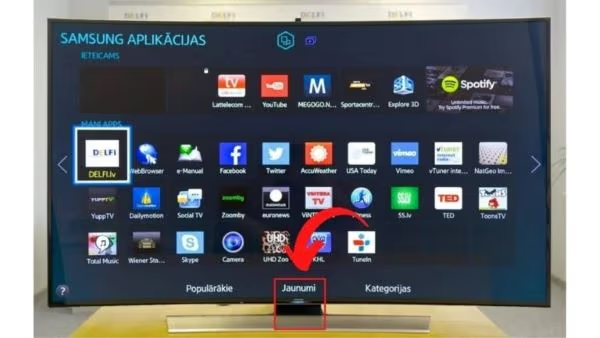
So, you may need to experiment by placing your hand just below the Samsung logo to find it. You may not be experiencing anything since your television does not have a dedicated power button. So, the next place to look is the one after that.
#Location 02: Bottom-right
Many Samsung Televisions have their power buttons tucked away in the corner of the lower right bezel.
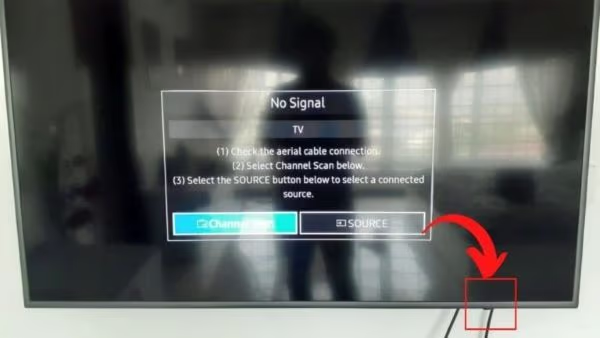
The TV’s receptor is typically situated there as well. Samsung seems to be playing a game of hide-n-seek with its power button placement. That is because they put it in such an unusual location.
Not to mention, the Samsung TV power button is really subtle. This is why you must utilize your sense of touch to explore the region around this power button carefully. This button may be located underneath the standby indicator light on some models.
#Location 03: Left or Right of the Front Bezel
It’s possible to adjust the volume or channel with the touch of a button on some Samsung TVs.
Power buttons on such Samsung TVs are typically located on the right side of the lower bezel.
It is true that the dedicated power button is hidden underneath the lower bezel’s touch sensor. So, you’ll need to keep your eyes peeled for the corresponding icon.
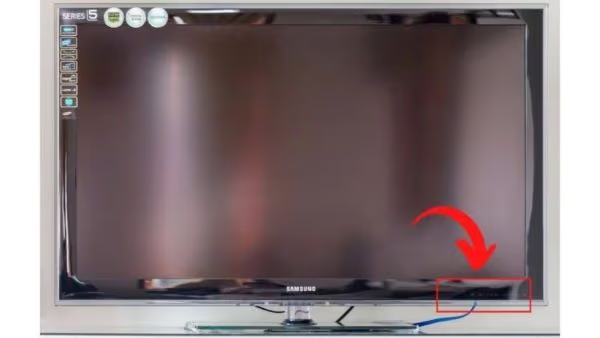
The TV can be turned on by pressing the power button and holding it down for several seconds. It’s also worth checking the front side of the left bezel of some older Samsung TVs for the button. If the TV does not have a dedicated touch button, the absence of a power symbol may be the reason.
#Location 04: Right Side of the Rear of the TV
In some models, the Samsung TV power button may be located on the right side of its back. Unfortunately, you’ll have to move the TV a little bit to the front and press the dedicated power button.
The Power on/off button is located on the back of most televisions. And it can be found by reaching the right-hand side of the back of the screen. Can’t you see it yet?
If so, try moving the TV a little forward and looking for it using a flashlight. Finally, if the TV’s power button isn’t on its right-hand side, try shifting it to the left and see.
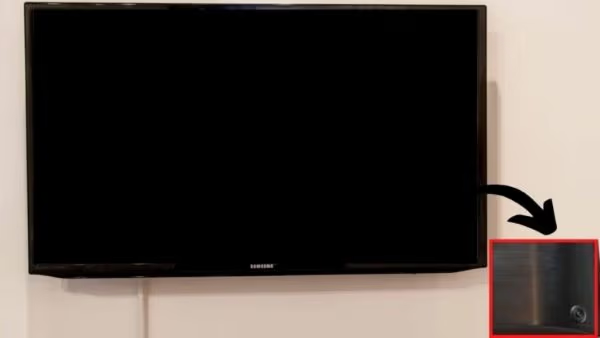
And that’s how to locate your Samsung TV power button.
#Is It Possible to Control Your Samsung TV if You Don’t Have a Remote?
It’s true that remote control is included with every Samsung TV.
However, here are some alternate ways to operate your TV without the use of a remote controller.
This can be handy in instances when your remote gets lost or batteries run out.
#Control Your Samsung TV with Its Control Button/Control Stick
You can use the device’s control button or the control stick to control your Samsung TV.
Mentioned below are those methods.
#Option 01: Use the Control Button
Pressing the power button on your TV is the simplest way to turn it on and off.
Following the initial TV power-on, pressing the remote’s control button once more brings up a submenu. It has options like
-
Power Off.
-
Volume Up/Down
-
Channel Up/Down
-
Sources
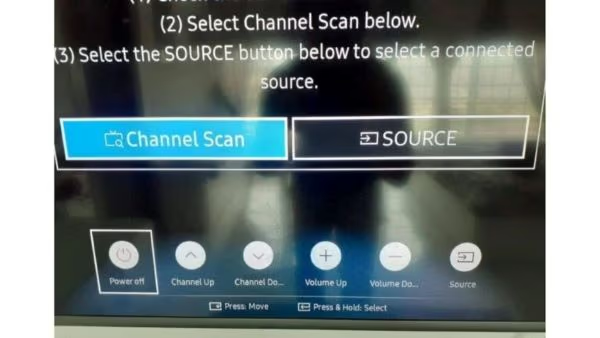
If you want to select a specific option, you have to hold down its control button.
However, if you want to skip to the other one, you only have to push it once. So, that’s another use of the Samsung TV power button.
#Option 02: Control Stick
More precise and convenient TV management is possible with a device called a Control stick.
By angling the Control Stick at various angles, you may access the various buttons located beneath it.
The center button on this Jog controller powers up your television set if it is off. On the front side of the TV, a leftward movement of this control stick can lower the volume.
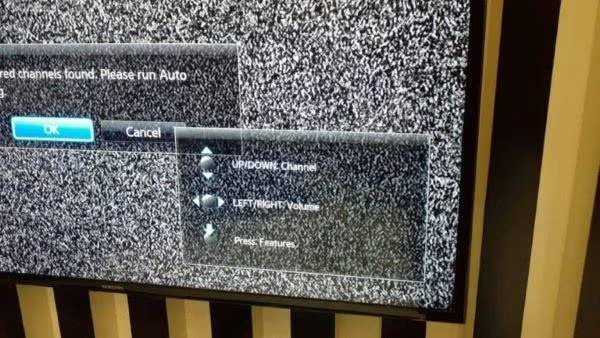
On the other hand, a rightward movement will increase it. Similarly, if you lift your thumb off this control stick, you’ll jump to the following channel. And, if you lower it, you’ll return to the prior one.
After powering up, you can access the following settings by pressing the Control Stick.
-
Reset/Return options
-
Settings
-
Power off
-
Smart hub
-
Source
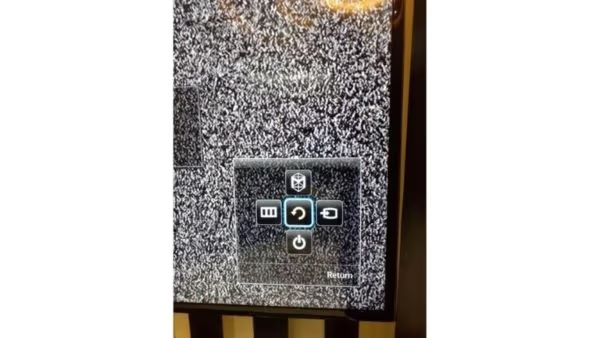
Do you want to access your TV’s smart hub and operate the TV’s smart capabilities? If so, we must lift this control stick and hit the button. Putting the TV to sleep is as simple as pressing your control stick downward.
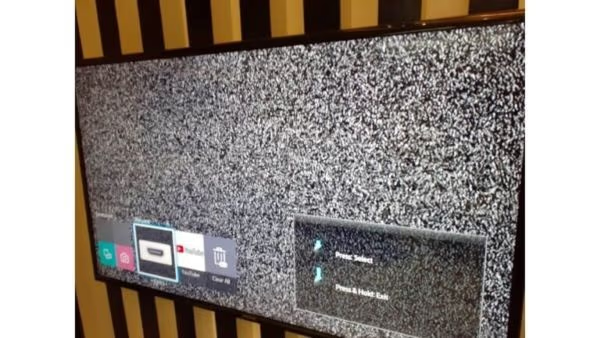
However, if you move to the right of the menu using the controller, you can access the following.
-
HDMI 1/2/3
-
TV cables
-
USB
-
Screen mirroring
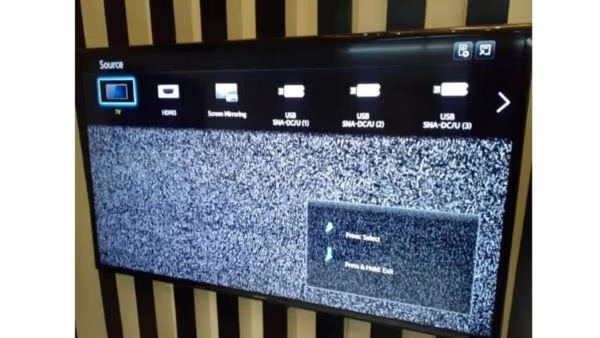
On the other hand, you can access the following by moving the controller toward the left.
-
Sound
-
Picture
-
Broadcasting
-
Smart features
-
Network
-
Support
-
System
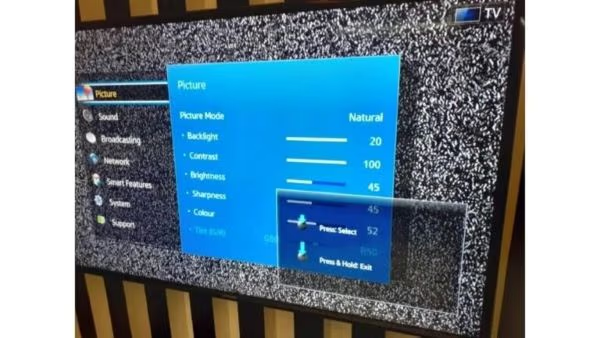
#How to Control Your Samsung TV Using the SmartThings App
Samsung’s Smart Things app allows you to manage your Samsung TV from a mobile device. Here are the measures to take to do this.
-
Download and install the SmartThings app via the Play Store on your Android device.
-
Now, you should open the app to see the home screen. Then, connect the TV. Make sure that both the TV and the smartphone are on the same Wi-Fi network.
-
You can now use this app and control the TV.
#Steps to Control Your Smart TV Using Samsung’s SmartThings Mobile Application
Well, the red button represents the Power so you can switch on or off your TV.
-
Towards the left of the power button, you can find volume up and volume down buttons. To the right-hand side, you can see channel + and channel -.
-
Below that, you can see the mute button, and then you can see the “Exit” button as well. To access your TV settings, click on the button placed under volume.
-
Then, you can see the return button under settings.
-
If you want to access the option called Smarthub and its Sources, tap on the home button. It is located next to the button dedicated to “Return.”
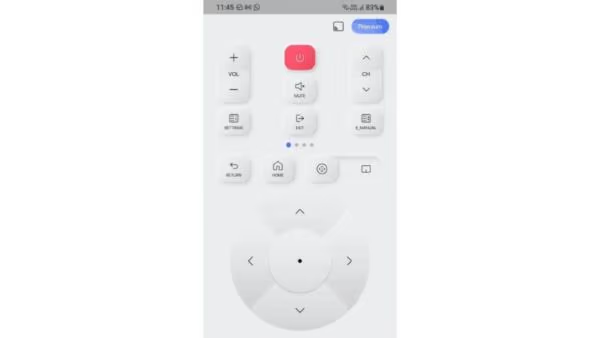
Do you desire to use its touchpad instead of the navigation buttons? If so, you can do so by toggling the option next to the “Home” button.
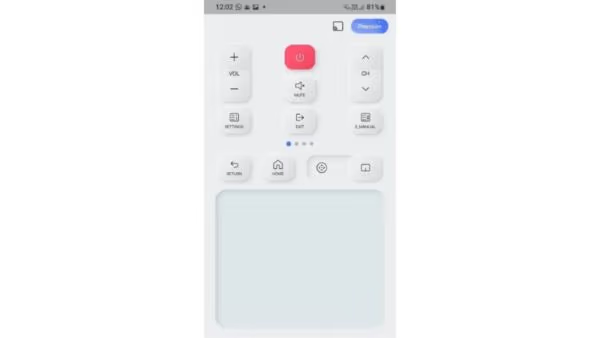
#Solutions to Try if Your Samsung TV Doesn’t Get Turned on
What if you are unable to switch on your Samsung TV using its power button or remote?
Well, this section of the article is dedicated to addressing that issue.
-
If you have any issues that prevent you from switching on the TV, there can be several reasons. First of all, you should check if the TV has a solid power supply. You can check if the standby light is working to verify this. In general, the standby light should be on even if you have switched on the TV. So, go ahead and check if the power supply is provided correctly.
-
What if the button is switched on, and yet the standby indicator is off? So, you should check your house’s breakers. If the breakers are tripped, that will prevent your Samsung TV from switching on.
-
If you see the Standby light illuminating, but the TV doesn’t turn on, try to debug the remote. That is because the issue may be related to your remote itself.
-
To debug the remote, just remove the batteries from it. After that, press its “reset” button and hold it for 10 seconds at the least. Then, replace the batteries as you would usually do. Then, see if it works.
-
As we believe at least one of the above solutions should work.
#FAQ
#Can I turn on my Samsung TV without the power button?
Yes, you can turn on your Samsung TV using the SmartThings app on your phone or through HDMI-CEC if your TV is connected to a device like a game console. Some newer Samsung models also support voice commands through Bixby or Alexa, so you can power on the TV hands-free.
#Why is my Samsung TV not responding to the power button?
Start by checking whether the standby indicator light is on. If it is off, the TV likely has no power supply, so inspect the power cable and wall outlet. If the light is on but the TV still will not respond, try unplugging the TV for 30 seconds and plugging it back in to perform a power cycle.
#Can I use a universal remote to turn on my Samsung TV?
Most universal remotes work with Samsung TVs once you program the correct remote code. You can find the code in your remote’s manual or search online for Samsung TV universal remote codes. After pairing, the power button on the universal remote will function just like the original.
#What should I do if my Samsung TV power button is physically damaged?
Contact Samsung support or a certified repair technician to have the button inspected. In the meantime, use the SmartThings app or a universal remote to power the TV on and off. Avoid trying to force the button, as that can cause further damage to the control panel.
#Does turning off a Samsung TV with the power button save energy?
Pressing the physical power button puts the TV into standby mode on most models, which still draws a small amount of power. To cut energy consumption entirely, unplug the TV from the wall outlet. Samsung estimates standby mode uses less than 0.5W, so the savings from unplugging are modest but real over time.
#Where is the power button on Samsung QLED and Neo QLED models?
On most QLED and Neo QLED TVs, the power button sits on the back-right side near the bottom edge. It is a small joystick-style control that also handles volume and input switching. You may need to feel along the rear panel because Samsung designs it to be nearly invisible from the front.
#Can I turn off my Samsung TV on a schedule without the remote?
Yes, Samsung TVs have a built-in sleep timer and auto power-off feature accessible through the SmartThings app. You can set the TV to turn off after a specific duration or at a set time each day. This is useful if you fall asleep watching TV and want it to shut off automatically.
Also read: Samsung TV Universal Remote Codes.
#Bottom Line
And that’s it about the Samsung TV power button. As you can see, it can be somewhat tricky to locate the physical power button on Samsung TVs. The position of the button can vary from one model to another.
However, if you follow the instructions above, you may be able to locate it without much hassle. That said, if you have more doubts about this matter, please let us know.