Samsung TV Plus is a free streaming service available on select Samsung smart TVs, phones, and other devices such as Roku. It offers over 100 channels covering news, sports, movies and more without needing a subscription or account. Our in-depth review of Samsung TV Plus shows how it compares favorably to other free streaming options.
But sometimes Samsung TV Plus can stop working properly and fail to load any channels. Common problems include:
-
Black screen when launching the app
-
“Couldn’t connect to Samsung TV Plus” error
-
App crashes or won’t open
-
Channels failing to load content
Most of these issues can be fixed with a few troubleshooting steps. Below are 13 solutions to try when Samsung TV Plus is not working on your Samsung Smart TV, mobile device, or Family Hub refrigerator.
- Server outages are the first thing to check — Samsung’s Service Status page shows active issues affecting TV Plus across all devices
- A restart fixes most temporary glitches — power cycle your TV or phone before trying anything else
- Internet speeds below 25 Mbps cause buffering and loading failures — test your connection and reboot your router if needed
- Clearing app cache and data resolves corrupted files — this fix works on both Samsung TVs and Android phones
- Factory reset is the last resort — it erases all settings and apps, so back up your data first
#1. How Do You Check Samsung TV Plus Server Status?
As a streaming service, Samsung TV Plus relies on a connection to Samsung’s servers. Sometimes server outages can cause the app to temporarily stop working across all devices.
To check the current status, go to Samsung’s Service Status page and look under Smart TV Services.
If Samsung TV Plus does show an alert or degradation, you’ll need to wait for Samsung to resolve the issue on their end before the app will start working again. Keep checking back until full service is restored.
#2. Restart Your Device
One quick first step is to restart your Samsung device:
On a Samsung TV:
-
From the main menu, select Settings
-
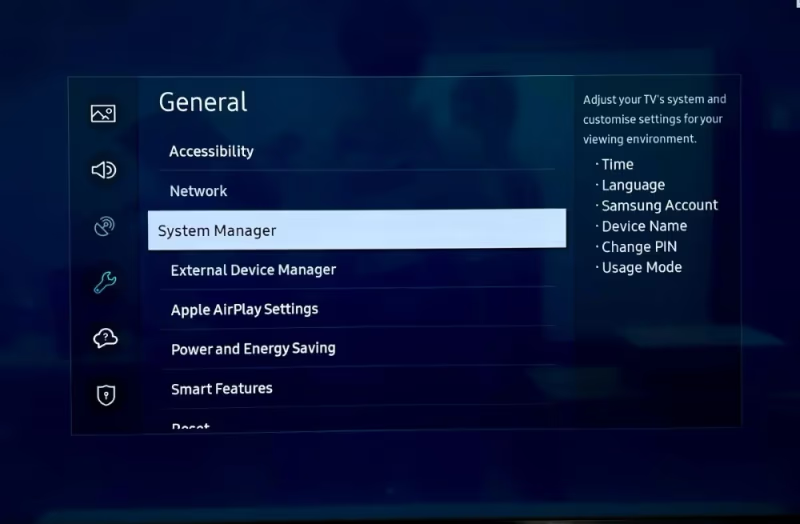
Select General > System Manager > Restart
On a Samsung phone/tablet:
-
Hold down the Power button
-
Tap Restart when prompted
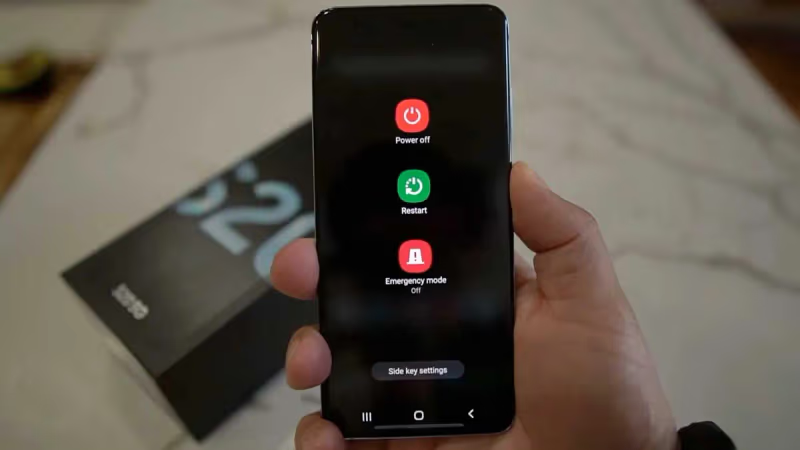
Once restarted, open Samsung TV Plus again to see if the issues persist. Restarting can often fix temporary glitches.
#3. Why Is Your Internet Connection Causing Samsung TV Plus to Fail?
Since Samsung TV Plus relies on streaming data from the internet, an unstable internet connection can disrupt channels from loading properly.
On your Samsung device, browse to any webpage or run a speed test. If webpages fail to load or speeds are consistently below 25 Mbps, this likely explains the TV Plus issues.
To fix, try:
-
Rebooting your Wi-Fi router and modem
-
Connecting via ethernet if available
-
Checking for interference from other devices
-
Calling your ISP if speeds are consistently slow
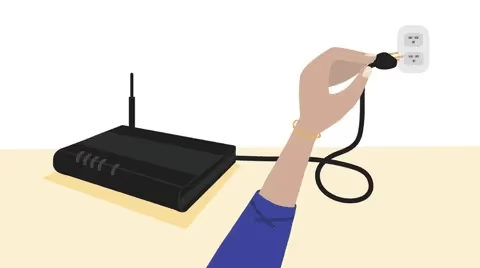
Once internet connectivity improves, Samsung TV Plus should start performing better.
#4. Update the Samsung TV Plus App
An outdated version of the Samsung TV Plus app can sometimes cause issues with channels failing to load.
To check for app updates:
On a Samsung TV:
-
From the main menu, select Settings
-
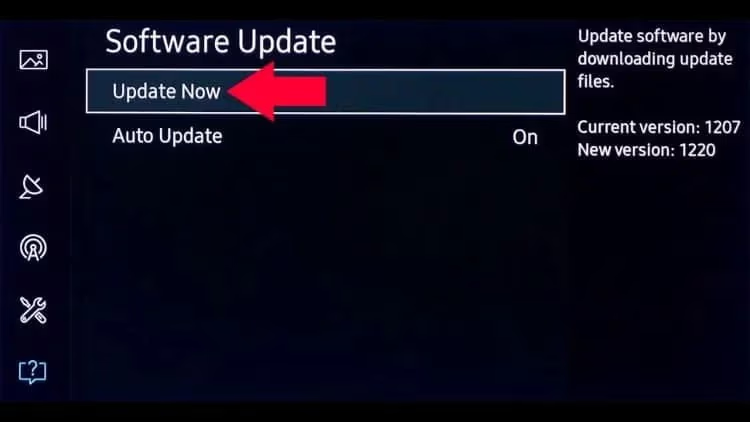
Select Support > Software Update > Update Now
On a Samsung phone/tablet:
-
Open the Google Play Store
-
Tap the profile icon to access My Apps & Games
-
Under Updates, check if Samsung TV Plus has a pending update
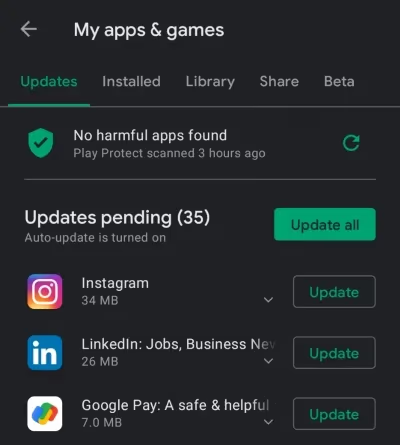
Install any available updates for the app, then reopen to see if the problems are resolved. Updates often include bug fixes and performance improvements.
#5. Update Your Device’s Firmware
Alongside app updates, an outdated firmware version can also disrupt connectivity with Samsung services like TV Plus.
So it’s also important to keep your Samsung device’s system software updated:
On a Samsung TV:
-
From Settings, select Support
-
Select Software Update > Update Now
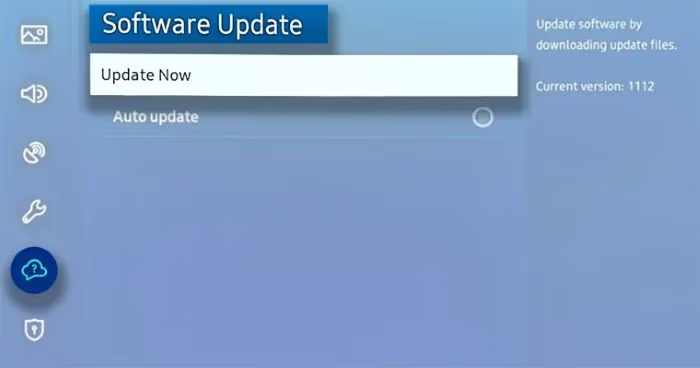
Follow on-screen prompts to install any available firmware updates.
On a Samsung phone/tablet:
-
Open Settings
-
Select Software update > Download and install
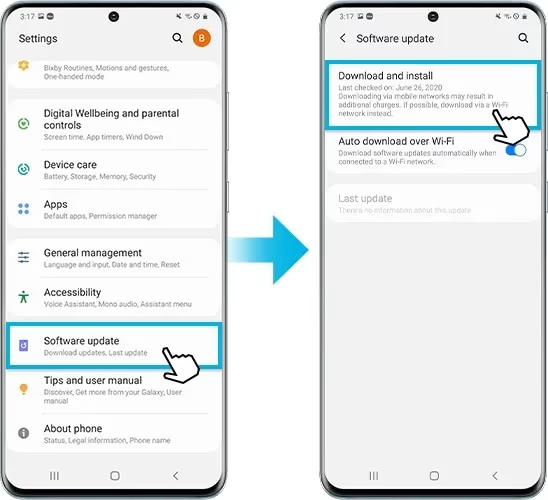
Follow prompts to update to the latest Android OS version.
You may need to update using a computer via Samsung Smart Switch or Samsung Kies if the over-the-air update fails.
Once firmware is up-to-date, test if TV Plus works again.
#6. Delete and Reinstall the App
If Samsung TV Plus frequently crashes or fails to open, deleting and reinstalling the app can restore functionality:
On a Samsung TV:
-
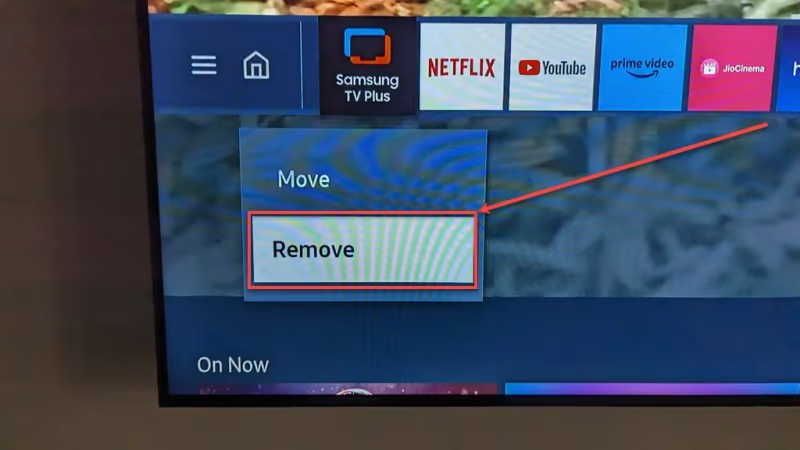
Highlight the Samsung TV Plus icon and press the down directional button on your remote
-
Select Remove
-
Redownload Samsung TV Plus from the Samsung TV store
On a Samsung phone/tablet:
-
Touch and hold the Samsung TV Plus app icon
-
Tap Uninstall
-
Open the Google Play Store and reinstall Samsung TV Plus
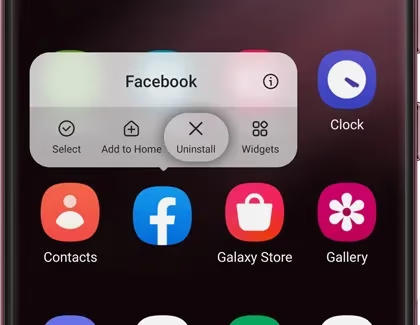
This will reset app data that may have become corrupted and was causing crashes or launch issues.
#7. How Do You Clear App Cache and Data?
Clearing the cache and app data for Samsung TV Plus can fix certain errors without a full reinstall:
On a Samsung TV:
-
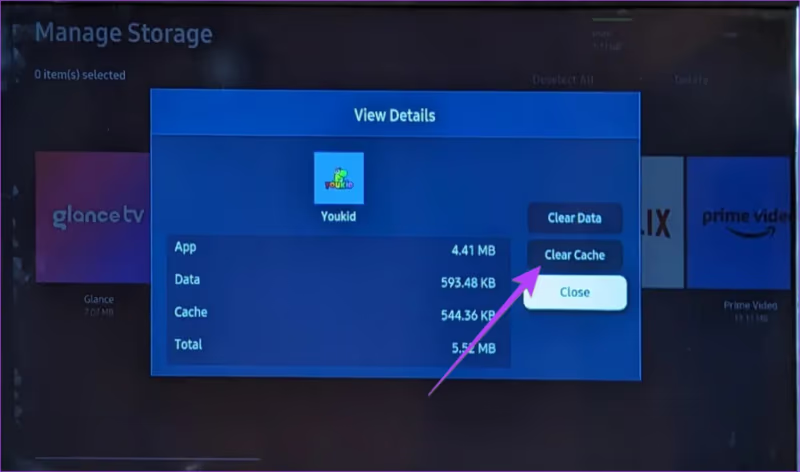
Highlight the Samsung TV Plus icon and press the down directional button
-
Select Clear Cache
-
Repeat the steps to also select Clear Data
On a Samsung phone/tablet:
-
Open device Settings
-
Tap Apps > Samsung TV Plus
-
Tap Storage > Clear Cache and Clear Data
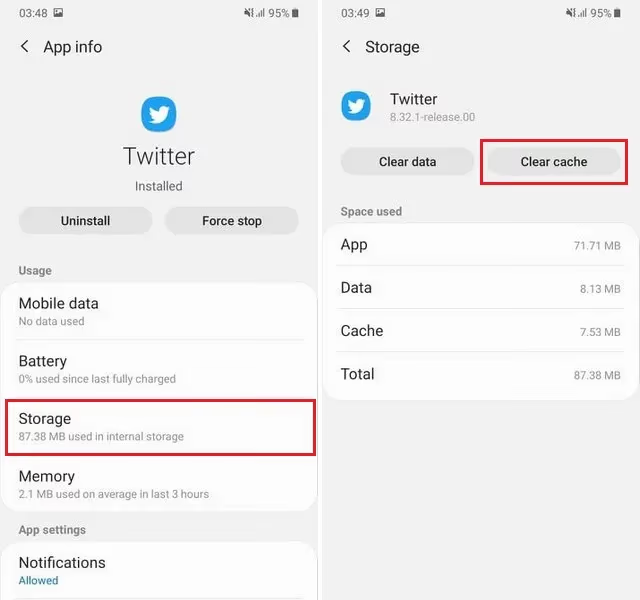
After clearing cache/data, reopen Samsung TV Plus to see if channel streaming issues are resolved.
#8. Enable Unknown Sources (Android Only)
On Android mobile devices, you may need to enable installation of apps from unknown sources for Samsung TV Plus to work properly:
-
Open Settings
-
Select Apps or Application Manager
-
Tap Special Access > Install Unknown Apps
-
Enable access for Chrome and any other necessary apps
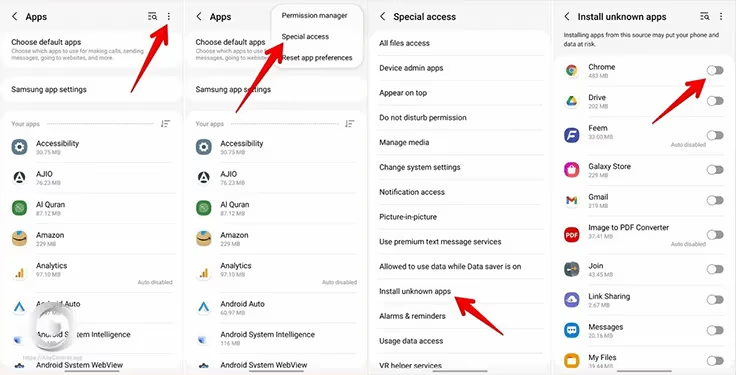
With this permission enabled, test if Samsung TV Plus will now open and play channels.
#9. Adjust DNS Settings
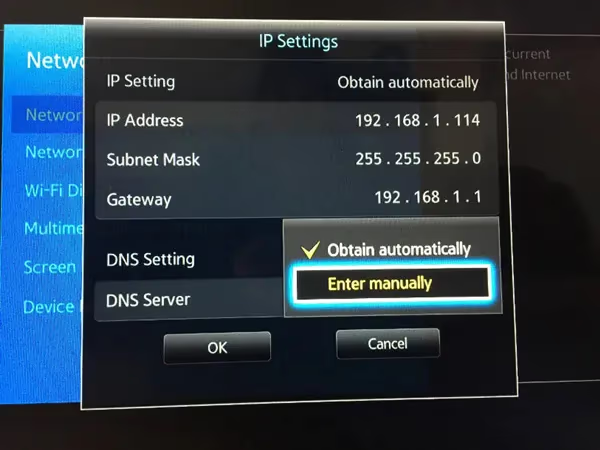
Samsung TV Plus may fail to connect due to problems with DNS name server lookup. To rule this out, manually configure alternate DNS addresses:
On a Samsung TV:
-
From Settings, select General > Network > Network Status
-
Select IP Settings
-
Set DNS Setting to Enter Manually
-
Enter 8.8.8.8 and/or 1.1.1.1 DNS addresses
-
Restart your TV
On a Samsung phone/tablet:
-
Open Settings and tap Connections > More Network Settings
-
Select Private DNS > enter Private DNS provider hostname
-
Enter: dns.google or 1.1.1.1
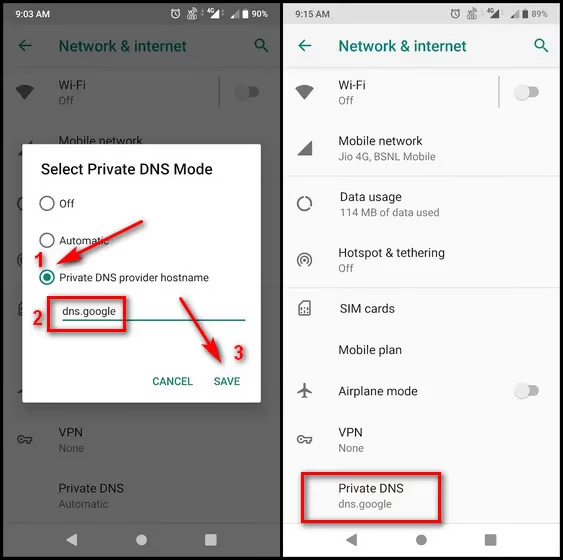
If TV Plus starts working after updating DNS, you can investigate more permanent fixes for DNS issues on your network.
#10. Disable IPv6
Some users have reported IPv6 connectivity issues disrupting access to Samsung services. As a test, temporarily disable IPv6 support:
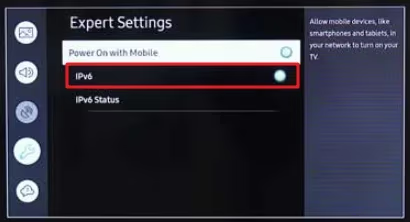
On Samsung TVs:
-
From Settings, select General > Network
-
Select Expert Settings
-
Disable Enable IPv6
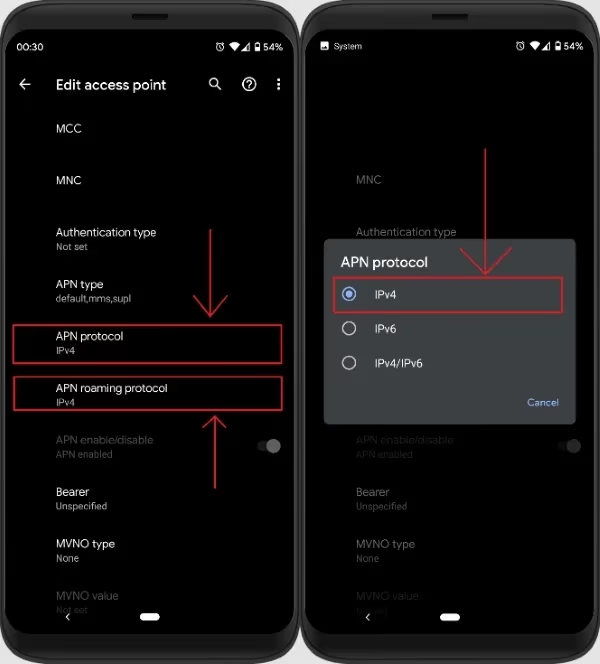
On Samsung phones/tablets
-
Open Settings and tap Connections > More network settings
-
Tap Network mode
-
Set Network mode to IPv4
Re-test Samsung TV Plus functionality. If channels load correctly with IPv6 disabled, contact your ISP for help resolving IPv6 problems.
#11. Reset Network Settings
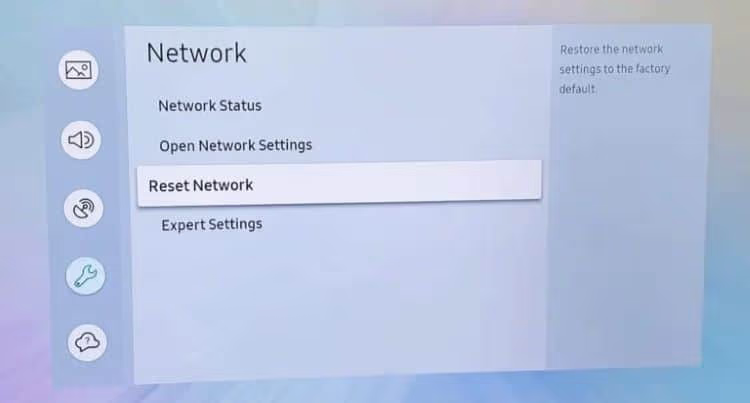
Network problems are a common reason for streaming issues with apps like Samsung TV Plus. Resetting all network settings can fix misconfigurations:
On Samsung TVs:
-
From Settings, choose General > Reset
-
Select Reset Network Settings
On Samsung phones/tablets:
-
Open Settings
-
Select General Management > Reset > Reset Network Settings
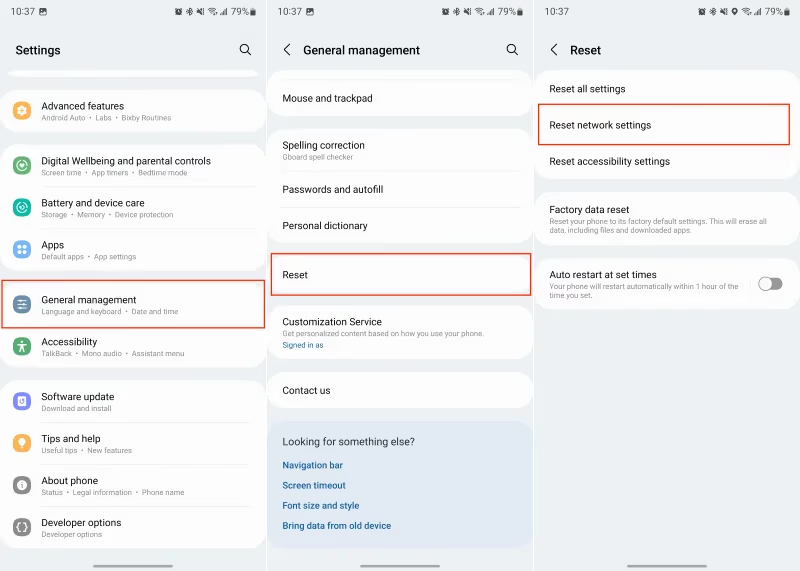
Once network settings are erased and reverted to defaults, set up your Wi-Fi or ethernet again and retry Samsung TV Plus.
#12. Reset Your TV to Factory Settings
For recurring hardware-related problems that prevent Samsung services like TV Plus from working correctly, a full factory reset can help:
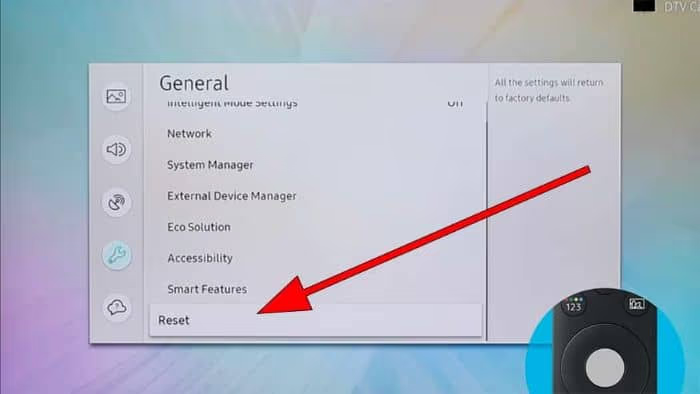
On Samsung TVs:
-
From Settings, select General > Reset
-
Highlight Reset to Initial Settings
-
Enter your PIN to fully reset the TV
On Samsung phones/tablets
-
Open Settings
-
Select General Management > Reset > Factory Data Reset
-
Choose Reset to erase all data and reset device.
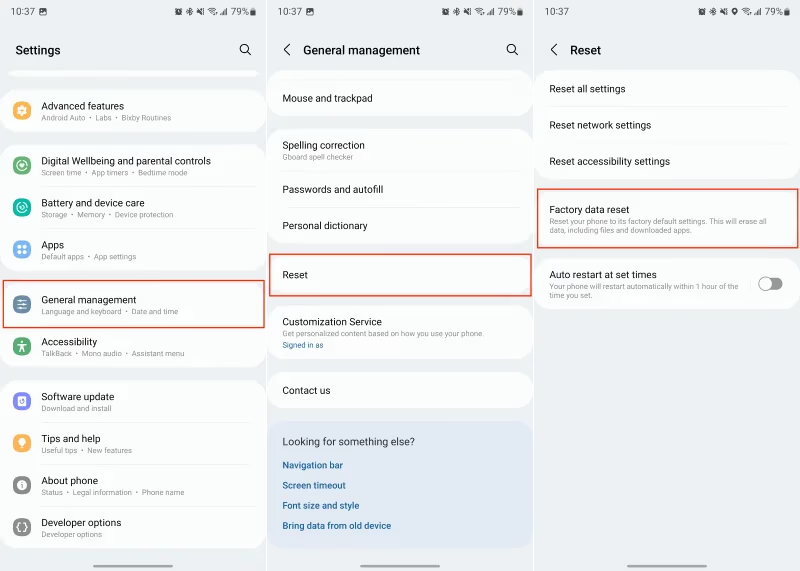
Factory resetting will erase all your custom settings and installed apps. Back up important data before proceeding.
It will reinstall the original firmware, which should restore full access to Samsung services.
#13. Contact Samsung Support
If you still can’t get Samsung TV Plus working after trying all troubleshooting steps, it’s time to get help directly from the experts.
On a Samsung TV:
-
From the main menu, navigate to Support
-
Select Contact Us and choose your preferred contact method
On a mobile device:
-
Open Settings and select About Device
-
Tap Contact us to call, chat, email or set up a repair
Samsung support can further diagnose why Samsung TV Plus is still not working and arrange necessary hardware repairs if applicable.
Be ready to provide your full device details, Samsung TV Plus app version, what channels are impacted, troubleshooting already attempted and any exact error messages shown.
If Samsung TV Plus is still not working for you even after trying all fixes, alternative free streaming apps are available. For smart TV platforms, Pluto TV offers comparable channel options to Samsung TV Plus.
#Bottom Line
Here’s a quick summary of fixes to try when Samsung TV Plus has problems loading channels:
-
Check server status page for known outages
-
Reboot the device
-
Verify internet connectivity
-
Update Samsung TV Plus app
-
Update device firmware
-
Reinstall Samsung TV Plus app
-
Clear app cache/data
-
Adjust DNS settings
-
Disable IPv6
-
Factory reset as last resort
After working through these troubleshooting steps, most issues with Samsung TV Plus not working can be resolved. But if problems continue even after factory resetting or indicate hardware failure, contact Samsung Support for warranty repairs or replacement.
#FAQ
#Why does Samsung TV Plus keep buffering or freezing?
Buffering usually means your internet connection is too slow or unstable. Samsung TV Plus needs at least 25 Mbps for consistent streaming. Test your speed, reboot your router, and try connecting your TV via ethernet instead of Wi-Fi.
#Is Samsung TV Plus available in all countries?
No. Samsung TV Plus is only available in select countries including the United States, Canada, the United Kingdom, Germany, and several other regions. If you travel outside a supported country, the app will not load channels. Using a VPN does not reliably fix this limitation.
#Can you use Samsung TV Plus on non-Samsung devices?
Yes, Samsung TV Plus is available on Roku devices and through the Samsung TV Plus website at samsungtvplus.com. On Roku, you can download it from the Roku Channel Store. The web version works on any computer browser regardless of manufacturer.
#Does Samsung TV Plus require a Samsung account?
No Samsung account is needed to watch Samsung TV Plus. The service is completely free with no sign-up, login, or credit card required. Just open the app and start watching. This is one of its biggest advantages over subscription-based streaming services.
#Why does Samsung TV Plus say “service unavailable”?
This error typically appears during server outages on Samsung’s end or when your TV’s region settings are incorrect. Check Samsung’s Service Status page first. If servers are fine, go to Settings > General > System Manager > Language and verify your region matches your actual location.
#Will a factory reset delete my Samsung TV Plus channels?
A factory reset erases all custom settings, downloaded apps, and saved preferences on your TV. Samsung TV Plus will be reinstalled automatically during the initial setup since it comes pre-loaded on Samsung Smart TVs. Your channel list will return to the default lineup for your region.
#How do you fix Samsung TV Plus on a Family Hub refrigerator?
The troubleshooting steps are the same as for a Samsung Smart TV. Start by restarting the Family Hub, then check your Wi-Fi connection and clear the app cache. If those steps fail, update the firmware through Settings > About Family Hub > Software Update.
#Does clearing the cache on Samsung TV Plus delete saved preferences?
Clearing the cache removes temporary files that may be causing errors, but it keeps your basic app settings. Clearing data, on the other hand, resets the app to its original state and removes all saved preferences. Start with clearing cache first before trying clear data.