If your Samsung TV is not connecting to Wi-Fi, you are not alone. This is one of the most reported issues among Samsung Smart TV owners, and the good news is that it is almost always fixable at home. We have tested several methods and narrowed them down to the ones that actually work.
- Power cycling fixes most cases — unplug your TV for 60 seconds, plug it back in, and re-enter your Wi-Fi password
- Outdated firmware is a common culprit — download the latest update from Samsung’s support site via USB if your TV is offline
- DNS conflicts block connections silently — manually setting DNS to 8.8.8.8 in your TV’s network settings often restores access
- A blocked MAC address locks out your TV — test by connecting to a phone hotspot to confirm whether your router is the problem
- Hard reboot differs from a restart — hold the power button on the remote until the Samsung logo appears to force a deeper reset
#What Causes Samsung TV Wi-Fi Connection Problems?
We have done a good amount of research on this topic. The cause is not always the same, but the most common triggers fall into four categories.
#Due to Outdated Firmware
Your Samsung TV runs firmware that controls how it communicates with your router. When Samsung releases updates, they often patch network bugs. If your TV is running an older version, it may fail to negotiate a connection with your router.
Keeping firmware current is one of the easiest preventive steps you can take.
#Due to a General Bug
Temporary software glitches can interfere with your TV’s network stack. The Wi-Fi radio may appear functional, but the software layer responsible for managing connections gets stuck. A restart or power cycle usually clears these bugs.
#Blocked MAC Address
Every device on your network uses a unique MAC address. Routers use these addresses to identify and manage connected devices. If your router’s MAC filter or your ISP has blocked your TV’s address, the TV will detect the network but fail to connect.
#Wrong DNS Settings
DNS translates website names into IP addresses. If the DNS configuration on your TV conflicts with your router’s settings, data packets get lost in transit. You will see a “connected” status but no internet access. Manually setting Google DNS (8.8.8.8) bypasses this problem.
Now that we have covered the causes, let’s walk through the fixes in order from easiest to most involved.
#How Do You Fix Samsung TV Not Connecting to Wi-Fi?
#Method 1: Restart the Samsung TV
A minor bug can be the reason behind the Samsung TV not connecting to Wi-Fi. A power cycle clears the TV’s volatile memory and forces the network stack to reinitialize.
#To get it done, you should do the following.
-
First, turn on the TV and let it sit for about 5 minutes.
-
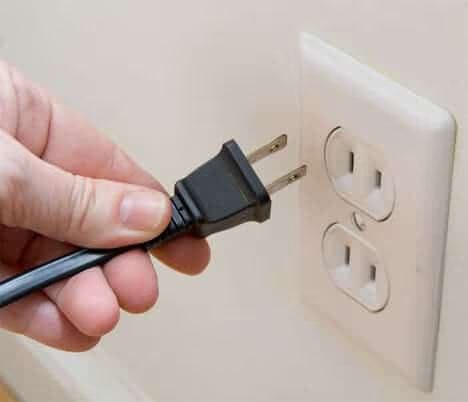
Now, don’t use the remote to turn it off. Instead, unplug the power cable directly from the wall outlet.
-
Wait for at least 20 minutes. This drains residual power from the capacitors.
-
Plug the TV back in and enter your Wi-Fi password when prompted on the screen.
This single step resolves the issue for a large number of users.
#Method 2: Restart Your Router
Sometimes your TV is fine but the router itself has a hiccup. DNS caches can become stale, or the router’s DHCP server may have run out of available IP addresses. Power cycling the router forces it to reassign connections cleanly.
#Mentioned below are the steps to power-cycle your internet router.
-
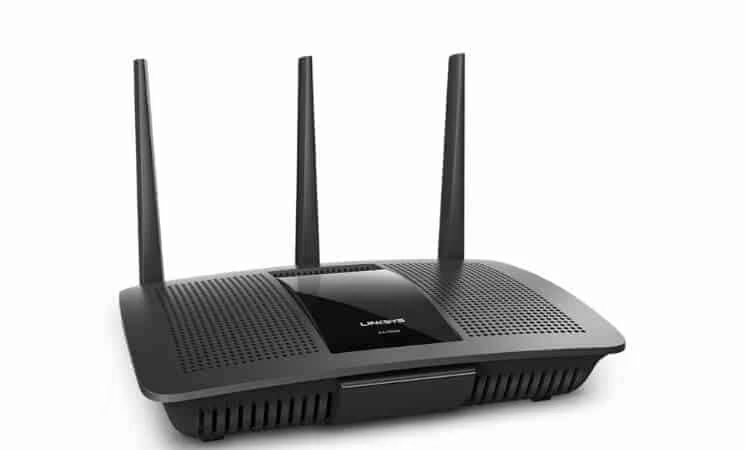
First, turn off your router.
-
Wait for about 10 minutes and then turn it on.
-
Let the router fully boot up. Once the internet indicator light is steady, try to connect your Samsung TV to the router.
-
Check if the issue persists.
If your Samsung TV still refuses to connect, the problem likely runs deeper. Move on to Method 3.
#Method 3: Connect the TV to a Different Network
This method helps you determine whether the problem is with your TV or your router. If your TV connects to a different network without any trouble, the router is the issue.
#Mentioned below is how to get it done.
-
Turn your Samsung TV on and go to its Wi-Fi settings.
-
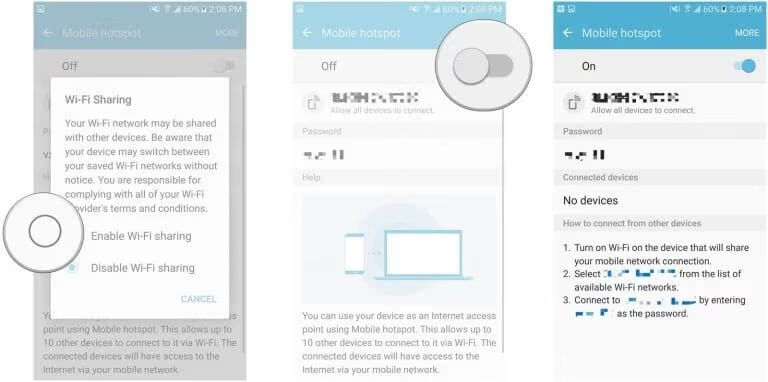
Grab your phone and switch on its Mobile Hotspot.
-
Connect your Samsung TV to the phone’s hotspot.
-
If the TV connects successfully, the MAC address is likely blocked on your router. Contact your ISP or check the router’s admin panel to whitelist your TV.
#Method 4: Update the Firmware
Samsung regularly releases firmware updates that address network compatibility and bug fixes. Since your TV is currently offline, you will need to download the update using a computer and transfer it via USB.
#To get it done, you should do the following.
- Go to Samsung’s official support page and select your TV model.
-
Click “Download” and wait for the file to finish.
-
Extract the firmware file to a blank USB drive. Make sure the USB is formatted and empty before copying.
-
Remove any extra symbols or numbers from the extracted folder name.
-
Plug the USB into your Samsung TV and press “Menu” on the remote.
-
Go to “Support” and then “Software Upgrade.”
-
Select “By USB” from the available methods.
-
Click “OK” when the TV detects the new update. Wait for the installation to complete.
-
Once the TV restarts, try connecting to Wi-Fi again.
If you are also experiencing other Samsung TV issues, check out our guide on Samsung TV keeps freezing for related troubleshooting steps.
#Method 5: Refresh Your DNS Settings
Incorrect DNS settings are a frequent cause of Wi-Fi problems on Samsung TVs. Your TV might show “connected” but fail to load any content because DNS lookups are failing.
#Mentioned below are the steps to refresh the DNS settings.
-
Press the “Menu” button on the remote and go to “Settings.”
-
Navigate to the “Network” option and select “Network Settings.”
-
Click “Start” and go to “IP Settings.”
-
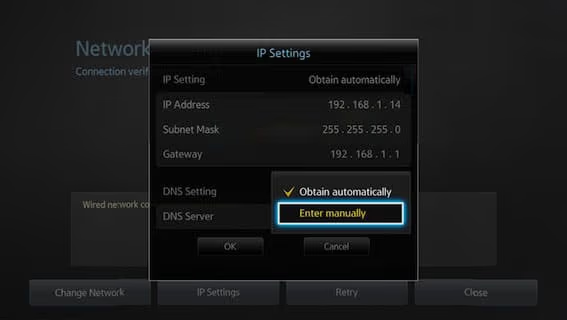
Select “DNS Mode” and switch it to “Manual.” Then hit “OK.”
-
Select “Enter Manually” and hit OK.
-
Type “8.8.8.8” (Google’s public DNS) and hit “OK.”
-
Check if you now have internet access on the TV.
This fix works because Google’s DNS servers are faster and more reliable than many ISP-provided DNS servers. You can also try 8.8.4.4 as an alternative.
#Method 6: Hard Reboot Your TV
A hard reboot goes deeper than a standard restart. It forces the TV’s processor to fully reset rather than entering a sleep state.
-
Grab your Samsung TV remote. Press and hold the Power button.
-
Keep holding it until the TV shuts down and the Samsung logo appears as it restarts.
-
Once it finishes rebooting, check if the Wi-Fi connection works.
If your TV has other power-related issues, our guide on Samsung TV won’t turn on covers additional steps.
#Method 7: Contact Samsung Support
If none of the methods above fix the problem, the issue may be hardware-related. A faulty Wi-Fi module inside the TV would require professional repair.
Contact Samsung’s customer support and provide your TV’s model number and a description of the troubleshooting steps you have already tried. They can schedule an in-home service visit or recommend a certified repair center.
Also read: TCL Roku TV Not Connecting to Wi-Fi for similar fixes on a different platform.
#FAQs
#Why is my Samsung TV not finding my Wi-Fi network?
Your Samsung TV may not detect your Wi-Fi network if the router’s signal is too weak, the network name (SSID) is hidden, or the TV’s Wi-Fi module has a temporary glitch. Move the router closer to the TV and make sure SSID broadcasting is enabled in your router settings.
#How do I check the Wi-Fi signal strength on my Samsung TV?
Go to Settings, then Network, then Network Status on your Samsung TV. The screen shows a signal strength indicator or bar graph. If the signal reads below 50%, consider relocating the router or adding a Wi-Fi extender between the router and TV.
#Can outdated firmware cause Wi-Fi connection issues on a Samsung TV?
Yes. Outdated firmware can cause your Samsung TV to lose compatibility with newer router protocols, especially WPA3 encryption. Samsung pushes firmware updates that patch these issues, so keeping your TV updated is one of the best ways to prevent connection drops.
#What should I do if my Samsung TV still won’t connect to Wi-Fi after troubleshooting?
If you have tried all seven methods in this article and the TV still won’t connect, the Wi-Fi hardware inside the TV may be defective. Contact Samsung support with your model number. As a workaround, connect an Ethernet cable directly from your router to the TV for a wired connection.
#Is there an alternative way to connect my Samsung TV to the internet without Wi-Fi?
Yes. If your Samsung TV has an Ethernet port, plug a Cat5e or Cat6 cable directly from the router to the TV. Wired connections are more stable and faster than Wi-Fi, making them a good permanent solution if your TV is near the router.
#Can a VPN or firewall on my router block Samsung TV Wi-Fi?
Yes. Some routers run VPN clients or firewalls that block certain devices from accessing the network. Log into your router’s admin panel and check if any security rules are filtering your TV’s MAC address or IP range. Temporarily disable the VPN to test.
#Does resetting my Samsung TV to factory settings fix Wi-Fi issues?
A factory reset can fix Wi-Fi problems caused by corrupted software settings. Go to Settings, then General, then Reset on your TV. Keep in mind that this erases all your installed apps and preferences, so use it as a last resort after trying the other methods first.
#How often should I restart my router to prevent Samsung TV Wi-Fi issues?
Restarting your router once every two to four weeks helps prevent IP conflicts, DNS cache buildup, and memory leaks. Set a reminder or use a smart plug with a timer to automate the reboot cycle, especially if multiple streaming devices share the same network.
#Bottom Line
A Samsung TV that won’t connect to Wi-Fi is frustrating, but the fix is usually straightforward. Start with a power cycle since it resolves the majority of cases. If that does not work, move through DNS changes, firmware updates, and MAC address checks in order. Each method targets a different root cause, so working through them systematically is the fastest path to getting back online.
If you need a connection right now while troubleshooting, plug in an Ethernet cable as a temporary workaround. And if nothing works after all seven steps, contact Samsung support because the Wi-Fi module itself may need replacement.