If you are dealing with a Samsung TV green screen error, you probably want a fix right away. This is a common problem faced by Samsung TV owners worldwide, and the green tint can completely ruin your viewing experience. The good news is that most causes are straightforward to diagnose and repair at home.
- Loose or damaged HDMI cables — the single most common trigger for green screen errors on Samsung TVs
- Disabling HDR+ mode — resolves the green tint for the majority of affected users within seconds
- RGB Only mode in Expert Settings — turning this off eliminates color channel imbalances that cause green dominance
- Cold boot (10-second power hold) — clears temporary firmware glitches without losing your saved settings
- Factory reset as last resort — wipes all custom configurations but fixes persistent software-related green screen issues
#What Causes a Samsung TV Green Screen?
Samsung Smart TVs generally run smoothly, but they are not immune to display errors. A green screen is one of the more frustrating issues because it makes the TV unusable.
Several factors can trigger this problem. A loose or improperly connected HDMI cable is the most frequent culprit. Incorrect picture settings, particularly HDR+ and RGB configurations, also cause green tint issues. Temporary software glitches in the TV’s firmware can produce the same result. In rarer cases, a hardware failure in the T-CON board or LED backlight panel is responsible.
Understanding the root cause helps you pick the right fix. The solutions below are arranged from simplest to most involved, so start at the top and work your way down.
#How Do You Fix Samsung TV Green Screen?
If you are wondering how to get rid of that green screen, this section covers every proven method. Some fixes take under a minute, while others require a full reset.
#1. Check the Cables That Are Connected to Your Samsung TV
Faulty or loose cables are the number one reason behind Samsung TV green screen errors. If your HDMI, component, or AV cables are damaged, bent, or not fully inserted, color data can get corrupted in transit.
Unplug each cable from both the TV and the source device. Inspect the connectors for bent pins or physical damage. Plug everything back in firmly until you hear or feel each connector click into place. If a cable looks worn, replace it with a new high-speed HDMI cable.
A large number of users report that simply reseating their cables fixed the green screen immediately. Try this before moving on to software-based solutions. If your Samsung TV keeps freezing alongside the green screen, a bad cable is the most likely cause.
#2. Change the Picture Settings
Wrong picture configurations on your Samsung TV are another frequent trigger. Adjusting a few settings in the Expert menu often clears up the green tint.
#2.1. Turn Off/Disable the HDR+ Mode
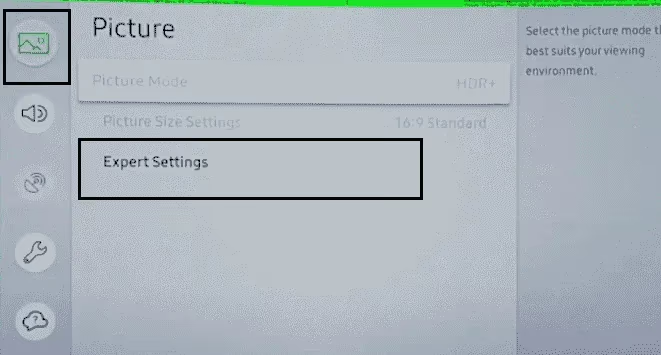
Disabling HDR+ mode is the fastest software fix for this problem. Follow these steps:
-
Press the Menu button on your Samsung remote.
-
Scroll down and select the Picture option.
-
Open Expert Settings.
-
Find HDR+ Mode and toggle it off.
-
Check whether the green screen has disappeared.
If you prefer to keep HDR+ enabled, try the RGB fix below instead.
#2.2. Disable RGB
You can target the RGB color channel directly without touching HDR+:
-
Press the Menu button on your remote.
-
Navigate to Picture and then Expert Settings.
-
Scroll to HDR+ Mode and open it.
-
Locate RGB Only Mode and switch it off.
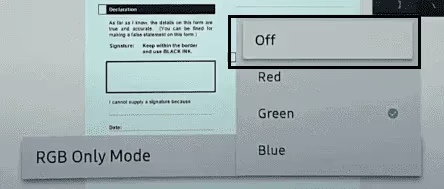
After disabling RGB Only mode, the green dominance should be gone. Many users also fix this error by switching the overall Picture Mode (Standard, Movie, Dynamic) from the Picture menu. Cycle through the available modes to see which one eliminates the green cast.
#2.3. Adjust the Brightness of the TV
In some cases, extreme brightness settings cause color rendering issues that show up as a green tint.
-
Press the Menu button on your remote control.
-
Select Picture, then open Expert Settings.
-
Find the Brightness slider and move it up or down by 10-15 points.
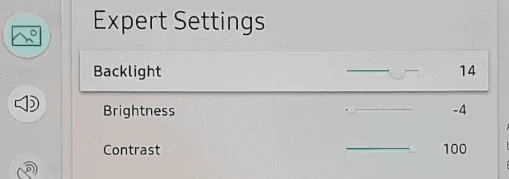
If adjusting brightness does not help, proceed to the next method.
#3. Try a Cold Boot
A cold boot forces your Samsung TV to fully restart its operating system, clearing temporary glitches that a normal power-off does not touch.
-
Grab your Samsung remote and hold down the Power button continuously.
-
Keep holding for about 10 seconds until the TV turns off and then powers back on by itself.
-
Wait for the TV to finish booting, then check if the green screen is gone.
Cold booting preserves all your settings and apps. It simply forces the firmware to reload from scratch. If your Samsung TV won’t turn on after the cold boot attempt, unplug the power cable and try the power cycle method instead.
#4. Perform a Power Cycle
Power cycling drains residual electricity from the TV’s capacitors, which resets internal components more thoroughly than a cold boot.
-
Unplug your Samsung TV from the wall outlet.
-
Wait at least 10 minutes. This gives the capacitors enough time to fully discharge.
-
Plug the TV back in and turn it on.
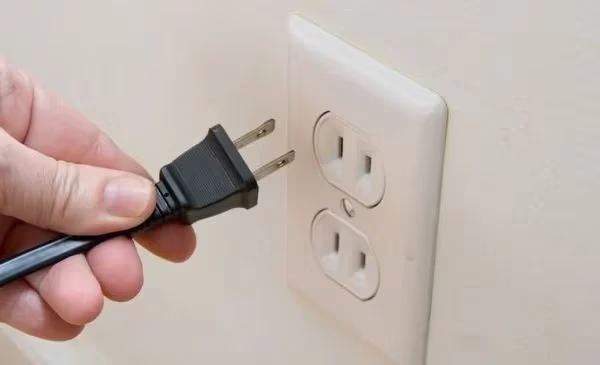
After the power cycle, check whether the green screen error has cleared. This method works well for glitches caused by corrupted temporary data in the TV’s memory.
#5. Perform a Reset on the TV
If nothing else has worked, a factory reset returns your Samsung TV to its original software state. This erases all custom settings, installed apps, and saved Wi-Fi passwords.
-
Go to Settings from the home screen.
-
Select General.
-
Scroll down and choose Reset.
-
Enter your PIN (the default is 0000) to confirm the reset.
The TV will restart with factory defaults. After the reset, you will need to run through the initial setup process again. This fix resolves green screen errors caused by corrupted settings or buggy firmware updates. If your Samsung TV is not connecting to Wi-Fi after the reset, re-enter your network credentials during setup.
#6. Get the Assistance of Samsung
When none of the above methods solve the problem, the green screen is likely caused by a hardware defect. A failing T-CON board, damaged LED strips, or a faulty mainboard all require professional repair.
Contact Samsung Support to schedule a service appointment. If your TV is still under warranty, Samsung may repair or replace the unit at no cost. Be ready to share your TV’s model number and a description of what you have already tried.
Owners of other TV brands experiencing similar issues can check our guides on fixing a TCL TV green screen or a Vizio TV green screen for brand-specific steps.
#FAQ
#Why does my Samsung TV screen turn green suddenly?
A sudden green screen usually points to a loose HDMI cable or a firmware glitch that occurred during a background update. Power cycling the TV for 10 minutes typically resolves glitches, while reseating cables fixes connection-related causes.
#Can incorrect picture settings cause a green tint on Samsung TV?
Yes. HDR+ mode and RGB Only mode are the two settings most likely to produce a green cast. Disabling both under Picture > Expert Settings fixes the issue for the majority of users without affecting overall image quality.
#Does a factory reset fix Samsung TV green screen?
A factory reset resolves green screen errors caused by corrupted software or misconfigured settings. It will not fix hardware-related problems like a failing T-CON board. Back up your settings before resetting, because the process erases all custom configurations and installed apps.
#How do I know if my Samsung TV green screen is a hardware issue?
If the green tint persists after trying every software fix, including a factory reset, the problem is almost certainly hardware-related. Other hardware indicators include the green color appearing only on part of the screen, flickering green lines, or the issue worsening over time.
#Is it safe to cold boot my Samsung TV?
Cold booting is completely safe and does not erase your apps, settings, or accounts. It forces the TV’s operating system to reload from scratch, which clears temporary software glitches. Samsung recommends this as a standard first-step troubleshooting measure.
#How long should I unplug my Samsung TV during a power cycle?
Wait at least 10 minutes before plugging the TV back in. This duration allows the capacitors inside the TV to fully discharge. Shorter waits may not clear all residual charge, which means the glitch could reappear after restarting.
#Can a bad HDMI cable cause a green screen on Samsung TV?
Absolutely. A damaged, loose, or low-quality HDMI cable is the most common cause of green screen errors. The cable carries both video and audio data, and any disruption in the video signal can cause color channel corruption that manifests as a solid green display.
#Should I update my Samsung TV firmware to fix the green screen?
Updating firmware is worth trying if your TV has a pending update available. Samsung periodically releases patches that fix display-related bugs. Go to Settings > Support > Software Update and select Update Now. If the TV is already on the latest version, this step will not help.
#Bottom Line
A Samsung TV green screen is fixable in most cases without professional help. Start with cable checks and picture setting adjustments, then move to cold boot and power cycling if needed. Save the factory reset for stubborn software issues. If the green tint survives every software fix, contact Samsung Support for a hardware diagnosis.