One remote for every device on your TV stand. That is the promise of a universal remote, and it works well with Roku TVs once you have the right code. This guide covers the exact codes for every major Roku TV brand plus step-by-step programming instructions for GE, RCA, Sony, Logitech, and Vizio remotes.
- Code 11756 works for most Roku TVs — it covers TCL, Hisense, Sharp, Insignia, Hitachi, and LG Roku models
- ONN Roku TVs use different codes — enter 3201 or 3851 instead of the standard 11756
- GE and RCA remotes follow the same process — hold Code Search, press TV, then enter your 4- or 5-digit code
- Logitech Harmony remotes skip manual codes — select Roku TV as your device type and the software handles the rest
- Auto code scan is your backup plan — if no listed code works, most universal remotes can scan through codes automatically
#What Are the Universal Remote Codes for Roku TV?
The code you need depends on the TV manufacturer, not the Roku software. A TCL Roku TV and a Hisense Roku TV run the same operating system, but they require different hardware codes because the IR receiver is built by the TV maker.
Here are the confirmed codes for each brand:
| Roku TV Brand | Remote Codes |
|---|---|
| TCL Roku TV | 11756, 11602 |
| Hisense Roku TV | 11756, 11602 |
| Sharp Roku TV | 11756, 10818 |
| Insignia Roku TV | 11756, 11602 |
| Hitachi Roku TV | 11756, 10818 |
| LG Roku TV | 11756, 11602 |
| ONN Roku TV | 3201, 3851 |
| Westinghouse Roku TV | 11756, 0463 |
| Element Roku TV | 0463 |
Start with the first code listed for your brand. If the TV does not respond, try the second code. Your remote’s instruction manual may list additional codes not shown here.
#How Do You Program a Universal Remote for Roku TV?
The process varies by remote brand, but the core idea stays the same: put the remote into programming mode, enter the code, and verify that power and volume work. Below are instructions for five popular universal remote brands.
#GE Universal Remotes
- Hold down the Code Search button until the indicator light turns on
- Press the TV button once and the light will blink
- Enter a Roku TV code from the table above
- The light turns off when the remote accepts the code
- Press the power button to confirm your Roku TV responds
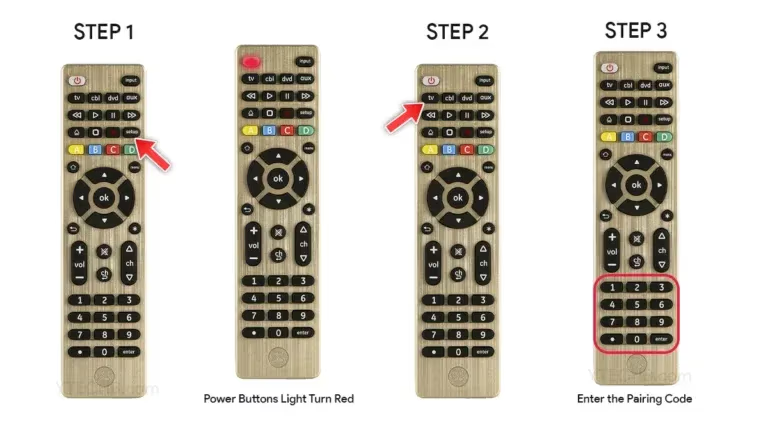
GE remotes also support auto code scan. Hold Code Search, press TV, then press the channel-up button repeatedly until the TV turns off. Press Enter to lock in that code.
#RCA Universal Remotes
- Turn on your Roku TV manually
- Hold the Code Search button until the light stays on
- Press the TV button once
- Enter the 4- or 5-digit Roku TV code
- Test power and volume buttons
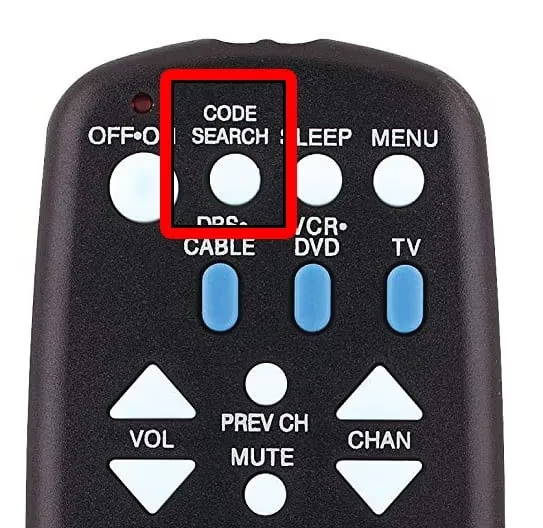
If the first code does not work, repeat steps 2 through 4 with the next code on the list. RCA remotes share the same Code Search process as GE models, so the steps feel familiar if you have used either brand.
#Sony RM-VPR1 Remote
- Hold the Home and Display buttons together for 3 seconds
- Press 9-9-1 on the number pad
- Enter the first 4-digit Roku code
- Test by turning the TV off and back on
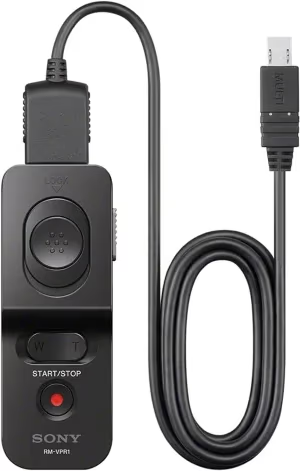
The RM-VPR1 only accepts 4-digit codes, so you may need to trim 5-digit codes or check Sony’s support page for compatible alternatives.
#Logitech Harmony Remotes
- Open the Harmony app or desktop software and select Add Device
- Choose Roku TV as the device type
- Select your exact Roku TV model if listed, or pick the brand and let Harmony match it
- Follow the on-screen prompts to test each button
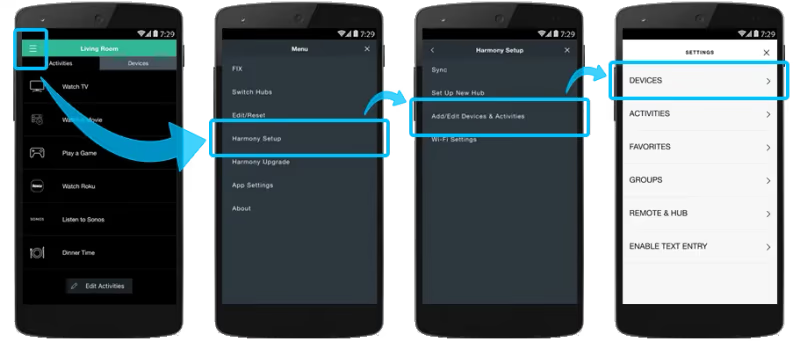
Harmony remotes handle code lookup automatically through their database. You never type a numeric code. If your Roku TV model is not listed, select the manufacturer and Harmony will try the closest match. Activities like “Watch Roku” can power on the TV, switch inputs, and launch apps with a single button press.
#Vizio Universal Remotes
- Turn on the Roku TV manually
- Hold the Setup button until the indicator light blinks twice
- Press the TV button, then enter a Roku TV code from the table
- Test power, volume, and input switching
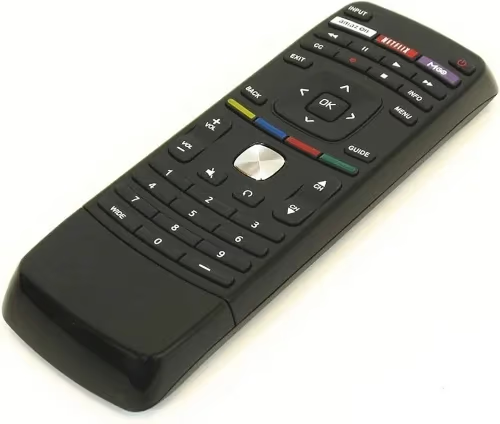
If you own a Vizio TV instead, check our Vizio TV universal remote codes guide for codes specific to Vizio hardware.
#Why Isn’t My Universal Remote Working with Roku TV?
A code that worked yesterday can stop responding after a battery swap or a firmware update. Here are the most common fixes when your universal remote will not control your Roku TV.
Check the batteries. Weak IR signals are the number one cause of intermittent remote failures. Replace both batteries even if the remote still lights up, because a dim IR beam may not reach the TV sensor.
Clear the line of sight. IR remotes need a direct path to the sensor on the front of the TV. Soundbars, streaming sticks, and picture frames sitting in front of the sensor can block the signal. Move obstructions and try again from within 15 feet.
Try a different code. Most Roku TV brands have two or three valid codes. If 11756 stopped working on your TCL Roku TV after a firmware update, try 11602 instead.
Run an auto code scan. On GE and RCA remotes, hold Code Search, press TV, then press channel-up one click at a time. The remote cycles through its entire code library until the TV responds. This takes a few minutes but finds codes not printed in the manual.
Disable HDMI-CEC conflicts. HDMI-CEC (called by different names on each brand) allows connected devices to send power and volume commands over HDMI. When CEC is active, your universal remote and a connected streaming stick may fight for control. Go to Settings > System > Control other devices on your Roku TV and turn off CEC if you notice volume or power conflicts. Roku’s official support page has more detail on CEC settings.
Check for hardware problems. If no code works and the auto scan finds nothing, try your universal remote on a different TV. If it works there, the IR sensor on your Roku TV may be damaged. Contact the TV manufacturer for warranty support.
If your original Roku remote stopped working entirely, our Roku remote not working guide covers Wi-Fi Direct pairing, re-pairing steps, and when to order a replacement. You can also learn how to find a lost Roku remote using the Roku mobile app’s remote finder feature.
#What Can a Universal Remote Do That the Roku Remote Cannot?
The standard Roku remote handles Roku-specific features like voice search, headphone listening, and shortcut buttons for Netflix or Disney+. A universal remote trades those Roku-only features for the ability to control multiple devices.
With a universal remote, you can operate your Roku TV, cable box, soundbar, and Blu-ray player from one device. Logitech Harmony remotes take this further with programmable activities. Pressing a single “Watch Movie” button can power on the TV, switch to HDMI 2, and turn on the soundbar at the same time.
Universal remotes also work well with other streaming devices. If you have a Fire TV Stick on a different HDMI input, one remote can switch between Roku and Fire TV without swapping handsets. See our universal remote for Fire TV Stick guide for compatible codes.
The tradeoff is real, though. You lose the voice search button, the headphone jack on Roku Enhanced remotes, and the dedicated app shortcut buttons. For most households, the convenience of controlling four or five devices outweighs those losses.
#How Do You Find a Roku TV Code Not Listed Here?
The table above covers the most popular Roku TV brands, but smaller manufacturers and newer models sometimes need codes not on standard lists.
Check your remote’s manual. The printed code list included with GE, RCA, and One For All remotes is often more extensive than online tables. Look under the TV manufacturer name, not under “Roku.”
Use the manufacturer’s code lookup tool. GE/Jasco’s online code finder lets you search by TV brand and model number. Enter your exact model (printed on the back of the TV or in Settings > System > About) to get the most accurate code.
Try the auto scan feature. Every major universal remote brand includes a code scan mode that cycles through all stored codes. It is slower than entering a code directly, but it will find matches that do not appear in any published list.
Contact the TV manufacturer. TCL, Hisense, and Sharp all publish IR code documentation for their Roku TV models. Customer support can provide hex-level IR codes if you use a programmable remote like a Harmony or SofaBaton.
#Bottom Line
Start with code 11756 for most Roku TVs. ONN models use 3201 or 3851 instead. Enter the code in your remote’s programming mode, test power and volume, and move on to the next code if the first one fails. If nothing on the list works, run your remote’s auto code scan to find unlisted codes. Keep this page bookmarked for quick reference when you set up a new remote or replace batteries and need to reprogram.
#FAQ
#Do all Roku TVs use the same universal remote code?
No. The code depends on the TV manufacturer, not the Roku software. TCL, Hisense, and Insignia Roku TVs share code 11756, but ONN Roku TVs use 3201 or 3851. Always check the code table for your specific brand.
#Can I use the Roku mobile app instead of a universal remote?
Yes, the free Roku app for iOS and Android turns your phone into a full Roku remote with voice search, keyboard input, and headphone listening. It connects over Wi-Fi, so there is no line-of-sight requirement. The app does not control non-Roku devices like soundbars or cable boxes, which is where a universal remote has the advantage.
#Will a universal remote work with a Roku streaming stick?
Most universal remotes only control IR devices, and Roku streaming sticks use Wi-Fi Direct or Bluetooth for their remotes. You can use a universal remote to control the TV’s power and volume while using the Roku stick’s own remote for navigation. Some higher-end programmable remotes like the SofaBaton U2 support Bluetooth and can pair directly with Roku sticks.
#What is the auto code scan feature on a universal remote?
Auto code scan puts the remote into a mode where it sends one code at a time from its internal database. You press a button repeatedly (usually channel-up) and watch for the TV to respond. When the TV turns off, you stop and save that code. The scan can take 2 to 5 minutes, but it finds codes that are not printed in the manual.
#How do I reset a universal remote that stopped working with my Roku TV?
Remove the batteries and hold any button for 15 seconds to drain residual power. Reinsert the batteries and reprogram the remote using your Roku TV code. If the old code no longer works after a TV firmware update, try a different code from the list or run the auto code scan to find an updated match.
#Does HDMI-CEC interfere with universal remote commands?
It can. HDMI-CEC allows devices connected over HDMI to send power and volume commands, which can conflict with your universal remote doing the same thing. If your TV turns on twice, changes volume unpredictably, or switches inputs on its own, disable CEC in your Roku TV settings under System > Control other devices.
#Can I program one universal remote for two different Roku TVs?
Yes, if your remote supports multiple device profiles. GE remotes with a TV1/TV2 button can store separate codes for two televisions. Program each profile with the correct code for that TV’s brand. Logitech Harmony remotes handle this through separate device entries in the app, with no limit on the number of TVs.