Are you bothered by Roku’s no signal error? The good news is that this article covers the most practical solutions you can use. Go through these fixes and apply them to get signals back on your Roku device.
- Loose HDMI cables cause most no-signal errors — reseat both ends of the cable and try a different HDMI port on your TV
- Wrong TV input source is the second most common cause — press the Input/Source button on your remote and cycle through all options
- A 30-second power cycle fixes temporary glitches — unplug Roku from power, wait 30 seconds, then reconnect
- Dirty or damaged ports block signal transmission — inspect HDMI and power ports for dust, debris, or bent pins
- A firmware update or factory reset resolves persistent issues — go to Settings > System > System Update, or reset as a last resort
#Overview of Roku
Roku has become a popular multimedia streaming platform as well as an entertainment system. There are several options and devices, such as Roku TVs using Roku OS.
On top of that, there are other features that make Roku your first pick. While all Roku devices use reliable technology, a few glitches might arise from time to time.
Such errors can create a hiccup in your experience. Roku no signal is one such issue, and no one likes to see that on their television.
With that said, let’s learn the solutions to fix Roku’s no signal error.
#How Do You Fix Roku No Signal Error?
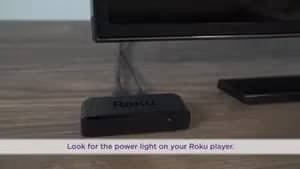
#1: If Roku No Signal Error Appears, Check Its Power Supply
Before proceeding with any other solution, start with the basics. Check the power supply first. It sounds obvious, but a surprising number of people run into Roku no signal just because of a missing power connection. Check it out, and you can save plenty of time.
#2: Check the Input Source of Your TV
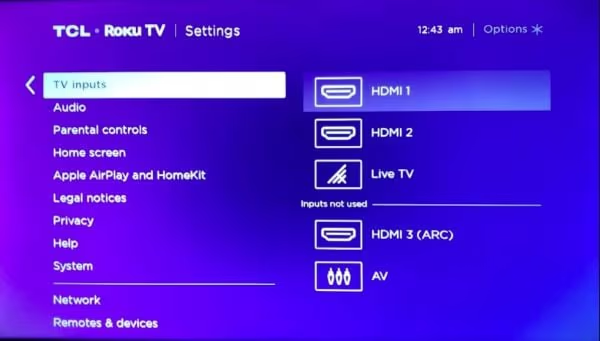
If it’s turned on, double-check that your Roku device is correctly connected to your television. It’s possible that you’ve set your TV to the incorrect input source.
As you may know, an input or source button can be found on most TV remote controls. After clicking on it, scroll through all of the options to locate the one that is connected to the Roku device.
One piece of advice: don’t rush through it. After choosing an input type, the image on your TV will take only a couple of moments to display.
Besides, let’s figure out how to find the Roku IP address and how to fix the TCL Roku TV not connecting to the WIFI issue with ease.
#3: Check Your Device’s Cables to Fix Roku No Signal Issue
If you’re still not seeing anything on the screen and the issue persists, do a closer inspection. Are the video cords securely plugged in? HDMI cables, depending on quality, may have connection issues even if they appear to be securely placed.
You can also experience a signal transmission delay. Inspect your video cables and make sure they’re connected to both the TV and the Roku player. The Roku Streaming Stick is in the same boat. Make sure it’s in the right place.
#What Can You Do if There Is No Power on Your Roku Device?
Is your Roku device’s or Streaming stick’s power light on? If so, you can use any of the previously listed solutions.
However, what if nothing is turned on and no signal or response is received? If that’s the case, you should consider the following options.
#01. Unplug Your Roku Device
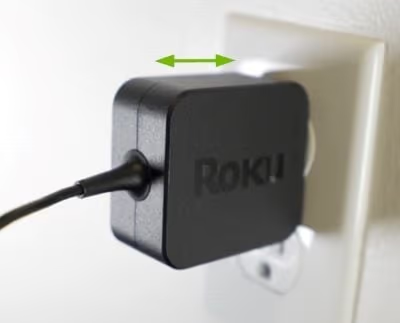
Unplug everything. Remove all of the cords from your outlets and the video cables as well. Reconnect all of the cords after a few minutes. Make sure you connect those to all of the correct inputs and that you do it correctly. This might sometimes be enough to get the Roku signals to return.
In addition to that, check to see if any of the power cables have been damaged. Also, make sure they’re properly inserted. Hopefully, that will fix Roku’s no-signal error.
#02. Use the Genuine Accessories
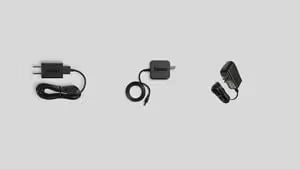
Do you have no signal, and your Roku is still not responding? If so, it’s possible that you’re using the incorrect power adaptor. Check to see whether it’s the one that comes with the Roku player.
A genuine AC adapter is always the best option. Using third-party adapters might result in power difficulties and signal loss, and that’s annoying.
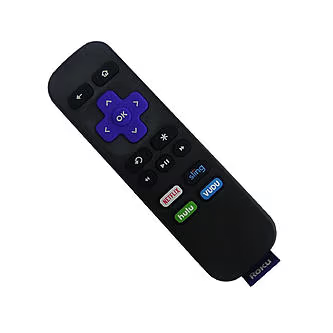
The Roku control is no exception. If you use your original remote, you are less likely to get a dead zone.
Also read: Roku Remote not working? Let’s fix it easily.
#03. Switch to Another TV
There’s another common possibility for Roku’s no signal error. If your TV is not responding well to the Roku Player, just switch to a different TV. If you still don’t get pictures and experience Roku no signal error, you can consider other solutions.
#04. Check the Power Outlets
This may appear to be a far-fetched answer, but in desperate circumstances, extreme measures must be used. A power loss or surge can sometimes trip the breakers, causing the electric outlets to stop operating. You could also want to check your main breaker boxes or those switch outlets.
#05. Check if the Ports Are Dirty
If you are still experiencing Roku no signal issues, check this option out. In certain circumstances, you’ll need to double-check that all of the ports are open and free of debris.
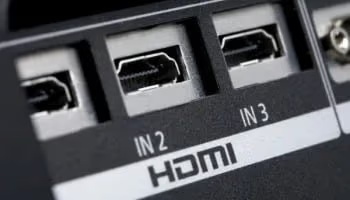
Dust can get caught in input ports over time, or they can corrode with rust. Perform a thorough cleaning of all HDMI ports, as well as the coaxial port. This is mandatory if you are using those ports.
Once the cleaning is done, reconnect the connection. Most of the time, this will resolve the issue, allowing you to resume enjoying the Roku TV without interruption.
#06. Restart Roku
You should try restarting your Roku to see if the problem persists. Assume that your Roku was operating fine until the problem appeared out of nowhere.
In that case, try this troubleshooting step. Disconnect the Roku device from its wall socket. Then, allow it to sit for a few minutes and plug it back in. It will take some time, but your Roku device will start to function normally again.
#07. Troubleshoot the Roku Application if Roku No Signal Error Occurs
If none of the options have worked so far, let’s go ahead and check this out. You need to troubleshoot your program.
-
System Accessibility: Make sure that your Roku box does not have system accessibility restrictions. Select Configuration and choose Programs. Once you have done that, go to High-Level Technology Configuration. Then, choose Handle by Cell Application and select Community Access to Tests. It appears in a drop-down. You have the option of applying a fix or selecting the default.
-
VPN: Assume that your cellphone or even the Roku devices were directly linked to your VPN. In that case, the Roku software won’t work.
#08. Perform a Factory Reset
A factory reset restores your television to its original state. Following that, you must repeat the setup and reload your channels. Once you have done that, rejoin the Roku accounts and then reconnect to your internet connection.
You will also have to redo the entrance setup and the antenna television installation. A factory reset should be considered a last resort.
-
To factory reset your device, go to Settings and choose System. Then, go to Advanced System Settings. You should then go to Factory Reset. After that, confirm the reset.
-
Before proceeding, make sure you understand what this will erase.
-
When using the factory reset, you may need to enter a code. After you have done that, select the option called “OK to proceed?”. That’s it.
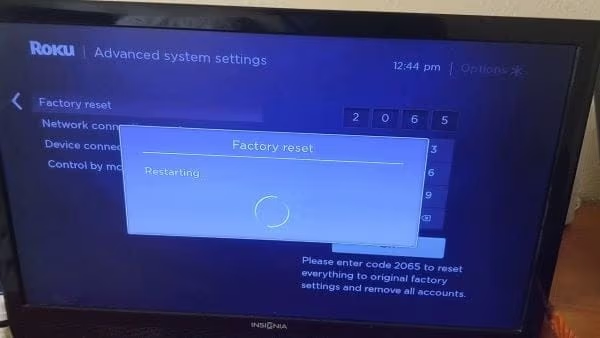
Performing a factory reset can fix many issues on your device. However, after a factory reset, you need to configure all the settings again.
#09. Configure the Roku Stick That Experiences the Signal Issue
-
First and foremost, get the Roku system for your television.
-
When using an HDMI cable to connect this device, this has been recommended.
-
If you’re using your Roku streaming device, make an HDMI jack for your Roku.
-
Then, follow the steps mentioned below.
-
Connect one end of the Ethernet cable to the TV.
-
After that, connect your Roku device to the opposite end of the cable.
-
Connect a wall socket to all of the power cords.
-
After that, switch the TV on and then go to its HDMI input, which is the correct signal.
-
Publish the Roku stick once your Roku display appears.
-
Configure the preferences to match your preferences.
#10. Update Roku
If none of the other options have worked, you may need to upgrade the Roku firmware. To find the software version, go to Settings and choose About. You can also navigate to Settings > System > System Update to check for available updates.
If any updates for your Roku are available, they will be displayed here. After you’ve installed the update, your Roku device will restart and continue to function normally.
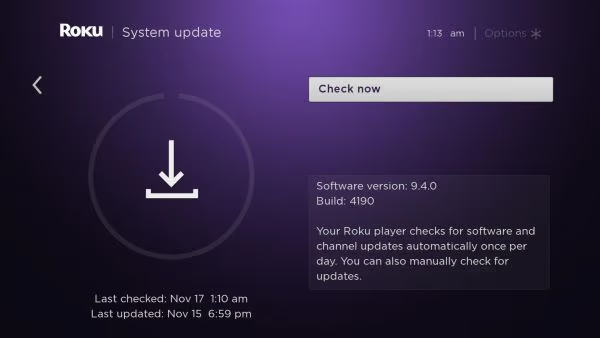
Updating the device will often solve various minor issues. Outdated software can malfunction and cause many troubles. So, if you experience Roku no signal error, try this solution as well.
#11. Get In Touch with the Support
If you have tried everything mentioned before and nothing has worked, contact support. Their customer support service will work on diagnosing the problem and solving it for you. They will assist you with all the possible solutions to overcome Roku’s no-signal error.
So, those are the solutions you should try.
Also read: Roku Audio Out of Sync – 11 Solutions for You!
#FAQ
#Why does my Roku keep saying no signal?
The most common cause is a loose or faulty HDMI connection between your Roku and the TV. A quick fix is to unplug the HDMI cable, plug it back in firmly, and make sure your TV is set to the correct input source. If the cable is damaged, replacing it with a new one usually resolves the issue.
#How do I power cycle my Roku to fix a no signal error?
Unplug your Roku device from the power outlet and wait at least 30 seconds before plugging it back in. This clears temporary data from the device’s memory and forces a fresh connection. Power cycling also resets the HDMI handshake between your Roku and the TV.
#Can a bad HDMI cable cause Roku no signal?
Yes, a worn-out or low-quality HDMI cable is one of the top reasons for this error. Try swapping it with a different cable to see if the signal returns. If you’re using a very long HDMI cable (over 10 feet), a shorter one may provide a more stable connection.
#Should I factory reset my Roku to fix the no signal issue?
A factory reset should only be your last resort after trying all other troubleshooting steps. It erases all your settings, installed channels, and account information. You will need to set up your Roku from scratch, including re-entering your Wi-Fi password and re-adding all your streaming apps.
#Does updating Roku firmware help with signal problems?
Outdated firmware can cause display glitches, including the no signal error. Go to Settings > System > System Update to check for available updates. After the update installs, your Roku will restart, and the signal issue may be resolved.
#What should I do if only one HDMI port gives no signal?
Try connecting your Roku to a different HDMI port on your TV. If the signal works on another port, the original port may be damaged or have a dust buildup. Clean the port gently with compressed air and test it again after a few minutes.
#Can a power surge cause Roku no signal error?
A power surge can trip your home’s circuit breakers or damage the Roku’s power adapter. Check that your wall outlet is working by plugging in another device. Using a surge protector between the outlet and your Roku can prevent this problem in the future.
#When should I contact Roku support for a no signal issue?
Contact Roku support after you have tried all the fixes in this guide, including checking cables, power cycling, switching HDMI ports, updating firmware, and performing a factory reset. If none of these steps work, the issue may be a hardware defect covered under warranty. You can reach Roku support through their official website at roku.com/support.
#Bottom Line
What if you got back from work and couldn’t figure out why your Roku had no signal? It is a frustrating situation. Start with the easiest fixes first: check your HDMI cable, verify the TV input, and do a power cycle.
If those don’t work, move on to cleaning ports, updating firmware, or performing a factory reset. Most Roku no signal errors come down to a connection issue that takes just a few minutes to resolve. And if nothing works, Roku’s customer support team can help diagnose deeper hardware problems.