Roku audio out of sync with video is one of the most common streaming problems. Dialogue that doesn’t match lip movements or delayed sound effects can make any show unwatchable. The good news: most audio sync issues take just a few minutes to fix without any technical background.
This guide covers the 11 most effective fixes for Roku audio delay, starting with the quickest options. Common causes include weak internet connections, outdated firmware, incorrect audio settings, external sound systems, loose HDMI cables, and Roku OS glitches.
- Switching to Stereo audio mode fixes the majority of Roku audio sync problems caused by surround sound misconfiguration
- A full power cycle (unplug for 30-60 seconds) clears cached processes that commonly cause audio delay
- HDMI connection issues account for roughly 1 in 3 audio sync complaints on Roku devices
- Clearing the Roku cache with the remote button sequence (Home 5x, Up, Rewind 2x, Fast Forward 2x) resolves persistent glitches
- Factory reset is a last resort that erases all settings but resolves deep firmware-level audio sync bugs
#Quick Fixes to Try First
Before attempting any more advanced troubleshooting, I always recommend starting with these quick and easy fixes:
#1. Perform a System Restart
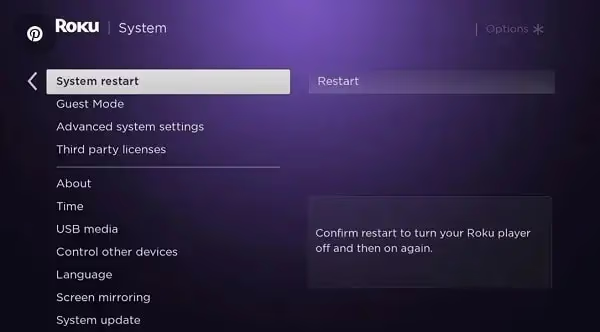
Often, simply restarting your Roku device can resolve any minor software bugs or glitches that may be throwing off the audio sync. To do this:
-
Press the Home button on your Roku remote
-
Navigate to Settings > System > System Restart
-
Select Restart and wait for your device to reboot
For more detailed steps, check out our guide on how to restart your Roku TV.
#2. Power Cycle Your Roku Device
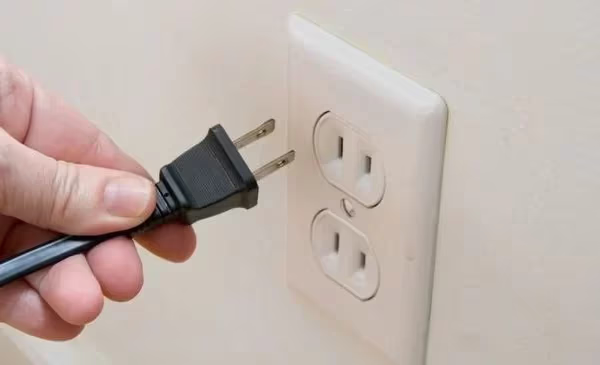
If restarting through the menu doesn’t work, you can also try a full power cycle:
-
Turn off your TV and unplug your Roku device from power
-
Wait 30-60 seconds, then plug it back in
-
Turn your TV back on and wait for the Roku to reboot
This clears the cache and can reset processes to get your audio back in sync. By the way, if you notice your Roku keeps restarting on its own, that could indicate a separate issue.
#3. Check Your Connections
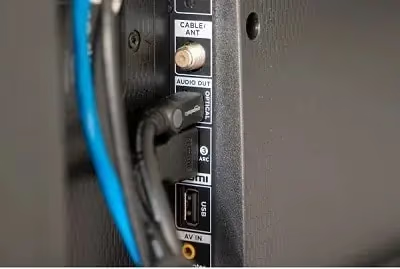
Loose or faulty cables are another common culprit for audio issues. Take a moment to:
-
Ensure your HDMI cable is securely plugged in at both ends
-
Check for any visible damage or fraying on the cable
-
Try a different HDMI cable or input on your TV if you have one
#How Do You Fix Roku Audio Settings?
Still having sync issues? The problem could be in your Roku’s audio settings. Here’s how to check and adjust them:
#4. Switch to Stereo Audio Mode
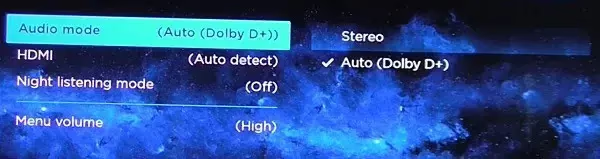
If your Roku is set to surround sound but you don’t have a surround sound system, it can cause sync issues. To switch to stereo:
-
Press the Home button, then go to Settings > Audio
-
Change the Audio Mode to Stereo
-
Set HDMI to PCM-Stereo
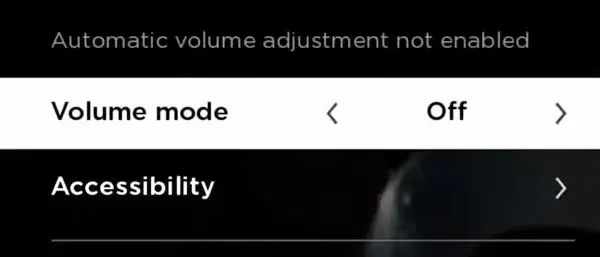
#5. Disable Volume Mode
Some users have reported that disabling Roku’s volume mode feature resolved their audio delay. To do this:
-
While streaming, press the Star button on your remote
-
Go to Volume Mode and switch it to Off
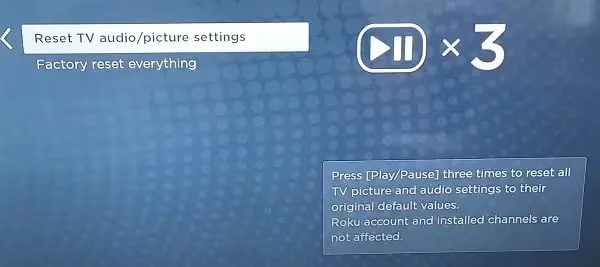
#6. Reset Audio Configurations to Default
If your Roku’s audio settings have been changed, it may cause problems. To reset them:
-
Go to Settings > System > Advanced System Settings
-
Select Factory Reset and choose Reset TV Audio/Picture Settings
-
Press Play/Pause 3 times to confirm
#Updating Software and Clearing Cache
Like any streaming device, Roku needs regular software updates to run properly. Clearing the cache from time to time also helps. Here’s how:
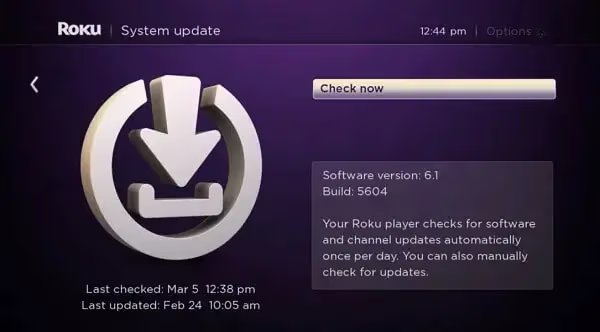
#7. Check for and Install Software Updates
-
Press the Home button, then navigate to Settings
-
Choose System > System Update
-
Select Check Now to manually check for updates
-
If an update is available, let it install
Installing the latest firmware is also key for resolving issues like the Roku blinking white light.
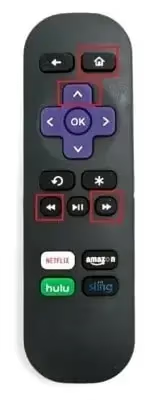
#8. Clear the Cache on Your Roku
-
From the Home menu, press Home 5 times
-
Press Up once, then Rewind 2 times
-
Press Fast Forward 2 times
-
Wait for your device to restart
#Can Network Problems Cause Roku Audio Delay?
Audio sync problems sometimes stem from internet or streaming issues rather than your Roku itself. Here are a couple things to try:
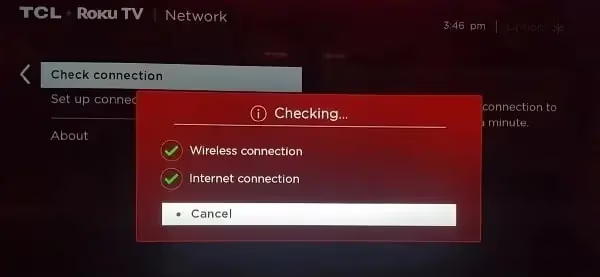
#9. Test Your Internet Connection Strength
-
Go to Settings > Network About
-
Look for a “Good” or “Excellent” signal strength
-
If it’s poor, try moving your router closer or contacting your provider
If you’re having trouble connecting, you may need to find your Roku IP address to configure your network settings.
#10. Use Your TV’s Internal Speakers
If you’re using an external sound system, try switching to your TV’s built-in speakers. If the audio is synced, the issue is with your sound system, not the Roku.
For other display problems, see our guide on what to do if your Roku has no signal.
#Last Resort Steps
If you’ve tried all of the above to no avail, you have two final options:
#11. Factory Reset Your Roku Device
-
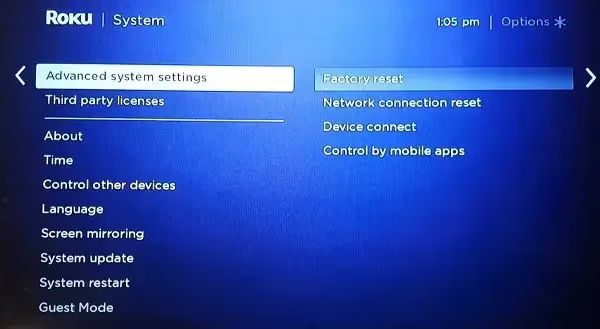
Go to Settings > System > Advanced System Settings > Factory Reset
-
Choose Factory Reset Everything and confirm
-
Wait for the reset process to complete
Note that this will erase all settings and preferences, so only do this as a last resort. It can also help if your Hisense Roku TV won’t turn on.
#12. Contact Roku Customer Support
If nothing else has worked, it may be time to reach out directly to Roku Support. Have your device model and serial number ready and be prepared to troubleshoot with an agent.
#Bottom Line
-
Most Roku audio sync issues can be fixed quickly by adjusting settings or connections
-
Keeping your software and firmware up-to-date is important for preventing problems
-
Both your Roku device and your streaming network/apps can cause sync issues
-
If troubleshooting yourself doesn’t work, don’t hesitate to contact Roku Support
With these tips in mind, you should be well-equipped to handle any audio delays or sync problems that arise. While it can be a nuisance, just work through the steps one-by-one and you’ll likely find a solution.
#Frequently Asked Questions
#Why is my Roku audio out of sync?
The most common causes are incorrect audio output settings, loose HDMI cables, and outdated Roku firmware. If your Roku is set to surround sound but your TV only supports stereo, the audio processing creates a noticeable delay. Checking your HDMI connections and switching to Stereo mode under Settings > Audio fixes the issue for most users.
#Does switching to stereo mode affect audio quality?
Stereo mode outputs two-channel audio, which sounds fine on built-in TV speakers. If you have a soundbar or AV receiver that supports surround sound, you can keep surround mode and troubleshoot the delay through your external audio device instead. Most TV speakers only play stereo audio regardless of the Roku setting.
#How do I know if my HDMI cable is causing the audio delay?
Swap your current HDMI cable with a different one and check if the sync issue goes away. Damaged or low-quality HDMI cables can cause intermittent audio problems, especially with 4K content. Also try a different HDMI port on your TV since individual ports can develop faults over time.
#Will a factory reset fix Roku audio sync problems?
A factory reset clears all settings, apps, and preferences back to defaults, which can resolve deep firmware-level audio bugs. Only use this as a last resort after trying the other fixes in this guide. You will need to re-add your Roku account and reinstall all your streaming apps afterward.
#Can a slow internet connection cause audio to fall out of sync?
Yes. When your internet speed drops below the minimum required for your stream quality, the video and audio buffers deplete at different rates. Roku recommends at least 3 Mbps for standard definition, 5 Mbps for HD, and 25 Mbps for 4K. Check your connection strength under Settings > Network.
#Why does audio sync only happen on certain apps?
Individual streaming apps handle audio decoding differently. An app-specific bug or outdated version can cause sync issues that don’t appear in other apps. Remove the problem app from your Roku, restart the device, then reinstall the app from the Channel Store to get the latest version.
#Does clearing the Roku cache delete my apps or settings?
No. Clearing the cache only removes temporary data that apps store during use. Your installed channels, login credentials, and Roku settings all stay intact. The cache clear button sequence (Home 5x, Up, Rewind 2x, Fast Forward 2x) triggers an automatic restart that takes about 30 seconds.
#Should I contact Roku support or my TV manufacturer about audio sync?
Contact Roku support first if the sync issue happens across multiple apps and HDMI inputs. If the problem only occurs on one HDMI port or persists with non-Roku sources, your TV hardware could be the cause, and you should reach out to the TV manufacturer instead.