Has Pluto TV been freezing on you lately? This guide covers all the common reasons why Pluto TV buffers and how to troubleshoot them step by step. As a streaming service with over 30 million active monthly users, Pluto TV offers free access to hundreds of live TV channels. But users still encounter freezing, buffering, and playback issues.
We’ll walk through the top causes and tested solutions, from internet connectivity problems to app glitches. Follow these tips to get your favorite Pluto TV channels running smoothly again.
- Slow internet is the #1 cause — you need at least 10 Mbps for HD and 20 Mbps for 4K streaming on Pluto TV
- Restart your router first — unplugging for 60 seconds and reconnecting fixes most transient buffering issues
- Update or reinstall the app — outdated Pluto TV versions carry unpatched bugs that cause freezing on all devices
- Check for server outages — Downdetector shows real-time Pluto TV status reports so you can rule out platform-wide problems
- Try a different device or browser — switching from Wi-Fi to Ethernet or from phone to smart TV helps isolate the root cause
#Why Does Pluto TV Freeze?
Pluto TV relies on many interconnected systems working properly, from your home network to their media servers. If any link in this chain has issues, streaming problems can occur.
#1. Internet Connectivity Problems
Slow, unstable internet often causes buffering and playback failures across streaming apps.
-
Low bandwidth under 10 Mbps struggles with HD video quality.
-
Consistent lag spikes lead to frequent buffering.
-
Wi-Fi dead zones result in choppy, broken connections.
FIX: Check internet speeds on SpeedTest to verify connectivity issues.
#2. Server Outages
During peak traffic or internal technical problems, Pluto TV’s media servers can go down, preventing access.
-
Holidays and major events lead to increased viewer demand.
-
Infrastructure maintenance and upgrades require downtime.
-
System software bugs can cause temporary crashes.
On Downdetector, you can check real-time reports of issues with the Pluto TV platform.
#3. Browser Compatibility Conflicts
When streaming Pluto TV online through a web browser, using outdated or non-optimized browsers can lead to freezing and errors.
Pluto TV officially supports Chrome and Firefox across computers, phones and tablets. However, compatibility problems still arise:
-
Old browser versions with buggy codecs.
-
Cached data and history issues.
-
Conflicts with browser add-ons/extensions.
#4. Bugs in the Pluto TV App
As with any software app, the official Pluto TV app can develop problems in its code over time:
-
Memory leak bugs prevent freeing up resources.
-
Conflicts between app and device OS versions.
-
Corrupted local data disrupts caching.
Reinstalling the app often fixes problematic code by overwriting old versions.
#5. Device Performance Issues
If your streaming device starts slowing down, it can lead to playback failures like constant buffering.
-
Outdated firmware versions on media players.
-
Overheating devices thermal throttle performance.
-
Too many background apps eating up resources.
#6. Insufficient Storage Space
When your device runs out of free storage space, streaming apps can fail to save temporary playback data needed for smooth video.
-
Video app caches take up significant local storage.
-
OS and firmware updates increase storage requirements.
#How Do You Fix Pluto TV Buffering?
Once you’ve diagnosed why Pluto TV has freezing issues on your specific device setup, apply these troubleshooting tips to resolve them:
#1. Check Internet Speeds
Run a bandwidth test at Speedtest.net to verify your internet speeds meet minimum requirements:
-
10+ Mbps for smooth HD streaming
-
20+ Mbps for best 4K streaming
-
Low latency & jitter under 30 ms
If speeds are insufficient, contact your ISP about upgrade options or troubleshoot connection problems.
#2. Restart Your Router
Reset your Wi-Fi router to refresh internet connectivity issues causing buffering:
-
Unplug router power cable for 60 seconds.
-
Plug back in and wait 2-3 minutes for reboot.
-
Reconnect devices to Wi-Fi network again.
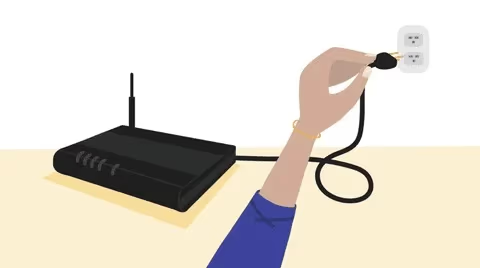
This often fixes transient dead zones or firmware glitches.
#3. Switch Between Ethernet and Wi-Fi
Determine if buffering only occurs on Wi-Fi or wired connections:
-
Wi-Fi problems indicate router interference or signal issues.
-
Ethernet problems indicate broader network outages.
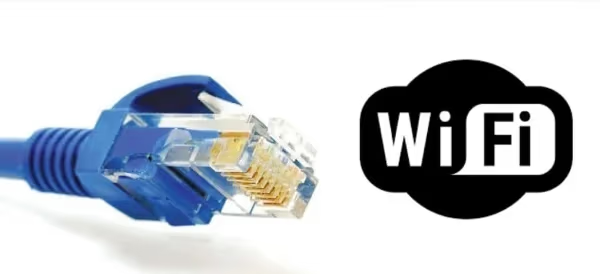
Switch connections and test if problem persists. Contact ISP if both keep buffering.
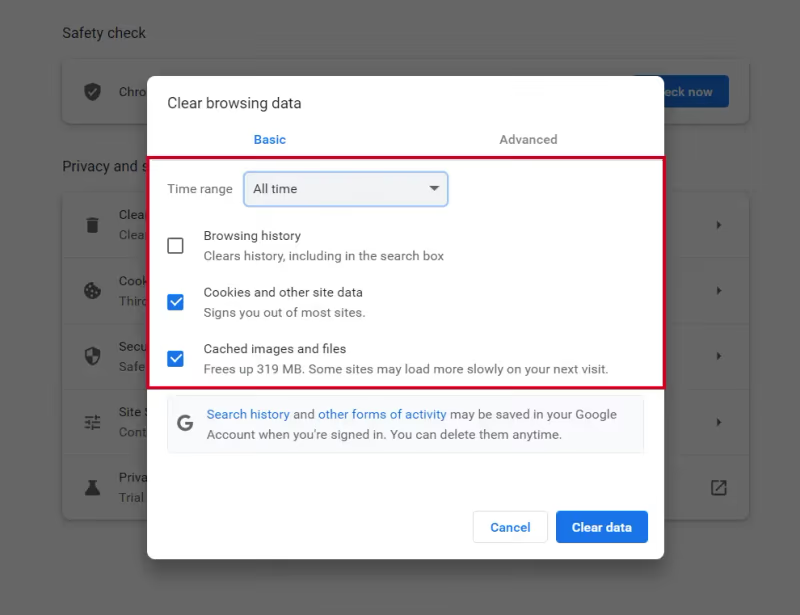
#4. Clear Browser Cache/History
When streaming via web browser, accumulated temporary data can sometimes disrupt video loading.
Clear saved browser data to troubleshoot this potential cause:
-
Open browser settings menu.
-
Find “Privacy & Security” -> “Clear Browsing Data”
-
Check box for cached images/files and browsing history.
-
Click “Clear Data” button to delete.
-
Reload Pluto TV website.
#5. Force Close and Reopen App
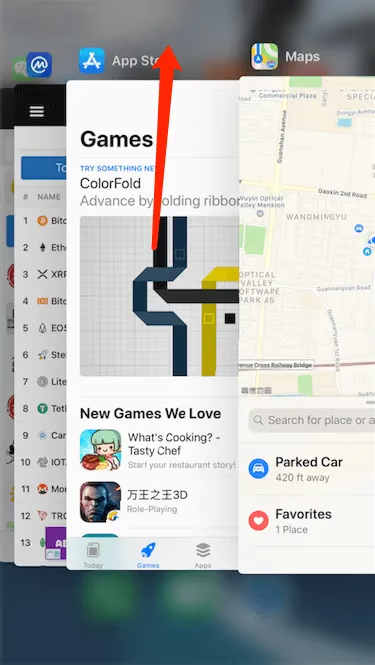
If the Pluto TV app seems stuck buffering, force closing and reopening releases any locked up resources and restores playback.
On iOS:
-
Swipe up from the bottom of the screen to show open apps
-
Swipe up on Pluto TV app preview to close.
-
Reopen Pluto TV from Home Screen icon.
On Android:
-
Open phone Settings -> Apps -> Pluto TV.
-
Choose “Force Stop” to terminate process.
-
Restart Pluto TV app.
#6. Update Pluto TV App
Installing the latest app version fixes playback bugs the developers have patched:
-
On app store, check Pluto TV update status.
-
If update available, tap Update.
-
Check fixed issues in changelog during install.
-
Relaunch app once upgrade completes.
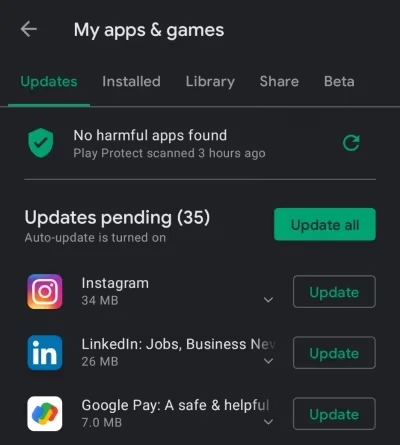
Keeping apps updated is good general device maintenance.
#7. Factory Reset Device
For persistent streaming problems across apps on outdated or bogged down devices, a factory reset restores optimal performance:
-
Backup photos and personal data first.
-
Open device system settings menu.
-
Choose “Factory Reset” or “Erase All Content and Settings”
-
Confirm reset on prompt.
-
Reconfigure device preferences after restart.
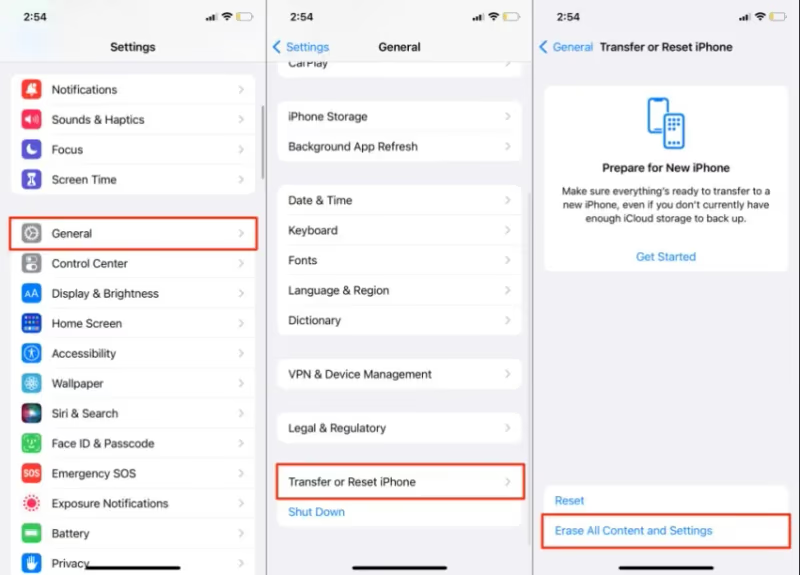
This should clear any system conflicts or software gremlins as a last resort.
#8. Contact Pluto TV Support
If no DIY troubleshooting fixes work, reach out to Pluto TV directly through their Help Center:
-
Submit support tickets for playback issues.
-
Live chat with customer service representatives.
-
Check system status page for known outages.
Provide details like buffering frequency, error codes and reproduction steps. Support can also confirm if server outages explain problems.
#What Else Can You Try?
While addressing root cause fixes, also try these interim tips to resume Pluto TV streaming:
#1. Check Pluto TV Server Status
Visit Downdetector and search for Pluto TV to reveal real-time outage reports and details on any officially confirmed problems:
-
Spikes on graph indicate ongoing issues.
-
Recent user comments provide insights.
-
Heat maps show geographic scope.
This independent platform monitors status across popular websites, apps and services. Bookmark it as a go-to resource whenever sites seem down.
#2. Switch Pluto TV Viewing Device
If Pluto TV fails on one device, try alternate phones, tablets, computers or smart TVs you own:
-
Load Pluto TV app or website on other device
-
Attempt playing the same channel
-
Note any difference in streaming reliability
This quick device swap test helps narrow down if the fault lies with Pluto’s platform or just certain gadget models.
#3. Check Other Streaming Apps
Testing a non-Pluto TV streaming app reproduces the buffering issues:
-
Attempt playing Netflix, Hulu, YouTube.
-
Note any freezing patterns matching Pluto.
If those apps all play smoothly without interruptions, problems likely trace back to the Pluto TV app or servers specifically.
Read this comparison of Samsung TV Plus vs. Pluto TV for two popular free streaming TV options.
If you want to access a wider selection of on-demand movies and shows beyond Pluto TV’s live channels, explore integrations with Plex media server in this Pluto TV vs. Plex breakdown.
#4. Verify Other Websites Load Properly
An easy way to pinpoint wider internet failure is attempting to load any website:
-
Try opening busier sites like CNN, Amazon
-
Note if pages fail to open or load without issues
Failed connections across multiple sites indicate home network problems rather than anything specific to Pluto’s platform. Notify your ISP.
Amazon entered free streaming TV space with the launch of Freevee. See how the services compare in Pluto TV vs. Freevee.
If Pluto TV’s channel catalog doesn’t suit your tastes, many quality alternatives exist for free streaming TV content curation. Browse options in this summary of Pluto TV alternatives.
#Bottom Line
-
Pluto TV’s reliance on many hardware and software systems means streaming failures show up in different ways. Carefully analyze where the breakdown occurs.
-
Internet connectivity problems remain the most common source of buffering. Verify router settings and bandwidth speeds first before investigating app issues.
-
While waiting for long term fixes, swap devices or browser apps as a temporary streaming workaround.
-
Optimizing home network setups prevents many intermittent streaming problems. Ethernet backhaul, mesh Wi-Fi and quality routers provide reliable infrastructure.
We hope these fixes get your Pluto TV service streaming smoothly again. Don’t hesitate to contact their support team if our guide couldn’t resolve your case.
#FAQ
#Why does Pluto TV buffer but other apps work fine?
Pluto TV streams live channels differently from on-demand apps like Netflix or Hulu. Live streams need a constant, unbroken data connection, so even minor bandwidth dips cause freezing. Try closing background apps and switching to Ethernet to give Pluto TV more available bandwidth.
#Does Pluto TV need fast internet to work?
You need at least 10 Mbps for HD streaming and 20 Mbps for 4K content on Pluto TV. Speeds below 10 Mbps cause frequent buffering, especially during peak evening hours when your household shares the connection.
#Can I watch Pluto TV on a web browser?
Yes, Pluto TV works on Chrome and Firefox without installing any app. If the browser version freezes, clear your cache and disable extensions first. Some ad-blocking extensions interfere with Pluto TV’s video player and cause playback errors.
#Why does Pluto TV freeze only on my smart TV?
Smart TVs often run older software that conflicts with updated streaming apps. Check if a firmware update is available for your TV in the system settings menu. If the TV model is several years old, its processor may also struggle with current video codecs.
#How do I know if Pluto TV servers are down?
Visit Downdetector and search for Pluto TV to see real-time outage reports from other users. A large spike in reports within the last hour confirms a server-side problem. In that case, the only fix is waiting for Pluto TV’s engineering team to restore service.
#Will reinstalling the Pluto TV app delete my favorites?
Reinstalling removes locally stored data including cached channels, but your account favorites sync through Pluto TV’s servers. Log back in after reinstalling and your saved channels reappear. This is one of the most effective fixes for persistent app crashes.
#Does using a VPN cause Pluto TV to freeze?
VPNs add an extra network hop that increases latency and can slow your connection enough to trigger buffering. Pluto TV may also block certain VPN IP addresses, causing playback errors. Disconnect your VPN and test the stream directly to rule this out.
#What should I do if none of these fixes work?
Contact Pluto TV support through their Help Center with specific details: your device model, internet speed test results, and any error codes you see on screen. Their team can check your account for issues and escalate persistent problems to engineering.