Unexpected Plex playback failures can ruin your movie night fast. But before rage quitting the app, try these troubleshooting tips I’ve compiled as a longtime Plex user to get your media working again.
A “there was a problem playing this item” error or other cryptic playback failure in Plex generally boils down to one of three root causes:
-
Transcoding issues — File formats or codecs beyond your Plex server’s capabilities trying unsuccessfully to be converted on-the-fly. If you are looking for Plex alternatives that handle transcoding better, consider Emby or Kodi.
-
Quality/capability mismatch — Client device hardware unable to directly play back certain media formats, levels of compression, subtitle types, etc. Plex buffering can also happen from capability issues.
-
Connectivity problems — Local network congestion or remote access port forwarding misconfigurations preventing smooth streaming. Plex audio out of sync can stem from network latency.
We cover all three categories below, along with specific solutions to get you back to watching.
- Transcoding failures — a CPU pinned at 100% during playback is the most common cause of “unable to play media” errors
- Direct play — forcing original quality in Plex settings bypasses transcoding entirely and fixes most playback problems
- H.264 level limits — unsupported codec levels, subtitle formats, and audio tracks cause silent failures even without transcoding
- Network bottlenecks — Wi-Fi dead zones, ISP throttling, and misconfigured port forwarding all trigger buffering and playback errors
- Server restart — a quick restart of Plex Media Server and client devices resolves intermittent issues about 90% of the time
#How Do You Rule Out Transcoding Problems?
Transcoding refers to Plex’s attempt to convert media files into a format compatible for playback on your device. This process requires significant server CPU/GPU resources.
If your Plex Media Server hardware can’t handle certain files, playback failures with generic errors will result. To rule out transcoding issues:
-
Check processor usage during attempted playback — if pinned at 100%, transcoding is likely failing
-
In Plex settings, manually disable any quality switching and enable original/maximum quality
-
On the server, downgrade libraries to disable GPU encoding
-
As a test, try playing original quality media formats known to direct play such as H.264, AAC, MP4, etc.
If disabling transcoding allows problem files to play correctly, insufficient server resources are confirmed as the issue.
#Upgrade Server Hardware to Enable Transcoding
While it’s best to optimize media for direct play, transcoding will always be necessary in some use cases. If your CPU can’t keep up, consider upgrading:
-
Processor — Intel QuickSync or NVIDIA GPUs ideal for hardware acceleration
-
RAM — 8GB minimum, allow 300 MB per concurrent 1080p transcode stream
-
Storage — SSD cache for metadata speeds up library scanning
Or simplify by switching to a dedicated Plex box like a Nvidia Shield or NAS. I’ve had great results with these for reliable 24/7 operation.
#Force Direct Play as Workaround
When transcoding is underpowered or unsupported, you can also force direct play compatibility:
On Player Device:
-
Disable auto quality adjustments
-
Set video/audio to maximum/original quality
-
Increase max level for H.264 (Android only)
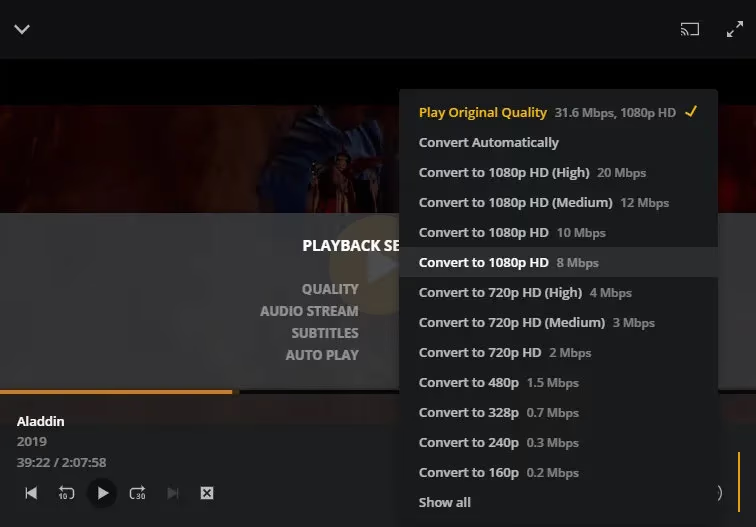
This accepts the small risk of playback issues in return for avoiding cryptic errors.
On Media Server:
-
Disable GPU encoding in library settings
-
Limit remote stream bitrate
-
Lower default quality level
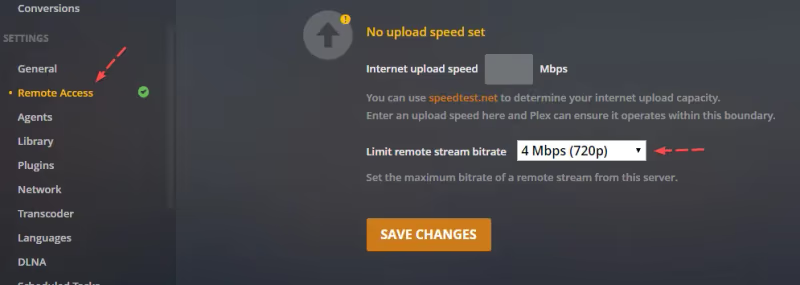
Tradeoffs here include mobile data usage and video quality.
#What Causes Format Incompatibility Errors in Plex?
Separately from transcoding, “there was a problem playing this” errors can also occur when direct playing media your Plex client hardware doesn’t support.
Factors like H.264 level, subtitles, number of reference frames and audio codecs/channels can cause cryptic failures despite no attempted conversion.
#Fix Direct Playback Errors By:
-
Checking file information metadata for compatibility red flags
-
Overriding max level limits in app settings
-
Burning in problem subtitle formats
-
Switching problematic audio tracks
-
Converting media with Plex optimizing tools
For example, while the Xiaomi Mi 11 officially supports up to H.264 level 6.1, disabling this limit entirely avoided playback issues without needing transcoding.
For mobile devices, also consider Plex on Amazon Fire Stick or Plex on Nintendo Switch which may have fewer capability issues than tablets/phones.
#Resolve Networking and Connectivity Issues
Smooth Plex streaming relies on uncongested networking between media servers, local networks, ISP connections and remote devices.
Playback failures or buffering can result from:
-
Wi-Fi dead zones and interference
-
QoS or bandwidth throttling
-
Port forwarding problems
-
ISP traffic shaping
#Improve Connectivity With:
-
Wired connections when possible
-
Quality routers like mesh systems
-
Confirming remote access port forwarding
-
Enabling Plex Relay as workaround
-
VPN tunneling to bypass ISP throttling
While less likely than transcoding or file compatibility triggers, don’t overlook networking fixes for error-prone Plex setups.
#Additional Plex Troubleshooting Steps
Before pulling your hair out over intermittent Plex problems, also try:
-
Restarting media server and client devices
-
Deleting and re-adding problematic libraries
-
Scanning libraries to refresh metadata
-
Downgrading Plex Media Server version
-
Checking logs for specific error events
9 times out of 10, the solutions above will have you happily watching again. But if issues persist across media, devices and networks, underlying problems in libraries, databases and installations may require advanced troubleshooting steps.
#Bottom Line
-
Cryptic Plex playback errors generally stem from transcoding, file compatibility or network issues.
-
Confirm root cause first then apply targeted solutions — don’t shoot blindly.
-
Adjust quality and restrict transcoding to force direct play compliance.
-
Check H.264 levels, subtitles, codecs for direct play conflicts.
-
Upgrade server hardware to enable full transcoding capabilities.
-
Improve local and remote connections to avoid buffering and throttling.
Most Plex problems have straightforward solutions once you know where to look. Methodically rule out potential culprits until you regain smooth streaming.
These troubleshooting tips should save you from rage quitting your next movie night. Drop a comment if you have questions on solving Plex playback issues.
#Frequently Asked Questions
#Why does Plex keep saying “there was a problem playing this item”?
This error points to one of three things: transcoding failure, file format incompatibility, or a network connectivity issue. Check your server’s CPU usage first. If it spikes to 100% during playback, the server can’t transcode the file fast enough.
#How do I force direct play in Plex?
Open your Plex client settings and set video quality to Original/Maximum. On Android devices, also raise the H.264 level limit. On the server side, disable GPU encoding in your library settings and lower the default remote stream bitrate to reduce transcoding demand.
#Can subtitle formats cause Plex playback failures?
Yes. Certain subtitle types like PGS or VOBSUB force Plex to transcode even when the video and audio would otherwise direct play. Burning in subtitles through Plex settings or converting them to SRT format eliminates this trigger entirely.
#What server hardware do I need for Plex transcoding?
A CPU with Intel QuickSync or a dedicated NVIDIA GPU handles hardware-accelerated transcoding best. You need at least 8GB of RAM, and budget roughly 300 MB per concurrent 1080p transcode stream. An SSD for metadata caching also helps with library scanning speeds.
#Does Plex Relay fix remote playback errors?
Plex Relay works as a fallback when port forwarding is misconfigured or your ISP blocks the required ports. It routes traffic through Plex’s own servers, which gets remote playback working but caps quality at 2 Mbps. For full-quality remote streaming, proper port forwarding on your router is the better fix.
#Why does Plex buffer on local network playback?
Local buffering usually means your Wi-Fi connection can’t sustain the bitrate. Try a wired Ethernet connection between your server and playback device. If wired isn’t an option, move your router closer, switch to the 5 GHz band, or invest in a mesh Wi-Fi system to eliminate dead zones.
#How do I check Plex server logs for errors?
Navigate to your Plex Media Server data directory and open the Logs folder. The main log file is Plex Media Server.log. Look for lines containing “ERROR” or “WARN” timestamped around when playback failed. These entries typically name the specific codec, container, or network issue that triggered the failure.
#Should I downgrade Plex Media Server after an update breaks playback?
Downgrading is a valid temporary fix when a new Plex update introduces playback regressions. Download the previous version from Plex’s release archive and install it over the current version. Your libraries and settings stay intact. Just keep in mind that staying on an older version means missing security patches, so check the Plex forums for a permanent fix before the next update.