Want to stream your personal media library on Fire Stick? Plex makes it straightforward. This guide walks you through installing the Plex app on Fire Stick and setting up Plex Media Server to stream content from your PC.
- Plex is free to install on Fire Stick from the Amazon App Store and takes about 5 minutes to set up
- Plex Media Server runs on your PC (Windows, Mac, or Linux) and organizes movies, TV shows, music, and photos
- Device linking uses a 4-digit code entered at plex.tv/link from any browser
- Remote streaming works automatically as long as your server computer stays powered on and connected
- No Plex Pass required for basic playback, though the paid tier adds offline sync and hardware transcoding
#What Is Plex and How Does It Work?
 Plex is a client-server media platform that lets you pull all your personal media into one place and access it from any device.
Key Components:
-
Plex Media Server: Organizes your media collections and streams to client devices. Install this on your Windows, Mac, or Linux computer.
-
Plex Apps: Client apps for phones, tablets, streaming devices to play content from your media server.
Plex Media Server manages and serves your media while Plex apps let you play that media on whichever device you want.
How It Works:
-
Plex scans your local media folders and organizes your video, audio and photos into a clean, browsable interface.
-
You can then install the Plex app on streaming devices like Fire Stick and play content directly from your Plex Media Server.
-
You can even stream your media when away from home as long as your computer stays on.
Curious how Plex stacks up against other options? Check out these Plex alternatives for a full comparison.
#Why Should You Choose Plex for Fire Stick?
Benefits of using Plex on Fire TV Stick:
-
Access your entire media library in one place: Movies, TV shows, music, photos, recordings
-
Stream personal media from computer to Fire Stick without copying files
-
Organized interface with rich metadata like descriptions, posters, and ratings
-
No need to store media locally on Fire Stick, which saves storage space
-
Stream media remotely when away from home
-
Free streaming channels and podcasts included
-
Plex Pass subscription optional for premium add-ons
-
Apps available for almost any platform including iOS, Android, and smart TVs
Plex keeps all your media organized and makes it available on any device. It runs especially well on Fire Stick.
#Step-by-Step Guide to Install Plex on Fire Stick
Installing the Plex app on Amazon Fire Stick takes about 5 minutes since the app is available on the Amazon App Store.
#Download Plex App on Fire TV Stick
- From Fire Stick home screen, go to Search option on top left.
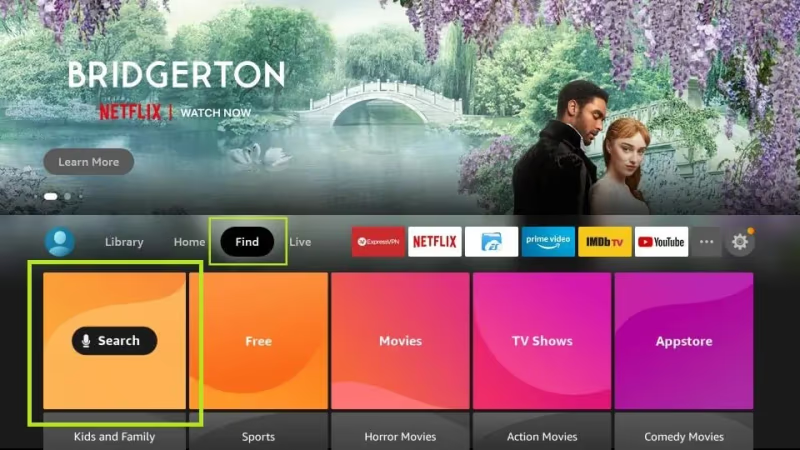
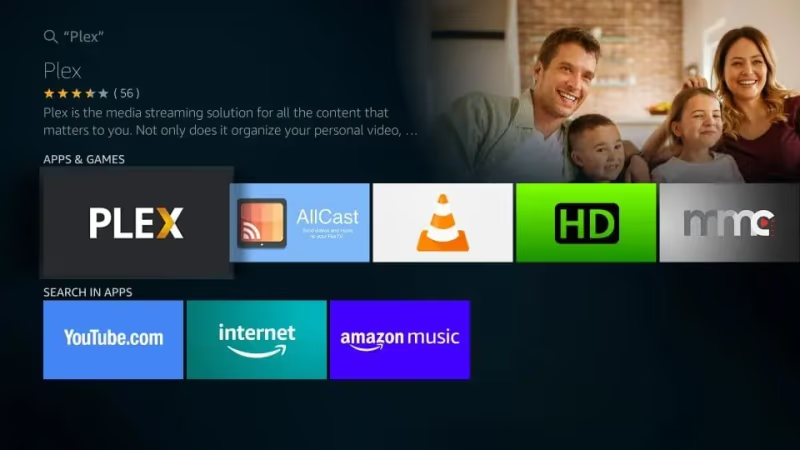
- Type in “Plex”. Select the Plex Media Server app from results.
- Click Download. This installs Plex on your Fire TV Stick.
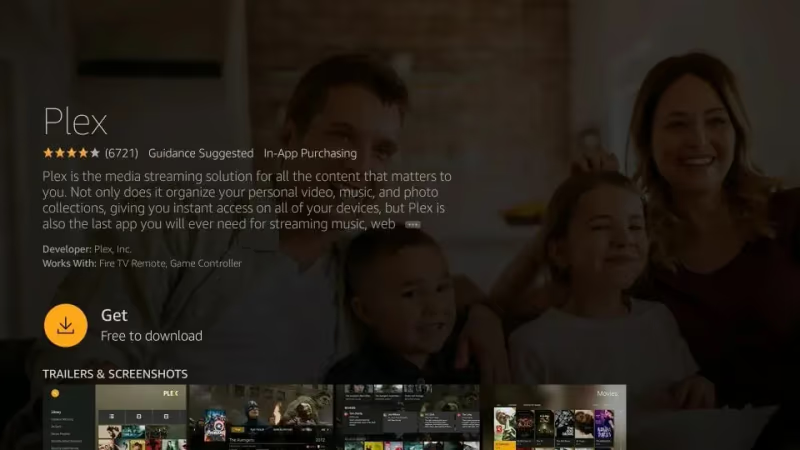
- Once installed, click Open to launch the app.
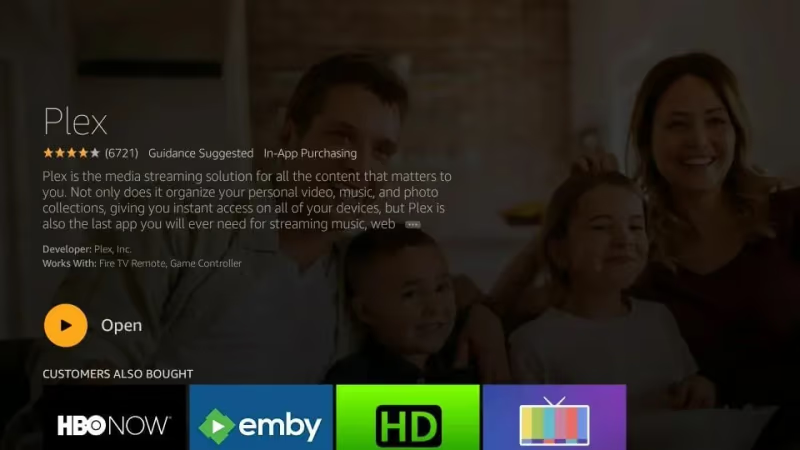
You’re now ready to complete the Plex setup on Fire TV.
#Complete Plex Setup on FireStick
- Open the side menu and click Sign In > Sign Up to create new account or Sign In to log into your existing one.
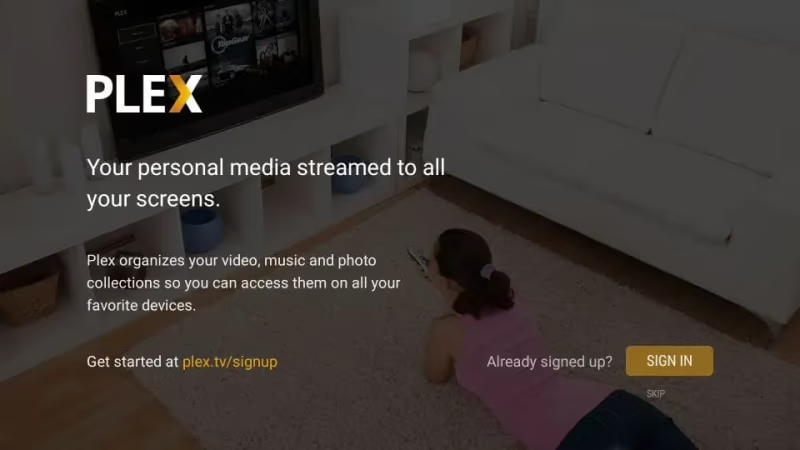
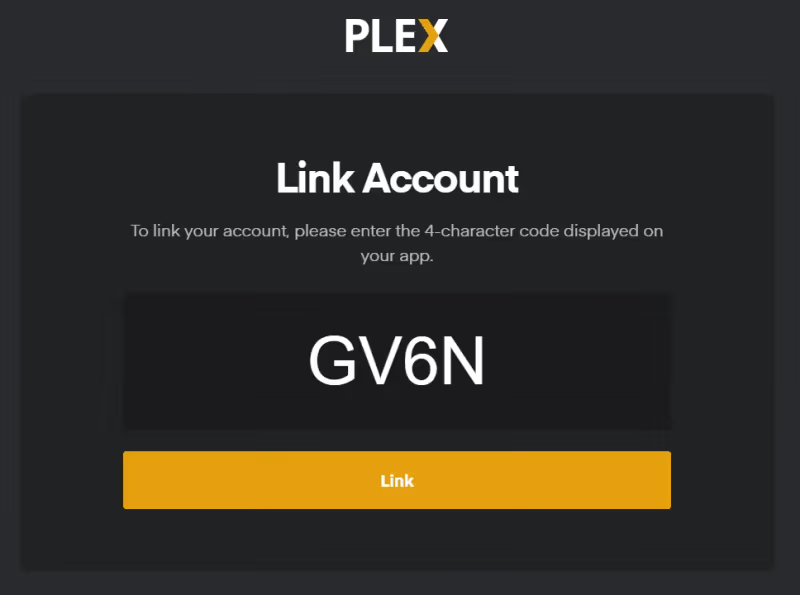
- Visit plex.tv/link on your PC/mobile and enter the 4-digit code shown. Click Link.
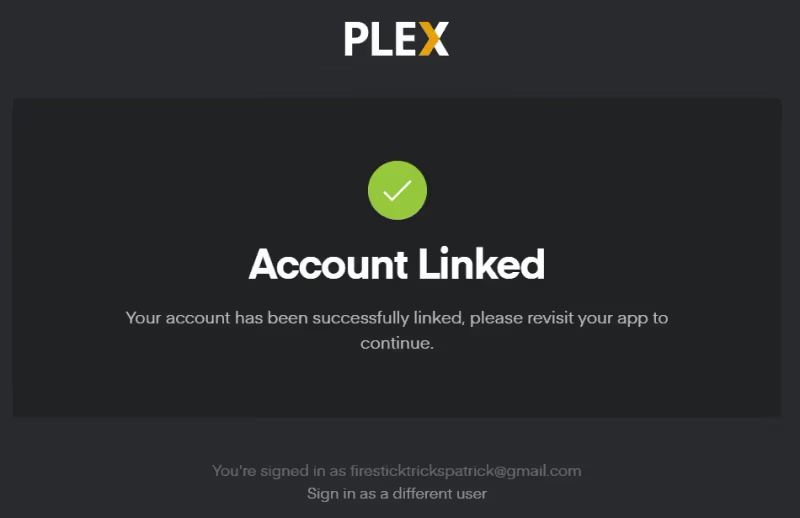
- You’ll now see the Account Linked message. Click continue.
- Customize sidebar by choosing content libraries to pin. Hit Continue.
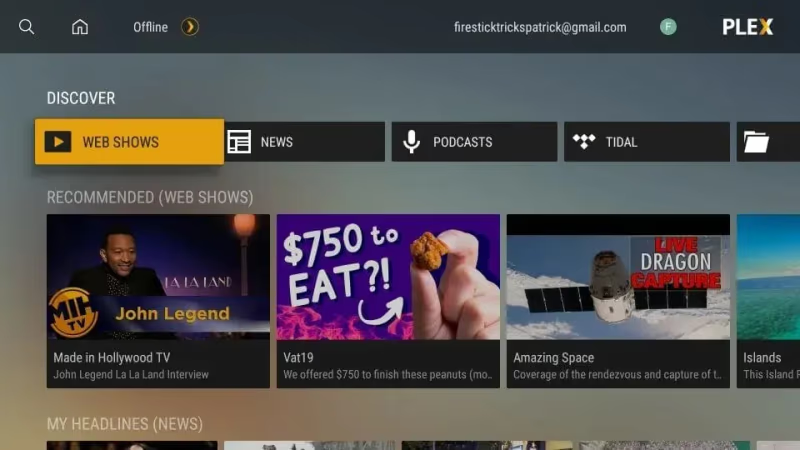
That completes the Plex installation on FireStick. The whole process takes under 5 minutes.
Now add media libraries to Plex Server on your Windows PC and you’re ready to stream.
#How to Set Up Plex Media Server on Windows PC
To start streaming from Plex client apps like Fire TV, you need media on a server first. Here’s how to set up Plex Media Server on Windows to organize and stream your personal media.
#Download and Install Plex Media Server
-
Under Windows, click Download button to get installer exe file.
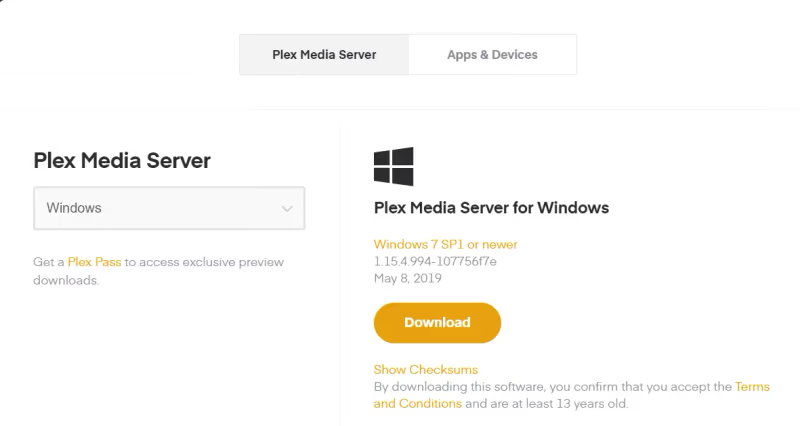
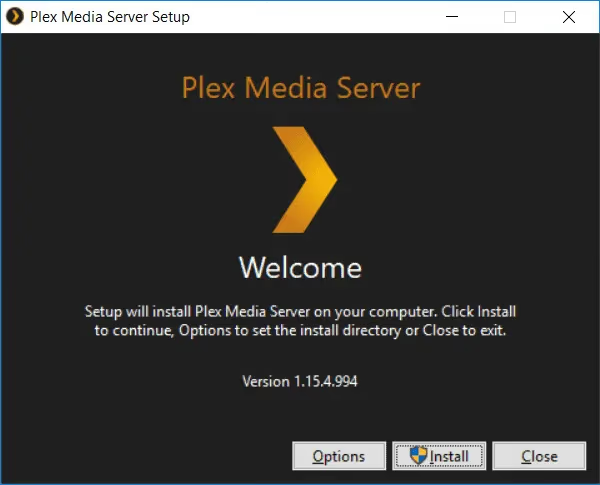
- Run the downloaded Plex Media Server setup wizard and follow prompts.
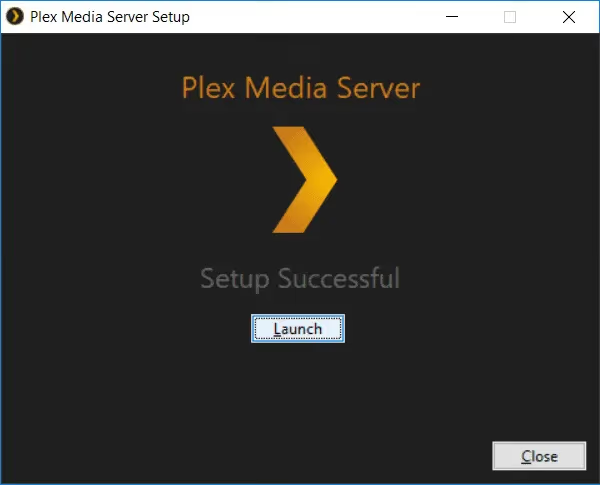
- Click Launch to start the server app after install completes.
#Set Up Libraries to Share with Client Devices
-
In Plex Media Server, click Add Library in the middle.
-
Choose media folders from your computer you want to share. Like Movies, TV Shows, Home Videos etc.
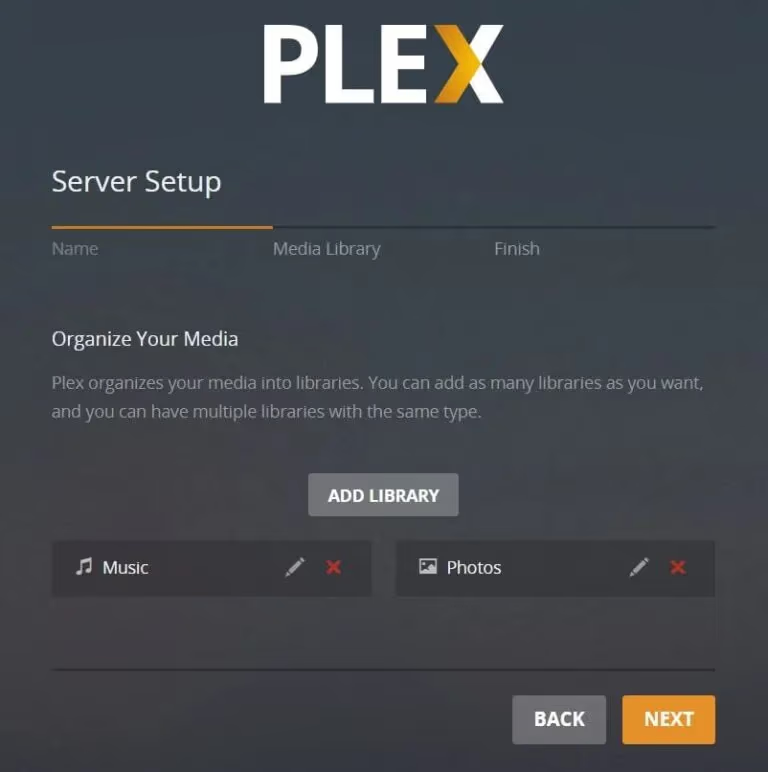
- Plex will organize and list all added media with descriptions, posters, and metadata.
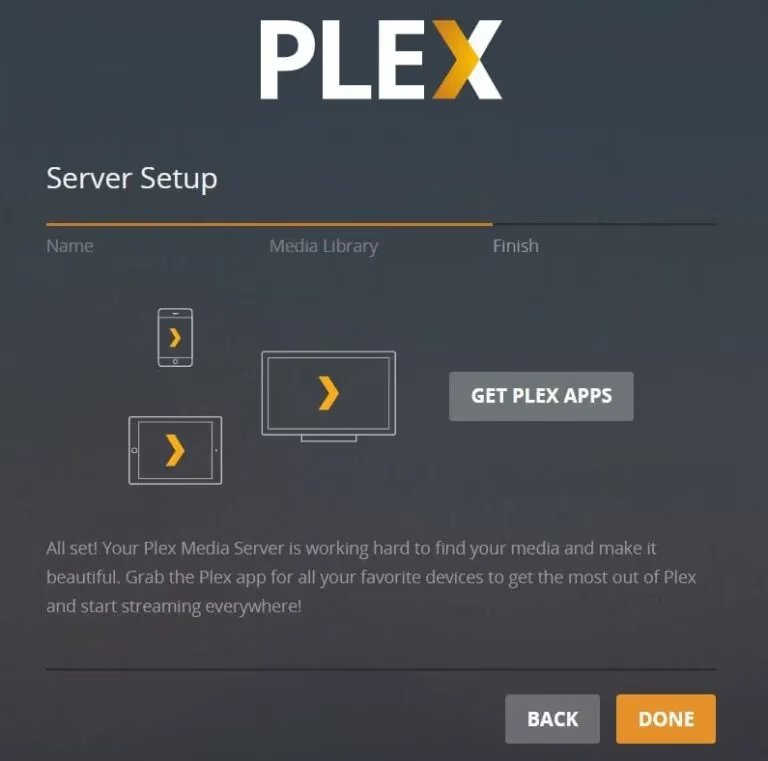
Your Plex Media Server is now ready to stream media to devices like Fire TV Stick.
#How to Use Plex on Amazon Fire TV Stick
Using Plex on FireStick to stream your personal media is straightforward after setting up Plex Media Server.
To play media files from Plex Server:
-
Open Plex app on FireStick.
-
On sidebar, select Media Type like Movies, TV Shows, or Music.
-
Browse your libraries. Select something to play.
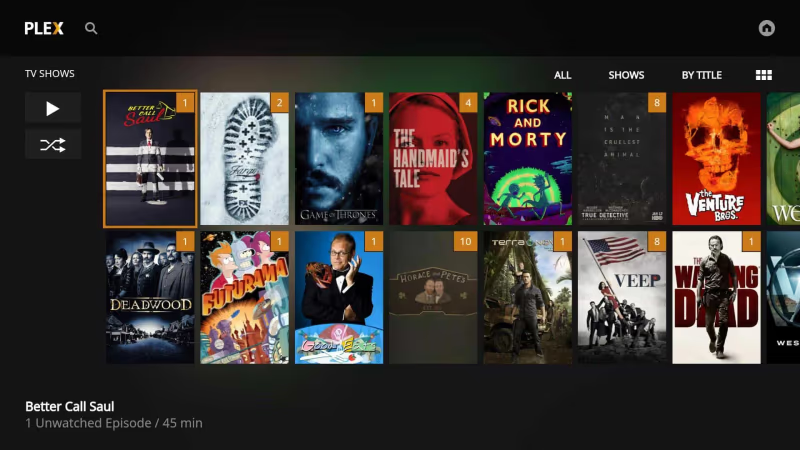
- Choose player if prompted. Hit Play button.
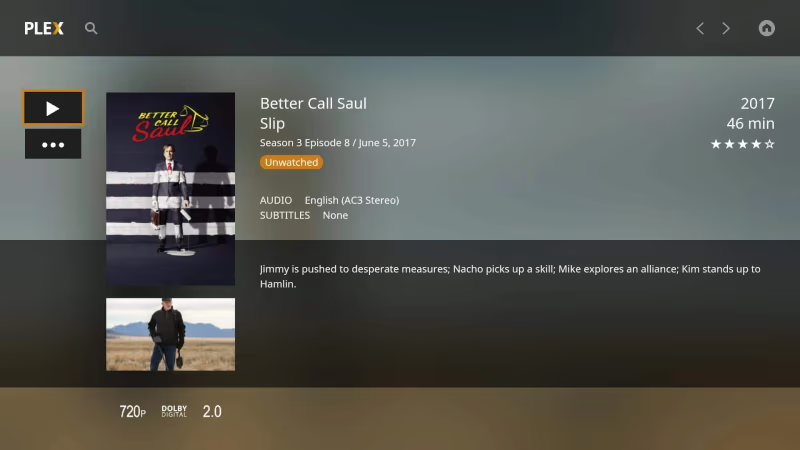
- Your media starts playing right away.
Remember that Plex Media Server should be running on your computer with media folders added for this to work.
Some key things to note when using Plex on FireStick:
-
If media won’t play, make sure your server is on and connected to internet.
-
Buffering or quality issues? Lower quality settings in the app.
-
Want to stream remotely outside home? Enable remote access in server settings.
That covers installing and using Plex on your Amazon FireStick. If you run into Fire TV issues unrelated to Plex, this guide on fixing Insignia Fire TV loading screens may help.
#Advanced Tips for Using Plex on Fire Stick
Streaming your files is just the beginning. Here are some power-user tips:
-
Enable Cinema Trailers and Pre-Roll videos for a theater feel
-
Automate downloads with Sonarr and Radarr to expand your collection
-
Install Sub-Zero to auto-fetch subtitles for movies and shows
-
Add collections for specific genres or release years
-
Adjust streaming quality settings based on connection speed
-
Enable offline media sync to watch content on the go
-
Share libraries with friends and family members
-
Add metadata like descriptions, posters and backgrounds
Getting the basics running is the first step. After that, these extras make Plex feel like a full home theater system.
Looking for media server alternatives? Compare Emby vs Plex to see which fits your setup better.
#How Do You Fix Common Plex Problems on Fire Stick?
If you run into issues with Plex on Fire Stick, try these troubleshooting steps:
Can’t link to Plex server — Check firewall and port forwarding rules on server machine
Choppy playback — Lower quality or enable Direct Play in settings
Media won’t load — Make sure folders are added to libraries properly
Errors loading metadata — Double check read permissions on files
Buffering issues — Check server CPU usage and upgrade hardware if needed
Still having problems? Search the Plex forums and Support page for your specific error message.
#FAQ
#Does Plex work well on Fire Stick?
Plex runs great on Fire Stick. The app loads quickly, and playback is smooth for most file formats. You might need to lower quality settings for 4K content if your Fire Stick is an older model.
#Do I need Plex Pass to use Plex on Fire TV?
No, Plex Pass is not required. The free version handles media playback, library organization, and remote streaming. Plex Pass adds extras like hardware transcoding, offline sync, and live TV recording with a supported tuner.
#Can I use Plex on Fire Stick without a media server?
You cannot stream personal media without Plex Media Server running on a computer or NAS. However, the Plex app on Fire Stick does offer free ad-supported movies and TV shows that work without any server.
#What Fire Stick models support Plex?
Every Fire Stick model supports Plex, including the Fire TV Stick Lite, Fire TV Stick 4K, and Fire TV Stick 4K Max. The 4K models handle high-resolution content better because they have faster processors and more RAM.
#How do I stream Plex remotely outside my home?
Enable remote access in your Plex Media Server settings under the Remote Access tab. Your server needs a stable upload speed of at least 5 Mbps for comfortable remote playback. Port 32400 must be open on your router.
#Why does Plex buffer on Fire Stick?
Buffering usually happens when your server’s CPU cannot transcode fast enough, or your network connection is too slow. Try enabling Direct Play in the Plex app settings to skip transcoding, or lower the streaming quality to 720p.
#Is Plex free on Amazon Fire Stick?
The Plex app itself is free to download and use. Basic playback of your personal media library costs nothing. Plex Pass is an optional subscription at $4.99/month that unlocks premium add-ons like hardware transcoding and mobile sync.
#Can I share my Plex library with other people?
Yes, Plex lets you invite other users to access your media libraries. Go to Settings > Users & Sharing in your Plex Media Server dashboard to add friends or family. You can control which libraries each person can see.
#Bottom Line
Setting up Plex on Amazon Fire Stick takes about 10 minutes total. Install the free app from the Amazon App Store, link your account with a 4-digit code, and point Plex Media Server at your media folders on a PC.
Once everything is connected, your movies, TV shows, and music stream directly to your Fire Stick. Enable remote access and you can watch from anywhere. The setup is a one-time effort that gives you a personal streaming service without monthly fees.