Experiencing constant buffering when streaming content on Plex? This guide covers 12 proven methods to troubleshoot and fix Plex buffering once and for all.
- Hardware acceleration shifts transcoding from CPU to GPU and eliminates most 4K buffering
- Internet speeds of 25 Mbps or higher are needed for stable 4K Plex streaming without interruption
- Limiting concurrent streams to 3-5 local and 1-2 remote prevents server resource overload
- Dedicated streaming devices like Nvidia Shield or Apple TV 4K direct play most formats without transcoding
- Clearing app cache and updating Plex to the latest version resolves many playback glitches
#Why Does Plex Keep Buffering?
As a top media server platform with over 25 million users worldwide, Plex lets you access and stream your personal media library from anywhere.
Despite its popularity, Plex still suffers from a major pain point: constant buffering and lag during video playback that interrupts the streaming experience.
This guide will help you troubleshoot, diagnose and permanently fix Plex buffering issues through 12 proven methods, whether you’re streaming locally or remotely.
#Common Causes of Plex Buffering
Here are the 14 most common culprits behind Plex stuttering and constant pinwheeling:
-
Lack of hardware acceleration support
-
Underpowered/outdated Plex Media Server
-
Slow internet speeds and bandwidth limitations
-
Too many simultaneous streams overloading resources
-
Using unsuitable streaming devices like smart TVs
-
Complex subtitle and audio formats forcing transcoding
-
Network connectivity issues and interference
-
Buggy, outdated Plex app versions
-
Heavy CPU usage spikes during transcoding
-
Device memory limitations
-
Security software conflicts
-
Plex media format incompatibility
-
Poor signal strength with WiFi streaming
-
ISP throttling and traffic shaping
#How Do You Fix Plex Buffering and Lagging?
##1 Enable Hardware Acceleration
One major cause of Plex stuttering is lack of hardware acceleration, especially when streaming high bitrate 4K or HEVC content.
Enabling hardware transcoding in Plex shifts the video processing load from your CPU to the GPU. This dramatically improves performance and reduces buffering.
To enable hardware acceleration:
-
Upgrade to Plex Pass
-
Use Plex Media Server v1.24.1+
-
Have a supported GPU
-
Restart Plex server after activating hardware acceleration
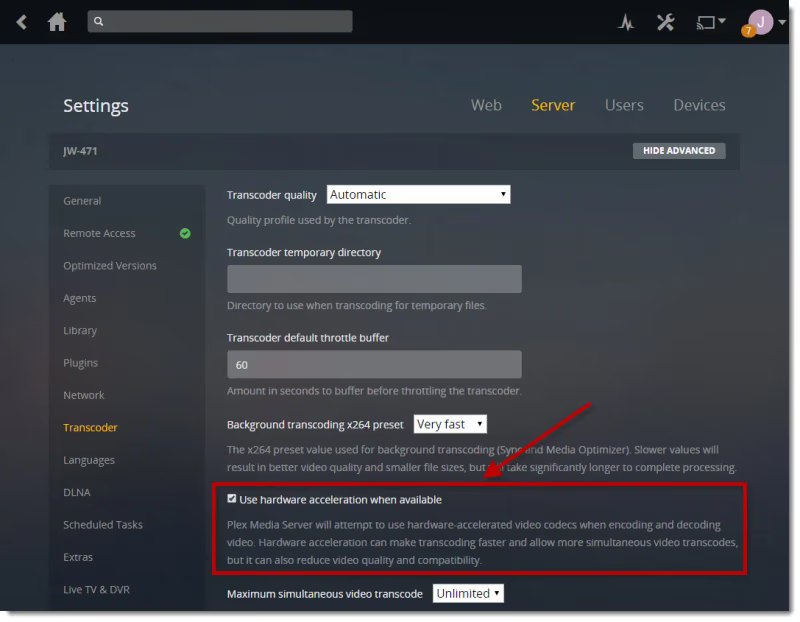
With hardware acceleration properly configured, you can direct play 4K, HEVC and high bitrate videos without endless buffering.
##2 Upgrade Your Plex Server Hardware
Another source of Plex lagging is an underpowered, outdated Plex server unable to cope with demands like:
-
Heavy transcoding of hi-res, CPU-intensive formats
-
Streaming to multiple devices simultaneously
-
Failure to meet increased storage needs
Some memory/hardware upgrades to stop Plex buffering issues:
-
Switch to a modern multi-core CPU for faster transcoding. Intel i9 recommended.
-
Get a dedicated GPU for hardware acceleration as outlined above
-
Increase RAM to at least 16GB for optimal Plex performance
-
Upgrade to an SSD cache drive to improve load times
-
Use a scale-up NAS or media server (Synology, QNAP, etc.)
##3 Check Internet Speeds & Bandwidth
Slow internet speeds are a definite cause of Plex constantly buffering, especially when streaming high bitrate 4K or 1080p content remotely outside your home.
Recommended internet speeds for stable Plex streaming:
-
HD/1080p video: Minimum 5 Mbps
-
4K video: Minimum 25 Mbps
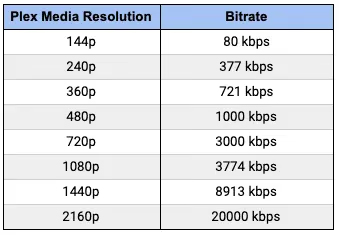
Speed alone isn’t enough, though. You also need sufficient bandwidth available exclusively for Plex streaming without other activity congesting your network connection.
To troubleshoot:
-
Perform a speed test to check your real-world internet speeds
-
Temporarily disable other bandwidth-intensive activities like torrenting and gaming
-
Upgrade to a faster internet plan or better Wi-Fi router if speeds too low
-
Use a wired Ethernet connection for consistent speeds vs WiFi
Also enable “Auto Adjust Quality” in Plex settings so video quality downgrades automatically to prevent buffering when available bandwidth drops.
##4 Limit Simultaneous Video Streams
Large Plex libraries mean more friends and family streaming videos simultaneously. Too many concurrent streams overload server resources and cause constant buffering.
As a rule of thumb for stable performance:
-
Allow just 1-2 remote streams outside your home network
-
Limit to 3-5 local streams on your LAN
To prevent Plex buffering from too many users, restrict streams with Plex’s built-in controls:
-
Click settings icon ⚙️ > Server > Remote Access
-
Set Global Remote Stream Bitrate Limit to 8-10 Mbps max
-
Enable Limit cellular to 2 Mbps under Custom server access URLs
-
Set max Internet Upload Speed under Bandwidth to 60% your upload speed
-
Under Devices, set max streams allowed per user
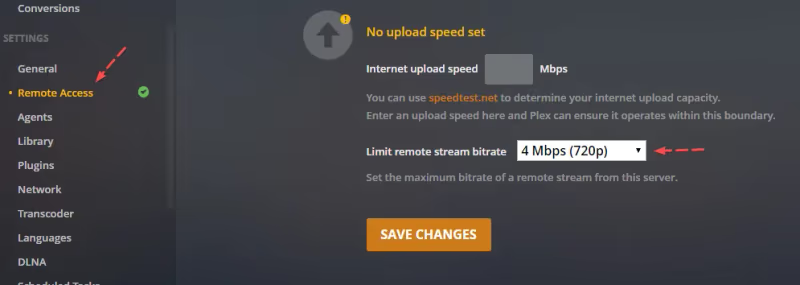
With simultaneous streams restricted, Plex will have enough bandwidth, CPU and memory to stream without disruption.
##5 Use Better Streaming Devices
Plex supports almost every device imaginable: smart TVs, mobiles, PCs, tablets, streaming boxes, gaming consoles and more.
Not all clients are created equal, though. Underpowered devices like smart TVs are a common source of Plex stuttering and buffering due to hardware limitations.
For the smoothest Plex streaming:
-
Avoid using game consoles and smart TVs as Plex client devices where possible
-
Recommended: Use a dedicated media player like the Nvidia Shield, Apple TV 4K or Roku Ultra

These powerful streaming boxes can direct play almost any video format without needing Plex transcoding, eliminating a major cause of buffering.
##6 Change Subtitle & Audio Settings
Plex users frequently report constant buffering and lagging when subtitles are enabled, especially with foreign language subs and PGS format subtitles.
That’s because complex textures like subtitles require video transcoding that most Plex servers struggle with.
To smooth out playback:
-
Disable subtitles in content where possible
-
Under Plex settings, disable auto “Always Burn Subtitles”
-
Manually burn only image-based PGS subtitles before adding media
-
Use plain SRT subtitle files instead of complex formats
-
Avoid 7.1 multi-channel audio tracks which also require transcoding. Downmix audio to stereo or 5.1 surround sound instead.
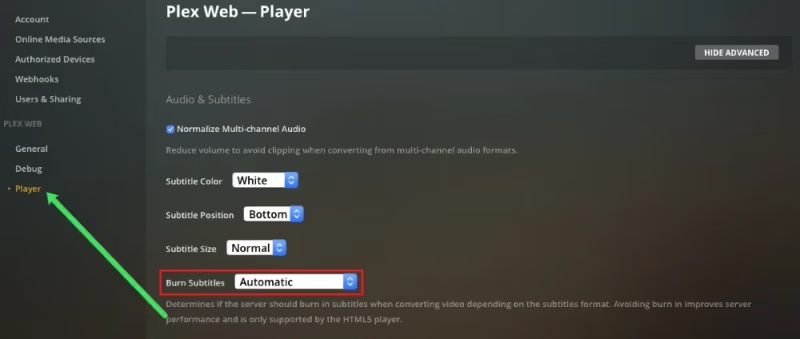
With simpler subtitle and audio streams, videos can direct play without needing resource-intensive transcoding.
##7 Troubleshoot Network Issues
Network problems like poor Wi-Fi signal, bandwidth throttling by ISPs and TCP/IP conflicts can all interrupt streams and cause Plex buffering.
To rule out networking issues:
-
Troubleshoot Wi-Fi and switch to ethernet if signal weak
-
Test with VPN disabled. VPNs often throttle speeds.
-
Factory reset networking hardware if issues persist
-
Port forward Plex server using TCP port 32400 for remote access
-
Enable UPnP in router settings to avoid port conflicts
With a stable, uncongested network free of interference you can stream without annoying Plex buffering, whether streaming Plex on Chromebooks or using Plex on the Steam Deck.
##8 Update Plex Media Server & Clients
Like any software, bugs and compatibility issues in outdated Plex apps can disrupt video playback and cause buffering or crashes.
-
On your Plex server, click ⚙️ > General > Check for Updates to upgrade. Skipping updates causes issues like audio sync problems and playback failures.
-
Also check for updates manually on streaming device clients (Roku, mobile, etc.) in their app stores
-
If using Plex Web App, clear browser cache after an update
-
After major updates, restart server and clients for changes to take effect
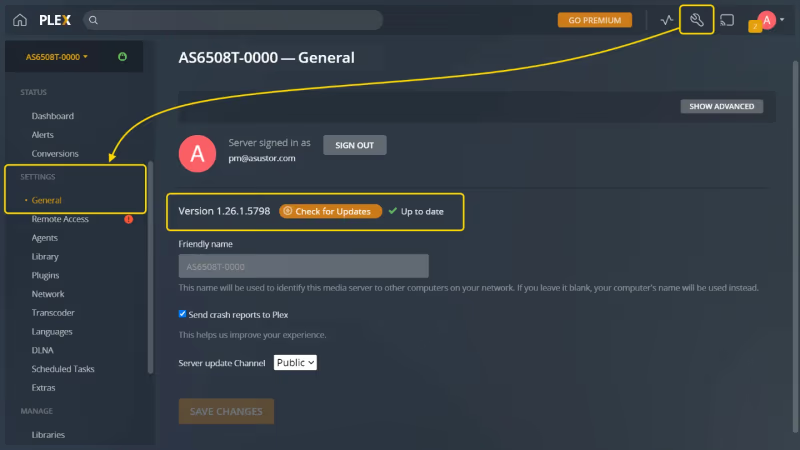
Staying updated with the latest Plex releases minimizes playback issues like errors saving changes and improves streaming compatibility across devices like Nintendo Switch.
##9 Change Stream Quality Settings
When bandwidth is limited either locally or over the internet, streaming high resolution media will result in constant buffering as speeds fluctuate.
Plex apps have a useful Auto Adjust Quality feature that dynamically downscales quality to prevent interruptions.
To enable:
-
In Plex app during playback, open settings
-
Under Quality, choose Auto instead of Original/Maximum
-
Set Global Remote Stream Bitrate under server settings to 8-10 Mbps
-
Set Maximum H.264 Level (in Mbps) to match your network
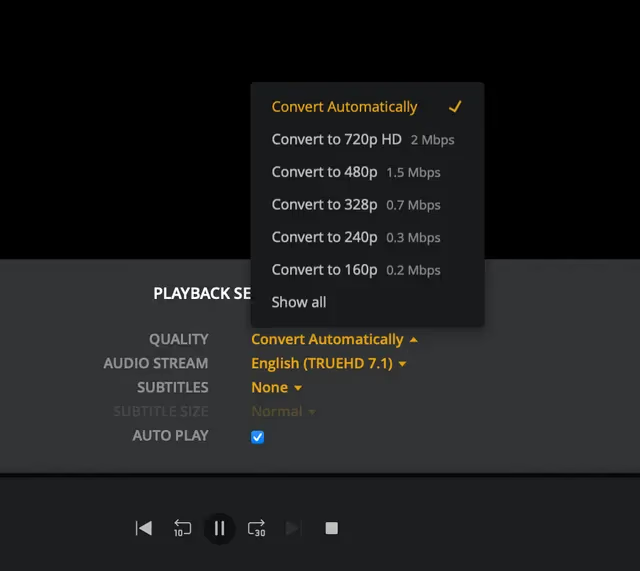
Plex will now automatically adjust stream quality based on available bandwidth for smooth playback without endless buffering at higher resolutions.
##10 Clear Plex App Data & Cache
Corrupted app data and bloated caching can sometimes disrupt video playback and cause Plex buffering or crashing.
Clearing the app data forces Plex to rebuild its data indexes and buffers from scratch:
-
Close any running Plex apps fully
-
In device settings, select Apps > Plex Media Server (and client)
-
Tap Clear Cache followed by Clear Data & Clear Defaults
-
Reopen Plex app. Data will rebuild as you use it.
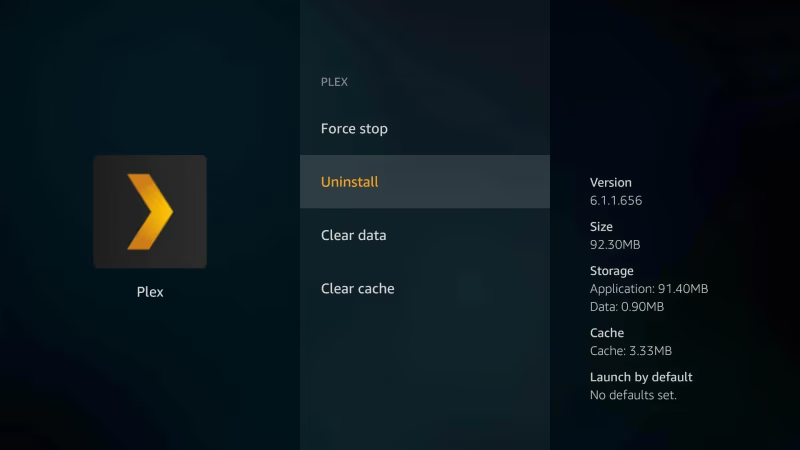
With fresh app data, cache and settings, playback inconsistencies causing buffering are often eliminated.
##11 Disable VPN When Streaming Plex
To protect privacy, many people route Plex traffic through a VPN tunnel. VPNs inherently throttle speeds to varying degrees, though.
If Plex buffering only occurs when your VPN is active, disabling it while streaming Plex should restore full speeds:
-
Under your device network settings, toggle your VPN off
-
Refresh Plex app/web browser to reconnect without VPN
-
When done streaming, remember to re-enable the VPN
Without the VPN bottleneck, Plex will use your full internet speeds for smooth streaming once again.
##12 Contact Plex Customer Support
If you’ve tried every troubleshooting step but still can’t eliminate Plex stuttering and buffering issues, it may require further technical investigation by Plex’s customer support reps.
-
Submit a support ticket through plex.tv/contact detailing your issues
-
Document all troubleshooting steps you’ve attempted
-
Provide Plex server logs showing errors to aid diagnosis
-
Consider starting a Plex forums thread detailing issues to get community help
With an active Plex Pass subscription, you’re eligible for priority email support and access to remote desktop assistance to finally squash those pesky playback problems.
If you’ve tried all the above solutions and the Plex buffering issue persists, you can also try other home media server software like Emby and Jellyfin as Plex alternatives.
#Bottom Line
Getting Plex to stream without buffering comes down to three areas: server hardware, network quality, and client device capability.
Start with the quick wins. Enable hardware acceleration, switch to a wired Ethernet connection, and limit concurrent streams. If buffering continues, upgrade your server hardware, check your internet speeds, and try a dedicated streaming device like the Nvidia Shield TV.
The 12 methods above cover every common cause of Plex buffering. Work through them in order, and you’ll pinpoint the exact bottleneck in your setup.
#Frequently Asked Questions
#Why does Plex buffer more with 4K or 1080p videos?
4K video requires at least 25 Mbps download speed and enough local network bandwidth to stream without interruption. Most buffering at higher resolutions happens because the server is transcoding instead of direct playing. Enable Auto Adjust Quality in Plex settings to automatically lower resolution when bandwidth drops.
#Can upgrading server hardware fix Plex buffering?
Yes. A modern multi-core CPU, 16GB of RAM, an SSD cache drive, and a dedicated GPU for hardware acceleration can all dramatically reduce buffering. The GPU upgrade alone often eliminates 4K transcoding bottlenecks that cause most lag.
#Does Plex Pass help reduce buffering?
Plex Pass unlocks hardware-accelerated transcoding, which is the single biggest performance improvement for most servers. It also enables mobile sync so you can download videos for offline viewing, bypassing buffering entirely. The subscription pays for itself if you regularly stream high-resolution content.
#Why does Plex buffer when Netflix and other apps stream fine?
Netflix and similar services use global CDN infrastructure specifically optimized for video delivery. Plex relies on your local server hardware and home network, so performance depends entirely on your own setup. Upgrading your server, using wired connections, and enabling hardware acceleration close much of this gap.
#How do subtitles cause Plex buffering?
PGS and image-based subtitles force Plex to transcode the entire video stream, which is CPU-intensive. SRT (text-based) subtitles are much lighter and rarely trigger transcoding. Switch to SRT subtitles or disable them entirely to stop subtitle-related buffering.
#What internet speed do you need for Plex streaming?
You need at least 5 Mbps for 1080p and 25 Mbps for 4K Plex streaming. These are minimum speeds, and you’ll want headroom above these numbers if other devices share the same connection. A wired Ethernet connection provides more consistent speeds than Wi-Fi for local streaming.
#Can you watch Plex offline to avoid buffering?
Yes, the Plex mobile app’s Sync feature lets you download videos over Wi-Fi for offline playback. This completely eliminates buffering since the video plays from local storage. You need a Plex Pass subscription to use this feature, and downloaded files should be deleted after watching to free up space.
#Does a VPN cause Plex to buffer?
VPNs add encryption overhead and route traffic through remote servers, which reduces available bandwidth. If Plex only buffers when your VPN is active, the VPN is likely the cause. Disable the VPN while streaming Plex, or configure split tunneling to exclude Plex traffic from the VPN tunnel.