Frustrated by videos in Plex where the audio doesn’t match up with the video? Out-of-sync audio can ruin the viewing experience. With the right troubleshooting, you can get Plex back in perfect sync. This guide covers 12 fixes to resolve Plex audio sync problems on devices like Roku, Nvidia Shield, Windows, and more.
- Pause-and-resume — the fastest fix that resets minor audio drift in seconds
- Buffer size matters — setting Initial Buffer to 25MB and Total Buffer to 75MB prevents most sync issues
- Transcoding causes most problems — switching to Direct Play or pre-optimizing files avoids transcoding errors entirely
- Audio passthrough can introduce delay — disabling it forces Plex to decode audio locally, which often fixes sync
- File-level issues exist — tools like MediaInfo and FFmpeg can detect bad metadata or container mismatches causing drift
#Why Does Plex Audio Go Out of Sync?
Before jumping into the solutions, it helps to understand what causes Plex audio sync problems in the first place:
-
Transcoding Issues: When Plex transcodes media into a format your device can play, errors during transcoding can throw off AV sync. This is one of the most common culprits.
-
Bad Metadata: If the media file itself has incorrect metadata like frame rate, it could lead to sync issues.
-
Connection Problems: An unstable internet connection while streaming can also impact synchronization.
-
Hardware Limitations: Older or underpowered Plex clients may struggle to maintain sync during playback.
With the fixes outlined below, you can resolve lagging, delayed, or out-of-sync Plex audio on nearly any device.
#How Do You Fix Plex Audio Out of Sync?
Follow these top methods to get perfectly synced audio in Plex again:
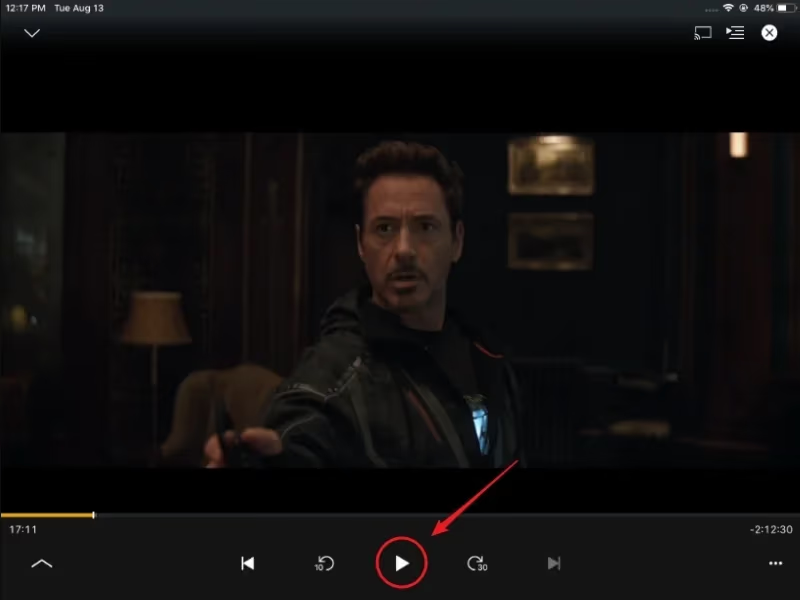
#1. Pause and Resume Playback
The quickest fix is to briefly pause the video then resume playback. For small, gradual sync drifts, this resets the sync effectively.
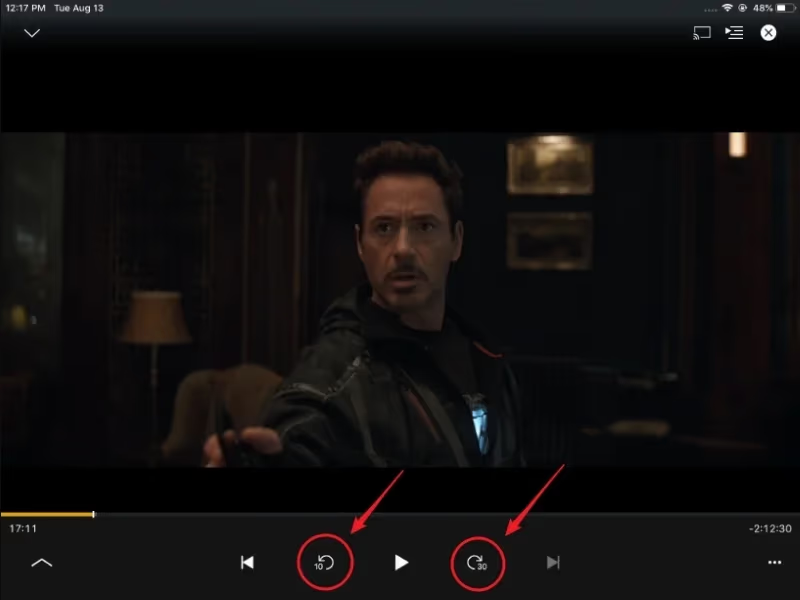
#2. Skip Ahead and Rewind
Skipping forward 30 seconds then rewinding can recalibrate Plex’s audio sync without restarting playback fully.
#3. Tweak Transcoding Quality
Changing transcoding quality settings can improve audio sync within Plex. Under server settings, try:
-
“Make My CPU Hurt” (improves accuracy over speed)
-
Lower resolutions like 720p/3Mbps bitrate
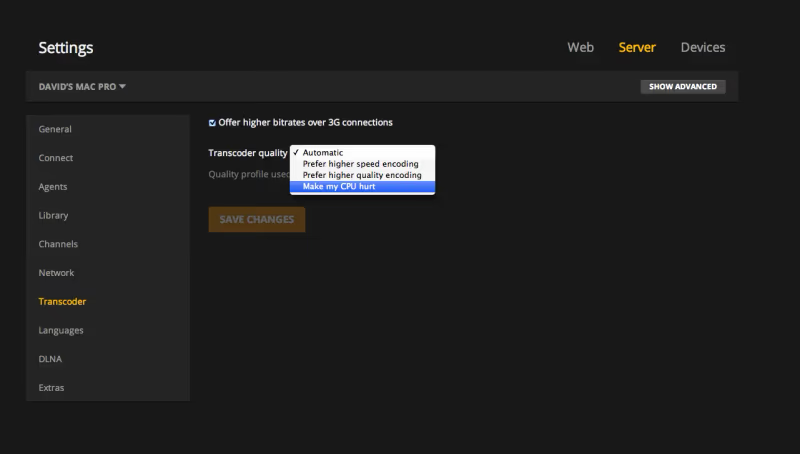
Transcoding also worsens the problem on weaker Plex servers. Consider optimizing media instead.
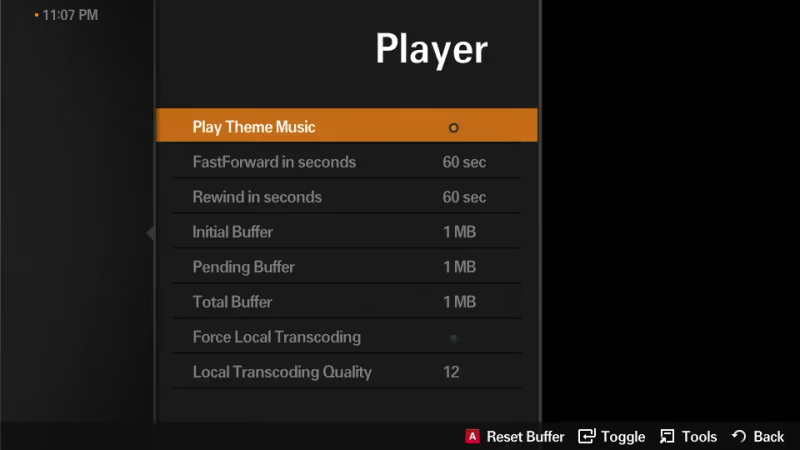
#4. Adjust Client Buffer Settings
Increasing buffer size allocates more memory to smooth out playback. Within Plex app settings, set buffers to:
-
Initial Buffer: 25MB
-
Pending Buffer: 50MB
-
Total Buffer: 75MB
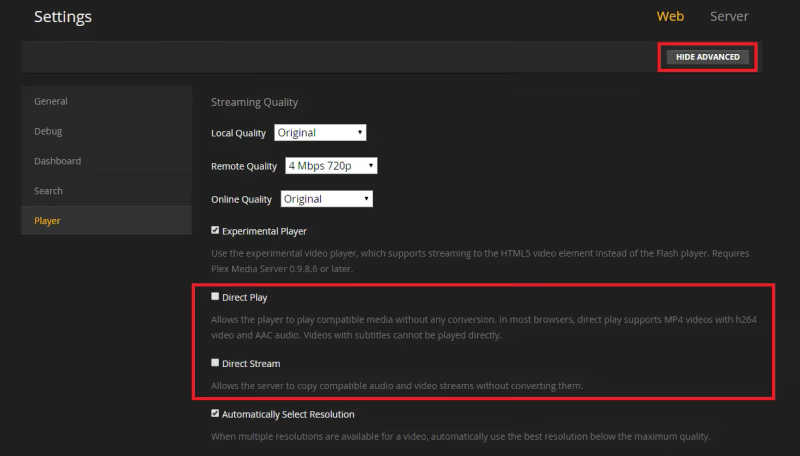
#5. Disable Direct Play
With Direct Play enabled, try forcing Plex to transcode both video and audio streams instead. If that doesn’t resolve it, some users have had success switching to Plex alternatives like Emby.
#6. Toggle Display Modes
Changing picture, color, sound modes in your playback device’s settings may also fix sync.
#7. Reset App and Reinstall
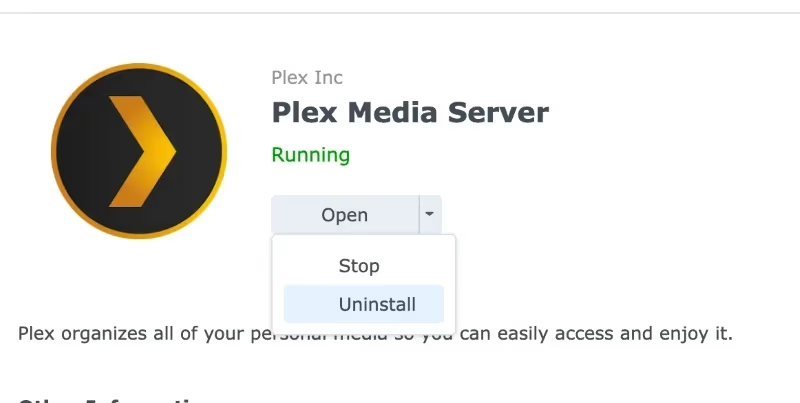
Uninstalling and reinstalling the Plex app often resolves elusive audio delay issues as well.
#8. Adjust Audio Offset
Under Plex app settings, offset audio track directly to dial in perfect lip sync:
-
Alt + A = Increase audio delay
-
Alt + Shift + A = Decrease audio delay
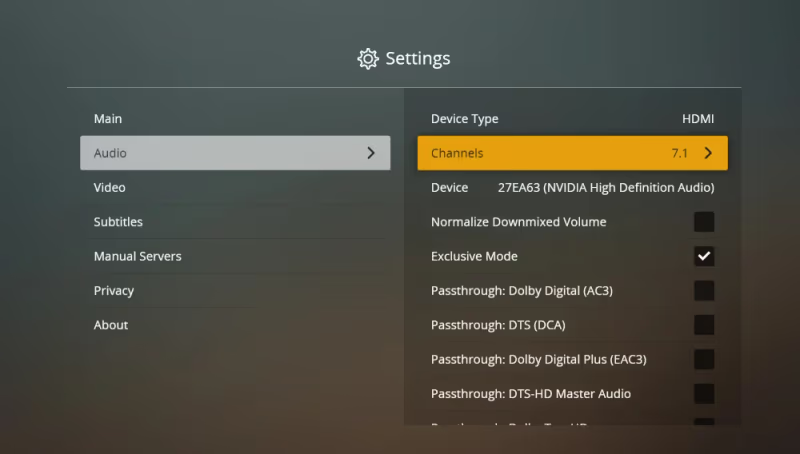
#9. Disable Audio Passthrough
Turning off Passthrough forces Plex to decode audio, avoiding sync issues caused by external devices.
#10. Update Plex Media Server
Updating to the latest Plex version{rel=“noopener” target=“_blank”} also helps resolve bugs causing audio drift.
#11. Verify File Integrity
Use MediaInfo{rel=“noopener” target=“_blank”} or FFmpeg{rel=“noopener” target=“_blank”} to inspect files for corruption and bad metadata that throw off AV sync.
#12. Downgrade Plex
If a recent Plex update triggered sync delays, rolling back Plex server to an older version may help. Check the Plex forums{rel=“noopener” target=“_blank”} for known issues with specific versions before downgrading.
#What Are Some Tips to Prevent Plex Audio Sync Issues?
Here are pro tips to avoid sync problems in the future when using Plex:
-
Direct play media whenever possible instead of transcoding
-
Optimize files for direct streaming ahead of time
-
Enable hardware acceleration in Plex to improve transcoding speeds and synchronization, though audio sync issues can still occur on weaker clients like the Steam Deck
-
Use wired connections for faster speeds
-
Increase Plex buffer settings
-
Add pauses when sync drifts to reset
If Plex keeps buffering alongside audio sync problems, the root cause is likely your network or server performance rather than the media files themselves.
#Bottom Line
The top ways to fix Plex audio out of sync are:
-
Pause/skip playback to reset sync
-
Tweak transcoding quality higher
-
Increase buffer size
-
Disable Direct Play
-
Reinstall Plex app
-
Adjust audio offset
-
Disable Passthrough
-
Update Plex server
-
Validate media files
-
Downgrade Plex
Start with the quick fixes like pausing and skipping, then work through the more involved solutions if needed. Most audio sync problems come down to transcoding errors or buffer settings, so those two areas deserve the most attention.
#Frequently Asked Questions
#Why does my Plex audio go out of sync randomly?
On-the-fly transcoding errors or an unstable network connection are the usual culprits. Tweaking transcoding quality and increasing buffer sizes often resolves random sync drift. If the issue only happens with certain file types, the container format itself may be incompatible with your playback device.
#Why is Plex audio sync fine for some files but not others?
Files with incorrect metadata, mismatched frame rates, or unusual container formats are more likely to cause sync problems. Use MediaInfo to check the problem files for encoding issues. Re-encoding the problematic files with HandBrake or FFmpeg usually fixes file-specific sync drift.
#Does hardware acceleration fix Plex audio sync problems?
Hardware acceleration speeds up transcoding and reduces the chance of sync errors caused by CPU bottleneck. It works best on servers with compatible GPUs from Intel, Nvidia, or AMD. That said, hardware acceleration alone won’t fix sync problems caused by bad file metadata or network instability.
#Should I downgrade or upgrade Plex to fix audio sync?
If sync issues appeared right after a Plex update, downgrading to the previous version is worth trying. Check the Plex forums for known audio bugs in your current version. When no specific update triggered the problem, upgrading to the latest release is the better bet since newer versions include bug fixes.
#Can adjusting picture settings fix audio sync issues?
Yes. Switching from Game Mode to Standard Mode on your TV reduces input processing delay that can throw off audio timing. Some display enhancements add video processing latency that creates a gap between the audio and video streams.
#Why does Plex drift out of sync over time while watching?
Gradual sync drift usually points to a mismatch between the timestamps in the media container and the actual stream duration. This is common with files converted from one format to another. Pausing and resuming every 20-30 minutes resets the drift, but re-encoding the file with correct timestamps is the permanent fix.
#Does audio passthrough cause sync issues in Plex?
Audio passthrough sends the raw audio bitstream to your receiver or soundbar for decoding. If the external device decodes audio at a slightly different rate than Plex renders video, sync drifts over time. Disabling passthrough forces Plex to handle decoding internally, which keeps audio and video in lockstep.
#What buffer settings work best for Plex audio sync?
Set Initial Buffer to 25MB, Pending Buffer to 50MB, and Total Buffer to 75MB for the best balance between sync stability and memory usage. These values give Plex enough headroom to absorb network hiccups without introducing playback lag. Lower buffer values save memory but increase the risk of sync drift on slower connections.