Getting Philo set up on your LG smart TV gives you access to over 60 popular live TV channels and thousands of on-demand titles at $25 per month. However, Philo is not natively available as an app on LG TVs running webOS.
This guide walks through six methods that work right now, from the quickest browser-based option to dedicated streaming devices.
- Philo has no native LG webOS app — you must use a workaround like the built-in browser, casting, or an external streaming device
- The LG web browser method is the fastest — just navigate to philo.com and log in, no extra hardware needed
- Streaming devices offer the best experience — Roku, Fire TV Stick, and Apple TV all support a full Philo app starting at $29
- Casting works from both Android and iOS — use Chromecast or AirPlay to mirror Philo from your phone to any modern LG TV
- All LG smart TVs from 2016 onward are compatible — webOS 3.0 and higher supports the browser and casting workarounds
#What Are Philo and LG Smart TVs?
Let’s start with a quick primer so we’re all on the same page…
#What is Philo?

Philo is an affordable live TV streaming service created for cord-cutters seeking top TV channels at a fraction of the cost of cable or satellite.
For just $25 per month, Philo offers:
-
70+ popular live channels including AMC, HGTV, Discovery, Nickelodeon, CMT, MTV, and more
-
Unlimited DVR storage to record your favorite shows
-
Over 50,000 titles available on-demand
-
Streaming on up to 3 devices simultaneously
-
No contracts or hidden fees
Compared to pricier services like YouTube TV or Hulu + Live TV, Philo keeps costs low by focusing on entertainment, lifestyle, and news channels rather than sports.
#What are LG Smart TVs?
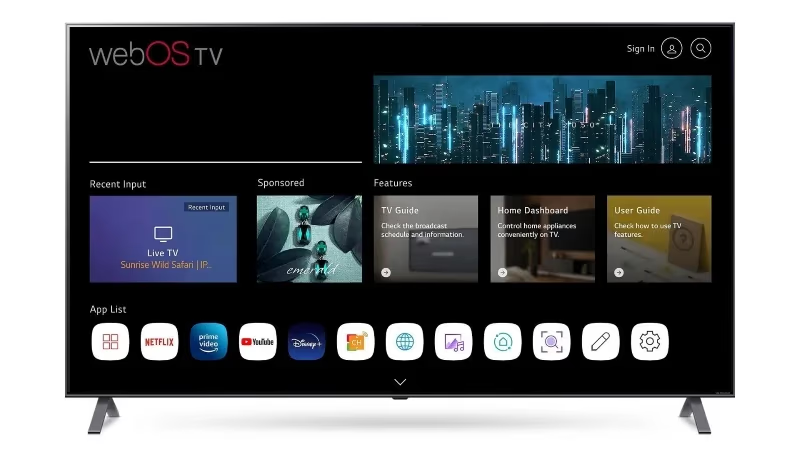
LG manufactures a range of smart TVs powered by their user-friendly webOS platform. LG smart TV models include:
-
OLED TVs – Flagship displays renowned for perfect black levels and stunning image quality
-
NanoCell TVs – Delivers enhanced color accuracy and wider viewing angles
-
UHD/4K TVs – Models with Ultra High Definition 4K resolution
-
HD TVs – Basic HDTV models for crisp 1080p resolution
All modern LG TVs run on webOS, LG’s intuitive smart TV interface. The platform gives you access to apps, streaming channels, and an integrated assistant.
Key webOS features include:
-
LG Content Store – App market to browse streaming services and channels
-
Home Dashboard – Quick access your favorite apps and inputs
-
Magic Remote– Point, click, scroll and use voice commands to control your TV
-
Built-in Virtual Assistant – Hands-free voice control powered by LG ThinQ AI
-
Screen Mirroring – Wirelessly project your mobile device’s display to your LG TV
-
Smart Home Control – Native support for Google Assistant and Amazon Alexa
Now that you know what Philo and LG smart TVs offer, let’s look at why getting the Philo app directly on your LG TV isn’t straightforward…
#Why Can’t I Get Philo on My LG Smart TV?
Despite being available on platforms like Roku, Fire TV, Apple TV, Android TV and more, Philo is not natively supported on LG smart TVs.
You won’t find a downloadable Philo app in the LG Content Store.
So why is that? Here are the main reasons:
#Limited App Selection in LG Content Store
The built-in LG Content Store has a smaller catalog of apps compared to platforms like Roku or Fire TV.
As a smaller streaming provider, Philo currently prioritizes integration with the most popular streaming platforms first.
With limited resources, Philo focuses on the streaming boxes, sticks and platforms that drive the most sign-ups and subscriptions. This allows them to keep costs down and offer affordable pricing to consumers.
Over time, if Philo continues to grow, we may see them strike a distribution deal with LG to launch an official app. But for now, that option is not available.
#Compatibility Issues Between webOS and Streaming Apps
Some streaming services encounter compatibility issues building apps for LG’s webOS platform.
Due to differences in architecture, developing webOS apps requires customization to account for LG TV software and hardware.
For streaming services designed to work across many devices, creating specialized webOS-compatible apps induces extra costs and work.
Unless an app becomes widely requested by LG TV owners, streaming services often skip webOS app development due to the narrow usage base.
#Restrictions in Content Distribution Deals
The terms of Philo’s content distribution deals with networks and channel providers may restrict them from launching apps on newer smart TV platforms.
Agreements forged years ago did not account for modern streaming on smart TVs directly.
Updating these complex agreements introduces legal hurdles before Philo can launch new apps on additional platforms.
The three main barriers:
-
Limited app selection in the LG Content Store
-
Compatibility issues building webOS apps
-
Inability to distribute content directly to smart TVs per previous agreements
Fortunately, while the Philo app is unavailable, that doesn’t mean you can’t access Philo on your LG TV…
Using workarounds, you can absolutely stream Philo to compatible LG smart TV models.
Let’s explore 6 proven methods to watch Philo on your LG television.
#Method #1: Use the LG Web Browser
The easiest way to get up and running with Philo on your LG smart TV is to use the built-in web browser.
Almost every webOS-based LG smart TV includes a functioning web browser app with support for streaming video.
Here are the step-by-step instructions:
-
Turn on your LG smart TV and connect it to your home internet Wi-Fi
-
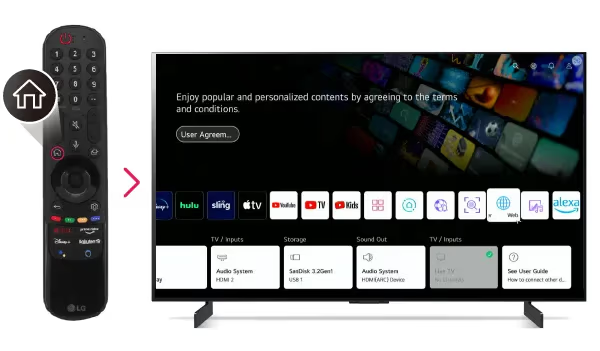
Press the Home button on your Magic Remote to access the webOS Home Dashboard
-
Scroll down and select the “Web Browser” app tile
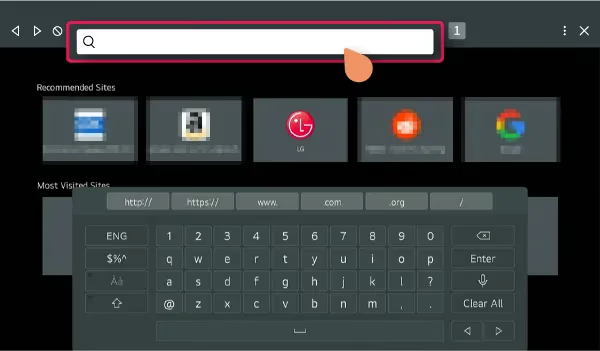
- Type in “philo.com” in URL bar at the top
-
Philo’s website will load on your TV screen and automatically redirect to the mobile version
-
Tap the profile icon in the top-right and log into your Philo account
-
Start watching your favorite live TV channels and on-demand shows!
The Philo mobile website works smoothly for streaming on LG TVs. You get the same universal Philo experience as phones and tablets in an easy-to-use interface.
Benefits:
-
Simple, straightforward method anyone can set up
-
Streams like a native app once loaded
-
Log in and pick up where you left off
Downsides:
-
Connecting a Bluetooth keyboard makes login easier
-
Website navigation can feel clunky with LG’s Magic Remote
-
Loses webOS integration and resorts to basic streaming
For a quick and painless way to access Philo, the built-in LG browser gets the job done. But for added features and convenience, read on to explore alternative options.
#Method #2: Cast from Your Mobile Device
Another quick way to get Philo on your LG TV is by casting it from your smartphone, tablet, or laptop.
Most webOS LG TVs support wireless screen mirroring protocols like Google’s Chromecast and Apple’s AirPlay.
You can use these features to display and control the Philo app from whatever mobile or computer device you prefer.
Let’s break down how to use both protocols:
#Option 1: Cast with Google Chromecast
-
Download and install the Philo app on your Android phone or tablet
-
Ensure your LG TV and casting mobile device are connected to the same Wi-Fi network
-
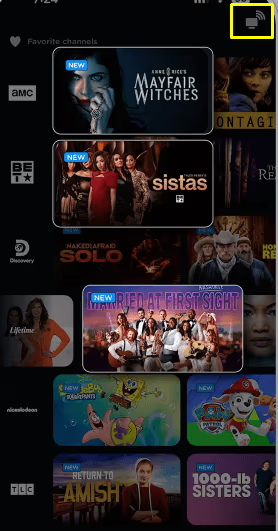
Tap the Chromecast icon from inside the Philo mobile app and select your TV
-
Accept the prompt on your TV allowing Philo to connect
-
Start casting Philo to your LG TV!
Benefits:
-
Cast from any Chromecast-enabled Android device
-
Easy, intuitive casting process
-
Control playback from your mobile device
Downsides:
-
Your phone must remain powered on and app open to keep casting
-
Potential lag or stuttering compared to a direct app
#Option 2: AirPlay from Your iOS Device
-
Install Philo from the iOS App Store onto your iPhone, iPad or Mac
-
Check that both your LG TV and iOS device join the same Wi-Fi network
-
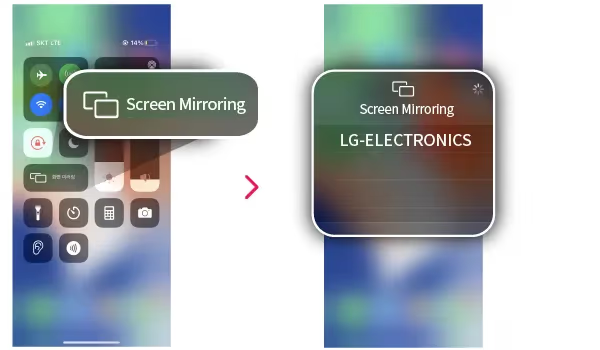
Swipe down from the top-right corner on your iOS device to launch Control Center
-
Tap Screen Mirroring and select your specific LG TV
-
Allow permission on your TV screen to begin casting
-
Open Philo on your iPhone, iPad or Mac and enjoy!
Benefits:
-
Wirelessly cast from any AirPlay 2-compatible Apple device
-
Share audio, video and touch controls
-
Stream smoothly with quick ramp-up time
Downsides:
-
Your iOS device must stay powered and app open to sustain casting
-
Minor latency depending on Wi-Fi signal strength
-
Requires an Apple device
Casting works well in a pinch. But for the most feature-rich Philo experience on your LG TV, dedicated streaming devices take integration to the next level.
#Method #3: Streaming Devices (Roku, Fire TV, Apple TV)
The most versatile way to enable Philo on your LG smart TV is through an external streaming device.
Streaming sticks and boxes plug into your TV’s HDMI port to provide a secondary operating system purpose-built for streaming. This opens up many more app options beyond LG’s webOS platform.
Philo supports all major streaming platforms:
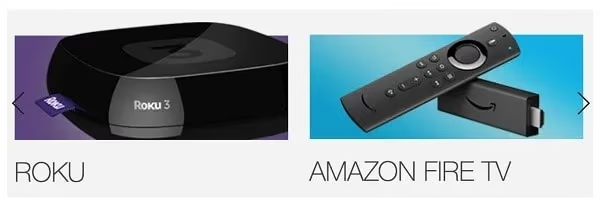
We’ll compare the benefits of getting Philo running through each streaming stick option:
#Philo on Roku
Roku devices integrate beautifully with LG TVs. Models like the Roku Express, Roku Streaming Stick, Roku Ultra and more enable hundreds of streaming channels.
Setting up Philo on Roku connected to your LG TV takes minutes:
-
Plug your Roku stick into an open HDMI port on your LG TV
-
Create a Roku account if you don’t have one already
-
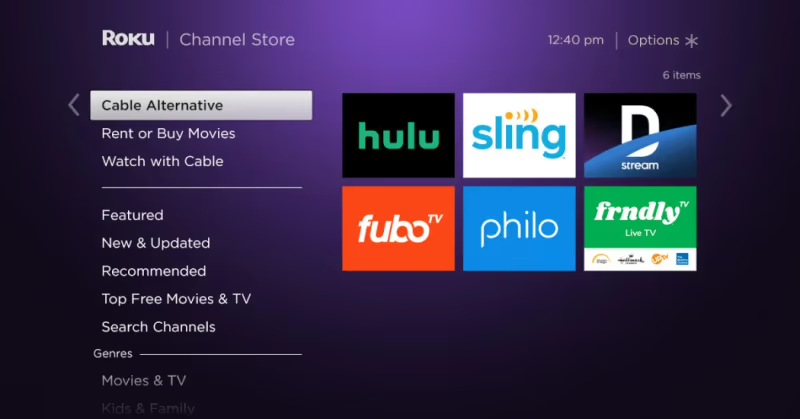
Browse the Roku Channel Store and download the Philo channel
-
Enter your Philo login credentials to activate your account
-
Start streaming your favorite Philo TV channels in up to 1080p HD!
Benefits:
-
Philo neatly integrated as a Roku channel
-
Thousands more apps to further expand LG smart TV
-
Affordable models as low as $29
-
Search across streaming channels in one interface
-
Single login persists across LG webOS and Roku
-
Voice control from Roku mobile app or Enhanced remote
-
Up to 4K HDR streaming support on select models
Downsides:
-
Additional hardware required
-
Multiple inputs can complicate device switching
#Philo on Fire TV
Amazon Fire TV streaming devices also perfectly complement LG smart TVs. Choose from affordable HD-only Fire TV Sticks or go for the more powerful Fire TV Cube.
Accessing Philo on Fire TV attached to your LG television requires:
-
Insert your Fire TV Stick/Cube into an open HDMI input
-
Register the device to your Amazon account
-
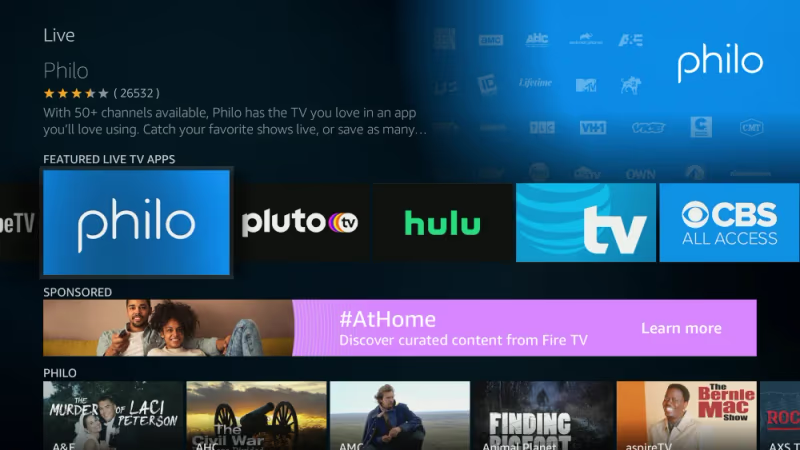
Search for and download the Philo app from the Amazon Appstore
-
Log into Philo using your registered username and password
-
Enjoy Philo alongside thousands of apps now accessible from your LG TV!
Benefits:
-
Deep Philo integration on Fire OS interface
-
Voice commands through Alexa Voice Remote
-
Most affordable 4K streaming option with Fire TV Stick 4K
-
Hundreds of apps like Netflix and Hulu now available
-
Access webOS Home Dashboard via inputs
-
Single login shared between platforms
Downsides:
-
Additional gear needed up front
-
Potentially confusing input switching
#Philo on Apple TV
If you’re invested into the Apple ecosystem, an Apple TV 4K box brings Philo to your LG television with exceptional polish.
Integrating an Apple TV with your LG smart TV requires:
-
Connect Apple TV box to open HDMI port
-
Turn on device and follow activation steps
-
Download the Philo app free from the tvOS App Store
-
Sign in using existing Philo account credentials
-
Customize Philo alongside Apple Arcade, Apple Fitness, Apple Music and other perks!
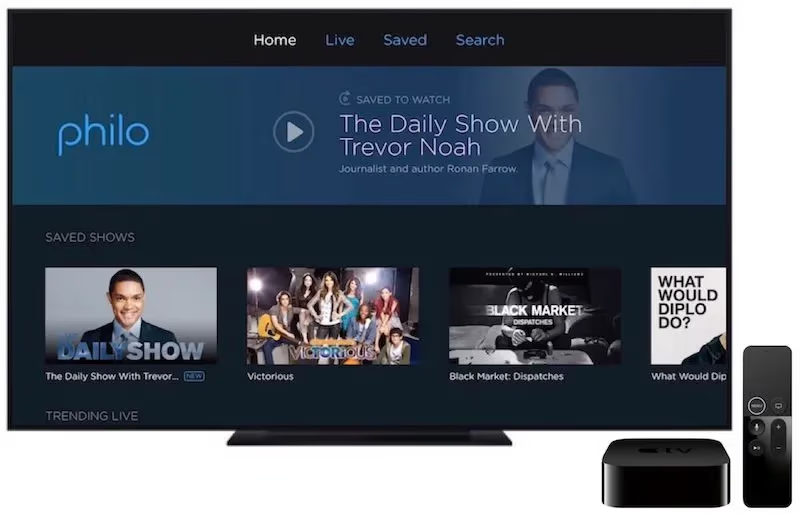
Benefits:
-
Stunning picture with Dolby Vision HDR
-
Spatial Audio support on AirPods
-
Intuitive playback controls with Siri Remote
-
Universal search aggregates LG webOS results also
-
Shared login spans webOS, iOS and tvOS
-
Thousands of apps like HBO Max now available
-
Screen saver doubles as ambient art display
Downsides:
-
Most expensive streaming device option
-
Complex integration across Apple devices
-
Potential input overload
No matter which dedicated streamer you pick, Philo works well on all three platforms and opens up your LG smart TV to far more content at a reasonable price.
#Method #4: Screen Mirroring Wireless Display Adapters
If you want access to Philo and other mobile apps directly beamed onto your LG smart TV screen without a streaming stick or box attached to an HDMI port, wireless display adapters present an alternate solution.
Devices like Google’s Chromecast with Google TV plug discretely into the TV’s USB input. This allows you to mirror both Android and iOS devices over Wi-Fi for big screen streaming.
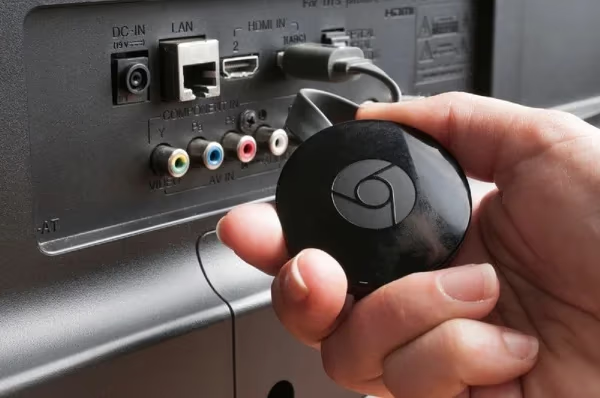
Setting Philo up through wireless screen sharing devices like Chromecast provides:
Benefits:
-
Cast mobile Philo app without HDMI streamer box
-
Preserves webcam functionality lacking in most streamers
-
Portable with some battery-powered adapters
-
Affordable pricing comparable to streamers
-
Beam mobile apps like TikTok not available on TV platforms
Downsides:
-
Functionality limited to casting without deeper integration
-
Potential lag or intermittent disconnects
-
Ongoing power required for adapter
-
Not all mirroring adapters work reliably
With the right wireless adapter paired to your LG TV, tapping your smartphone brings big screen Philo anywhere access. For home entertainment purposes however, dedicated streaming devices offer optimal stability and features.
#Method #5: HDMI Computers and Laptops
Sometimes the simplest solutions get overlooked! Did you know you can directly project your Windows PC or Mac computer to an LG smart TV through HDMI?
By physically connecting your computer to your LG television with an HDMI cable, you enable:
-
Multi-monitor support
-
giant screen access to any streaming service in your desktop browser
-
Mirrored displays for work or presentations
Setting up is as easy as:
-
Connect your Windows/Mac computer to open HDMI port on LG TV
-
Configure display output mode settings on your computer
-
Select Philo TV from a web browser for big screen streaming!
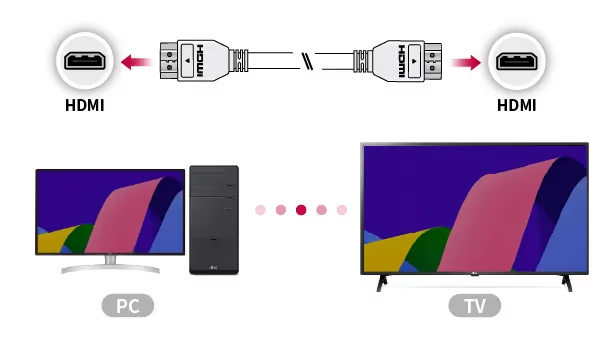
While computers introduce more up front friction getting situated, once configured, streaming Philo through a desktop browser unlocks certain advantages:
Benefits:
-
Access any desktop streaming site
-
Unrestricted support for live sports & PPV
-
Lightning fast hardwired speeds
-
Multi-task alongside Philo with full computer access
Downsides:
-
Major cables running room to room
-
Ongoing power consumed running desktop
-
Dedicated mouse/keyboard needed for ideal control
-
Lacks remote control and smart TV convenience
Using a desktop computer for streaming to your LG display has its advantages. But for most cord-cutters who just want to watch Philo on their living room TV, dedicated streaming devices or mobile casting provide a cleaner solution.
#Method #6: Screen Mirroring with Miracast / WiDi
Select LG smart TV models also include support for the Miracast and WiDi standards used primarily for screen mirroring Windows devices.
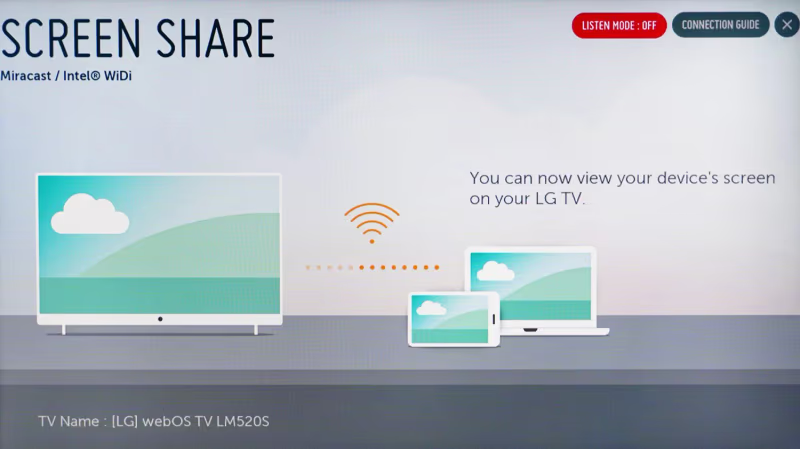
If your LG TV has Miracast functionality enabled, you can use it to send a laptop browser session of Philo to your big screen.
Setting this up involves:
-
Ensuring Miracast connectivity mode enabled on LG TV
-
Turning on Screen Mirroring mode within Windows settings
-
Mirroring entire laptop display to TV – including Philo!
Benefits:
-
Streams Philo without any secondary device needed
-
Uses native TV protocols for low latency
-
Windows Hello supported on newer Windows builds
Downsides:
-
Both TV and laptop must support Miracast standard
-
Session persistence lacking compared to native apps
-
Ongoing power drain running laptop mirroring
While the protocol powering Miracast provides solid device interoperability in ideal conditions, for most users the convenience and consistency of dedicated streaming boxes makes for a better Philo streaming setup long term.
That covers all six methods for watching Philo on your LG smart TV.
Official support would make accessing Philo within webOS much easier, but any of these workarounds gets you streaming right now without waiting for a native LG app.
Next, let’s run through some usage tips…
#What Tips Help Get the Best Philo Experience on LG TV?
Once you select the ideal Philo on LG TV integration method for your needs, keep these tips in mind:
-
For casting, position your phone close to router for best Wi-Fi signal
-
Consider ethernet for streaming devices for smoothest video
-
Arrange devices to avoid input overload and confusion
-
Disable CEC controls if devices power on/off unexpectedly
-
Refine TV picture settings for best lighting conditions
-
Enable Eco Settings to manage energy use
-
Pair Bluetooth devices to streamer/computer to minimize input device switching
-
Use Philo’s “My Channels” feature to favorite the 10-15 shows you watch most for quick access
-
Take advantage of pausing live TV and unlimited DVR with recordings stored for one year
-
Batch record entire series at once by clicking the series icon in search results
-
Enable auto quality adjust to optimize stream for internet speeds
-
Create personalized profiles for each viewer in household
-
Manage profiles and parental controls from the Philo website
-
Use TV Everywhere apps to download shows for offline viewing on mobile
-
Connect Bluetooth headphones to TV or streamer for private listening
-
Group similar apps together on streaming home screen based on usage
-
Refer to LG TV user manual if struggling with specific cable connectivity
-
Connect devices to surge protectors to avoid electrical damage in storms
-
Carefully dust vents and clean fingerprints from screens when powered off
-
Check for firmware updates periodically to maintain optimal performance
-
Reboot glitchy devices and restart apps fully to refresh processes
-
Disable automatic app updates to prevent interruptions
-
Close resource-intensive background apps not in frequent use
-
Position devices out of direct sunlight to prevent overheating risks
Properly integrating Philo into your living room setup brings all your entertainment together in one place for endless enjoyment!
If you already subscribe to on-demand streaming platforms such as Hulu or Sling TV, adding Philo as a live TV complement expands your options exponentially.
#Frequently Asked Questions
#Does Philo work on all LG TVs?
Philo works on LG smart TVs produced in 2016 or later running webOS 3.0 and higher. Older models without webOS lack the browser and casting features needed for these workarounds, so you would need an external streaming device.
#What is the best way to get Philo on an older LG TV?
A Roku Express plugged into an HDMI port is the most affordable option at around $29. It gives you a full Philo app plus access to thousands of other streaming channels without relying on your TV’s built-in software.
#Can I sign up for Philo directly on my LG TV?
Yes. You can create a new Philo account through the LG web browser at philo.com or through a connected streaming device. New subscribers get a free trial and can start watching immediately after signing up.
#Is the Philo experience different across streaming devices?
The core channel lineup and DVR features stay the same on every platform. The main differences are in navigation speed, remote control integration, and voice search — Roku has a clean interface, Fire TV Stick ties into Alexa, and Apple TV offers Siri support with Dolby Vision HDR.
#Can multiple LG TVs in a household share one Philo account?
A single Philo account supports simultaneous streaming on up to three devices. You can use the same login across phones, tablets, computers, and streaming devices throughout your home without any extra fees.
#How do I troubleshoot Philo playback errors on my LG TV?
Start by restarting your router, then power cycle the streaming device or TV. Clear the browser cache if you are using the LG web browser method. Check philo.com/status for known outages, and contact Philo support if the problem continues after these steps.
#Does Philo support 4K streaming on LG TVs?
Philo currently streams at a maximum of 1080p HD, regardless of which method or device you use. Even if your LG TV and streaming device support 4K, Philo content will display at 1080p. The picture still looks sharp on larger screens thanks to upscaling built into most LG TVs.