A Philips TV remote blinking orange signals a problem between your remote and TV. Most of the time, swapping batteries or re-pairing the remote fixes it in under five minutes. Below you will find every cause and step-by-step solution to get your remote working again.
- Low batteries are the top cause — the orange blink is a built-in low-power warning on most Philips remotes
- Re-pairing fixes connection drops — unpairing and reconnecting through TV settings resolves most sync failures
- Signal interference blocks IR commands — moving other electronics away from the TV restores line-of-sight communication
- A dirty TV sensor ignores valid signals — wiping the sensor window with a microfiber cloth often brings instant results
- Factory reset is the last resort — it clears firmware glitches but erases all custom settings, so try other steps first
#Common Causes of a Blinking Orange Light
There are a few common culprits behind a Philips remote that keeps flashing orange:
-
Low Batteries – The most likely cause is drained batteries. The blinking orange light is a low battery indicator warning you it’s time to swap them out.
-
Pairing Issues – If the remote is paired with another device like a soundbar, the orange light could mean connectivity problems.
-
Physical Damage – Dropping the remote or spilling liquid on it can damage components and cause a blinking light.
-
Signal Interference – Other electronics like routers hampering the remote’s IR communication can lead to blinking.
-
Faulty Sensor – Dirt or defects in the TV’s sensor prevent it from receiving the remote’s signals properly.
-
Software Bugs – Outdated firmware both in the remote and TV can cause compatibility issues.
Other issues like incorrect picture settings or a faulty LED backlight can also cause problems. See guides to fixing a blue tint on a Philips TV or troubleshooting a blinking red light.
#How Do You Fix a Philips TV Remote Blinking Orange?
Follow this step-by-step guide to diagnose and resolve a Philips remote that keeps flashing orange:
#1. Replace the Batteries
The first step is ruling out drained batteries as the culprit:
-
Open the battery compartment at the back of the remote.
-
Take out old batteries and discard them properly.
-
Check for corrosion or leakage. Clean contacts if needed.
-
Insert 2 new AA batteries, ensuring correct +/- orientation.
-
Close battery cover and test remote.
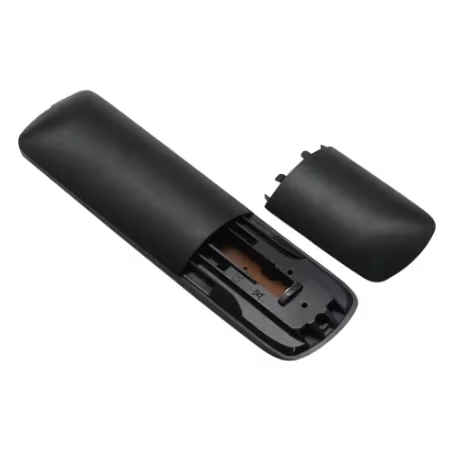
If new batteries stop the blinking, you’re all set!
#2. Disconnect Paired Devices
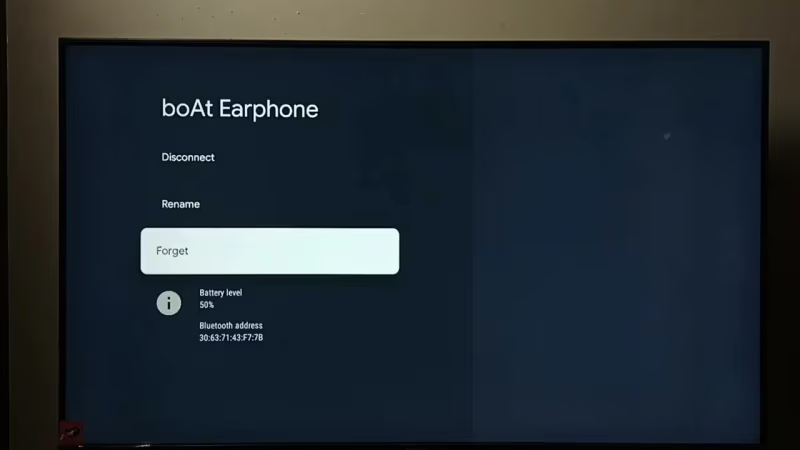
If you recently connected your remote to another gadget like a soundbar, try unpairing:
-
Go into TV settings and disconnect paired devices.
-
Follow instructions to pair remote to TV again.
-
Try using remote to see if orange blinking has stopped.
#3. Check Physical Damage
Inspect your remote for cracks, leaks or missing buttons which can cause issues:
- If physical damage is present, you’ll likely need a replacement remote.
#4. Rule Out Signal Interference
Other electronics in the room hampering IR can cause blinking. To test:
-
Make sure remote has clear line-of-sight access to TV’s sensor.
-
Turn off or unplug other nearby electronic devices.
-
Ensure TV input matches remote control mode.
-
Move closer to TV and point remote directly at it when pressing buttons.
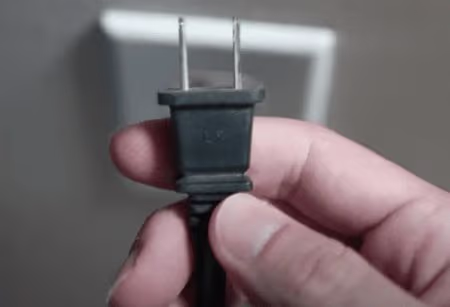
If the blinking persists, interference is likely not the issue.
#5. Clean TV Sensor
To allow proper communication, the TV sensor must be clean and unobstructed:
-
Locate small sensor window near bottom of TV frame.
-
Use microfiber cloth to gently wipe and remove any dust or dirt buildup.
-
Make sure there is no furniture blocking sensor line-of-sight.
#6. Update Remote & TV Software
Outdated firmware can disrupt connectivity. Updating can resolve glitches:
-
Try resetting remote by removing batteries for 60 secs.
-
On TV, check settings for new remote control software updates.
-
If available, download updates and restart devices.
-
Re-pair remote with TV by following prompts.
#7. Factory Reset TV
If all else fails, a factory reset clears any weird bugs causing remote blinking:
-
Access settings menu and select Factory Reset option.
-
Follow screen instructions to reset TV to default.
-
Reconfigure TV settings and re-pair remote when setup is complete.
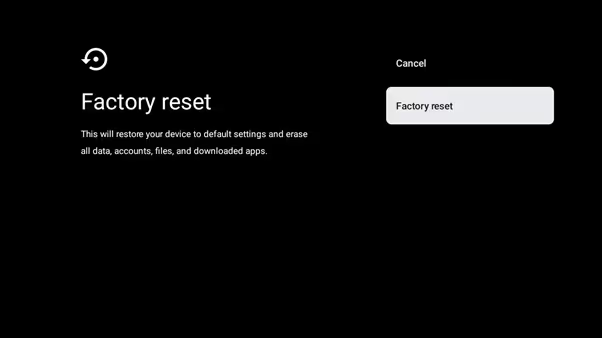
This should fully troubleshoot any software issues between the devices.
#When Should You Replace the Remote?
If you’ve tried all troubleshooting tips and the orange flashing persists, the remote is likely faulty and needs replacing.
Visibly cracked hardware or unresponsive buttons despite new batteries also indicates a dead remote ready for retirement.
Time for a swap if your Philips remote:
-
Has physical damage beyond repair
-
Doesn’t work despite new batteries
-
Keeps blinking orange after troubleshooting
#Alternative Control Options
While sorting out remote problems, you can access Philips Smart TV functions using:
-
TV Buttons – External control buttons on the TV set.
-
Smartphone App – Philips TV Remote app lets you use your phone instead.
-
Smart Speakers – Connect Alexa / Google Home to your Philips TV.
So even with remote issues, you can still enjoy uninterrupted TV usage.
#Bottom Line
-
Common causes include low batteries, signal issues, faulty sensors and software bugs.
-
Replace batteries and check for physical damage or pairing problems.
-
Rule out interference and clean TV sensor so devices can communicate.
-
Update remote and TV software, or factory reset if all else fails.
-
Purchase a replacement when remote has unfixable hardware defects.
-
Use external TV controls, smartphone apps or smart speakers in the interim.
Knowing these guidelines for diagnosing and fixing a blinking Philips remote can help restore normal TV functionality quickly.
#Frequently Asked Questions
#What if new batteries don’t stop the blinking?
Remove the batteries and hold any button for 15 seconds to drain residual power. Then insert the fresh batteries and try pairing the remote again. If the orange light continues, check for physical damage or try a different brand of AA batteries, since some low-quality cells don’t supply enough voltage.
#Why does my Philips remote work sometimes but keep blinking orange?
Intermittent functionality with an orange blink usually points to weak batteries or partial signal interference. The remote has just enough power to send some commands, but not consistently. Replacing the batteries and clearing the line of sight to the TV sensor typically solves this.
#Can I use my phone instead of the Philips remote?
Yes. Download the Philips TV Remote app from the App Store or Google Play and connect your phone to the same Wi-Fi network as the TV. The app gives you full control including volume, input switching, and smart TV navigation.
#How do I re-pair a Philips remote to my TV?
Hold the remote close to the TV (within 1 foot) and press and hold the pairing button for 3-5 seconds until the LED starts flashing. On most Philips Android TVs, go to Settings > Remote & Accessories and select “Pair accessory.” The TV should detect the remote within 30 seconds.
#Does a blinking orange light mean the remote is broken?
Not always. The orange blink is a status indicator, not a failure alert. It most often signals low batteries or a lost Bluetooth/IR connection. Only consider the remote defective if the blinking continues after replacing batteries, re-pairing, and performing a factory reset on the TV.
#How can I prevent remote issues from happening again?
Swap batteries every 4-6 months before they drain completely. Keep the remote away from liquids and store it on a flat surface to avoid drop damage. Periodically wipe the TV sensor with a dry cloth so it stays free of dust buildup.
#What replacement remote works with Philips TVs?
Most universal remotes labeled for Philips will work out of the box. For Philips Android TVs, an official Philips replacement remote is the safest choice since it supports both IR and Bluetooth pairing without extra setup.