Having issues with no audio or low sound on your Philips TV? You are not alone. Sound problems rank among the most common technical issues reported by Philips TV owners. Most of these problems have straightforward solutions you can fix yourself without calling a technician.
- Loose or damaged cables — HDMI and audio cable connection issues cause the majority of Philips TV sound failures
- Disabled TV speakers — the Sound Menu speaker toggle is often accidentally turned off, killing all audio output
- Incorrect audio output format — switching from Bitstream to PCM Stereo fixes most codec-related sound dropouts
- Outdated firmware — Philips releases patches that resolve known audio glitches on specific TV models
- Hardware faults are rare — fewer than 10% of no-sound cases require professional speaker or IC chip repair
#What Sound Issues Affect Philips TVs?
Before jumping into troubleshooting, here are the most common sound problems faced by Philips TV owners:
✅ No sound: You get no audio at all from the TV speakers or connected external audio system. This points to a connectivity or settings issue.
✅ Low volume: TV volume stays too low even when maxed out. Tweaking audio configurations usually fixes this.
✅ Muffled/muddy sound: Sound feels stuffy and lacks clarity. Usually a problem with the equalizer settings.
✅ Intermittent sound: Sound works fine for a while but keeps cutting out randomly. This indicates loose cable connections.
✅ Sound delay: You see the video but the matching audio comes in late, causing a lag. Caused by incorrect audio sync settings.
The troubleshooting steps below will help you diagnose and resolve all of these problems.
#Step-by-Step Philips TV Sound Troubleshooting
Follow these steps sequentially to pinpoint and fix sound issues on your Philips TV:
#1. Check Physical Connections
Loose or incorrectly connected cables account for a majority of Philips TV sound problems. For troubleshooting tips on additional issues like TV won’t turn on.
-
Inspect cables connecting TV with audio sources like set-top box, Blu-ray player, etc. Reconnect if loose.
-
If using external speakers or a soundbar, check those physical connections as well.
-
While at it, also check that all connected devices are turned ON.
-
For Philips TVs with built-in Chromecast, check Wi-Fi connection strength.
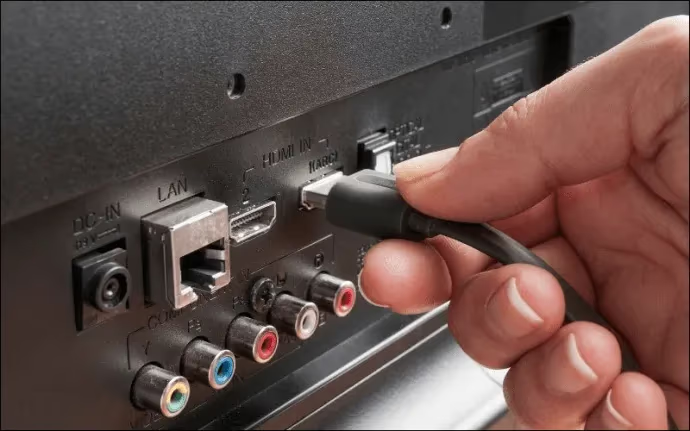
This check alone will solve most cases of no audio.
#2. Verify Sound Settings
If connections are fine, access your TV’s sound settings menu to adjust configurations:
-
Navigate to Sound Menu > Speaker Settings and turn ON TV Speakers if disabled.
-
In Sound Menu > Volume Levels, turn up volume, check that Mute is disabled.
-
Under Sound Menu > Sound Style, try different presets like Movie, Music, Sports, etc.
-
Adjust equalizer under Sound Menu > Sound Mode Settings if sound feels muddy.
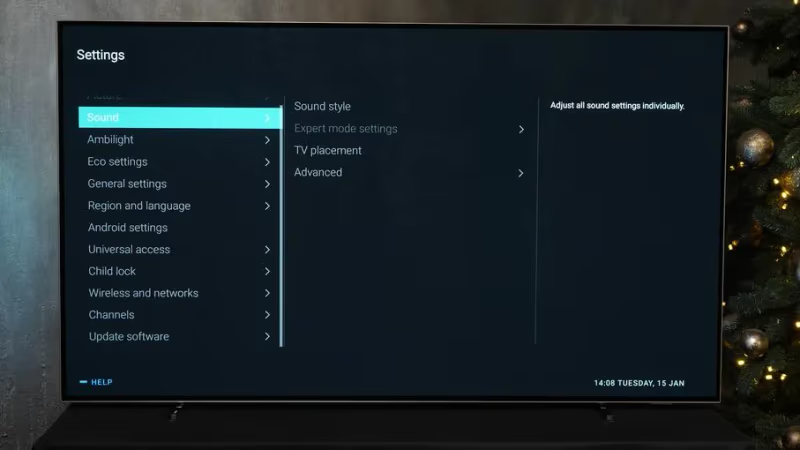
Cycling through the different audio presets often fixes muffled sound.
#3. Check Source Input Audio
The problem may also lie with the connected audio/video source like a DTH box or media player.
-
If using a set-top box or Blu-ray player, check their audio settings. Turn up volume if too low.
-
Try playing content from a different source device to isolate the issue.
-
For antenna TV connection, rescan channels. For DTH connection, check RF cable.
This will clarify if the problem is with a particular source device or input method.
#4. Reset Audio Settings
If tweaking settings does not help, reset your Philips TV’s audio configurations:
-
Go to Support > Factory Settings option and select Reset Audio Settings.
-
This will revert all audio parameters back to their default factory values.
-
Post reset, make incremental audio adjustments starting with speaker volume.
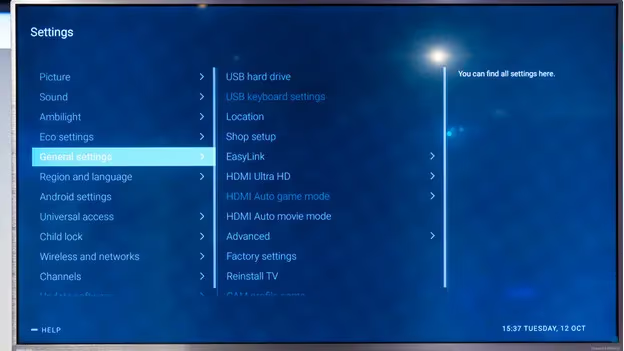
Factory resetting audio eliminates any incorrect configurations that could be causing problems.
#5. Update TV Firmware
Outdated TV firmware can also lead to audio glitches.
-
Navigate to Support > Software Update to check for pending updates.
-
If an update is available, download and install it.
-
This will upgrade the TV OS to the latest patched version.
-
After the update, check if previously observed audio issues are now resolved.
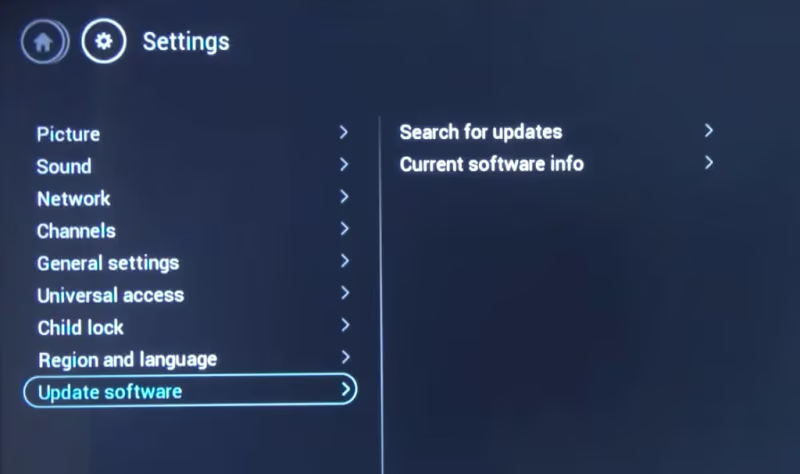
Firmware updates often include fixes for known audio bugs on specific models.
#6. Isolate Hardware Fault
In rare cases when software troubleshooting fails to fix sound problems on your Philips TV, it likely indicates a hardware malfunction:
-
Hardware issues can arise due to aging TV components or physical damage.
-
Try connecting external speakers or headphones to TV audio output.
-
If the same problem shows up on external audio devices, TV hardware components like internal speakers or the audio IC chip may be faulty.
Do not attempt DIY repair of hardware issues. Call a certified Philips TV technician for assistance.
#How Do You Fix Advanced Audio Problems on Philips TVs?
Here are targeted fixes for tricky, intermittent sound problems:
🔹 Enable Audio Passthrough. For media playback issues from streaming sticks or consoles connected via HDMI-ARC, enable passthrough in Sound Menu > Advanced > Audio Out Format. This allows uncompressed signal transfer without TV audio processing.
🔹 Change Audio Format. Switch between audio formats like Dolby Digital and PCM Stereo under Sound Menu > Advanced Settings if you face codec compatibility issues with your home theater receiver.
🔹 Adjust AV Sync. If audio noticeably lags behind video, access Support Menu > AV Synch Adjustment and tweak +/- settings till sync is correct. Useful for streaming and Bluetooth issues.
🔹 Test Individual Speakers. Navigate to Sound Menu > Speaker Settings > Speaker Test to check all internal speakers one-by-one for functionality if volume imbalance is noticed. Replace faulty speakers that emit no sound.
🔹 HDMI-CEC Troubleshooting. Intermittent sound when using HDMI-CEC compatible home theater? Under Support Menu > HDMI-CEC, disable System Audio Control and ARC features, then re-enable one by one to identify the problematic setting.
For resolving common issues like Philips TV blue tint or blinking red light, refer to these troubleshooting posts.
You can also compare Philips TVs to other popular models like Vizio, Hisense and Sharp for audio and other features.
#When Should You Call a Technician?
While a majority of the sound problems can be fixed by following the software troubleshooting steps outlined so far, call a certified Philips TV repair technician for help with hardware faults like:
-
Physical damage to internal TV speakers, possibly caused during transit or improper handling.
-
Burnt audio IC chip on main TV board, which requires soldering replacement.
-
Power supply issues triggering sound cut-offs, which need diagnosis of backlight voltages.
Unless you have the requisite skills and equipment, leave hardware repair to professionals. Locate an authorized Philips TV technician near you for cost-effective assistance.
#FAQs
#Why does my Philips TV have intermittent sound?
Loose HDMI or audio cable connections are the most common cause of dropping audio. Securely reconnect all cables and test each port individually. Faulty internal speakers can also trigger intermittent sound, so get them checked by a service technician if the cables are fine.
#How do I fix muffled sound on my Philips Smart TV?
Go to Sound Menu > Sound Style and change the setting from Standard to Movie, Music, or Sports for clearer audio. You can also adjust individual equalizer bands like 100 Hz and 300 Hz under Sound Mode Settings. If sound stays muddy after these changes, try a factory audio reset.
#Why is the volume too low on my Philips Roku TV?
Open Volume Levels under the TV Sound Menu and increase volume to the maximum. Confirm that speakers are enabled under Speaker Settings. If volume still feels low, the connected external audio equipment may have its own volume limiter set too low.
#How do I sync audio and video on a Philips Android TV?
Audio lag usually means the Audio Out mode is set incorrectly. Under TV Sound Menu > Advanced, change Audio Out Format from Bitstream to PCM Stereo. If lag persists, go to Support Menu > AV Synch Adjustment > Audio Delay and adjust the offset until audio matches the video.
#Why does sound work on TV speakers but not through my soundbar over ARC?
This points to an HDMI-ARC connectivity issue between the TV and soundbar. Under Support Menu > HDMI-ARC, disable the ARC feature and re-enable it. Also swap the HDMI cable for a known-good one, since damaged cables are a frequent cause of ARC audio failures.
#Can a firmware update fix no sound on Philips TV?
Yes, Philips periodically releases firmware patches that address audio-related bugs. Go to Support > Software Update to check for available updates. After installing, power cycle the TV and test audio playback from multiple sources to confirm the fix.
#What audio format should I use on my Philips TV with a home theater system?
PCM Stereo is the most compatible format and works with nearly all receivers and soundbars. If your home theater supports Dolby Digital or DTS, you can switch to Bitstream under Sound Menu > Advanced Settings. Test both formats to see which one produces consistent audio without dropouts.
#Does a factory reset fix audio problems on Philips TVs?
A factory reset restores all settings to their original defaults, which often resolves audio issues caused by misconfigured settings. Go to Support > Factory Settings and select Reset Audio Settings for a targeted audio-only reset. Keep in mind that a full factory reset will also erase your saved apps, Wi-Fi passwords, and preferences.
#Bottom Line
Most Philips TV sound problems come down to loose connections, disabled speaker settings, or incorrect audio output formats. Work through each troubleshooting step in order, and you will likely restore audio without needing professional help.
Make it a habit to periodically check your TV hardware health. Keep your TV, external devices, and connectors dust-free and properly ventilated to prevent overheating issues. A good surge protector is also worth the investment, since electrical spikes can damage audio components over time.