Finding the power button on a Philips Roku TV can be tricky, especially if you’ve misplaced the remote. This guide covers everything you need to know about turning on your Philips Roku TV manually.
As a 15-year home electronics technician, I’ve helped thousands of people troubleshoot issues with their smart TVs. Common problems like a Philips TV won’t turn on or having no sound from your Philips TV can be frustrating. But finding the power button is the first step towards troubleshooting these problems.
There are a few places it can be located, which I’ll cover step-by-step below. I’ll also provide insight into:
-
Physical buttons on Philips Roku TVs
-
Using Roku phone apps as a remote
-
Resetting or power cycling your Philips TV
-
Troubleshooting power issues
With insider knowledge and expertise from repairing Philips/Roku TVs, my goal is to help you easily turn on your TV without stress – remote or no remote!
- Back panel buttons — most Philips Roku TVs have a power button on the back left or right panel with a standby symbol
- Side panel location — some models place physical buttons along the left or right bezel edge with haptic feedback
- Front control panel — other models hide buttons under the front edge or lower right corner behind a swivel panel
- Roku mobile app — the official Roku app for iOS and Android works as a full remote when connected to the same Wi-Fi network
- Power cycle reset — unplug the TV for 1 minute or press the reset pinhole for 15-30 seconds to fix power issues
#Where Is The Power Button Located?
Here are the possible locations of the power button based on the Philips Roku TV model you have:
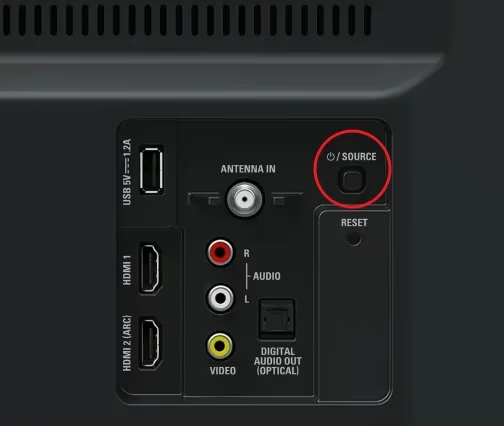
#Back Panel Buttons
Many Philips Roku TVs have physical buttons for power and volume control on the back. Check left and right panels for a button with a standby symbol (a line partially through a circle).
-
Hold power button for 5+ seconds to turn TV on/off
-
May need small object like pen tip to press in
-
Also locate built-in Roku reset pinhole
#Side Panel Buttons
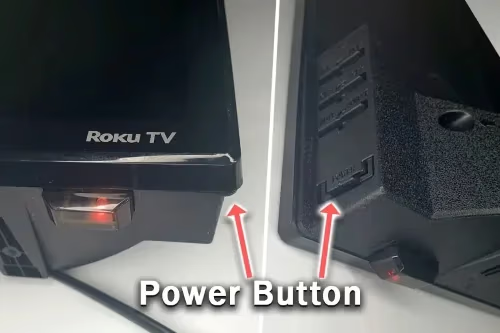
Some models have physical buttons along the left or right bezel edge. Look for tiny icons indicating power, volume, input source.
Side panel buttons may show a red blinking light indicating the TV is in standby mode. Read more about meaning of blinking red light on Philips TVs.
-
Buttons may have haptic feedback
-
Hold power button to turn TV on
#Front Control Panel
On other Philips Roku TVs, buttons are under front edge or lower right corner.
-
Swivel front panel down to access buttons
-
Includes power, input, volume, channel navigation
-
LED light indicates TV status
#Roku Mobile App
Don’t have physical access to your Philips TV? Download official Roku app to use phone as remote:
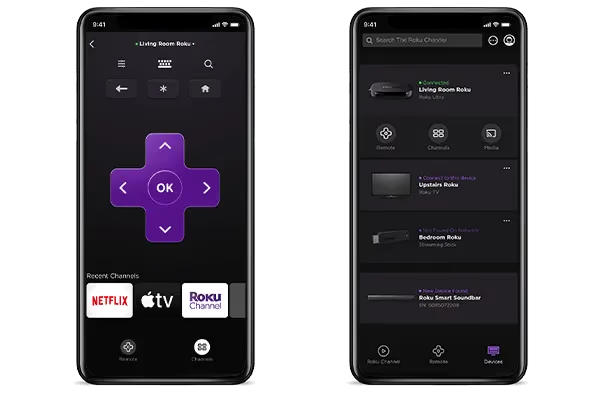
Once connected to same WiFi network, you can easily power TV on/off.
#What Are Alternative Ways To Power On a Philips Roku TV?
If buttons aren’t working, try these resets before replacing remote:
-
Unplug TV for 1 minute to discharge, replug and retry
-
Press and hold TV reset pinhole with paperclip for 15-30 seconds
-
Some models have master power switch on back – toggle on/off
-
Check remote battery level before assuming issue
-
Use universal remote if unable to find Roku remote
-
Factory reset Roku TV using step-by-step menus
As a last resort, directly access the power supply inside Philips TV – but I only recommend technicians attempt this method.
#Troubleshooting Philips Roku TV Power Problems
Power issues like not turning on often stem from power supply/main board failure. Try these steps:
-
Inspect power cord for damage
-
Test wall outlet with a volt meter
-
Plug in lamp to confirm outlet working
-
Inspect inside for loose ribbon cables
-
Check power supply board for burnt smell/components
-
Purchase replacement main logic board if faulty
Intermittent turning off could indicate overheating. Make sure ventilation and fan is operating normally.
Overheating can cause random powering off, which may show a blue tint on Philips TVs first. Be sure ventilation and fans work properly.
#Bottom Line
Finding the power button can be a headache with so many options. To quickly turn on your Philips Roku TV:
-
Check back/side panels for physical buttons
-
Look for front control panel under edge
-
Use Roku mobile app as remote
-
Reset pinhole, power cycle as needed
-
Consider component failure for persistent issues
With some luck locating the button plus troubleshooting tricks, you’ll be streaming content in no time!
See also our guides for power buttons on Samsung, Vizio, Hisense TVs.
#Frequently Asked Questions
#Where is the power button located on a Philips Roku TV?
The power button can be found on the back, side, or front lower panels of your Philips Roku TV. Check for a button with a standby or power symbol. The exact location varies by model year and screen size.
#Why won’t my Philips Roku TV turn on?
If buttons don’t work, the issue may be power supply or main board failure. Try unplugging for one minute, resetting with the pinhole button, and replacing cords before looking at internal components.
#Can I use my phone as a remote for Philips Roku TV?
Yes, download the Roku app to your iOS or Android device. Connect to the same Wi-Fi network, then use the app to power the TV on or off and control all other functions.
#How do I reset my Philips Roku TV?
Locate the pinhole on the back panel near the buttons, then press and hold for 15-30 seconds with a paperclip to reset. You can also access reset menus through the Settings screen if your remote works.
#Does the power button on a Philips TV turn it off?
Yes, the physical power button turns the TV both on and off. Press and hold it for around 5 seconds for it to respond. A short press usually puts the TV into standby mode instead.
#What does a blinking red light mean on a Philips Roku TV?
A blinking red light typically means the TV is in standby mode and waiting for a power-on signal. If the light blinks rapidly or in a pattern, it could indicate a hardware fault with the power supply board or mainboard.
#Can I turn on a Philips Roku TV without a remote or buttons?
Yes, you can use the Roku mobile app on your smartphone as a remote. Another option is to enable HDMI-CEC in settings, which lets a connected device like a game console or streaming stick power the TV on automatically.