Can you watch NBCUniversal’s popular Peacock streaming service on an LG Smart TV? You absolutely can. This guide covers everything you need to know to stream Peacock shows, movies, sports, WWE events, and more on your LG Smart TV.
- Peacock runs natively on LG TVs from 2017 onward — any model with webOS 3.0 or higher supports the app directly from the LG Content Store
- Older LG TVs can still stream Peacock — use AirPlay from an iPhone or iPad connected to the same Wi-Fi network
- Peacock offers a free ad-supported tier — Premium starts at $4.99/month for full access including The Office and live sports
- A stable 25 Mbps connection is recommended — this prevents buffering and delivers the highest video quality
- You can stream on up to three devices at once — set up Peacock on your LG TV and mobile devices with a single account
#What Is Peacock TV?
Peacock TV is NBCUniversal’s streaming service featuring current shows, news, sports, and thousands of hours of hit series, Oscar-winning films and classics from the NBCU library.
It offers a free ad-supported tier with next-day access to current seasons of freshman broadcast series and library content. There’s also a Premium subscription without ads starting at $4.99/month with more content.
Peacock is the only place to stream every episode of The Office plus exclusive Peacock originals like Bel-Air. It also airs WWE PPV events, Premier League matches, Sunday Night Football, MLB games, Notre Dame Football and more.
#Does Peacock Work on All LG Smart TVs?
Peacock’s dedicated app can be installed directly on LG Smart TVs running webOS 3.0 or higher. This includes 2017 LG TV models and newer.
For older LG TVs without native Peacock support, AirPlay can be used by connecting an iPhone or iPad with the Peacock app installed to stream over Wi-Fi to the big screen.
So all LG Smart TV owners can access Peacock one way or another. The experience is smoothest by installing the app directly on the TV if possible. But AirPlay works quite well too.
Either way, an internet connection is required. For the best streaming quality, a fast and reliable broadband or fiber internet plan is recommended.
#How Do You Sign Up for Peacock?
Before we get into the setup details, the first step is creating a Peacock account if you don’t already have one.
Before signing up, read this in-depth Peacock TV review covering plans, pricing, content, and more.
Visit PeacockTV.com and click Sign in. Follow the prompts to create your account and become a Peacock member.
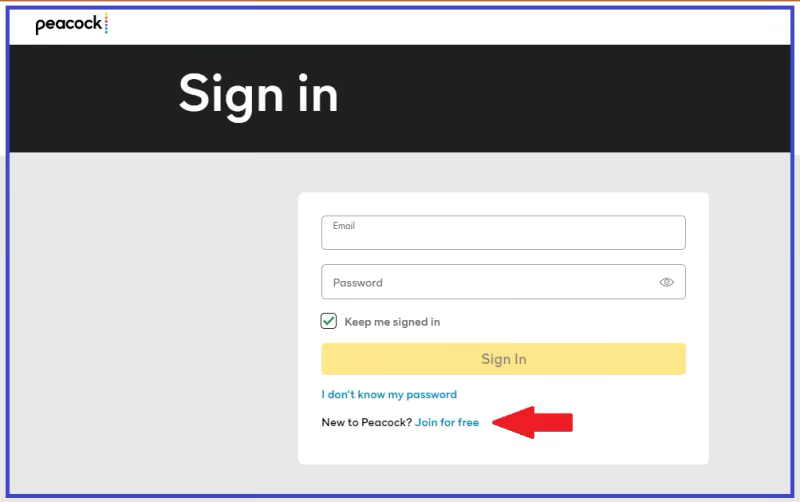
Choose either the Free or Premium plan. The ad-free Premium plan unlocks full access to all content including every season of The Office for $4.99/month. Premium Plus includes over 75+ channels like NBC and Bravo for $9.99/month.
Once signed up, you can log in on up to three devices at the same time. Set up Peacock on both your LG Smart TV and mobile device to pick up shows wherever you left off.
#Downloading the Peacock App on an LG Smart TV
Here is a step-by-step walkthrough on getting Peacock installed directly onto your compatible LG Smart TV:
#Access LG Content Store
Use your LG Magic Remote to navigate to the Home Screen. Scroll down and select the LG Content Store icon. You can also get here by going to the app ribbon and selecting it.
#Search for Peacock App
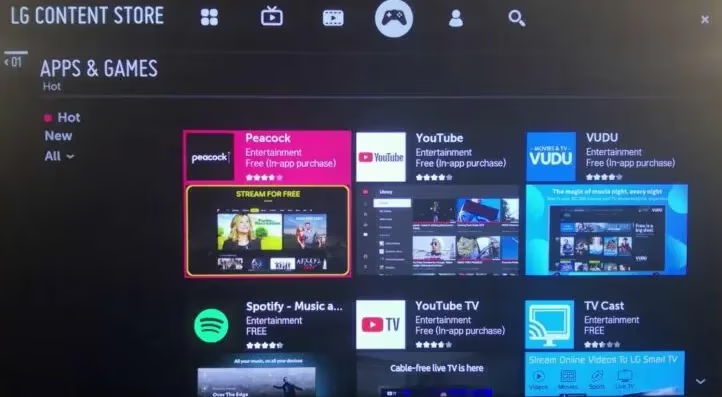
Once in the LG Content Store, use the search bar to look up “Peacock”. Select the Peacock app from the list of results.
#Install Peacock App
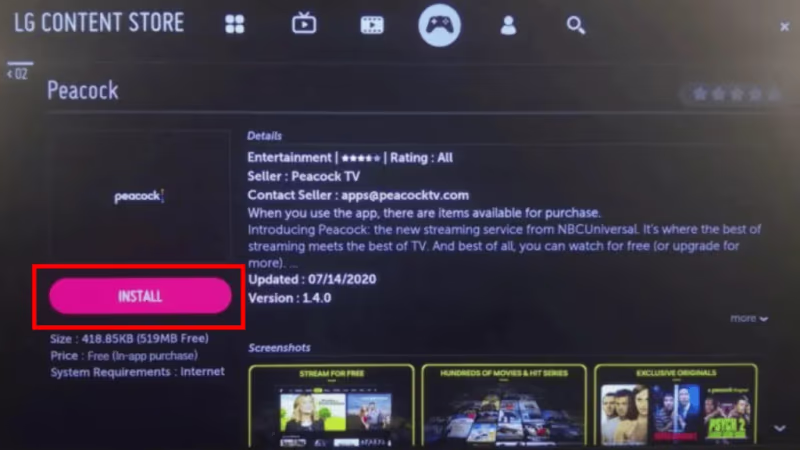
With the Peacock app page open, choose “Install” to install onto your LG Smart TV. It may ask you to accept permissions or enter your TV password if you set one.
#Login to Your Account
After installation completes, launch the Peacock app from your LG Content Store library. Sign in by entering the email and password associated with your Peacock account.
You should now have full access to stream Peacock using the native app.
#How Do You Stream Peacock With AirPlay on LG?
If your LG Smart TV is an older model or otherwise doesn’t support downloading Peacock directly, don’t worry. You can still stream Peacock to your TV with AirPlay.
Here’s how to get up and running with Peacock on LG with AirPlay:
#Get Peacock iOS App
On your iPhone or iPad, install the Peacock app from the Apple App Store. Launch the app, click Sign In, and enter your Peacock credentials.
#Connect to Same Wi-Fi Network
Make sure your iPhone/iPad and your LG Smart TV are connected to the same Wi-Fi network. For best results, connect to 5GHz Wi-Fi if available.
#Start AirPlay Streaming
In the Peacock iOS app, tap the Play/Pause icon. An AirPlay icon will appear on the video overlay menu. Choose your LG TV from the list of devices and it will start displaying Peacock on your TV via AirPlay.
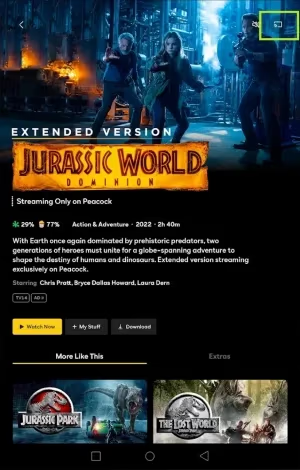
And you’re all set to watch Peacock hands-free from your iOS device to TV. Use the iPhone or iPad for playback controls like pause/play.
I also suggest checking if Peacock works properly on other popular streaming platforms like Roku, Firestick, and Vizio TVs.
#Tips for Using Peacock on an LG Smart TV
Here are my top tips for having the best viewing experience with Peacock on your LG Smart TV:
#Browse Content Easily
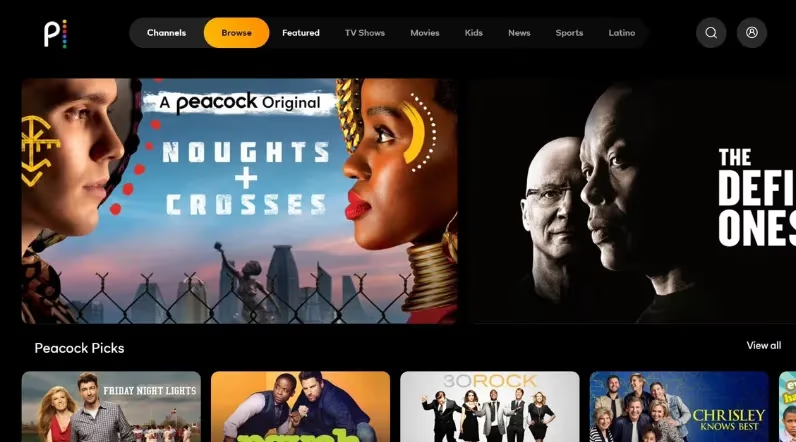
The Peacock app is well designed for TV screens. Quickly find content with rows for Trending, New This Week, Peacock Channels, Browse by Genre, and more.
#Use LG Magic Remote
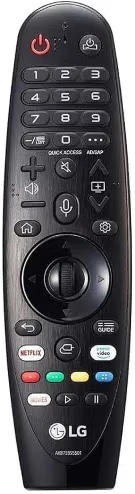
Navigate Peacock on an LG Smart TV using the intuitive LG Magic Remote. Point, click, scroll through rows, and press Play right from your couch.
#Smooth Playback
I recommend an internet speed of at least 25 Mbps for optimal Peacock streaming. This ensures the highest video quality with minimal buffering.
#Resolve Issues Quickly
Common problems like choppy playback can often be fixed by force stopping and restarting the Peacock app, restarting your router if others are streaming, or connecting your LG TV via ethernet instead of Wi-Fi.
If you are currently using a different TV brand, refer to this guide on fixing Peacock issues on Samsung TVs which provides troubleshooting tips that also apply across various smart TV operating systems.
#FAQs About Peacock on LG Smart TVs
#What do I need to stream Peacock on my LG TV?
You’ll need an LG Smart TV model 2017 or newer, a Peacock account, stable high-speed internet, and to install the Peacock app from the LG Content Store. If your TV is older, you’ll need an iPhone or iPad to stream via AirPlay instead.
#Does Peacock work on old LG TVs?
Only 2017 LG TV models and newer with webOS 3.0+ support downloading the Peacock app directly. For older models, use an iPhone or iPad with the Peacock app as an AirPlay receiver to get Peacock on your TV screen.
#How can I troubleshoot issues with Peacock freezing or buffering on my LG TV?
First, force close and restart the Peacock app. If that doesn’t help, restart your TV and router. Check internet speeds using a tool like Fast.com to identify connection issues. Connect via ethernet if your Wi-Fi network is unreliable. Disabling energy saving mode on the TV can also help, since it sometimes throttles streaming performance.
#Is Peacock free on LG Smart TV?
Peacock does offer a free ad-supported tier that includes a limited selection of shows, movies, and live channels. For full access to all content, including every season of The Office and live sports like the Premier League, you need the Premium plan at $4.99/month or Premium Plus at $9.99/month.
#Can I use a VPN with Peacock on my LG TV?
LG Smart TVs do not natively support VPN apps. To use a VPN with Peacock, you would need to configure the VPN on your router or use AirPlay from an iPhone or iPad that has a VPN app installed. Keep in mind that Peacock’s terms of service may restrict VPN usage.
#How do I update the Peacock app on my LG TV?
Open the LG Content Store and navigate to the Peacock app listing. If an update is available, you will see an Update button instead of Install. Tap it to download the latest version. Keeping the app updated ensures you get the newest features and bug fixes.
#What internet speed do I need for Peacock on LG TV?
Peacock recommends at least 3 Mbps for standard streaming and 8 Mbps for 4K content. However, I suggest a minimum of 25 Mbps for a buffer-free experience, especially if other devices in your household are using the network at the same time.
#Why is Peacock not showing up in the LG Content Store?
Your LG TV may be running a webOS version older than 3.0, which does not support the Peacock app. Check your TV’s software version under Settings > General > About This TV. If it’s a pre-2017 model, your best option is streaming through AirPlay from an iOS device.
#Bottom Line
You now have everything you need to start streaming Peacock on your LG Smart TV. Whether you install the native app from the LG Content Store or use AirPlay from an iPhone or iPad, getting Peacock running takes just a few minutes.
If you run into buffering or playback issues, try restarting the app, checking your internet speed, or switching to an ethernet connection. Happy streaming!