Get Exclusive Access to Popular Shows Like The Office, Yellowstone and Girls5eva with This Easy Peacock TV FireStick Installation GuideWant to watch exclusive Peacock originals and old favorites like The Office? Setting up Peacock TV on your Amazon FireStick gives you instant access to a huge library of shows, movies and more right on your TV.
Follow these simple step-by-step instructions to start streaming top titles for free or $4.99/month!
- Peacock TV requires sideloading on FireStick — the app is not available in the Amazon App Store
- Three pricing tiers start at $0 — Free, Premium at $4.99/month, and Premium Plus at $9.99/month
- The Downloader app handles installation — enter the APKMirror URL to grab the latest Peacock Android TV APK
- Enable Apps from Unknown Sources first — toggle this in Settings > My Fire TV > Developer Options before sideloading
- Full setup takes about 5 minutes — from enabling developer options to streaming your first show
#Why Is Peacock TV a Must-Have FireStick App?
As the exclusive streaming home of hit series like The Office and Yellowstone, Peacock TV brings you acclaimed Originals and iconic shows unavailable on other platforms.
With three flexible plans starting at free, Peacock offers exceptional value and variety:
Key Features:
✔️ Thousands of hours of movies, shows, sports & news
✔️ Premium plan unlocks full catalog of Peacock Originals and exclusives
✔️ Completely free tier still includes next-day NBC shows
✔️ No commitments – downgrade or upgrade anytime
Let’s get your FireStick setup to enjoy Peacock to the fullest!
#Step 1: Sign Up for a Peacock TV Account
Before installing the app, you’ll need to create a Peacock TV account:
-
Visit PeacockTV.com on your computer or mobile browser
-
Click Sign Up and enter your email
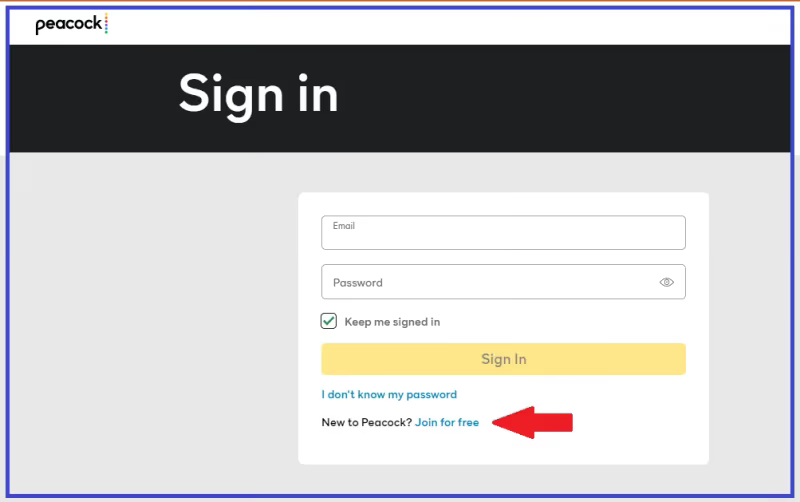
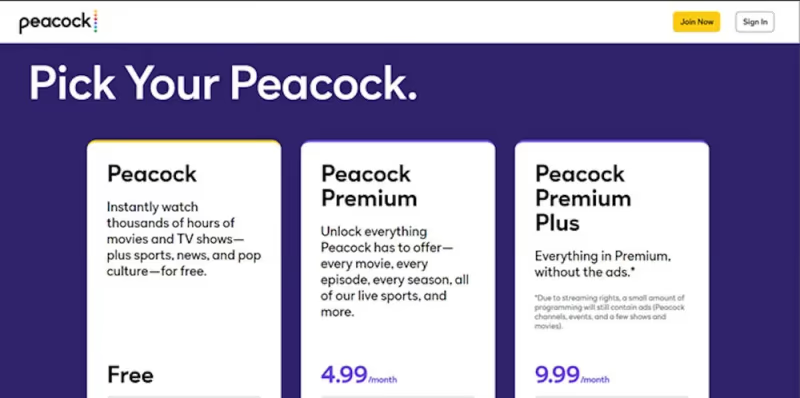
- Choose one of three plans:
Free – Thousands of hours of content with ads
-
Premium – $4.99/month, unlocks full catalog
-
Premium Plus – $9.99/month, no ads
-
Enter payment details if selecting a paid plan
-
Click Create Account
And you’re all set! Now let’s get Peacock TV installed on your FireStick.
#Step 2: Enable Third-Party App Installs
Since Peacock TV isn’t available in the Amazon App Store, you’ll need to enable sideloading of third-party apps first. Check out this guide for getting Peacock on LG TVs if you need help with that.
-
Go to Settings > My Fire TV
-
Select Developer Options
-
Toggle Apps from Unknown Sources and ADB Debugging to ON
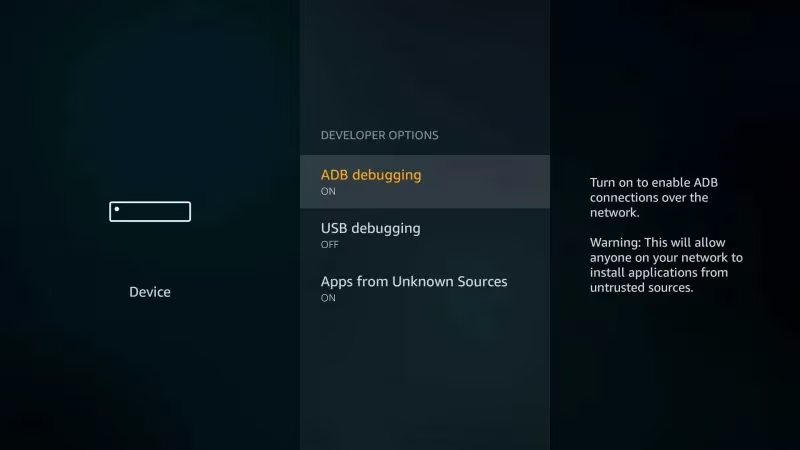
This allows your FireStick to install any compatible Android apps outside of the App Store.
#Step 3: Download & Install Downloader App
To install Peacock TV, use the Downloader app:
-
Select Search from the FireStick home screen
-
Type “Downloader” and select the Downloader app
-
Click Download
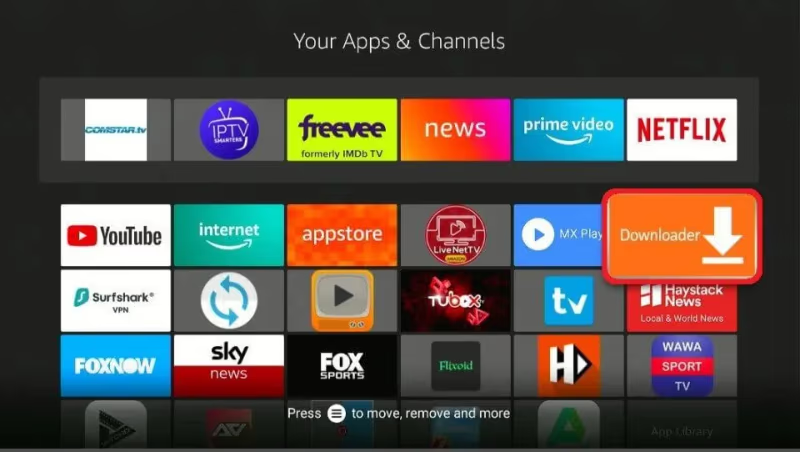
The Downloader app lets you enter URL links to download apps directly to your device.
#Step 4: Download Peacock TV APK
Now use Downloader to get the Peacock TV app file:
-
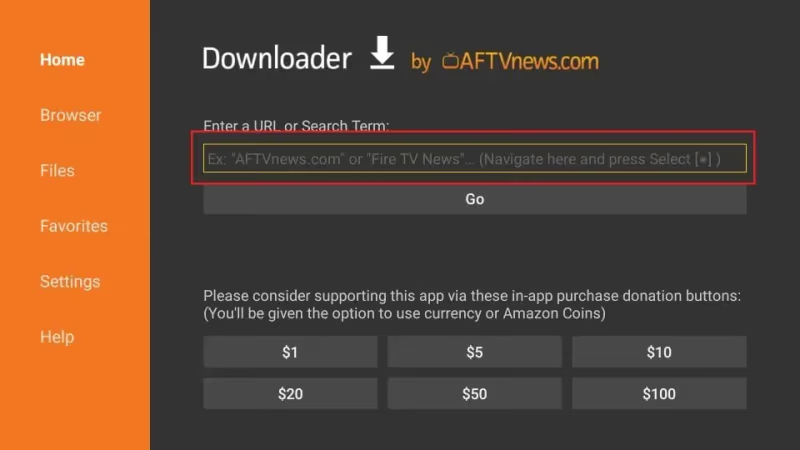
Open the Downloader app
-
Enter: https://www.apkmirror.com/apk/peacock-tv-llc/peacock-tv-android-tv/
-
Select the latest Peacock TV Android TV APK
-
Click Download
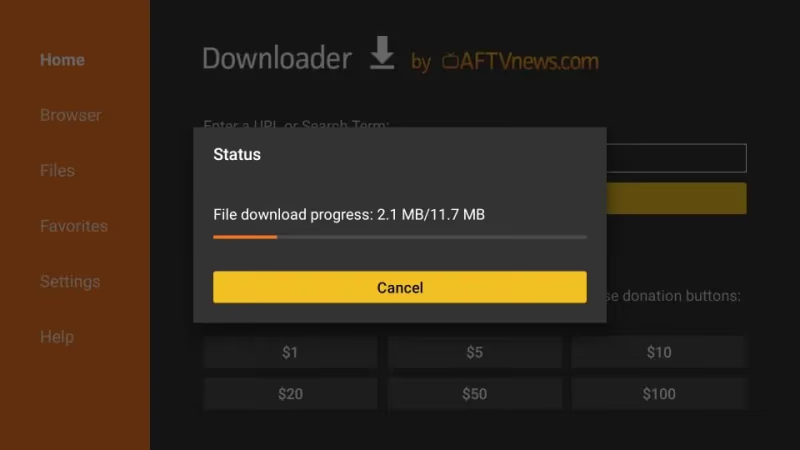
This downloads the necessary Peacock app file (APK) to install on your FireStick.
#Step 5: Install Peacock TV
Almost there! The last step is to actually install Peacock TV:
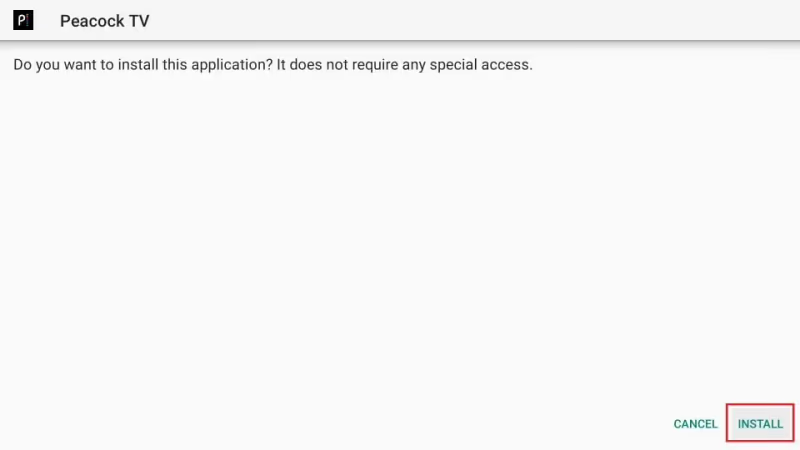
- Once downloaded, select Install
-
Accept requested permissions
-
Click Install again
-
Select Done when completed
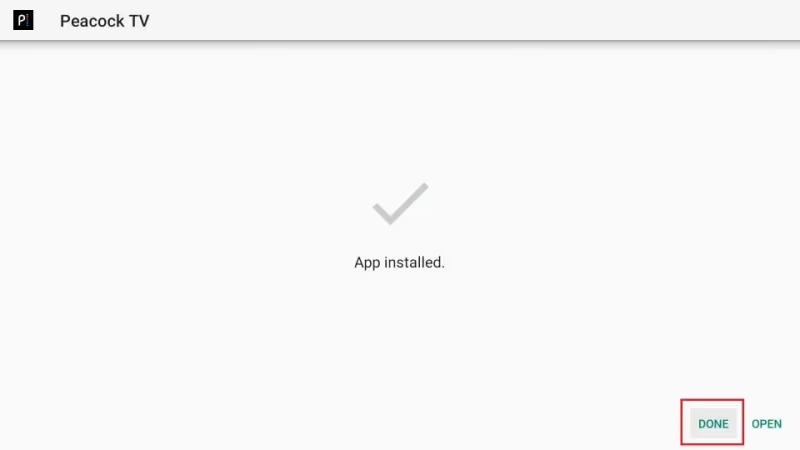
Now Peacock TV is ready to launch on your FireStick!
#Step 6: Log In to Peacock TV
Open the Peacock TV app from your FireStick’s home screen.
- Select Sign In

-
Enter credentials for your Peacock account
-
Use on-screen keyboard or login via mobile
-
Start watching!
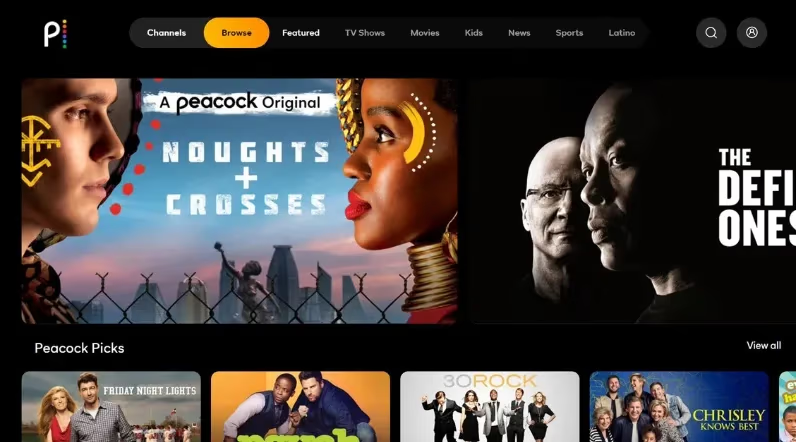
And that’s it! You can now stream The Office, Yellowstone and other Peacock exclusives on your TV. Read our in-depth review of Peacock to learn more about everything the service offers.
#How Can You Customize Your Peacock TV FireStick Experience?
-
Re-arrange apps to put Peacock TV on your homepage
-
Enable auto-updates so you always have the latest version
-
Create multiple Peacock profiles for personalized watchlists
-
Browse channels and genres easily with the on-screen guide
-
Stream to your heart’s content with unlimited viewing!
#Troubleshooting Peacock TV Installation Issues
Can’t Find Peacock TV?
-
Enable Apps from Unknown Sources in FireStick settings
-
Reinstall the Downloader app if missing
-
Disable any VPN/adblockers temporarily
App Won’t Download?
-
Check internet connection
-
Restart FireStick and try again
-
Clear cache and downloaded items
You can also reference this troubleshooting guide for issues with Peacock not working on Samsung TVs.
App Crashes or Has Errors?
-
Uninstall and reinstall the latest APK
-
Power cycle your FireStick
-
Submit bug report within Peacock
Buffering or Video Issues?
-
Check internet speeds – 25mbps recommended
-
Disconnect/reconnect from wi-fi
-
Limit other streaming during use
Still having issues? Contact Peacock Support or reference this comparison of Peacock vs YouTube TV to troubleshoot problems.
#Bottom Line
-
Sign up for a Peacock TV account on your mobile device or computer first
-
Enable installation of third-party apps in your FireStick’s settings
-
Download the Downloader app to install Peacock TV
-
Get the Peacock Android TV APK file from APKMirror
-
Open the app and log in with your Peacock credentials
-
Put Peacock on your homepage for quick access
-
Adjust settings for auto-updates and custom profiles
-
Contact support if you have any installation or streaming issues
Now get ready to enjoy hit shows, movies, sports and news exclusively on Peacock TV FireStick! Sign up and install Peacock today.
#Frequently Asked Questions
#How much does Peacock TV cost on FireStick?
Peacock offers a free ad-supported plan with limited content. The full catalog is unlocked for $4.99/month with their Peacock Premium plan (or $49.99/year). You can also upgrade to ad-free for $9.99/month. Plans are billed through your Peacock TV account, not Amazon.
#What shows can I watch on Peacock TV on FireStick?
Peacock is the exclusive streaming home of huge hits like The Office, Parks & Rec, Yellowstone, Girls5Eva, and Real Housewives. It also carries acclaimed originals plus many rewatchable comfort shows, movies, live sports, and news.
#Why isn’t Peacock TV in the Amazon App Store?
Peacock is available on many platforms like Roku and Apple TV, but distribution agreements with Amazon have not been finalized. For now you need to sideload the APK using the Downloader app. The process takes just a few minutes.
#Can I watch Peacock Originals and exclusives for free?
The free Peacock TV tier lets you sample select episodes of originals like The Lost Symbol and Dr. Death, along with partial-season access to Bravo hits. To unlock the full library you need Premium at $4.99/month or Premium Plus at $9.99/month.
#Does Peacock TV on FireStick support live sports?
Yes, Peacock streams live Premier League soccer, Sunday Night Football, WWE events, and select Olympic coverage. A Premium or Premium Plus subscription is required for most live sports content. Check your plan details for specific event availability.
#Will sideloaded Peacock TV update automatically on FireStick?
Sideloaded apps do not receive automatic updates through the Amazon App Store. You will need to manually download the latest APK from APKMirror using the Downloader app whenever a new version is released. Keeping the app updated ensures you get bug fixes and new features.
#Is it safe to sideload Peacock TV on FireStick?
Sideloading the official Peacock TV APK from a trusted source like APKMirror is safe. APKMirror verifies cryptographic signatures to confirm the APK matches what the developer published on Google Play. Just avoid downloading APKs from unknown or unverified websites.