Peacock not working on your Samsung Smart TV can be frustrating, especially when you just want to watch your favorite show. The good news: most Peacock issues on Samsung TVs come down to a handful of fixable problems. This guide covers 14 proven fixes to get the app streaming again on your Samsung set.
- Peacock requires a 2016 or newer Samsung Smart TV — older models do not support the app at all
- Clearing the Peacock app cache fixes most crashing, buffering, and sign-in problems in under a minute
- A minimum 3 Mbps internet speed is needed for HD streaming, though 15 Mbps or higher is recommended
- Restarting your Wi-Fi router and TV resolves temporary glitches that cause Peacock to freeze or fail to load
- A streaming stick like Roku or Fire TV Stick is the best workaround if your Samsung TV has ongoing compatibility issues
#What Is Peacock TV?
 Before we dig into troubleshooting, let’s briefly go over what Peacock TV is and how it works:
-
Peacock TV is a streaming service from NBCUniversal with thousands of hours of on-demand content including classic shows, current series, sports, news, and originals.
-
There are three Peacock subscription tiers: a free ad-supported plan, a $4.99 per month premium plan with ads, and a $9.99 per month premium plan without ads.
-
Peacock is available as an app on mobile devices, smart TVs, media players, and web browsers.
-
Samsung Smart TVs support the Peacock app, but only certain models manufactured after 2016.
Now that we’ve covered the Peacock basics, let’s get into those fixes to resolve various problems with Peacock not loading or streaming on Samsung Smart TVs.
#Is Your Samsung TV Compatible With Peacock?
The first thing to check is whether your specific Samsung TV model and firmware version supports the Peacock app.
According to Peacock’s system requirements, the app works on 2016 Samsung Smart TVs and newer. This includes these model lineups:
-
Samsung Smart TVs (2016 models and newer)
-
The Frame
-
QLED 4K TVs
-
Crystal UHD TVs
So if you have an older Samsung set from 2015 or prior, that would explain why Peacock isn’t supported.
You can find your Samsung TV model number printed on a label on the back of your set. Or access it through Settings > Support > Model Code.
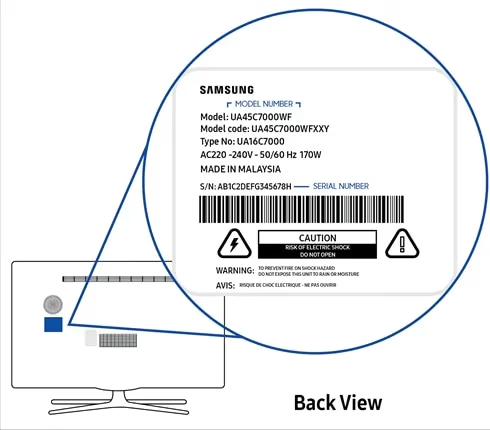
Your TV may also support Peacock but have outdated firmware. It’s a good idea to update to the latest Samsung firmware which sometimes adds support for new apps.
We’ll cover firmware updates more later on. But first up, make sure you have a compatible Samsung TV model for Peacock.
#Fix #2: Update Apps Including Peacock
Another quick fix is to check if app updates are available for Peacock or your Smart Hub. Software updates can sometimes resolve glitches with streaming apps.
Here’s how to update apps on your Samsung TV:
-
From the home screen, go to the Smart Hub > Apps panel.
-
An app with an update available will have a blue circle icon next to it.
-
Highlight the Peacock app and press and hold the Enter button on your remote.
-
Select Update from the pop-up menu.
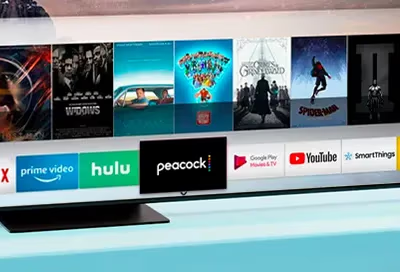
This will install the latest Peacock app version which may fix problems like crashing or freezing. Also take this chance to update any other apps needing a refresh.
#How Fast Does Your Internet Need To Be for Peacock?
Slow, unstable internet connectivity can also disrupt streaming resulting in Peacock buffering, freezing, or errors.
A minimum 3 Mbps internet speed is recommended by Peacock for smooth streaming in HD. But faster speeds of at least 15 Mbps are ideal for a better experience.
Follow these steps to measure your Samsung Smart TV’s internet connection speed:
-
From the home screen, go to Settings.
-
Select General > Network > Network Status.
-
Select Test Internet Speed.
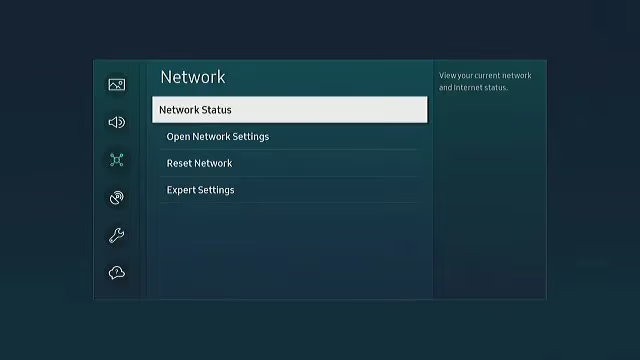
This will run a connectivity test and display your download and upload speeds in Mbps.
If speeds are under 3 Mbps, that likely explains issues with Peacock TV buffering or stopping. Contact your ISP to troubleshoot internet connectivity in that case.
Upgrading to a faster internet plan or improving Wi-Fi signals near your TV can help.
#Fix #4: Restart Your Wi-Fi Router
Speaking of internet connectivity, did you know restarting your wireless router can sometimes resolve app streaming problems?
Rebooting a router resets its network connection and flushes DNS cached data. That means apps like Peacock may suddenly start working after a router restart where they weren’t before.
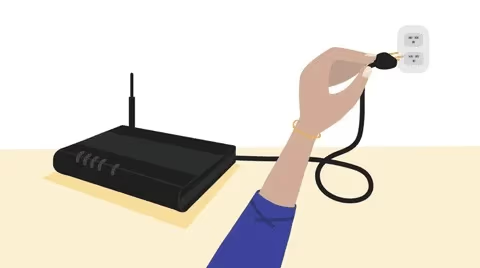
Try unplugging your router and modem from power for 60 seconds, then reconnect and test Peacock. This quick restart often resolves performance issues across various devices including smart TVs.
#Fix #5: Disable VPN on Your Samsung TV
Do you use a Virtual Private Network (VPN) app on your Samsung Smart TV? VPN encryption can sometimes interfere with region-restricted streaming apps like Peacock.
Most VPNs don’t work with Peacock since the service detects and blocks VPN IP addresses. One workaround is turning off the VPN on your Samsung TV – at least temporarily – to access Peacock again.
Here’s how to disable a VPN app on your Samsung set:
-
From the home screen, go to Settings.
-
Select General > System Manager.
-
Select VPN.
-
Turn off the Status toggle for your VPN app.
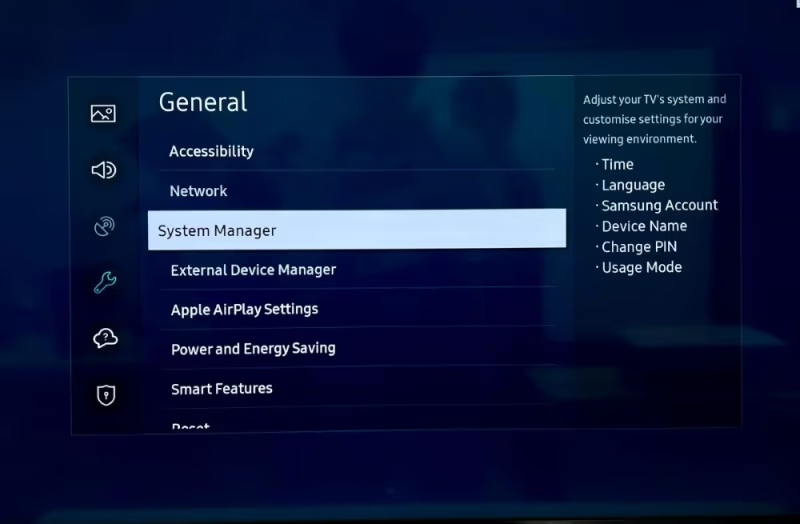
Now try launching Peacock again without the VPN active and see if that fixes things.
#Fix #6: Reset Peacock App Data and Cache
Corrupted cache and app data can sometimes break things. Luckily, clearing this temporary storage is easy on Samsung Smart TVs.
Follow these steps to reset the Peacock app on your TV:
-
From the home screen, go to Settings.
-
Select General > Apps > Peacock.
-
Select Clear Cache and confirm.
-
Select Clear Data and confirm.
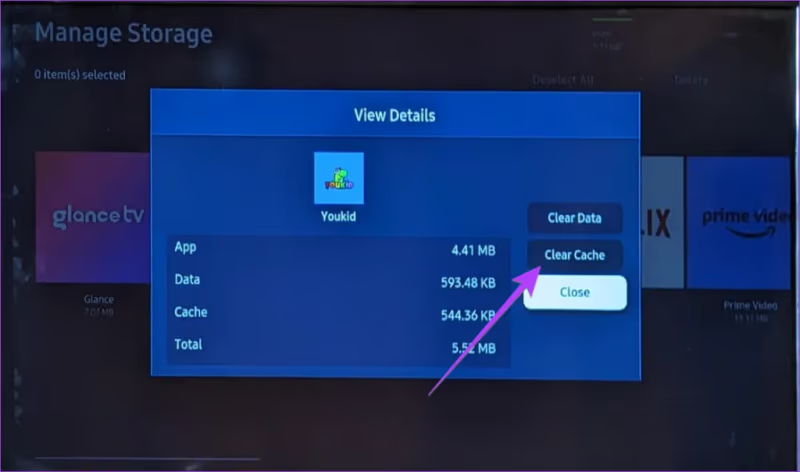
Now relaunch Peacock – this often resolves crashing, lagging, buffering, and sign-in issues. Resetting the app restores things to a clean state.
#Fix #7: Uninstall and Reinstall the Peacock App
If resetting cache/data didn’t work, the next step is uninstalling Peacock completely from your Samsung TV then installing it again fresh.
Here is how to remove and reinstall Peacock:
-
From the home screen, go to Settings.
-
Select General > Apps.
-
Select Peacock then choose Uninstall.
-
Confirm uninstall.
-
Next, go to the Smart Hub > Apps panel and search for Peacock.
-
Select Install to download the app again.
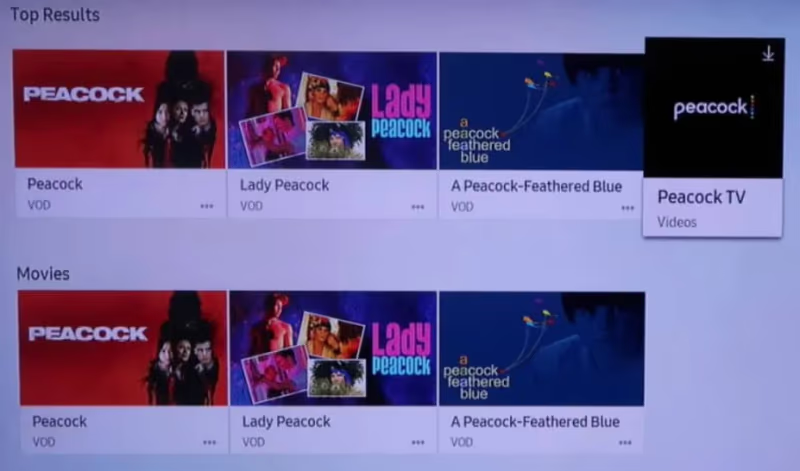
This will grab a clean copy of the Peacock app which should hopefully fix any persistent issues. Log into Peacock using your credentials after reinstalling.
#Fix #8: Restart Your Samsung Smart TV
It may sound basic but power cycling your Samsung TV can clear up problems with unresponsive apps. Consider it the old “turn it off and turn it on again” trick.
Here is how to restart your Samsung properly:
-
Grab your Samsung TV remote and press the Power button to turn on your TV if it’s not on already.
-
Press and hold the Power button for several seconds until the TV screen goes black. Keep holding it down.
-
Your TV will automatically turn itself back on after 10-20 seconds.
Or alternatively, you can force a reboot by unplugging the TV power cord from the wall outlet for 20 seconds.
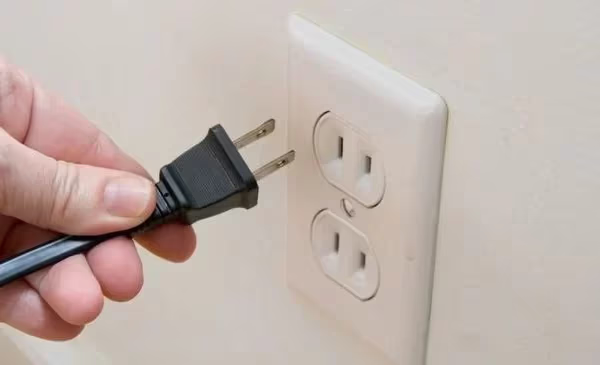
In some cases, a quick restart kickstarts apps like Peacock that have frozen or stopped loading content properly.
#Fix #9: Reset Your Samsung Smart Hub
Beyond just rebooting, resetting the Samsung Smart Hub software itself can clear up glitches across installed apps including Peacock.
Think of Smart Hub reset as somewhat similar to factory resetting a smartphone – it wipes system data to restore things to default settings.
Warning: This will also delete all other installed apps and settings from your TV.
Here is what you need to do:
-
From the home screen, go to Settings.
-
Select General > Reset
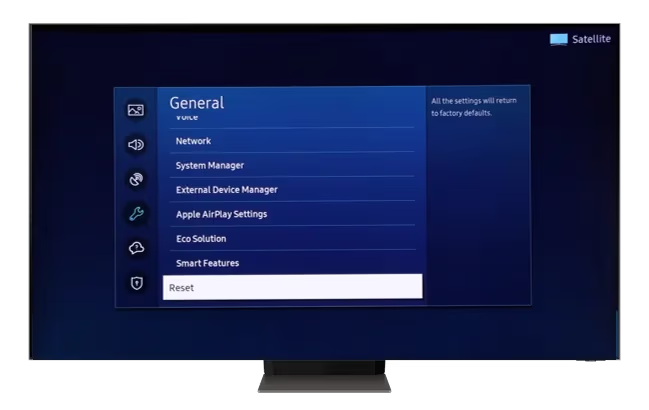
- Enter your PIN if prompted.
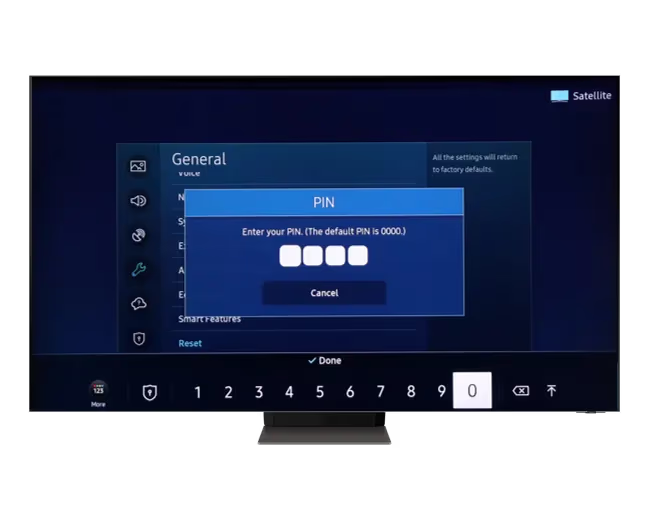
-
Select Reset Smart Hub > Reset then confirm.
-
Your TV will take 5+ minutes to reboot and reset the Smart Hub and apps. Install Peacock again when complete.
Hopefully after Smart Hub reset, Peacock starts working properly without issues. Reconfigure your other apps & settings afterwards.
#Fix #10: Update Your Samsung TV Firmware
We touched on this briefly earlier, but outdated Samsung TV firmware can also cause problems with apps like Peacock.
Official firmware updates add stability fixes, security patches, and compatibility for streaming services. Peacock may start working after a firmware update.
You should enable Auto Update in your Samsung TV’s settings so it always installs the newest firmware. But you can also manually update as well:
-
From the home screen, go to Settings.
-
Select Support > Software Update > Update Now
-
If an update is available, your TV will download and install it automatically. Confirm any prompts shown on screen.
-
After 5-10 minutes, the firmware update will be complete and your TV will restart.
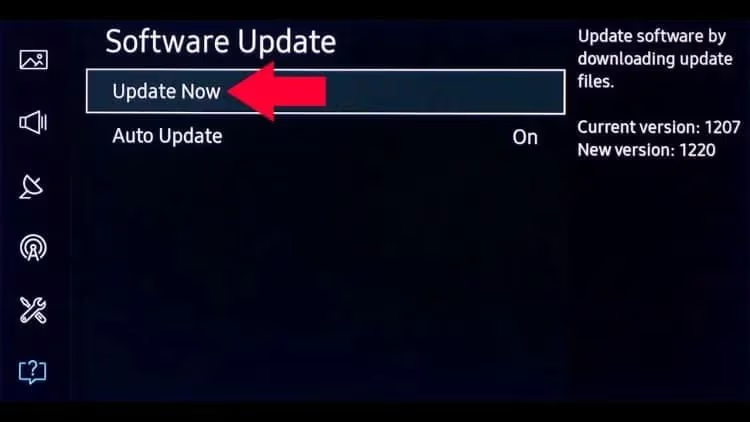
Give Peacock another try after the latest firmware is running. This could resolve app errors.
#Fix #11: Factory Reset Your Samsung TV
If all else fails and Peacock still refuses to work, the nuclear option is a factory reset. This will completely wipe and restore your Samsung Smart TV to factory conditions.
Heads up: Back up your apps, settings, Wi-Fi passwords first as those WILL be deleted after reset!
Here are the steps to factory reset your Samsung:
-
From the home screen, go to Settings then select General > Reset
-
Enter your PIN if prompted
-
Select Reset TV to Initial Settings
-
Confirm factory reset on the next prompt
-
TV will take 10+ minutes to erase everything and restart itself
-
Run through the initial setup again for language, Wi-Fi, agreements etc
-
Test loading Peacock – this should hopefully fix any issues now in the reset state!
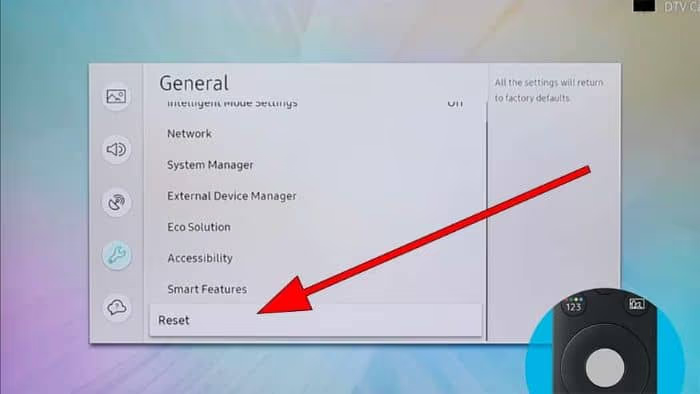
If factory reset ended up fixing Peacock problems, take time to reconfigure your Wi-Fi password, app logins, and preferences afterward.
#Fix #12: Sideload Peacock APK on Your Samsung TV
This method takes more effort but involves manually installing Peacock by sideloading the Android APK file onto your Samsung Tizen OS smart TV.
The benefit is you get the app directly from the source instead of the Samsung Store. This avoids any custom modifications that might affect compatibility.
Note: You need a model running Tizen 3.0 or newer. And your TV must allow app installation from unknown sources.
Here are condensed steps to sideload apps on Samsung TVs:
-
Enable Install Unknown Apps in your TV’s settings
-
Download latest Peacock APK file to a USB drive or cloud storage
-
Plug the USB into your TV’s port – use an adapter if needed
-
Use a file manager to locate the APK on your TV’s internal/USB storage
-
Select the Peacock APK file and tap Install
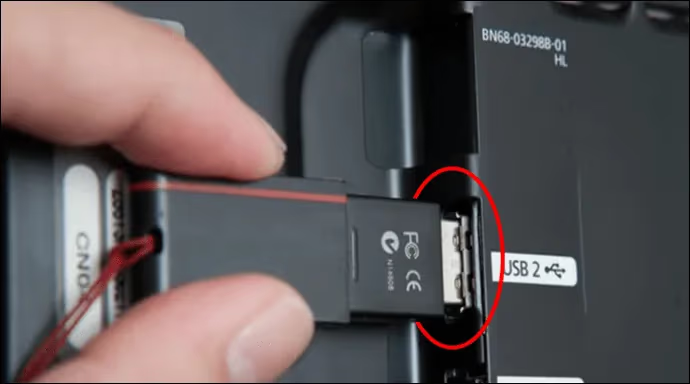
This will install Peacock to your apps. After sideloading, disable Install Unknown Apps for security reasons.
#Fix #13: Try Peacock App Alternatives
If Peacock seems to have fundamental issues running in your Samsung Smart TV that can’t be resolved, consider switching to app alternatives with similar movies and shows, such as:
-
Hulu – Tons of current TV series, originals, plus a live TV option
-
Paramount+ – Live CBS & sports, Star Trek Originals, MTV shows
-
Apple TV – Original exclusive series and films
-
Amazon Prime Video – Jack Ryan, Thursday Night Football, originals
-
HBO Max – Game of Thrones, DC films, Studio Ghibli movies
-
YouTube TV – Sports, news, DVR recordings, 85+ channels (Peacock vs YouTube TV)
Review each streaming service’s list of supported devices before installing to ensure compatibility with your Samsung TV model.
#Fix #14: Use a Streaming Media Player as Alternative
If your Samsung TV flat-out refuses to work with Peacock no matter what, consider adding a streaming media player as an alternative:
-
Roku – Express, Streaming Stick, Ultra models all support Peacock
-
Apple TV 4K – tvOS App Store has Peacock ready to stream
-
Amazon Fire TV Stick – Downloadable Fire OS app for Peacock
-
Chromecast with Google TV – Cast Peacock from mobile apps easily
Media players plug into your TV’s HDMI port so you can still watch Peacock on your Samsung TV, just with improved app support from an external device.
The streaming stick essentially takes over app duties from your Samsung Smart Hub. Setup is quick and easy.
#Bottom Line
To quickly recap, common fixes for Peacock not working properly on Samsung Smart TVs include:
-
Updating TV firmware
-
Checking app and internet connectivity
-
Clearing Peacock cache/data
-
Reinstalling Peacock app
-
Restarting your Wi-Fi router
-
Using a streaming stick if compatibility issues persist
I hope this guide gives you lots of troubleshooting steps to resolve problems with Peacock TV on your Samsung set.
Go methodically through each fix, testing in between to see if Peacock starts streaming correctly again.
If you still can’t access Peacock after trying everything, I recommend contacting Peacock Customer Support or Samsung TV Support directly for personalized troubleshooting advice tailored to your model.
Now grab the popcorn and enjoy Peacock’s huge on-demand catalog of shows, movies and clips.
#FAQ
#Why does Peacock keep crashing on my Samsung TV?
Peacock crashes are usually caused by a corrupted app cache or outdated app version. Clear the cache through Settings > General > Apps > Peacock > Clear Cache, then check for app updates. If crashes continue, uninstall and reinstall the app entirely.
#What Samsung TV models support Peacock?
Peacock works on Samsung Smart TVs manufactured in 2016 and later. This includes The Frame, QLED 4K, and Crystal UHD lineups. If your Samsung TV is from 2015 or older, the Peacock app is not available for your model.
#Can I use Peacock with a VPN on Samsung TV?
No, Peacock actively detects and blocks most VPN connections. If you have a VPN enabled on your Samsung TV and Peacock won’t load, disable the VPN through Settings > General > System Manager > VPN. Peacock is only available in the United States, and VPN workarounds are unreliable.
#How do I fix Peacock buffering on my Samsung TV?
Buffering usually points to a slow internet connection. Peacock needs at least 3 Mbps for HD streaming, and 15 Mbps or higher is recommended. Test your speed through Settings > General > Network > Network Status > Test Internet Speed. Restarting your Wi-Fi router can also help.
#Does factory resetting my Samsung TV fix Peacock?
A factory reset wipes all apps, settings, and stored data from your TV, returning it to its original state. It can fix stubborn Peacock issues that other methods cannot, but you will need to reinstall all your apps and re-enter Wi-Fi passwords afterward. Try less drastic fixes first.
#Is Peacock free on Samsung Smart TV?
Peacock has a free ad-supported tier with limited content. The Premium plan costs $7.99 per month with ads, and the Premium Plus plan costs $13.99 per month without ads. You can download the app for free from the Samsung Smart Hub regardless of which plan you choose.
#What should I do if Peacock is not in the Samsung app store?
If Peacock does not appear in your Samsung Smart Hub app store, your TV model may be too old or running outdated firmware. Update your firmware through Settings > Support > Software Update > Update Now. If the app still does not show up, your TV likely does not support Peacock, and a streaming stick like Roku or Fire TV Stick is the best alternative.