On a bright, sunny afternoon, you decide to catch up on the latest episode of your favorite show. You grab the remote, hit the power button and…nothing but a black screen. No picture, just sound. Black screen issues are common with Onn Roku TVs, but they can usually be fixed with a few straightforward troubleshooting steps. This guide walks you through everything you need to know to get your Onn Roku TV back up and running.
- Power cycle first — unplugging your Onn Roku TV for 60 seconds fixes the majority of software-related black screen issues
- Loose HDMI cables cause most blank screens — reseat every video and power cable before moving to advanced steps
- Flashlight test reveals backlight failure — if you see a faint image when shining a light on the screen, the LED backlight or inverter board needs replacement
- Factory reset erases all data — only use this after power cycling and firmware updates have failed
- T-CON board damage requires professional repair — do not attempt to disassemble the TV panel yourself unless you have electronics repair experience
#What Causes Onn Roku TV Black Screen Problems?
Before jumping into solutions, here are some of the most common culprits behind black screen issues on Onn Roku TVs:
-
Loose or faulty HDMI cable connections
-
Incorrect input source selected
-
Outdated firmware
-
Power supply problems
-
Backlighting or LED panel failures
-
Faulty component boards like the T-CON or power supply boards
#How Do You Fix an Onn Roku TV Black Screen?
Follow these 11 troubleshooting steps, moving through them sequentially until your picture returns.
#1. Check All Connections and Cables
Loose cables account for many blank screen issues. Check that all video and power cables are fully inserted into the correct ports on both the TV and your external devices (cable box, game console etc.) Firmly push connectors straight into ports to ensure tight connections.
Inspect cables for any wear, tear or damage as well. If you spot a damaged HDMI or power cable, replace it.
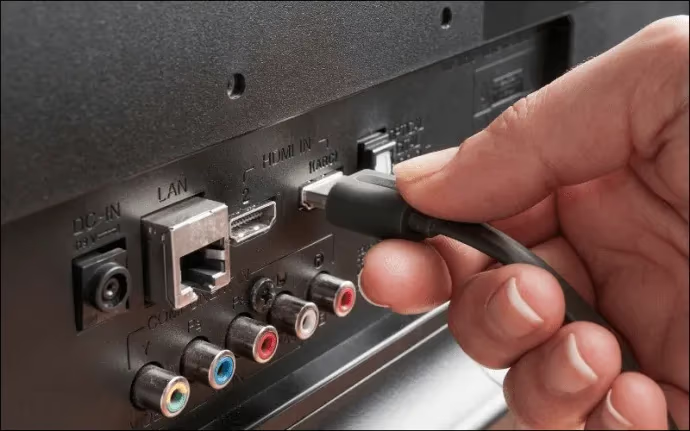
If you encounter no sound or connectivity problems after fixing the black screen, check out these additional troubleshooting guides.
#2. Power Cycle the Onn Roku TV
Power cycling forces your TV to restart the system, clearing any temporary glitches causing the black screen.
To power cycle:
-
Unplug TV power cable from electrical outlet
-
Keep TV unit powered off for 60 seconds
-
Plug power cable firmly back in and power on
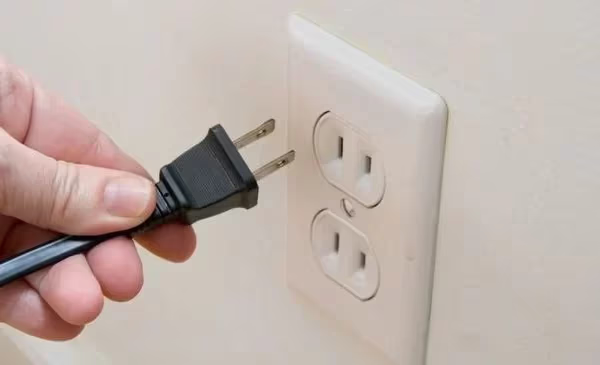
This restart often fixes black screen problems caused by software crashes or hang-ups.
#3. Try Changing Inputs
If your Onn Roku TV has the correct picture when viewing antenna/cable TV channels but goes black when you switch to HDMI with a streaming device or game console, the problem may simply be an incorrect input source selected.
Press the Input or Source button on your remote to change inputs. Toggle through HDMI 1, HDMI 2, etc until picture returns.
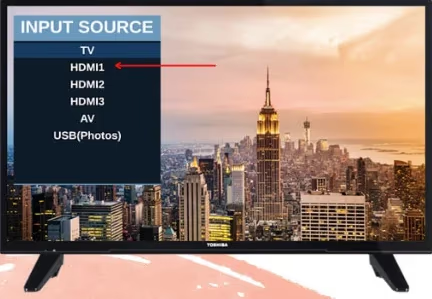
You may also need to change input settings in the device (like your Blu-ray player) connected to that specific HDMI port.
#4. Check for Firmware Updates
Outdated firmware can trigger Onn Roku TV issues ranging from frozen screens to display problems to apps not loading.
-
On the home screen scroll down and select Settings
-
Select System > Software Update > Check Now
-
If update available, select Download and Install
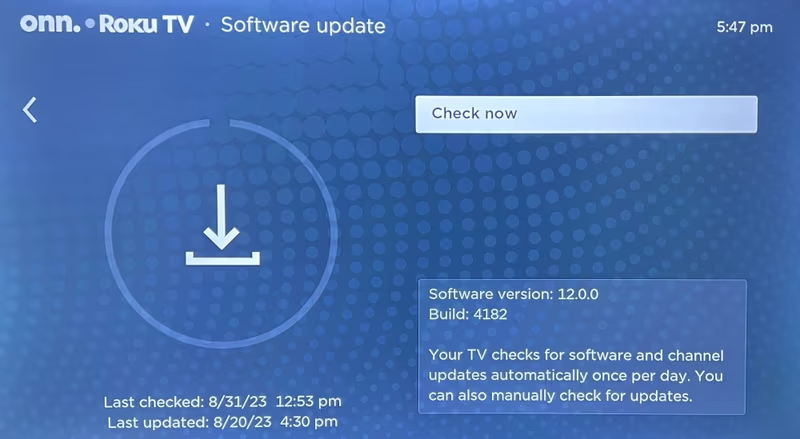
Firmware updates require 15-20 minutes. This can often correct black screen problems.
Issues like Netflix not loading, random restarts and screen flickering often stem from software faults correctable with firmware updates and resets.
#5. Factory Reset the Roku TV
Resetting removes any corrupted data causing system problems:
-
From Main Menu, navigate to Settings > Advanced System Settings > Factory Reset > Factory Reset Everything will be deleted!
-
Follow prompts on screen to confirm reset
-
TV will reboot taking 5+ minutes
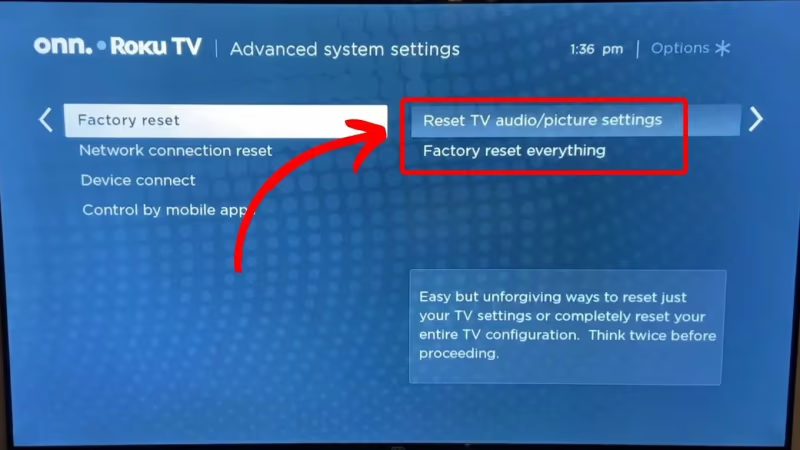
Only perform a factory reset if power cycling and firmware updates did not solve the problem.
#6. Inspect Power Board and Outlets
A lack of consistent electrical power can cut off video. With the TV unplugged, insert another electrical device into the outlet to ensure it’s working properly.
Examine the power cables for any cracks, exposing wiring or bent plug prongs. Faulty cables cannot effectively transmit power from outlets to TV components. Replace damaged cables immediately.
Also check the voltage switch and fuses on the Onn Roku TV power supply board. If either appear blown or switched off, arrange service by a qualified repair technician to replace the board. Do NOT attempt replacement on your own unless highly experienced with electronics repair.
#7. Check Backlight LEDs with a Flashlight
On LCD displays, LED panel backlight failure is a common cause of black screens. Shine a bright flashlight directly on the screen in a dim room:
If you see the picture faintly illuminated: This points to an inverter or backlight failure. Arrange service by a professional to replace the LED panel or inspect for faulty components like capacitors on the inverter board.
If the screen remains pitch black: The LED backlights are working properly. The issue lies with another component like the T-CON board or a software/firmware fault.
A blinking red light can also point to startup issues.
#8. Examine T-CON Board for Damage
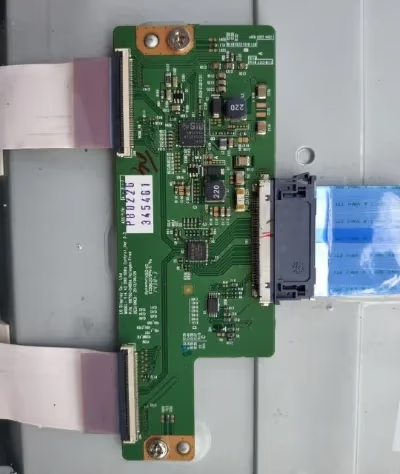
The T-CON board controls critical LED driver chips and timing for the display. If damaged, it can easily cause black screens.
Removing and inspecting the T-CON board requires disassembling the TV panel and electronics knowledge. Have an experienced repair technician check the integrity and functioning of onboard chips and capacitors. If faulty, arrange for board replacement service.
#9. Update Apps
While less common than hardware faults, app glitches can also create blank displays.
-
Check for updates on any apps exhibiting black screen problems when launched
-
Update the Roku app on your mobile device paired with the Onn Roku TV
-
Uninstall then reinstall problematic apps
Updating and resetting apps forces software resets eliminating possible app-specific bugs.
#10. Adjust External Devices
Issues with external devices connected via HDMI often translate into problems with the TV display itself.
For video sources like Blu-ray players and cable boxes, check for product updates from the manufacturer and adjust connectivity settings. Reset devices to default factory conditions if problems persist.
For game consoles, disable HDR, enable low resolution SD modes and adjust RGB range to Limited if the option exists in the settings menu.
#11. Contact Onn Support
For black screen issues persisting through all TV troubleshooting steps, arrange service through Onn Support online or by phone:
Website: https://onnconsumer.support/
Phone: 1-844-845-5392
Certified technicians can diagnose faults down to the component level through advanced diagnostics before quoting repair costs for T-CON boards, backlights etc.
#Why Does My Onn TV Have Sound But No Picture?
If your Onn Roku TV powers on but displays only a black screen while retaining audio, this points to an internal hardware defect, most likely with the LED backlights or a key component like the T-CON board.
Loose cable connections or incorrect inputs would cause complete loss of audio and video. Since the speakers still emit sound, the audio circuits remain intact indicating a selective failure in the video display chain inside the TV.
#How to Reset an Onn Roku TV to Factory Settings
Warning: Factory reset erases all personal data including streaming service logins and preferences.
To completely reset your Onn Roku TV:
-
From the Home screen, select Settings
-
Navigate to Advanced Systems Settings > Factory Reset
-
Confirm reset on the prompt message
-
Unplug TV for 60 seconds after reset completes
-
Set up TV from scratch on next power on
#FAQ
#What causes the Onn Roku TV black screen of death?
The most common causes include faulty HDMI connections, defective LED backlights, software crashes, outdated firmware, and malfunctioning component boards like the T-CON or power supply board. Loose cables alone account for a large share of reported cases.
#Why is my Onn TV screen black but the sound still works?
This points to an internal hardware defect, most likely involving the LED backlight panel or the T-CON display controller board. Since the audio circuits still function, the failure is isolated to the video display chain. A flashlight test can confirm whether the backlights have failed.
#Does a factory reset fix the Onn Roku TV black screen?
A factory reset can resolve black screens caused by software crashes or corrupted data. It will not fix physical hardware problems with the LEDs, T-CON board, or other display components.
#How do I reboot my Onn 50-inch Roku TV?
Unplug the power cable from the outlet and wait 60 seconds. Plug it back in and power on the TV. This power cycle clears temporary software glitches that often cause black screen issues.
#Why does my Onn TV turn on but show no picture or sound?
When both video and audio are missing, the internal power supply board is the most likely culprit. The board may have blown capacitors or faulty voltage regulator chips. Have a qualified repair technician inspect and replace the power supply board.
#Can a bad HDMI cable cause a black screen on an Onn Roku TV?
Yes. A damaged or loosely connected HDMI cable is one of the most frequent causes of black screens. Try a different HDMI cable and port to rule this out before moving to more involved troubleshooting steps.
#How do I know if my Onn TV backlight has failed?
Shine a bright flashlight directly on the screen in a dim room. If you can see a faint image behind the light, the backlight has failed and needs professional replacement. If the screen stays completely dark, the backlights are working and the issue lies elsewhere.
#Is it worth repairing an Onn Roku TV with a black screen?
That depends on the cause. Software fixes and cable replacements cost nothing. Backlight or T-CON board repairs typically run $75 to $200 at a local shop. If the TV is under warranty, contact Onn Support at 1-844-845-5392 for free service options.
#Bottom Line
Black screen issues on Onn Roku TVs are frustrating, but the problem typically stems from a limited set of faults involving hardware components like backlights and cables or software crashes. Work through the troubleshooting steps above in order, and you should be able to restore your display in most cases without professional help. If the black screen persists after trying every fix, contact Onn Support or a certified repair technician to diagnose component-level faults.