Watching your favorite Netflix shows and movies on a Philips Smart TV should be quick and painless. This guide covers everything you need to know about installing, using, and troubleshooting Netflix on Philips Android, Roku, and Saphi TV models.
- Netflix comes pre-installed on most Philips Smart TVs running Android TV, Roku TV, or Saphi OS
- Three subscription tiers are available starting at $9.99/month for SD up to $19.99/month for 4K UHD streaming
- Chromecast built-in on Philips Android TVs lets you cast Netflix directly from your phone
- Saphi TV users access Netflix through the Net TV menu on the remote control
- Common playback issues are usually fixed by restarting the app, checking Wi-Fi, or reinstalling Netflix
#Which Netflix Plan Should You Pick for Your Philips TV?
Before installing Netflix, pick a subscription plan based on how many screens you need and what video quality you want:
-
Basic ($9.99/month): SD quality video, 1 stream
-
Standard ($15.49/month) — HD quality, 2 streams
-
Premium ($19.99/month) — Ultra HD 4K, 4 streams
Next, follow the setup guide specific to your Philips Smart TV OS.
#How Do You Set Up Netflix on a Philips Android TV?
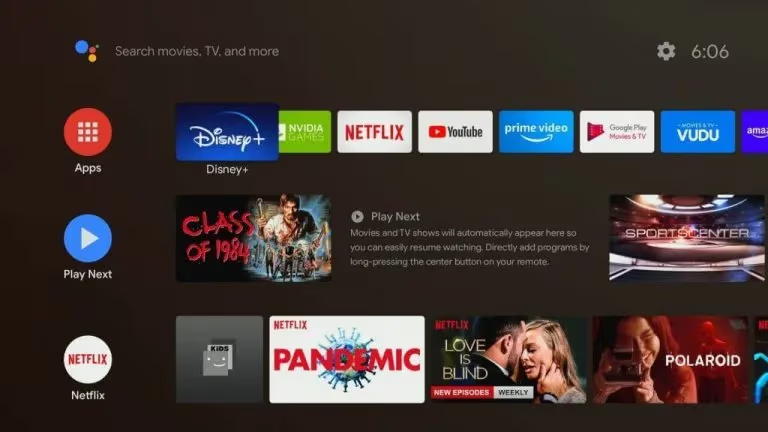
Thanks to Chromecast built-in, getting Netflix running on the latest Philips Android Smart TVs takes just a few minutes:
-
Turn on your Philips Android TV and connect it to your home Wi-Fi.
-
On the home screen, locate the Netflix app in the list of suggestions or app library.
-
Select the icon and hit “Sign In”.
-
Enter your Netflix account credentials if prompted.
-
Pick a show or movie and start streaming!
If Netflix didn’t come pre-installed, search for “Netflix” on the Google Play Store, install it, and then sign in to start watching.
#Install and Use Netflix on Your Philips Roku TV
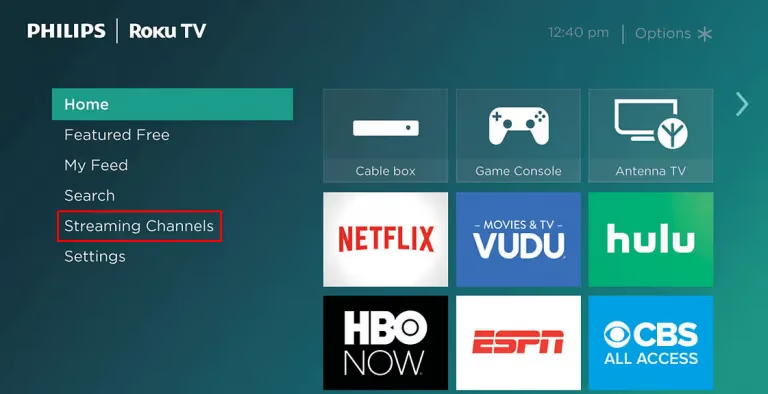
Philips Roku TVs also come with Netflix pre-installed, or you can add it from the Roku Channel Store:
- Press the “Home” button and select “Streaming Channels”.
-
Search for Netflix using the on-screen keyboard.
-
Click “Add Channel” next to the Netflix icon.
-
Once installed, launch the app and sign in with your account info.
-
Browse or search for content and stream it on your Roku TV.
If Netflix keeps crashing or gets stuck on the loading screen on your Philips Roku TV, check out these troubleshooting tips for fixing common Roku Netflix problems.
#How Do You Watch Netflix on a Philips Saphi TV?
The Saphi OS keeps things straightforward. Here is how to get Netflix running:
-
Turn on your Philips Saphi TV and connect to Wi-Fi.
-
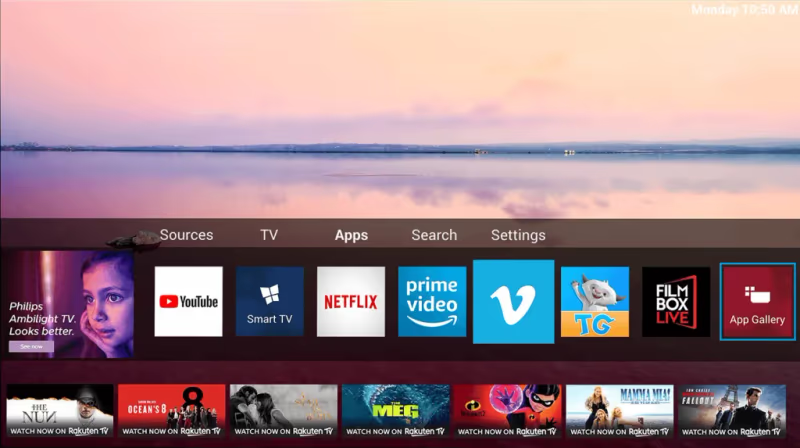
Press “Menu” on your remote and select “Net TV”.
-
Choose the pre-installed Netflix app.
-
Enter your email and password to sign in.
-
Pick your favorite shows and movies to stream in full HD or 4K UHD!
#Cast Netflix from Your Mobile Device to Philips TV
Don’t want to sign in repeatedly on your TV? Use your mobile device to cast Netflix instead:
-
Connect your phone and Philips TV to the same Wi-Fi network.
-
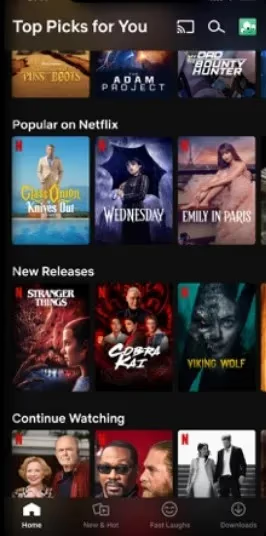
Launch the Netflix mobile app, sign in, and pick something to watch.
-
Tap the Cast icon and select your Philips TV from the target device list.
- Sit back and stream Netflix from your phone to the big screen!
#Signing In and Out of Netflix on Philips Smart TV
To sign out of Netflix on your Philips TV:
-
From the app’s home screen, select “Get Help”.
-
Choose “Sign Out” from the help options list.
-
Confirm by clicking “Yes” on the prompt.
This signs you out. To sign back in anytime, just launch the app and re-enter your login email and password.
#Troubleshooting Netflix Issues on Your Philips Smart TV
If the Netflix app won’t open or keeps buffering on your Philips Smart TV, try these fixes:
- Check your internet connection and restart your router
- Close and reopen the Netflix app
- Delete and reinstall Netflix
- Update the Netflix app to the latest version
- Upgrade your TV firmware
- Reset your Philips TV to factory settings
Stuck on the Netflix loading screen on your Philips TV? Learn what might be causing Netflix buffering issues and how to fix them.
When Netflix won’t open or play content on brands like Sony, Apple TV, Hisense, or Vizio, refer to this guide on resolving Netflix errors for specific TV models.
#FAQs
#How do I use Netflix on my Philips TV without the remote?
You can control Netflix using the physical buttons on the TV itself. Another option is the official Philips TV Remote app, available for both iOS and Android. The app gives you full navigation including text input for searches.
#Can I watch Netflix in 4K Ultra HD on my Philips Smart TV?
Yes, as long as you have the Netflix Premium plan ($19.99/month) and your Philips TV supports 4K resolution. Make sure your streaming quality is set to Auto or High in the Netflix app settings. You also need an internet speed of at least 25 Mbps for stable 4K playback.
#Why is Netflix not working on my Philips Smart TV?
The most common causes are a weak Wi-Fi signal, an outdated app version, or a temporary software glitch. Start by restarting the TV and your router. If the problem continues, uninstall and reinstall the Netflix app.
#Do all Philips Smart TVs come with Netflix pre-installed?
Most recent Philips Smart TVs ship with Netflix already installed, but some older models may not include it. On Android TV models, you can download Netflix from the Google Play Store. Roku TV models let you add it from the Roku Channel Store.
#How do I update the Netflix app on my Philips TV?
On Android TV, open the Google Play Store, search for Netflix, and tap “Update” if available. On Roku TV, app updates happen automatically in the background. Saphi TV users should check for system updates through the TV settings menu, as apps update with the firmware.
#Can I cast Netflix from my iPhone to a Philips TV?
Yes, if your Philips TV has Chromecast built-in or supports AirPlay. Open Netflix on your iPhone, tap the Cast icon, and select your Philips TV. Both devices need to be on the same Wi-Fi network for casting to work.
#How do I sign out of Netflix on my Philips Smart TV?
Open the Netflix app, scroll down to “Get Help,” and select “Sign Out.” Confirm when prompted. This is useful if you want to switch accounts or let someone else use their own Netflix login on your TV.
#What internet speed do I need for Netflix on a Philips TV?
Netflix recommends at least 5 Mbps for HD streaming and 25 Mbps for 4K Ultra HD. If your speed is lower, Netflix will automatically reduce the video quality to prevent buffering. A wired Ethernet connection usually gives more stable speeds than Wi-Fi.
#Bottom Line
Getting Netflix running on a Philips Smart TV takes just a few steps regardless of whether you have an Android, Roku, or Saphi model. If you run into any issues, a quick app reinstall or router restart usually does the trick. Enjoy your next binge session on the big screen.