Netflix crashed on your Sony Bravia again? You are not alone. Many Sony TV owners run into Netflix problems ranging from buffering loops to random error codes. The good news: most of these issues take less than five minutes to fix.
This guide walks you through 17 tested methods to get Netflix running again on your Sony Smart TV. We cover error codes like 100, 111, 109, and 118, plus fixes for loading screens that never finish, black screens, and apps that refuse to open.
- Clearing cache fixes most crashes — go to Settings > Apps > Netflix > Clear cache, then Clear data
- A soft reset takes 10 seconds — hold the physical power button for 8-10 seconds, wait 1 minute, restart
- You need at least 25 Mbps for 4K Netflix — test your speed at Fast.com during peak hours
- Outdated firmware causes compatibility issues — check Help > System software update > Via internet
- Factory reset is the nuclear option — it erases all apps and settings, so try every other fix first
#Why Is Netflix Not Working on Your Sony TV?
Before jumping into solutions, here is what typically causes Netflix to stop working. After fixing Netflix issues on Sony Bravia TVs for years, these are the most common culprits:
-
Weak or unstable internet connection: Streaming needs steady bandwidth. Issues with your router or ISP can cut off Netflix mid-stream.
-
Netflix or ISP server outages: Temporary server problems at Netflix or your ISP can block access entirely. These usually resolve on their own within hours.
-
Power fluctuations: An unexpected restart or power loss during streaming can corrupt the app’s cache or temporary playback files.
-
Outdated Sony TV firmware: If the Android software running your Sony Bravia is too old, newer Netflix app versions may not work correctly.
-
Outdated Netflix app: Skipping updates from the Google Play Store causes compatibility gaps, especially after major Netflix service changes.
-
Overloaded Wi-Fi network: Too many devices on the same router create bandwidth congestion. Old router models make this worse.
-
Corrupted app data or cache: Bad temporary files are behind most Netflix crashing and freezing problems. Clearing them fixes many error codes.
-
Regional restrictions: Netflix libraries differ by region due to licensing. A VPN can bypass geo-blocks when traveling.
This loading screen issue also affects other smart TV brands like Vizio, Philips, and Hisense.
#Fix 1: Check Your Internet Connection
Start with the basics. Verify your Sony TV has a working internet connection right now.
Press the Home button on your remote, go to Settings > Network > Check connection.
If you see “Couldn’t connect to network” or the TV gets stuck at “Obtaining IP address,” you have a network problem. Here are several ways to investigate:
-
Restart your broadband modem/router: Switch off the power, wait 60 seconds, then switch it back on.
-
Toggle Wi-Fi off and on: In Settings > Network, turn off Wi-Fi, wait one minute, then turn it back on and reconnect.
-
Forget and re-add your Wi-Fi network: Select your network, choose Forget, then reconnect from scratch with your password.
-
Check router placement: Keep the router in a central location away from walls, microwaves, and cordless phones.
-
Update router firmware: Log into your router admin panel and install any available firmware updates.
-
Test with a smartphone hotspot: Create a hotspot on your phone, connect the Sony TV to it, then try Netflix. This isolates whether the problem is your router or ISP.
If Netflix works fine on the hotspot, the issue sits with your home network. Contact your ISP if it keeps happening.
#Fix 2: Restart Your Wi-Fi Router
Even when your Sony TV shows a Wi-Fi connection, the router itself might have bandwidth problems that disrupt streaming.
A quick power cycle fixes most router-side issues:
-
Switch your router OFF using the rear power button. Wait 60 seconds.
-
Switch it back ON and wait 2-3 minutes for full startup.
-
On your Sony TV, recheck the connection and launch Netflix.
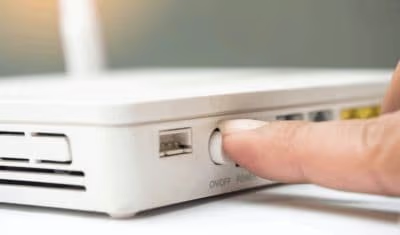
This flushes out temporary memory issues and gives the router a fresh start. Wi-Fi drops for a couple of minutes during the process.
If Netflix still will not open or buffer properly after the router reboot, the problem likely sits with the app itself. Keep reading.
#Fix 3: How Do You Clear Netflix Cache on a Sony TV?
Corrupted cache is one of the top reasons Netflix crashes or shows strange errors on Sony TVs. Clearing it forces the app to rebuild temporary files from scratch.
Follow these steps:
-
Press the Home button to reach the Android TV Home screen.
-
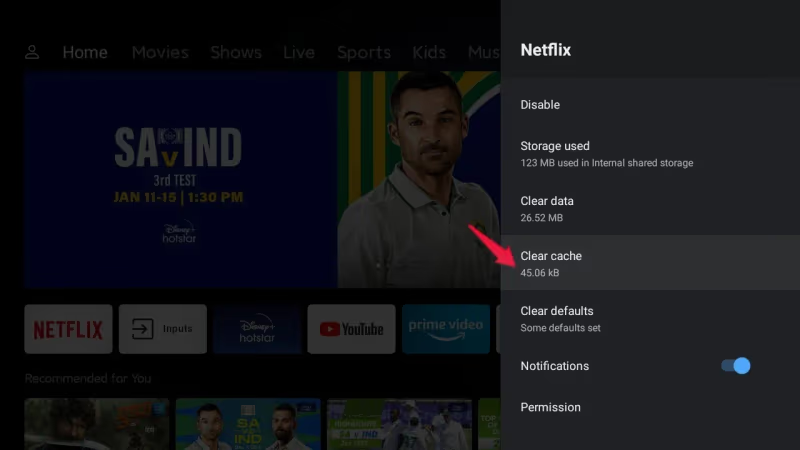
Select Settings (gear icon), then choose Apps or Application Settings.
-
Select See all apps or Installed apps to view the full list.
-
Find Netflix in the list and open it.
-
Tap Clear cache, then Clear data, and confirm any prompts.
-
Exit the Netflix app completely and restart your Sony TV.
-
Relaunch Netflix and sign in again. It should now load without errors.
If Netflix still spins indefinitely on the logo screen, this fix did not work for you. Move on to the next step. For more loading screen fixes, see our guide on Netflix stuck on loading screen.
#Fix 4: Update or Reinstall the Netflix App
An outdated Netflix app version can trigger random crashes and odd behavior. Updating forces a fresh install of the latest files.
To update Netflix on Sony TV:
-
Launch the Google Play Store app.
-
Select My Apps.
-
Under Installed, find Netflix and open it.
-
If an update appears, tap Update to install the newest version.
-
After the update downloads, close Netflix fully and reboot your Sony TV.
To reinstall Netflix entirely:
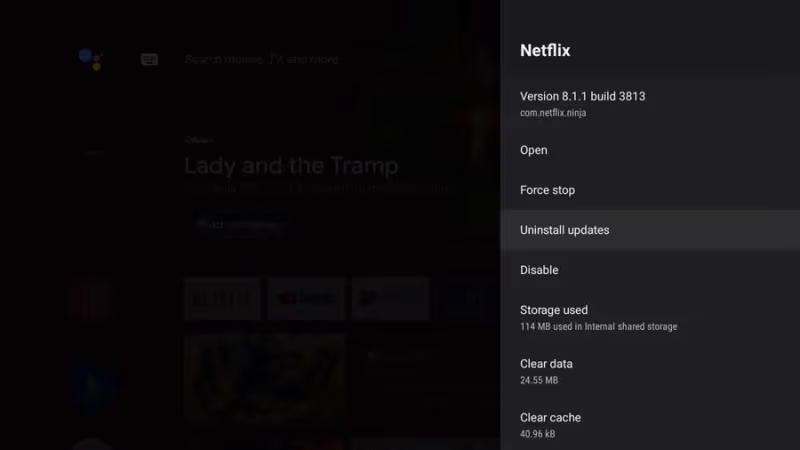
- In My Apps, go to Netflix and select Uninstall.
-
Confirm the uninstallation prompt and wait for removal.
-
Go back to the Play Store Netflix page and reinstall it.
-
Launch the app and sign in to your account.
A reinstall does NOT delete your Netflix profiles, viewing history, or My List. That data lives on Netflix’s servers, not your TV.
#Fix 5: Perform a Soft Reset of Your Sony TV
A soft reset force-quits all running apps and reloads the TV software cleanly. This resolves temporary glitches that cause Netflix to freeze or crash. If your Sony TV won’t turn on at all, check our dedicated guide for that problem.
Here is how to do it:
-
Press and hold the physical Power button on Sony TV for 8-10 seconds until the TV switches off.
-
Wait at least 1 minute for voltage discharge. Do not press anything yet.
-
Press the Power button normally to restart.
-
Once rebooted, launch Netflix and check if the problem is gone.
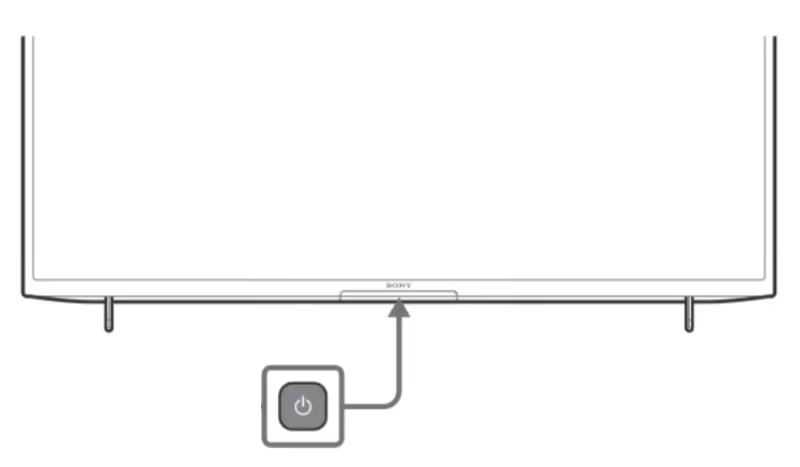
This soft reset differs from unplugging the TV completely. Some residual power stays inside for temporary memory. The restart clears stuck processes that may hang the Netflix app.
#Fix 6: Check for Sony TV Firmware Updates
Android TV receives regular firmware updates from Sony with bug fixes and performance improvements. Many users skip these updates since they do not install automatically on most models.
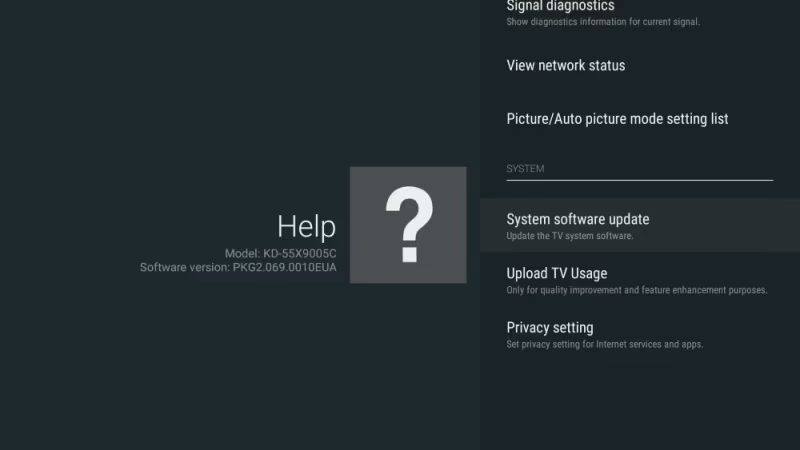
Outdated firmware on your Sony TV can cause Netflix compatibility issues. Here is how to check:
-
Using your Sony TV remote, select the Help (?) icon from the top menu.
-
Choose System software update or Software download.
-
Select Via internet to check for updates online.
-
If newer firmware is available, start the download. Do not interrupt it.
-
After the download finishes, select Install now from notifications.
-
Follow on-screen instructions and do NOT switch off the TV until the update finishes. This can take 10-20 minutes. A “Rebooting…” message confirms success.
Now open Netflix to see if performance improves. If your older Sony model shows no available updates, Sony has likely stopped supporting it with new firmware. Skip this step.
#Fix 7: Try Streaming Netflix Through Alternative Devices
To figure out whether the problem is your Sony TV hardware or the Netflix app, try streaming Netflix from another device:
- Smartphone or tablet connected to the same Wi-Fi
- Gaming console like PS4/PS5 or Xbox
- Streaming stick like Amazon Fire TV Stick or Roku plugged into your Sony TV
- Blu-Ray player with Netflix built in
- Laptop connected via HDMI cable to Sony TV
If Netflix works fine on all those devices, the problem is specific to your Sony TV software. Focus on the remaining fixes in this guide that target the TV directly: updating firmware, clearing app data, and reinstalling Netflix.
If Netflix fails on ALL devices, the issue is your home network. See our full guide on Netflix not working on TV for network-focused solutions.

If your Sony TV's built-in Netflix app keeps crashing after every fix, a Fire TV Stick bypasses the problem entirely. It runs its own Netflix app independently of your TV's software, so firmware bugs and Android TV issues no longer matter. Plug it into any HDMI port and you are streaming in under 2 minutes.
#Fix 8: Contact Your ISP if Network Problems Persist
When router resets and TV Wi-Fi settings changes do not help, the root cause often sits with external factors:
-
ISP network congestion: Too many neighborhood users online, especially during evening peak hours when everyone streams HD video.
-
Temporary ISP outages: Hardware failures at your Internet provider knock out broadband until fixed.
-
Old or faulty modem/cables: An outdated ISP-supplied router or damaged Ethernet cable causes unpredictable drops.
-
Wi-Fi interference: Microwave ovens, baby monitors, and other appliances disrupt 2.4GHz and 5GHz Wi-Fi signals. This tends to worsen over time.
If you still get frequent disconnects and inconsistent speeds after all router and TV troubleshooting, contact your ISP’s tech support. Describe your Netflix streaming problems and what you have already tried. They may suggest a newer modem, different Wi-Fi band, cable replacement, or send a technician.
#Fix 9: Connect Your Sony TV to Ethernet Instead of Wi-Fi
If weak Wi-Fi signal is the suspect, wired internet gives your Sony TV the most reliable connection possible.
-
Direct Ethernet cable: Run a cable from your router’s LAN port to the back of your Sony TV. This gives the fastest, most stable connection for 4K streaming.
-
Powerline adapters: These turn your home’s electrical wiring into a wired network. Useful for connecting a TV that sits far from the router.
-
Wi-Fi bridge mode: Repurpose an old router as a Wi-Fi repeater dedicated to your smart TV.
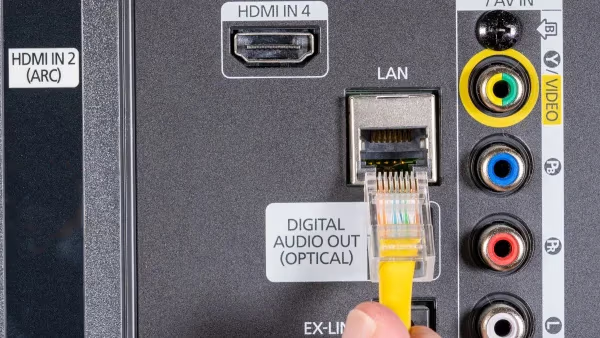
Wired connections bypass all Wi-Fi bandwidth issues and support 4K streams without buffering or dropouts.
#Fix 10: Adjust DNS Server Settings
DNS servers translate web addresses into IP addresses. Switching to a public DNS can bypass ISP throttling and sometimes fix connection errors.
On your Sony TV:
-
Go to Settings and open Network options.
-
Select your connected Wi-Fi network.
-
Choose IP settings or View more, then switch to Static or Manual IP setup.
-
Change DNS 1 to 8.8.8.8 (Google DNS).
-
Set DNS 2 to 8.8.4.4 and save.
Netflix should connect more reliably after this change. For alternatives, try Cloudflare DNS (1.1.1.1 and 1.0.0.1) or Cisco OpenDNS (208.67.222.222 and 208.67.220.220).
#Fix 11: Use a VPN for Geographic Restrictions
Netflix content libraries vary by region due to copyright and licensing deals. A VPN masks your IP address and lets you access region-locked content when traveling.
Steps to set up a VPN on Sony Android TV:
-
Subscribe to a VPN service like Surfshark, NordVPN, or ExpressVPN that works with streaming apps.
-
Download the VPN’s Android app from the Google Play Store and install it on your Sony TV.
-
Launch the app and choose a server location matching the Netflix library you want (US, UK, etc.).
-
Open Netflix, search for previously blocked content, and start streaming.
Make sure your VPN specifically supports Netflix access before subscribing. Not all VPN services bypass Netflix’s detection.
#Fix 12: Disable IPv6 on Your Router
Some ISP implementations of IPv6 cause frequent disconnects that disrupt streaming. Disabling it temporarily can help.
-
Access your router admin interface by typing the gateway IP in a browser.
-
Look for IPv6 settings under the connection or protocol menus.
-
Select the option to disable or turn off IPv6.
-
Save and reboot the router. Your Sony TV will now get an IPv4 address only.
Netflix streams fine over IPv4. If you are unsure about making network changes, contact your ISP for help instead.
#Fix 13: Factory Reset Your Sony TV (Last Resort)
If Netflix keeps crashing or buffering after every fix above, a factory reset wipes the entire system back to its original state.
On Sony TV:
-
Go to Settings (gear icon) and select Storage & Reset.
-
Choose Restore factory defaults or Factory data reset.
-
Confirm when prompted.
-
The TV reboots into the setup wizard. Follow it to set up Android TV from scratch.
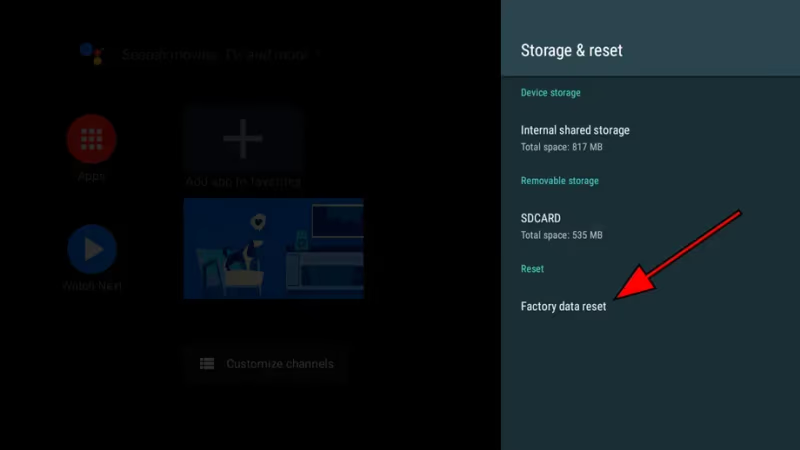
This erases all installed apps, settings, and saved data. Back up anything important first. A factory reset often resolves stubborn performance problems that no other fix can touch.
#Additional Tips to Fix Netflix on Sony TV
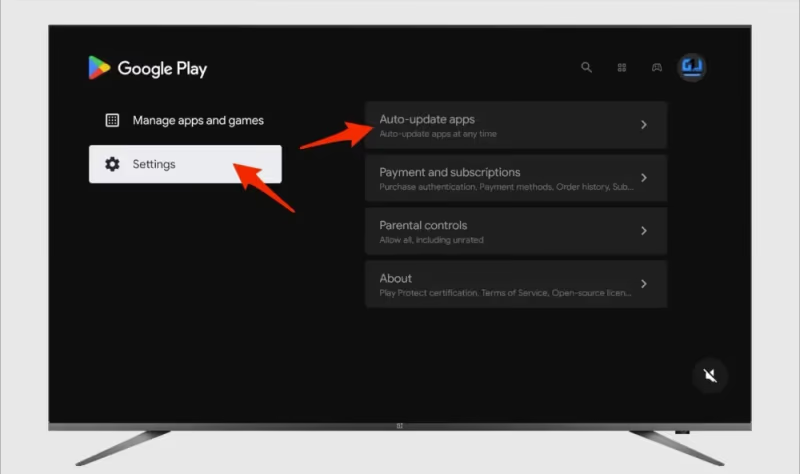
Enable Auto App Updates
Keep Netflix current automatically so you never miss a critical update:
-
Open Google Play Store on Sony TV.
-
Tap your profile icon.
-
Select Settings.
-
Turn on Auto-update apps.
Adjust Netflix Video Playback Settings
Lower the streaming quality if your bandwidth cannot handle 4K. In the Netflix app, select your profile icon and change the video resolution to match your connection speed.
Sideload an Earlier Netflix APK Version
If the latest Netflix update broke things, roll back to an older version:
-
On a PC, visit apkmirror.com and search for Netflix.
-
Download a stable version from 3-5 months ago.
-
Transfer the .apk file to your Sony TV via USB drive.
-
Use a file manager to locate and install the .apk.
-
Select Downgrade when prompted.
Enable Sony TV Developer Options
Developer options let you tweak Android system performance:
-
On Sony TV, go to Settings > About.
-
Tap Build number repeatedly until Developer mode activates.
-
Back out to find the new Developer options menu.
-
Try disabling HW overlays or adjusting animation scales to reduce lag.
#Bottom Line
Most Netflix problems on Sony TVs come down to three things: a bad internet connection, corrupted app data, or outdated software. Start with the quick fixes first. Restart your TV, clear the Netflix cache, and check for updates. Only move to a factory reset if nothing else works.
For broader troubleshooting across all TV brands, check our Netflix not working on TV guide. If your Sony TV has other display problems like sound but no picture, that points to a hardware issue rather than an app problem.
#FAQs
#Why does Netflix keep buffering on my Sony Bravia TV?
Frequent buffering usually means your Wi-Fi cannot deliver enough bandwidth for steady video streaming. Run a speed test at Fast.com during peak hours. You need at least 25-30 Mbps for reliable 4K playback. If speeds fall short, contact your ISP about congestion or upgrade to a router that supports Wi-Fi 6.
#Netflix was working before but now just loads forever on my Sony TV. What happened?
Close and relaunch the Netflix app completely. If it gets stuck at 25% loading, clear the Netflix cache and data (see the cache clearing section above), then uninstall and reinstall a fresh version. When the app starts loading but disappears midway, background services are likely corrupted, and a factory reset becomes the best option.
#Why does Netflix crash or freeze on my Sony Smart TV randomly?
Random crashing points to either outdated software or corrupted data. First, install the latest Netflix version along with all Sony TV firmware updates. Then clear cache and data before doing a full reinstall of the Netflix app. If other apps also crash, the Android OS itself may need a factory reset.
#How do I fix Netflix error code 100 or 111 on Sony Bravia?
Both error codes signal server connectivity problems on either the Netflix side or your ISP side. Reboot your Wi-Fi router and modem fully, then clear Netflix app cache and data. Switching DNS settings to Google (8.8.8.8) or Cloudflare (1.1.1.1) often helps. If these errors started recently, a temporary outage at Netflix or your ISP is the likely cause, and trying again later usually resolves it.
#Can I still use Netflix on an older Sony Bravia TV?
It depends on your TV’s Android version. Netflix dropped support for some older Android TV versions in recent years. Check Netflix’s supported devices page to confirm your model still qualifies. If not, connect an external streaming device like a Roku or Fire TV Stick to keep using Netflix.
#Does clearing Netflix data delete my account or watch history?
No. Clearing data only removes temporary files stored on your Sony TV. Your Netflix profiles, watch history, My List, and payment information all live on Netflix’s servers. You just need to sign back in after clearing the data.
#What internet speed do I need for Netflix on my Sony TV?
Netflix recommends at least 5 Mbps for HD streaming and 25 Mbps for 4K Ultra HD. For a household with multiple devices streaming at once, aim for 50 Mbps or higher. Check your actual speeds at Fast.com. If your connection falls below these numbers during peak hours, contact your ISP or switch to a wired Ethernet connection for your TV.