MLB.TV is the go-to way to watch out-of-market baseball on a Vizio Smart TV. The catch: Vizio doesn’t have a dedicated MLB.TV app in its SmartCast store. You still have several reliable ways to get live games on your screen, and this guide walks through each one.
- No native MLB.TV app on Vizio — you need to cast from a phone or use an external streaming device
- AirPlay works on 2018+ Vizio models — iPhone and iPad users can stream directly after a quick setup
- Google Cast is built into most 2016+ Vizio 4K TVs — Android and iOS users can cast from the MLB app
- Streaming sticks add full app support — Roku, Fire TV Stick, and Apple TV all run the MLB.TV app natively
- Blackout restrictions still apply — MLB.TV only streams out-of-market games regardless of your setup method
#What Is MLB.TV and How Does It Work?

MLB.TV is Major League Baseball’s own streaming service. It gives you access to every regular-season game that falls outside your local broadcast market. If you’re a fan of an out-of-state team, this is the only legal way to watch every game live.
Two subscription tiers are available. The Single Team plan covers one team’s out-of-market games. The All-Team plan opens up the full league, with extras like multi-view (watch up to four games at once), alternate camera angles, and home or away audio feeds. Both plans stream in HD up to 1080p at 60fps. Check whether MLB TV comes free with Amazon Prime before you pay for a separate subscription.
#How Do You Cast MLB.TV to a Vizio TV?
Casting is the most common method since Vizio SmartCast TVs have Google Cast and AirPlay built in. Both require your phone and TV to be on the same Wi-Fi network.
#Cast with Google Cast (Android or iOS)
- Open the MLB app on your phone or tablet
- Start playing a live game or on-demand replay
- Tap the Cast icon in the top-right corner of the player
- Select your Vizio TV from the device list
- The stream transfers to your TV within a few seconds
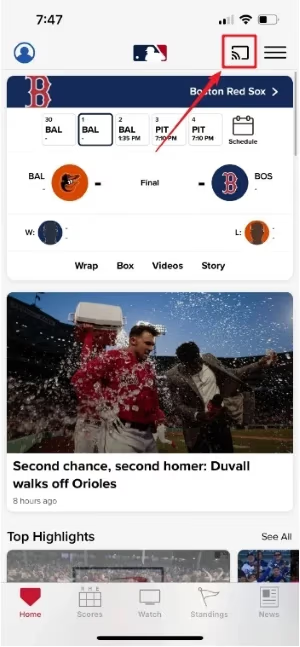
Google Cast works on most 2016 and newer Vizio 4K models. Your phone acts as a remote once the stream is active, so you can pause, rewind, or switch games without touching the TV remote. For more on casting baseball, see our MLB.TV on Chromecast guide.
#Cast with AirPlay (iPhone, iPad, or Mac)
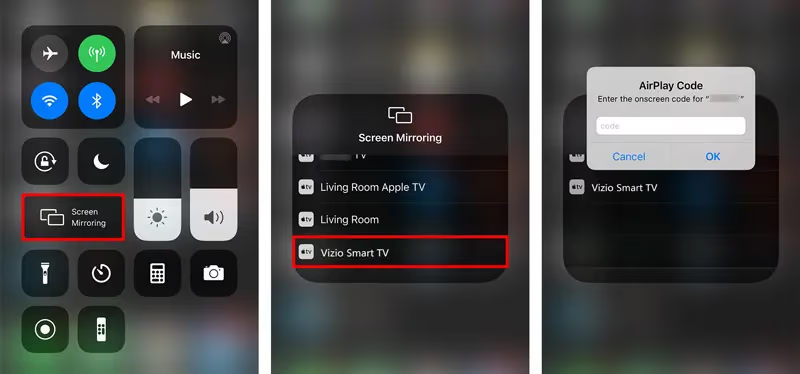
AirPlay support landed on Vizio TVs starting with 2018 models running SmartCast 4.0 or later. Here’s the setup:
- On your Vizio TV, go to Settings > Apple AirPlay & HomeKit and turn AirPlay on
- Open the MLB app on your iPhone, iPad, or Mac
- Start a game stream
- Tap the AirPlay icon (the rectangle with an arrow) in the video player
- Choose your Vizio TV from the list
The first time you connect, your TV displays a pairing code. Enter it on your Apple device and you’re set. If you run into issues with AirPlay on your Vizio, our dedicated AirPlay on Vizio TV troubleshooting guide covers every common fix.
#Which Vizio Models Support Casting?
Not every Vizio TV handles casting the same way. Here’s a quick breakdown:
| Feature | Supported Models |
|---|---|
| Google Cast | 2016+ Vizio 4K SmartCast TVs |
| AirPlay 2 | 2018+ Vizio SmartCast TVs (firmware 4.0+) |
| Neither | Pre-2016 Vizio TVs, some 1080p-only models |
If your Vizio TV is from 2015 or earlier, casting won’t work. Update your TV’s firmware first by going to Settings > System > Check for Updates on your Vizio remote. If your model still doesn’t support casting after the update, a streaming stick is the best alternative.
#Can You Use a Streaming Device Instead of Casting?
Yes, and in many cases a streaming device gives a better experience than casting. The MLB.TV app runs natively on Roku, Amazon Fire TV Stick, and Apple TV, which means no phone needed after setup.
#Roku
Roku is one of the most straightforward options. Search for “MLB” in the Roku Channel Store, install the app, and sign in with your MLB.TV credentials. Roku Express 4K+ costs under $40 and plugs into any HDMI port on your Vizio TV.
#Amazon Fire TV Stick
The Fire TV Stick runs the MLB.TV app from the Amazon Appstore. Download it, log in, and you’re watching. The Fire TV Stick 4K gives you HDR support, which is a nice upgrade over casting from a phone. You can learn more in our MLB.TV on Fire TV Stick walkthrough.
#Apple TV
Apple TV 4K has the MLB.TV app in the App Store and supports picture-in-picture, so you can watch a game while browsing other apps. It also integrates with the Apple TV app’s “Up Next” queue, adding upcoming games from your favorite teams automatically.
#Tips for a Better MLB.TV Experience on Vizio
A few settings and tricks make a real difference when streaming baseball.
Adjust video quality manually. The MLB app defaults to auto quality. If your stream looks blurry, open the player settings and select 1080p/60fps. This requires at least 10 Mbps download speed on your Wi-Fi network.
Use the “Hide Scores” toggle. If you’re watching a recorded game, the MLB app can hide scores across the interface so nothing gets spoiled before you press play.
Try multi-view on the All-Team plan. During a busy slate of games, you can watch up to four at once in split-screen mode through the MLB app on Apple TV or by casting from a tablet.
Check your local blackout rules. MLB.TV blacks out games broadcast locally in your area. If you’re affected by blackouts and need a workaround, read our MLB.TV VPN troubleshooting guide for help.
#How Do You Fix MLB.TV Casting Problems on Vizio?
Casting issues happen. Most of them come down to network problems or outdated software. Work through these steps in order:
1. Confirm both devices are on the same Wi-Fi network. This is the most common cause of “TV not found” errors. Check your Vizio TV’s network settings under Settings > Network > Network Information and compare it to your phone’s connected network.
2. Restart the MLB app. Force-close the app on your phone, reopen it, and try casting again. On iPhone, swipe up from the bottom and swipe the app away. On Android, go to Settings > Apps > MLB > Force Stop.
3. Power cycle your Vizio TV. Unplug the TV from the wall for 30 seconds, then plug it back in. This clears the cache and often resolves stubborn casting failures.
4. Update your Vizio TV firmware. Go to Settings > System > Check for Updates. Outdated firmware can break AirPlay and Google Cast compatibility. Vizio’s firmware update support page has model-specific instructions.
5. Switch to a 5 GHz Wi-Fi band. If your router broadcasts both 2.4 GHz and 5 GHz networks, connect both your phone and Vizio TV to the 5 GHz band. It handles video streaming with less interference.
6. Try a wired connection. If Wi-Fi remains unreliable, connect your Vizio TV to your router with an Ethernet cable using a USB-to-Ethernet adapter (if your model lacks an Ethernet port).
If none of these steps work, contact MLB.TV customer support for account-specific issues or Vizio support for hardware-related problems.
#Bottom Line
Getting MLB.TV on a Vizio Smart TV takes one extra step since there’s no native app. Casting from your phone with Google Cast or AirPlay works well for most people, and a Roku or Fire TV Stick adds a dedicated app experience for under $40. Update your Vizio TV firmware before your first stream, confirm both devices share the same Wi-Fi network, and you’ll be watching baseball in minutes.
#FAQ
#Does Vizio have an MLB.TV app?
No. Vizio SmartCast does not include a native MLB.TV app in its app store. You need to cast from a phone or tablet, or connect an external streaming device like a Roku or Fire TV Stick that runs the MLB.TV app directly.
#Do I need a subscription to watch MLB.TV on my Vizio TV?
Yes, MLB.TV requires a paid subscription. The Single Team plan covers one team’s out-of-market games, while the All-Team plan gives access to every out-of-market regular-season game. Postseason games are not included since those are broadcast on national TV networks.
#Can I watch local games on MLB.TV?
No, MLB.TV enforces blackout rules on games broadcast locally in your area. If your favorite team plays in your local market, those games are blacked out on MLB.TV and only available through your regional sports network or a live TV streaming service like YouTube TV or fuboTV.
#What internet speed do I need for MLB.TV on Vizio?
MLB recommends at least 4 Mbps for standard definition and 10 Mbps for 1080p streaming at 60fps. A 5 GHz Wi-Fi connection gives the most stable results for casting to your Vizio TV.
#Why does my MLB.TV stream keep buffering on Vizio?
Buffering usually points to a Wi-Fi issue. Move your router closer to the TV, switch from 2.4 GHz to 5 GHz, or use an Ethernet adapter for a wired connection. Also close other apps on your casting device to free up bandwidth.
#Can I use screen mirroring instead of casting for MLB.TV?
You can, but casting is better. Screen mirroring sends your entire phone screen to the TV, which drains battery faster and locks your phone to the MLB app. Casting offloads the stream directly to the TV, letting you use your phone normally while the game plays.
#Is MLB.TV worth it if I only follow one team?
The Single Team plan makes sense if you live outside your team’s broadcast area and want to watch most of their games. You get around 140+ regular-season games per year. If your team plays locally, blackout rules will block many of those games, making the subscription less useful without a VPN.
#What is the difference between AirPlay and Google Cast for MLB.TV?
Both send the MLB.TV stream from your phone to your Vizio TV. AirPlay is for Apple devices and requires a 2018 or newer Vizio TV. Google Cast works with both Android and iOS devices on 2016+ Vizio 4K models. Video quality is the same with both methods.