Having issues with no sound or audio cutting out on your LG TV? You’re not alone. Many LG TV owners run into sound problems at some point, and most of them can be fixed without calling a technician. This guide walks you through all the potential solutions to restore sound on your LG smart TV.
- Power cycling fixes most LG TV sound issues. Unplug for 2 minutes and hold the power button for 30 seconds to clear software glitches.
- Wrong Sound Out settings cause silent TVs. Set Sound Out to Internal Speakers and Digital Sound Out to PCM instead of Auto.
- LG TVs have a built-in sound tester. Run it from Settings > Sound > Sound Test to confirm whether internal speakers work.
- HDMI cable problems affect connected devices only. Swap cables and ports to isolate whether the issue is a bad connection.
- A/V Reset skips full factory reset. Press Mute 3 times quickly on the original LG remote to restore default audio settings.
#Why Does Your LG TV Have No Sound?
Before jumping into the fixes, it helps to understand why your LG TV may have lost sound in the first place. Here are some of the most common culprits:
-
Software bugs: Errors in the TV software can disrupt audio. Power cycling the TV often fixes minor software glitches.
-
Wrong sound settings: Incorrect audio output configuration is a top reason for missing TV sound.
-
Faulty cables: Damaged HDMI or audio cables prevent sound transmission.
-
Outdated firmware: An outdated TV software version can trigger sound issues.
-
External speakers: If you don’t hear sound from external speakers, the problem may lie with the speaker setup and connections.
-
Streaming devices: Issues with streaming boxes, Blu-ray players and game consoles connected to your TV can also stop sound output.
Now let’s go through the top troubleshooting tips and solutions to bring back sound on your LG TV.
#How Do You Fix an LG TV With No Sound?
Follow these methods in order to diagnose and fix your LG TV’s audio problem:
#1. Power Cycle the LG TV
The first thing to try with any TV sound issue is a power reset:
-
Unplug the TV power cable from the wall outlet.
-
Press and hold the power button on the TV for 30 seconds (not the remote power button).
-
Leave the TV unplugged for 2 full minutes.
-
Plug the power cable back in and turn on your LG TV.
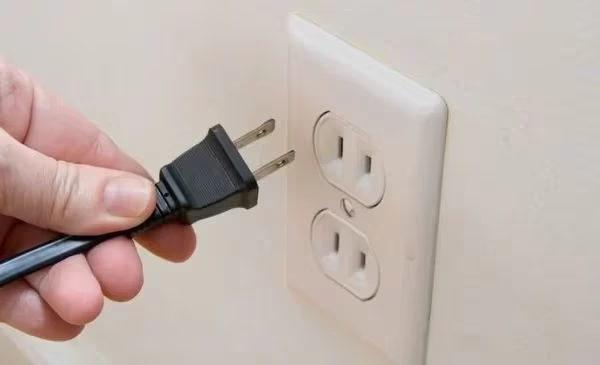
This power cycle process clears out minor software glitches that can disrupt audio. It works like a reboot to refresh the TV’s internal components.
#2. Check LG TV Volume and Mute Settings
Before you panic about your LG TV having no sound, check the basics first:
-
Verify the TV volume is actually turned up high enough to hear.
-
Make sure the mute function is disabled. Accidentally pressing mute is common.
-
Try pressing volume up/down on the TV set itself if not working with remote.
It’s easy to overlook something this straightforward, so rule that out first.
#3. Run an LG TV Sound Test
Your LG TV has a built-in sound tester to diagnose audio issues. This should be one of the first troubleshooting steps:
-
Access the Settings menu and select Sound > Sound Test.
-
Follow the prompts to initiate the test sounds.
-
If you cannot hear the test tones, continue on to further solutions.
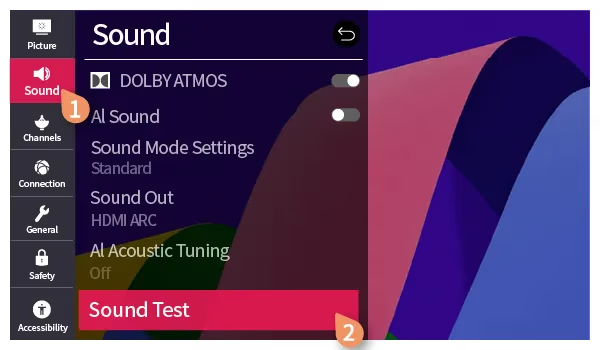
The sound test confirms whether your LG TV speakers and internal audio components work properly before trying other fixes.
#4. Adjust LG TV Sound Settings
Incorrect sound output configurations are often the culprit behind sound cutting out on LG Smart TV models:
-
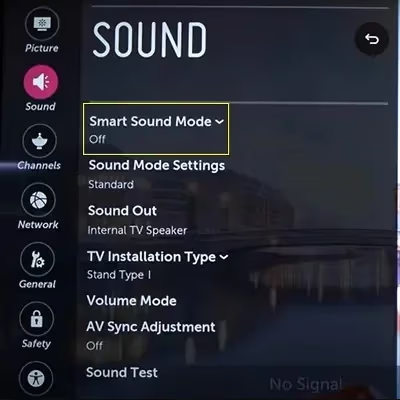
Within TV Settings, access the Sound menu.
-
First, disable Smart Sound Mode if enabled.
-
Under Sound Out, select Internal Speakers.
-
Disable Dolby Atmos audio if turned on.
-
Switch Digital Sound Out from Auto to PCM.
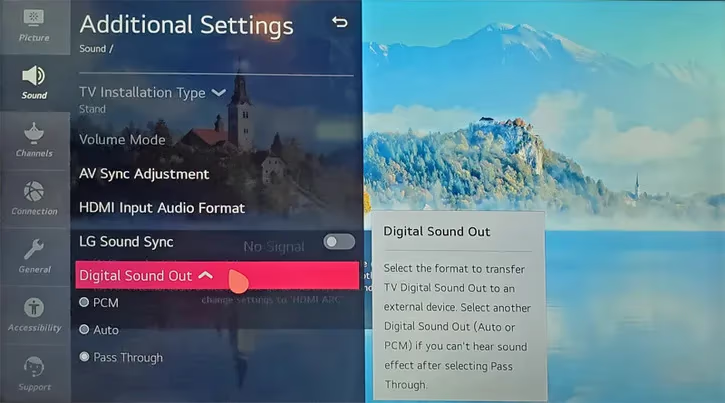
Cycling through the various audio options forces a refresh to override any incorrect settings that may be silencing sound.
#5. Update LG TV Firmware
An outdated TV firmware version can trigger sound problems on LG Smart TV models.
You’ll want to download the latest LG webOS firmware update:
-
Go to Settings > General > About This TV
-
Select Software Update and Check for Updates
-
Proceed to install any available updates.
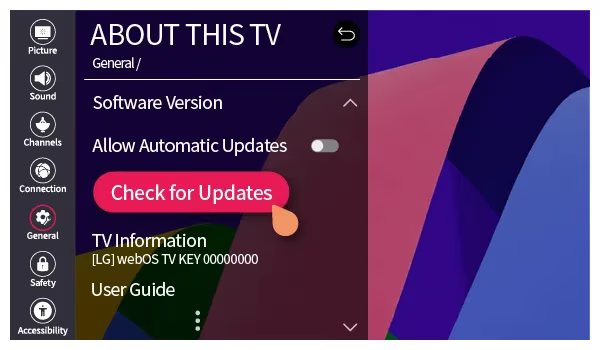
Updating to current LG firmware provides compatibility fixes for bugs that may be interfering with audio output.
#6. Factory Reset the LG TV
If adjusting settings doesn’t restore sound, the last resort is a full factory reset:
-
From the General tab in Settings, select Reset to Initial Settings
-
Confirm the factory reset to wipe all customizations and revert TV back to default state similar to fixes for Disney+ loading issues.
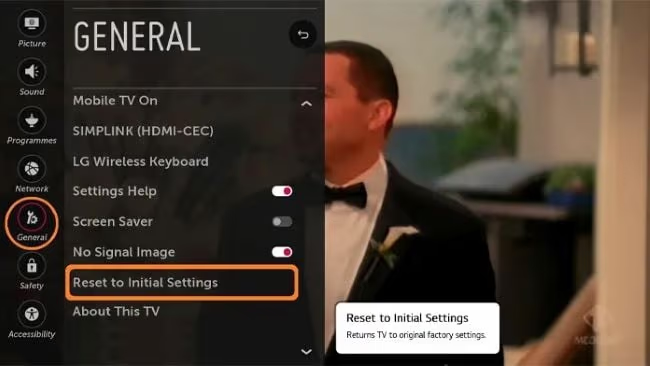
This erases your settings and installed apps to clear any problematic configurations messing up sound.
#7. Change HDMI Cables and Ports
Sound issues that only impact devices connected via HDMI point to a cabling connectivity problem.
Troubleshoot HDMI input ports and cables:
-
Make sure HDMI cable connections at both ends are secure and firm.
-
Switch to different HDMI ports on the LG TV if sound is missing on just one device.
-
Try replacing current HDMI cable with a different certified HDMI cable.
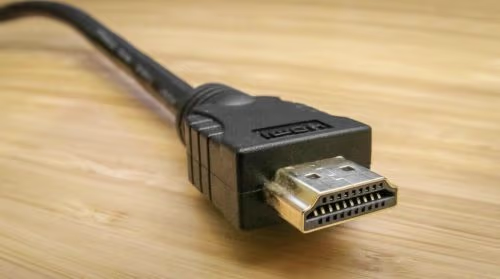
Doing so helps determine if the problem lies with a particular HDMI port or faulty cable.
#8. Reset A/V Settings
Your LG TV gives you the option to reset audio and video settings to default:
-
On original LG remote, press the Mute button 3 times quickly
-
When the A/V Reset prompt appears, Confirm the reset
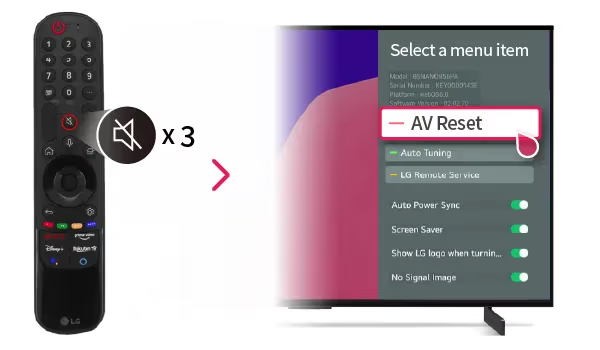
This quickly reverts any changes made to the core A/V presets without a full factory reset. Worth attempting before a deeper TV reset.
#9. Troubleshoot External Speakers
If audio cuts out when streaming sound through an external speaker system, focus troubleshooting efforts there:
-
Verify HDMI cable from LG TV to receiver/sound system is securely connected
-
Try connecting external speakers to a different HDMI ARC or Optical port
-
Test external speakers with a different audio source to confirm they work
Issues between your LG TV and other audio gear likely point to a setup issue versus a general TV sound problem.
#10. Contact LG Support
If you are still experiencing sound issues on your LG TV after trying the above fixes, it’s time to call for backup:
-
LG customer support: 1-(800) 243-0000
-
Hours: 7am - 11pm EST daily
An LG support rep can provide tailored troubleshooting tips for your specific model and issue. They can also facilitate warranty-based repair if needed.
#Bottom Line
Getting sound back on your LG Smart TV doesn’t have to be frustrating or time-consuming if you approach it systematically:
-
Start by power cycling and checking volume settings
-
Run built-in LG TV sound tester
-
Tweak audio output configurations
-
Update TV firmware
-
Try HDMI connectivity fixes
-
Reset A/V presets
-
Confirm external speakers working properly
-
Call LG TV support as needed
Following these steps will help accurately diagnose why sound stopped working on your LG TV and how to restore normal audio 98% of the time.
Still having issues? Don’t hesitate to call LG or initiate a warranty service request if covered. Their technicians can fully inspect both internal TV components and external accessories to pinpoint the root cause.
#Frequently Asked Questions
#How do I get sound back on the LG TV Netflix app?
If you lost sound on a streaming app like Netflix or Hulu, close and relaunch the app first. Reinstalling the app from the LG Content Store also clears corrupted audio settings. When neither works, power cycle your LG TV to reset the system-level audio pipeline.
#Why did my LG TV sound stop working after a power outage?
Power surges can reset your TV’s audio configuration to incorrect defaults. Check that Sound Out is still set to Internal Speakers and verify all HDMI connections are secure. If sound problems persist after restoring electricity, perform a factory reset from Settings > General > Reset to Initial Settings.
#How do I control LG TV volume without a remote?
Use the manual buttons on your LG TV set to adjust volume up and down directly. Most LG models place these buttons on the bottom edge or back panel near the power indicator. You can also download the free LG ThinQ mobile app and use your phone as a remote.
#Can an LG TV optical port support Dolby Atmos?
No. Optical cables only support stereo and basic 5.1 surround sound formats like PCM and Dolby Digital. For Dolby Atmos passthrough, you need to connect your soundbar or receiver through the HDMI ARC or eARC port instead.
#What does the LG TV A/V Reset do?
The A/V Reset restores all audio and video settings to factory defaults without erasing your apps or Wi-Fi configuration. Press the Mute button 3 times quickly on your original LG remote to trigger it. This is faster than a full factory reset when you only need to fix sound or picture settings.
#Why does my LG TV have sound on some apps but not others?
App-specific audio failures usually happen when the app’s audio codec conflicts with your TV’s Digital Sound Out setting. Switch Digital Sound Out from Auto to PCM in Settings > Sound to force a compatible format. If only one app is affected, uninstall and reinstall it from the LG Content Store.
#Should I use HDMI ARC or optical for my LG TV soundbar?
HDMI ARC is the better choice for most setups. It supports higher-quality audio formats including Dolby Digital Plus and can carry Dolby Atmos on eARC-equipped models. Optical connections cap out at basic Dolby Digital 5.1 and don’t support CEC volume control through your TV remote.