Your LG Smart TV stopped connecting to Wi-Fi, and you need it fixed fast. This is one of the most reported LG TV problems, but the good news is that most causes are easy to resolve at home without professional help.
- Power cycling fixes most cases — unplug both your TV and router for 60 seconds before reconnecting
- DNS server change to 8.8.8.8 — resolves connection failures caused by your ISP’s default DNS
- 2.4 GHz band works better — many LG TVs struggle with 5 GHz networks, especially older models
- Date and time mismatch blocks Wi-Fi — incorrect clock settings prevent SSL certificate validation
- Factory reset is the last resort — restoring initial settings clears corrupted network configurations
#How Do You Fix the Wi-Fi on an LG Smart TV?
LG Smart TVs have a solid reputation for reliable performance. Still, they are not 100% fault-free. “LG TV won’t connect to Wi-Fi” is one of the most common issues reported by owners. If your LG TV is not connecting to the internet, the 12 solutions below cover everything from quick fixes to hardware-level troubleshooting.
#How Do You Connect an LG Smart TV to Your Wi-Fi Network?
Before jumping into fixes, here is the standard connection process. Confirm you have followed these steps correctly first.
-
Plug your Wi-Fi router into a power outlet, switch it on, and connect to the internet.
-
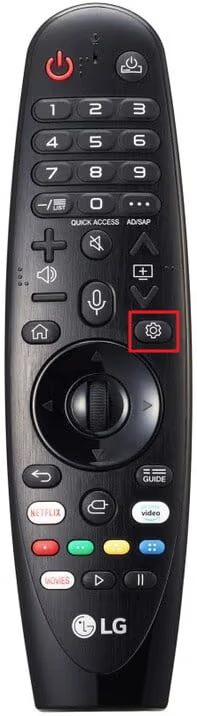
Then, grab your LG TV remote control and press Settings (Gear icon).
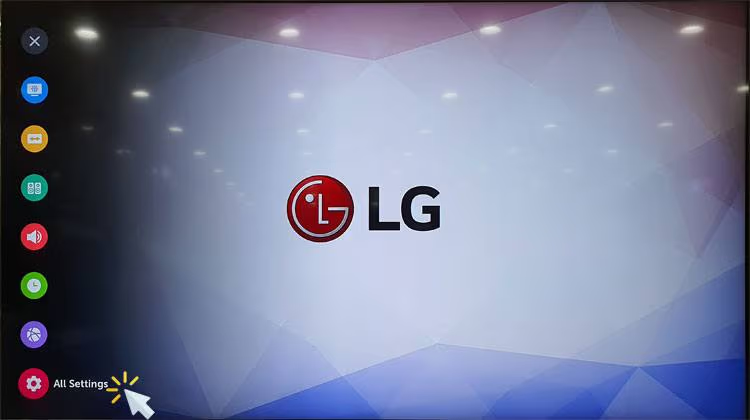
- Now, click on All Settings and go to TV Settings.
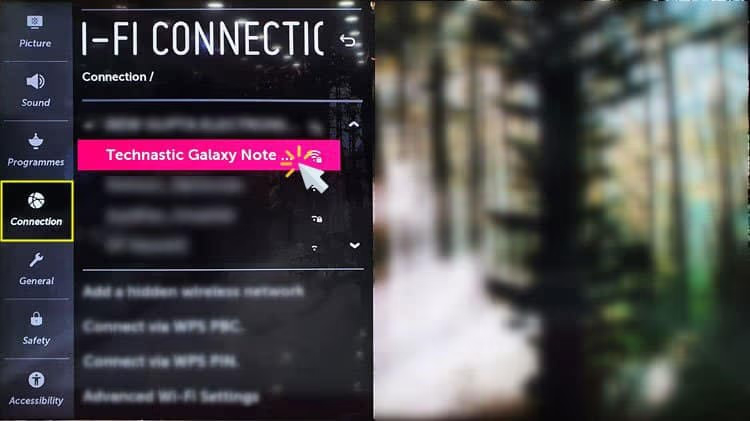
- Select the option Connection from the menu. You will see the available wireless networks. Choose the Wi-Fi network you want to connect to, then select Connect.
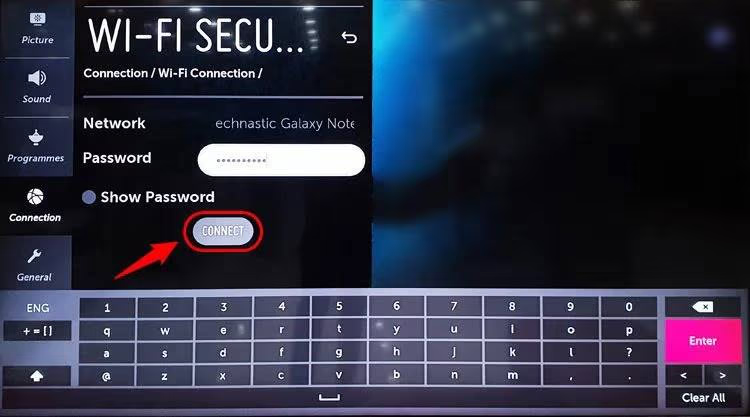
- Enter the Wi-Fi network password when prompted on the screen. After that, click the Connect button.
- If everything goes well, your LG Smart TV should be connected to the wireless network.
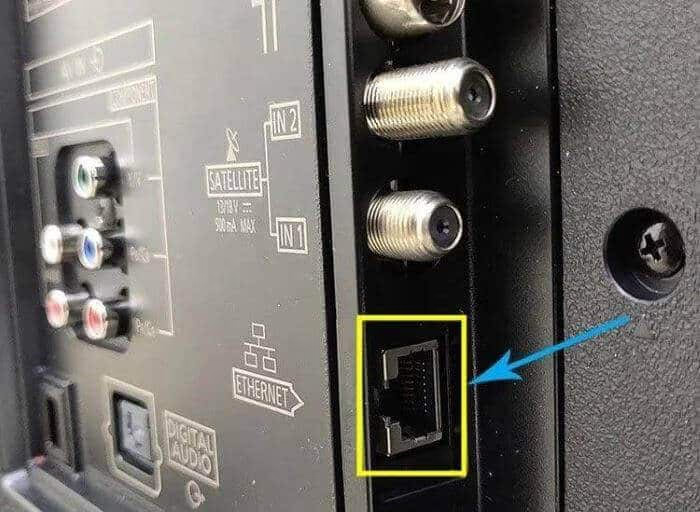
For a wired connection, plug an Ethernet cable into the port on the back of your LG TV and connect the other end to your router. The TV will detect the network automatically.
#12 Fixes to Try if Your LG Smart TV Is Not Connecting to Wi-Fi
If your LG TV still won’t connect to the internet after following the steps above, something else is going on. Try these solutions in order. If you are also dealing with a TCL Roku TV black screen, we have a separate guide for that.
#01. Change the Time and Date
This fix sounds odd, but it works. An incorrect date or time on your LG TV can block Wi-Fi authentication because SSL certificates depend on accurate clock data.
#Steps to Change the Date and Time
-
Go to Settings and choose General.
-
Then, go to Date and Time.
-
Uncheck the box that says Set automatically.
-
Enter your local time and date manually. Make sure the clock matches your actual time zone.
If you are experiencing the YouTube TV not working on Samsung Smart TV error, check out that guide as well.
#02. Modify Your DNS Settings
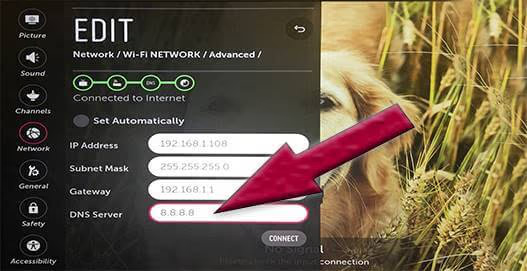
Changing the DNS server to Google’s public DNS (8.8.8.8) has fixed this problem for many LG TV owners. Your ISP’s default DNS can sometimes fail to resolve addresses properly.
#How to Change DNS Settings
-
Navigate to Settings and select All Settings.
-
Select Network and choose Wired Connection (Ethernet)/Wi-Fi Connection from the menu.
-
Choose the item labeled Connected to the Internet from the list.
-
You will see your DNS server configuration. Click Edit below.
-
Uncheck the box called Set Automatically.
-
Select the DNS Server field.
-
Input 8.8.8.8 as the value.
-
Save those changes by clicking Save.
#03. Disable the Quick Start and SimpLink Features
Some LG TV features meant to improve convenience can actually interfere with Wi-Fi connections. Quick Start keeps certain processes running in the background, and SimpLink (LG’s HDMI-CEC implementation) can cause conflicts.
-
Navigate to Settings and choose All Settings.
-
Choose General and then Quick Start / SimpLink.
-
Select Off using the remote control.
-
Turn off the television and wait about 30 seconds before turning it back on.
If you need to free up space, here is how to delete apps on your LG Smart TV.
#04. Adjust the Wires Leading to the Wi-Fi Module
This fix requires opening the TV’s back panel, so proceed with caution. Loose or pinched ribbon cables connected to the internal Wi-Fi module can cause intermittent connection failures.
#How to Adjust the Wi-Fi Module Cables
-
Remove the screws on the back of your TV unit.
-
Locate the Wi-Fi module and the ribbon cable. It has blue tape covering at one end.
-
Remove the blue tape from the Wi-Fi ribbon cable. Straighten the cable if it has been folded over.
-
Check any other cables connected to the Wi-Fi module. Straighten them carefully if they appear twisted or pinched.
This hardware fix has resolved the “LG TV not connecting to the internet” error for many users.
#05. Switch to a 2.4 GHz Wireless Network
Many LG TVs, especially models from 2020 and earlier, have trouble maintaining a stable connection on the 5 GHz band. The 2.4 GHz band has better range and wall penetration, making it more reliable for TVs that sit far from the router.
Open your router’s configuration page and give your 2.4 GHz and 5 GHz networks different names. Then connect your LG TV to the 2.4 GHz network specifically.
#06. Check Your Wi-Fi Network
First, confirm that other devices in your home can connect to Wi-Fi. If nothing connects, the problem is your router or ISP, not your TV.
Try creating a mobile hotspot on your phone and connecting the TV to it. If the TV connects to the hotspot but not your router, the issue is with the router settings.
Double-check that your TV is connecting to the correct network and that the password is accurate. Also check whether your router has a maximum device limit configured. If you have too many devices connected, disconnect ones you are not using and try again.
#07. Restart Your TV
A restart clears temporary memory issues that may block the Wi-Fi connection. Modern LG TVs do not have a physical reset button, so you need to unplug the power cord from the wall outlet. Wait about two minutes, then plug it back in. This forces a full restart rather than just a standby cycle.
#08. Power Cycle Your TV
This is different from a standard restart. Unplug your television from the power outlet, then press and hold the power button on the TV itself (not the remote) for 30 seconds. This drains residual power from the capacitors. Plug the TV back in after one minute. Many owners report that this single step fixed their Wi-Fi problem.
#09. Use an Ethernet Cable
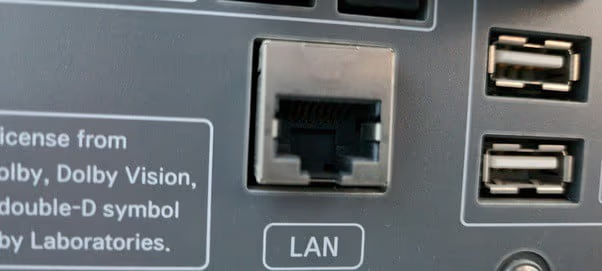
If Wi-Fi remains unreliable, a wired Ethernet connection bypasses the wireless issue entirely. Connect an Ethernet cable from your router to the LAN port on the back of your LG TV. The TV will detect the wired connection automatically. This also gives you faster and more stable streaming performance.
#10. Restart the Router
If you keep the router running for weeks without a restart, it can develop connection issues. Unplug the router from power, wait 30 seconds, and plug it back in. Wait for all indicator lights to stabilize before trying to connect your TV.
If no devices can connect after the restart, press and hold the router’s reset button (usually a small pinhole) with a paperclip for 30 seconds. This restores the router to factory defaults. You will need to reconfigure your network name and password afterward.
#11. Factory Reset the LG TV
If none of the above solutions worked, a factory reset clears all settings and returns the TV to its original state. This wipes saved Wi-Fi passwords, app logins, and custom picture settings.
#Steps to Factory Reset
-
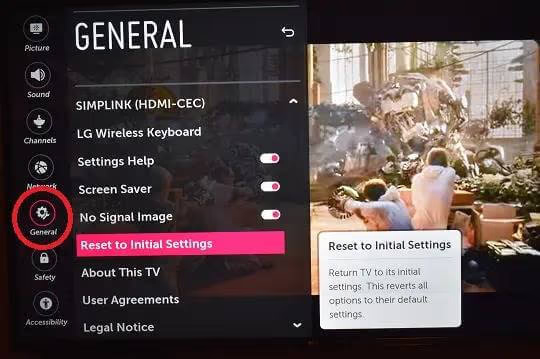
Press the Settings button on your LG TV remote. Select All Settings and choose General.
-
Locate Reset to Initial Settings and click on it.
-
Confirm the reset and go through the initial setup on your television.
-
Navigate to Connection settings and try connecting to your wireless network.
#12. Update the Firmware
Outdated firmware can contain bugs that prevent Wi-Fi connections. If your TV has an Ethernet port, connect it via cable temporarily to download the latest firmware update. Go to Settings > All Settings > General > About This TV and select Check for Updates. When your LG Content Store is not working, a firmware update often fixes that too. You can also check for the TV-14 meaning if you want to understand content ratings for your kids.
#Bottom Line
An LG Smart TV that refuses to connect to Wi-Fi is frustrating, but the fix is usually straightforward. Start with the easiest steps: power cycle both devices, switch to 2.4 GHz, and change your DNS to 8.8.8.8. If those do not work, move on to a factory reset or firmware update. For persistent hardware issues with the Wi-Fi module, contact LG support for warranty service.
#Frequently Asked Questions
#Why does my LG TV keep disconnecting from Wi-Fi?
Frequent disconnections usually point to signal interference, an overcrowded network, or the TV defaulting to a 5 GHz band it cannot maintain. Move your router closer to the TV or switch to the 2.4 GHz band. Also check if your router firmware needs an update, since older router software can drop connections with newer TV models.
#Can I use my LG TV without Wi-Fi?
Yes. You can connect an Ethernet cable directly from your router to the TV for a wired internet connection. You can also use the TV without any internet at all for local content through USB drives or HDMI-connected devices like a Blu-ray player or game console. Streaming apps will not work without an internet connection of some kind.
#Does a factory reset delete everything on my LG TV?
A factory reset erases all saved settings, including Wi-Fi passwords, app logins, picture preferences, and downloaded apps. Your TV will return to the same state it was in when you first unboxed it. You will need to sign in to all your streaming accounts again and reconfigure your preferences.
#Why does my LG TV say “Wi-Fi is turned off”?
This message means the Wi-Fi adapter inside your TV has been disabled. Go to Settings > Network > Wi-Fi Connection and toggle the Wi-Fi switch back on. If the toggle is grayed out, unplug the TV for two minutes and try again. A stuck toggle after power cycling may indicate a hardware problem with the Wi-Fi module.
#How do I find my LG TV’s MAC address for router whitelisting?
Go to Settings > All Settings > General > About This TV. The Wi-Fi MAC address is listed on that screen. You need this address if your router uses MAC address filtering, which blocks devices not on its approved list. Add the TV’s MAC address to your router’s whitelist and save the changes.
#What DNS server should I use for my LG TV?
Google’s public DNS at 8.8.8.8 is the most commonly recommended option and fixes the majority of LG TV connection problems. Cloudflare’s DNS at 1.1.1.1 is another reliable alternative. Both are free, fast, and more dependable than most ISP-provided DNS servers. Change the DNS in your TV’s network settings under All Settings > Network.
#Is it better to use Ethernet or Wi-Fi on an LG Smart TV?
Ethernet is more stable and faster than Wi-Fi for streaming. A wired connection eliminates interference from walls, microwaves, and neighboring networks. Use Ethernet if your TV is within cable reach of your router. Wi-Fi is fine for standard streaming, but 4K content and large app downloads benefit from the consistent bandwidth that Ethernet provides.
#How do I update LG TV firmware without an internet connection?
Download the latest firmware from the LG support website on a computer. Copy the firmware file onto a USB flash drive formatted as FAT32. Insert the USB drive into your LG TV and go to Settings > All Settings > General > About This TV. The TV will detect the firmware file and prompt you to install it. This method works when your Wi-Fi and Ethernet are both unavailable.