Experiencing lag, buffering, or slow performance on your LG Smart TV can be frustrating. In most cases, you can troubleshoot and resolve these issues on your own without paying for expensive repairs. This guide covers the top reasons for lagging on LG TVs and provides actionable tips to get your television running smoothly again.
- Minimum 25 Mbps download speed — required for 4K streaming; households with 5+ devices should aim for 100+ Mbps
- Wired ethernet beats Wi-Fi every time — eliminates interference, signal drops, and bandwidth limitations that cause lag
- Clearing cached data and cookies — built-up app data degrades performance over time and a simple clear often fixes slowdowns
- Firmware updates fix known bugs — LG releases patches that improve hardware performance and app compatibility
- Factory reset is the last resort — it erases all settings but resolves even severe lag when other steps fail
#What Causes Lagging on LG Smart TVs?
Before jumping into solutions, it’s helpful to understand what might be causing lagging in the first place. Here are the most common culprits:
#Insufficient Internet Speeds
Like any streaming device, your LG TV needs sufficient internet speeds for apps, videos and games to function properly without lag, buffering or pixelation. If your ISP plan isn’t fast enough to support multiple devices, it can significantly impact performance.
Target download speed: At least 25 Mbps for 4K streaming. For households with multiple devices, aim for 100+ Mbps plans.
#Weak Wi-Fi Connectivity
Using Wi-Fi instead of ethernet cables also opens the door to interference, signal drops, bandwidth limitations and instability – all recipes for a laggy viewing experience.
#Too Many Devices Connected
The more devices using your home network simultaneously, the less bandwidth available per device. Downloads, streaming and gaming on other devices can choke bandwidth for your TV.
#Outdated Firmware
Like any gadget, LG Smart TVs receive periodic software and performance updates. Failing to install the latest firmware means missing out on vital bug fixes, optimizations and new features.
#Overloaded Apps and Browser Tabs
Opening too many resource-intensive apps or leaving too many browser tabs running in the background also strains your TV’s CPU and memory resources, leading to lag and unresponsiveness.
#Cached Data and Cookies
Built-up cached data, site data and cookies from apps and sites can also eventually start degrading performance and responsiveness.
Now let’s explore the top troubleshooting tips and solutions for resolving lagging on your LG Smart TV.
#How Do You Fix Lagging on Your LG Smart TV?
Follow these methods sequentially until lagging issues are resolved:
#1. Check Your Internet Connection Speeds
The first step is confirming you actually have sufficient internet speeds for smooth 4K streaming across multiple devices.
On your LG TV browser, visit Speedtest.net and run an internet speed test. For 4K streaming across 3-5 devices, you’ll want minimum 25 Mbps download speeds. For households with 5+ devices connected, aim for 100+ Mbps plans.
If your speeds are lower than expected, contact your ISP. Slow speeds are often due to connection issues, outages or throttling which they can troubleshoot and resolve.
#2. Use a Wired Ethernet Connection
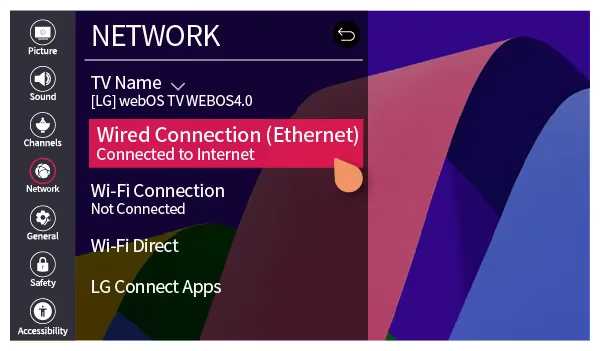
For the fastest, most reliable speeds, always use a physical ethernet connection between your router and LG TV rather than relying on Wi-Fi.
Ethernet cables transmit data much faster with almost no interference or drops. This translates to vastly superior 4K streaming performance.
#3. Upgrade Your Wi-Fi Router
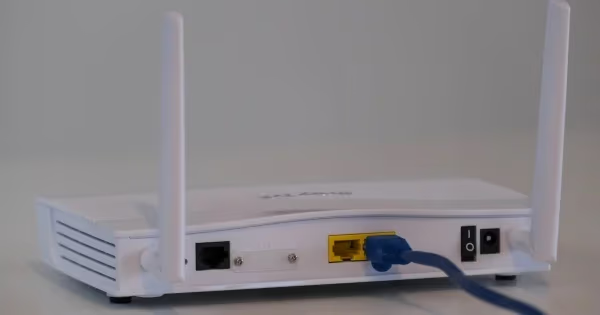
If wired isn’t an option, the next best thing is upgrading to a high-performance wireless router capable of faster 5 GHz Wi-Fi speeds and wider coverage.
Aim for AC2200+ rated tri-band routers with MU-MIMO support if multiple devices will be connected. Strategically position the router central to your viewing area.
#4. Limit Bandwidth-Intensive Apps
Open your app manager and force quit any apps not currently in use. Also check for and uninstall unnecessary apps you never use. This prevents them from consuming resources and bandwidth in the background.
In particular, close extra web browser tabs and temporarily quit large games, video chat or streaming apps running on other devices if possible.
#5. Clear Cookies and Site Data
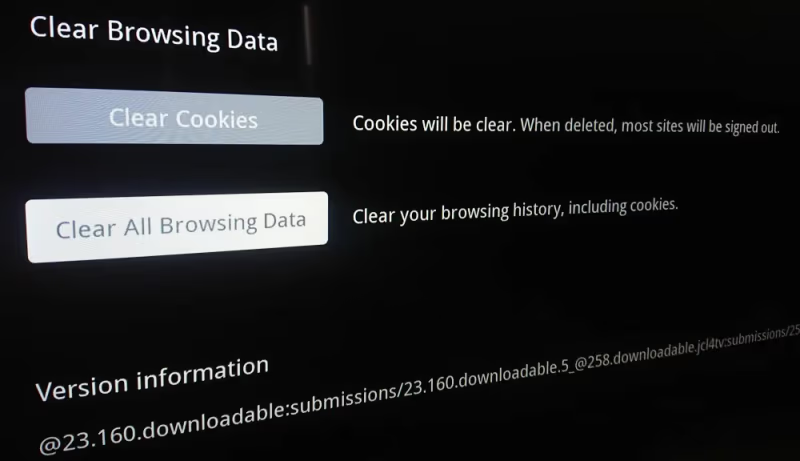
Your browser and apps can accumulate substantial cached data, cookies and site data over time. Clearing these improves speed and responsiveness.
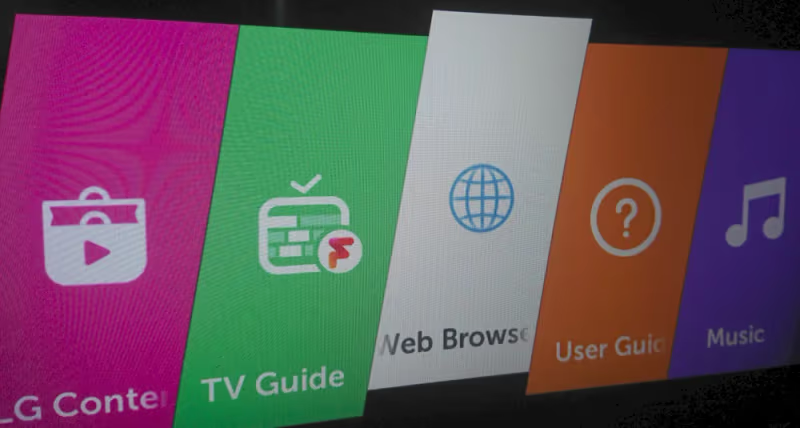
In Settings, find Application Manager > Web Browser > Clear cookies and site data. You can repeat for other individual apps causing trouble. This often makes a noticeable difference.
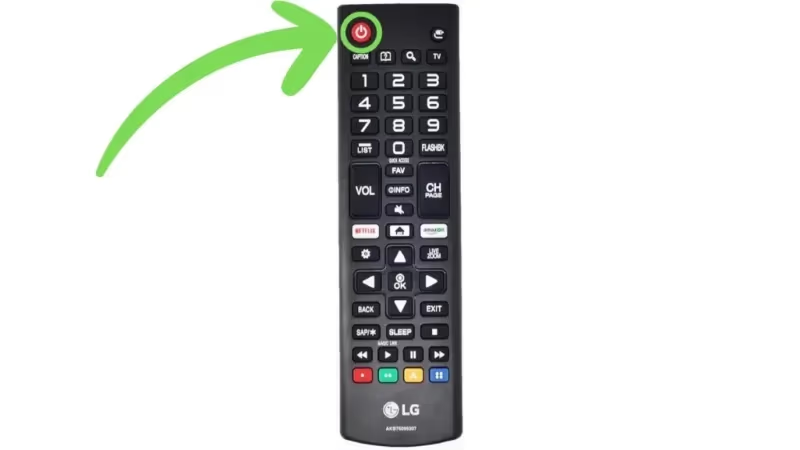
#6. Restart Your LG TV
Sometimes restarting your smart TV clears away corrupt cached memory, ends unresponsive background processes and refreshes overall performance.
Hold the power button on your TV or remote for 10+ seconds until the TV options menu appears. Select “Restart” and confirm on the next prompt.
#7. Restart Your Wireless Router
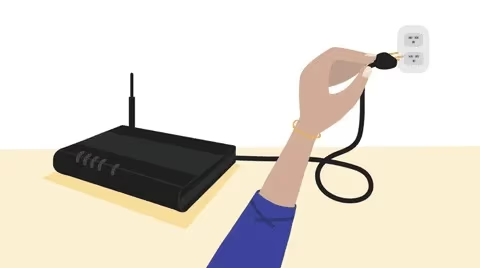
Like your TV, routers accumulate tech gremlins over time and benefit greatly from periodic reboots.
Unplug your router power cable for 60 seconds, then reconnect it. Wait several minutes for it to fully come online before retesting streaming and speeds. This often resolves Wi-Fi connectivity issues.
#8. Update Firmware
Navigate to Support > Software Update in your LG TV settings and manually check for the latest firmware updates. Install any available.
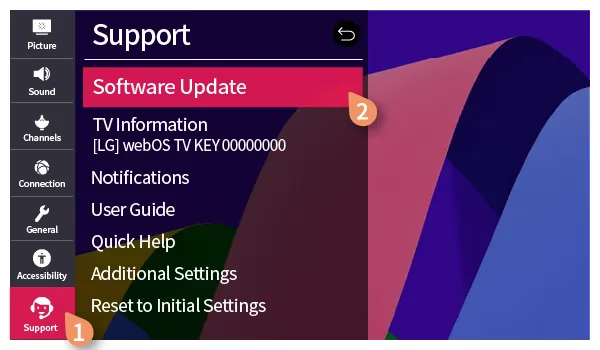
Firmware updates fix bugs, boost hardware capabilities and enhance compatibility with new standards and content. This can significantly improve lagging issues.
You can also enable Auto Update in the TV’s General settings menu for hands-free updates moving forward.
#9. Reset App Preferences
Some apps misbehave after updates until app data/preferences are cleared. Open Application Manager > [Problem App] > Clear Data to reset. Apps like Hulu and Netflix may need this fix.
Note this deletes login, customization and other local data. But removing old settings data forces apps to reinitialize properly.
#10. Factory Reset Your LG TV
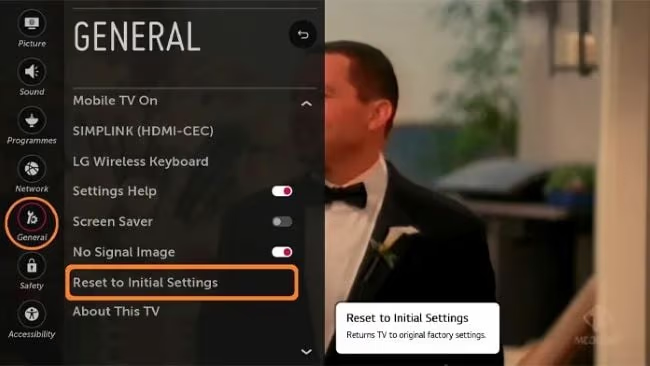
If lag persists across interfaces and content, a factory reset erases all data and settings, completely restoring your LG TV to new out-of-the-box condition.
Back up settings and data first if possible, then head to General > Reset to Initial Settings. You’ll have to reconfigure your smart TV afterward but this resolves even severe performance issues.
Working through these troubleshooting tips should noticeably improve or eliminate lagging issues on your LG Smart TV. Reach out to LG customer support if problems continue after trying all solutions.
#Frequently Asked Questions
#What internet speed does an LG TV need for 4K streaming?
For a single 4K HDR stream, you need at least 25 Mbps download speed. Netflix and YouTube both recommend this as a minimum. If your household runs 5 or more devices at once, upgrade to a 100+ Mbps plan to avoid buffering.
#Why does my LG TV lag during gaming?
Background apps and open browser tabs eat into the CPU and memory your games need. Close everything you are not using and connect your console with an ethernet cable instead of Wi-Fi. Turning on Game Mode in Picture settings also reduces input delay by disabling extra image processing.
#How can I update my LG TV firmware without a remote?
Download the latest firmware file from LG’s support website onto a USB drive. Plug the USB into your TV, then navigate to the Support menu using the physical buttons on the TV to start the installation.
#Does clearing cache actually speed up an LG TV?
Yes. Cached data, cookies, and stored site data pile up over time and slow down both the browser and individual apps. Clearing this data forces apps to start fresh, which often fixes sluggish menus and loading screens. You can do this from Settings > Application Manager for each app.
#Can outdated apps cause my LG TV to lag?
Older app versions sometimes conflict with newer firmware, causing freezes and slow performance. Check the LG Content Store for available updates. If an app keeps misbehaving after updating, clear its data through Application Manager to force a clean reinstall of preferences.
#Why does my LG TV keep dropping its Wi-Fi connection?
Weak signal strength is the most common reason. Walls, distance from the router, and interference from microwaves or Bluetooth devices all degrade Wi-Fi quality. Move your router closer to the TV, switch to the 5 GHz band, or run an ethernet cable for a stable connection.
#Is a factory reset safe for my LG TV?
A factory reset erases all your settings, app logins, and saved preferences, but it does not damage the TV hardware. Back up any important settings before you start. After the reset, you will need to reconnect to Wi-Fi and sign back into all your streaming apps.
#How often should I restart my LG Smart TV?
Restarting once every week or two keeps performance steady. A restart clears out temporary files, ends stuck background processes, and frees up memory. If you notice lag creeping in sooner, restart right away rather than waiting.
#Bottom Line
I hope this guide has helped explain what causes lagging on LG Smart TVs and provided actionable solutions to test until you pinpoint and resolve the issue.
Remember to methodically work through connectivity checks, bandwidth optimizations, hardware upgrades and firmware updates as needed. Factory resetting your television should be a last resort if simpler troubleshooting steps are ineffective.
Bookmark this page if you found it useful, and contact LG support directly if you hit a wall after trying every fix on this list.