Installing Kodi on Apple TV takes a few extra steps because Apple does not allow Kodi in their App Store. You need a Mac with Xcode to sideload the app, but once it is running, your Apple TV becomes a full-featured media center. This guide walks through the complete process for both Apple TV HD (USB cable) and Apple TV 4K (wireless) models.
- Xcode on a Mac is required — Apple blocks Kodi from the App Store, so sideloading through Xcode is the only installation method
- Apple TV HD uses USB, 4K uses Wi-Fi — the HD model needs a direct cable connection while all 4K models transfer wirelessly
- Free Apple IDs expire every 7 days — a paid Apple Developer account ($99/year) extends the signing certificate to a full year
- Kodi is 100% free and open source — no subscription fees, with access to thousands of add-ons for movies, music, sports, and gaming
- iOS App Signer prepares the file — this Mac app verifies and signs the Kodi .deb or .ipa file before Xcode deploys it to your Apple TV
#What is Kodi and Why Should I Get It On My Apple TV?

Kodi is an open-source home theater media player and hub first released in 2002. Available on many platforms beyond just Apple TV, Kodi allows managing and playing videos, music, podcasts, programs, games, and more from local and online media sources in one place.
Key Advantages of Having Kodi on Apple TV:
-
Aggregates content from 10+ top sources like YouTube, Netflix, Hulu, free movies, and more
-
Enhances media library organization and playback
-
Offers customized skins and interfaces for personalized viewing, unlike platforms like Jellyfin and Stremio which have less UI customization.
-
Expands access with 1000s of free and premium Kodi add-ons and plugins
-
Social viewing features for watching media with friends
-
Available for Windows, Android, iOS, macOS, Linux, Raspberry Pi, and more
If you want more control over your entertainment, Kodi opens up far more options. The software turns your Apple TV into a customizable media center packed with movies, shows, sports, music, retro games, and other content from Kodi’s open ecosystem.
Kodi is 100% free and open source, so there is no subscription fee or license cost involved.
#Apple TV Models and Installation Methods
The specific way you install Kodi varies slightly depending on if you have an Apple TV HD or Apple TV 4K. But no worries, we’ve simplified setup so it’s beginner-friendly.
Here’s a breakdown of Apple TV models and Kodi installation methods:
| Apple TV Model | Year Released | Installation Options |
|---|---|---|
| Apple TV HD | 2015 | Xcode + USB cable |
| Apple TV 4K – 1st Gen | 2017 | Xcode + Wi-Fi |
| Apple TV 4K – 2nd & 3rd Gen | 2021 to now | Xcode + Wi-Fi |
-
For Apple TV HD you’ll use Xcode plus a direct USB cable connection.
-
All Apple TV 4K models require downloading Xcode to sign and send the Kodi app wirelessly.
No matter what Apple TV you own, using Xcode is mandatory since that prepares Kodi’s installation file properly for tvOS. From there it’s sent to your device either via USB or Wi-Fi.
Here is what you need before starting the installation process.
#Requirements for Installing Kodi on Apple TV
-
Apple TV HD/4K running latest tvOS update
-
Kodi installation file for Apple tvOS (.deb or .ipa format)
-
A Mac with latest macOS and Xcode from Mac App Store
-
iOS App Signer app
-
Apple ID to sign into Xcode
Optional: I highly recommend having the latest Kodi 19.5 Matrix since it’s optimized for Apple silicon with speed boosts. Older versions may be sluggish.
For some background, Xcode is Apple’s developer suite, so we’ll harness that power to sideload and install Kodi. App Signer afterwards verifies and prepares the upload to Apple TV.
Finally, an Apple ID lets you access Xcode and deploy the app properly. A free ID works but may cause Kodi to get revoked after 7 days – an Apple Developer account lasts a full year before needing to reinstall.
With those items ready, here is the full installation process.
#How to Install Kodi on Apple TV HD & 4K
I’ll cover separate full tutorials for getting Kodi running on both the Apple TV HD and Apple TV 4K models below. Carefully follow the instructions for whichever device you own.
#Install Kodi on Apple TV HD via USB Cable
If you have the 2015 Apple TV HD (4th generation) model, we’ll use Xcode plus a direct USB-C cable to sideload Kodi.
Here is the complete process:
-
Download latest Kodi for Apple TV .deb file.
-
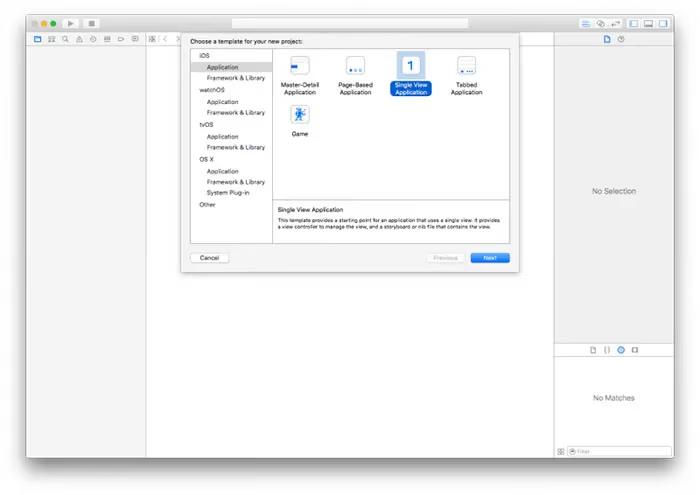
Open XCode on your Mac and create new “Single View Application”.
-
Select tvOS > name app “Kodi” > input identifiers.
-
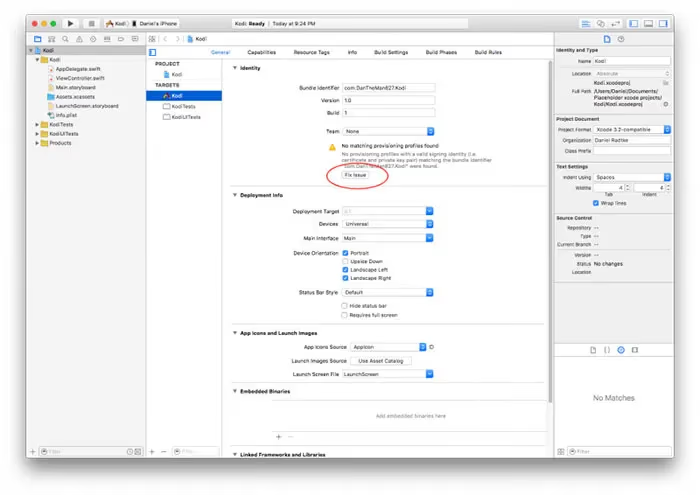
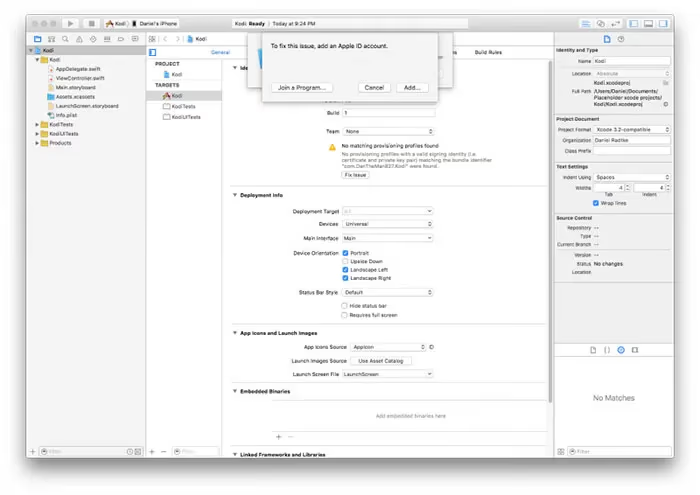
Fix certificate issues by signing in to your Apple ID.
-
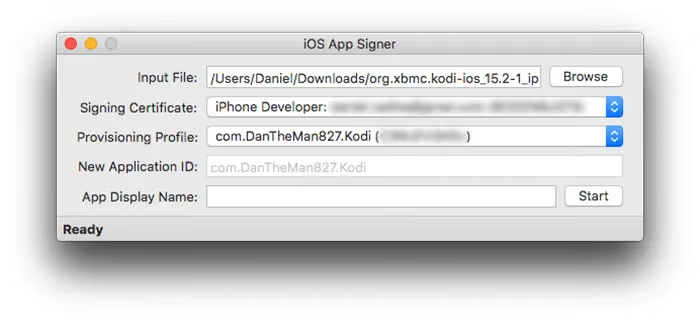
Open iOS App Signer app on the Mac.
-
Input the Kodi .deb file > Start signing process.
-
Connect Apple TV HD to Mac via USB-C when prompted.
-
Deploy signed IPA file from Xcode to Apple TV “Devices” list.
-
Launch Kodi app from Apple TV interface!
This Xcode sideload method is very reliable if you carefully follow each step listed above. It does require keeping your Mac nearby since the Apple TV HD stays plugged in during sideloading.
Owners can conveniently re-sign Kodi whenever necessary too – just repeat the Xcode profile installation every 7 days (free Apple ID) or annually (paid dev account).
Next up: installing Kodi on the Apple TV 4K wirelessly.
#Install Kodi on Apple TV 4K Wirelessly Using Xcode
Modern Apple TVs now come with superfast wireless connectivity instead of USB ports. So installing Kodi on Apple TV 4K models released 2017-now requires using Wi-Fi to send the app over after signing with Xcode.
Complete wireless installation process:
-
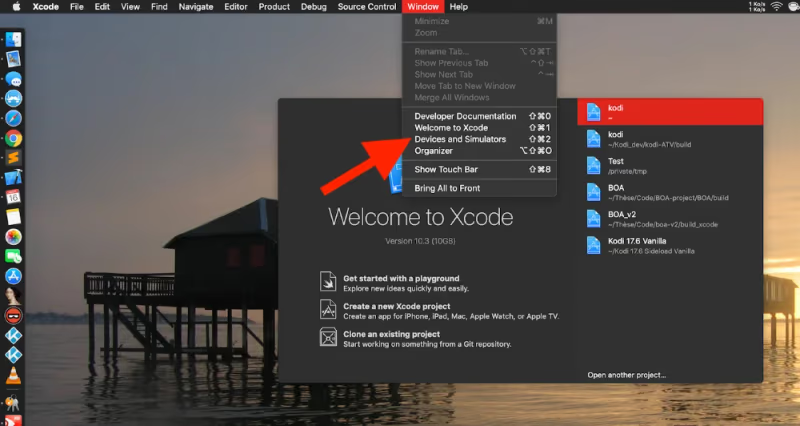
Follow Steps 1-7 above for creating signed Kodi IPA on Xcode.
-
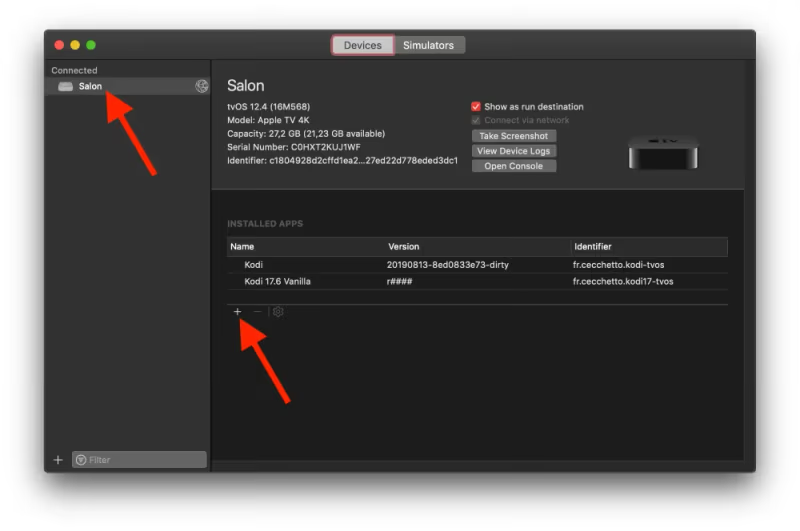
Pair Apple TV 4K with Mac – approve connection code.
-
Make sure devices are on same Wi-Fi network, ideally nearby.
-
Send resulting Kodi app file from Xcode over Wi-Fi to Apple TV.
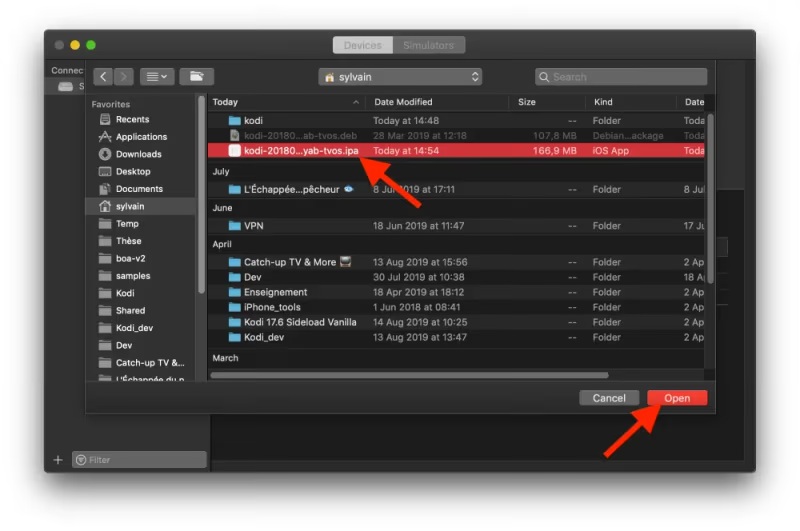
-
Launch newly installed Kodi from Apple TV interface.
-
Enjoy! Sign again when expires after 7 days (1 year with paid dev account).
And that’s it! Kodi should now be successfully installed on your streaming Apple TV wirelessly.
The neat perk here is not needing to physically touch the Apple TV after the initial network pairing. Everything streams directly over Wi-Fi to load Kodi. Sweet!
#What To Do If Kodi Installation Fails on Apple TV
Like any sideloading operation, installing Kodi on Apple TV doesn’t always go smoothly the first try.
Here are some common troubleshooting tips if your installation fails:
-
Double check Apple TV and Mac on same Wi-Fi network.
-
Reboot both devices and retry Xcode Kodi deployment.
-
Ensure using latest macOS, tvOS, Xcode, Kodi .ipa and certificates.
-
Toggle Mac/Apple TV firewalls off temporarily.
-
Try different USB cable and port if Apple TV HD.
-
Confirm Xcode tools and certificates are updated fully.
-
Attempt using alternate Apple ID for certificates.
-
Restart your Wi-Fi routers/modems.
-
Ensure no VPN active on Apple TV or Mac.
-
Delete old leftover Kodi files and do a clean reinstall.
If problems persist after trying the usual troubleshooting, you can ask the Kodi community forums for personalized help. Expert users are glad to assist! See our Kodi not working on Firestick fixes and Kodi reviews for help.
I personally find that nearly all Kodi installation frustration relates to outdated software certificates, mismatched OS versions not syncing properly, or simple network/firewall conflicts.
Carefully verifying your environment meets requirements goes a long way. Don’t hesitate to retry the process from scratch as needed – eventually you’ll get everything squared away.
#What Can You Do With Kodi on Apple TV?
With Kodi installed on your Apple TV, here is how to start using your new media center:
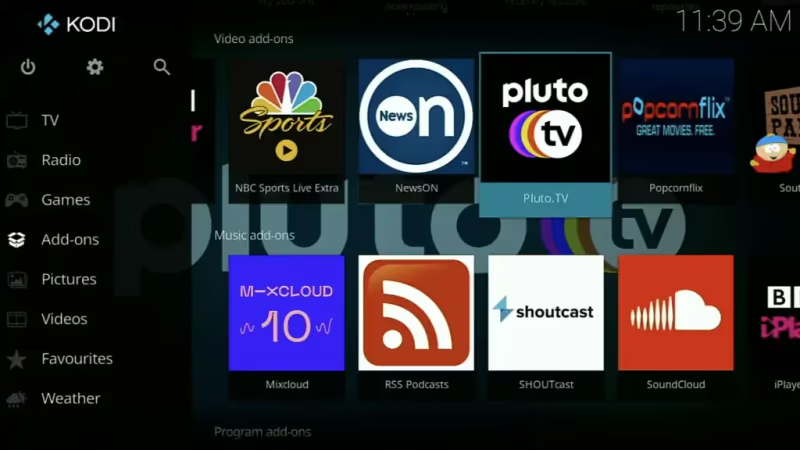
Accessing Content: Kodi has a consolidated dashboard for browsing media from all connected providers and services. Use the sidebar navigation to hop between Movies, TV Shows, Music, Podcasts, and Add-Ons. It works whether you are streaming locally from your home network or pulling from online sources.
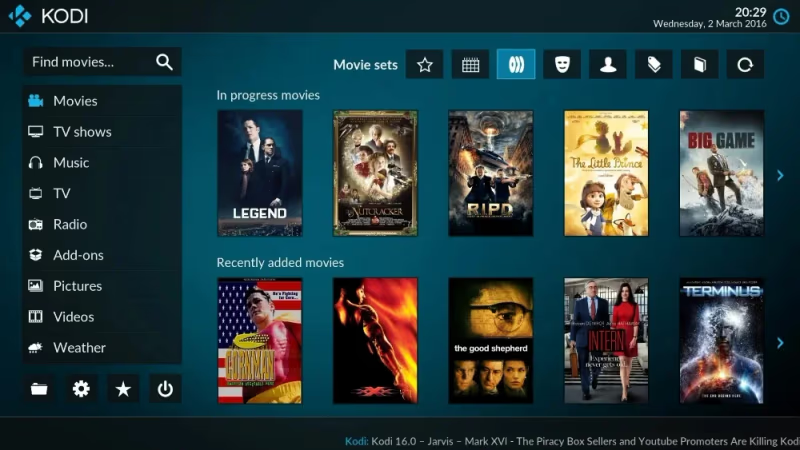
Add-Ons Expand Options: One of Kodi’s biggest perks on Apple TV is expanding entertainment and streaming possibilities with community-built add-ons. Get easy access to niche platforms like Internet Archive, free sports streaming, retro gaming, fitness videos, obscure international programming, and much more which Apple TV lacks. Safely installing add-ons from trusted repositories is simple. For alternative open source media centers, see our Kodi alternatives guide.
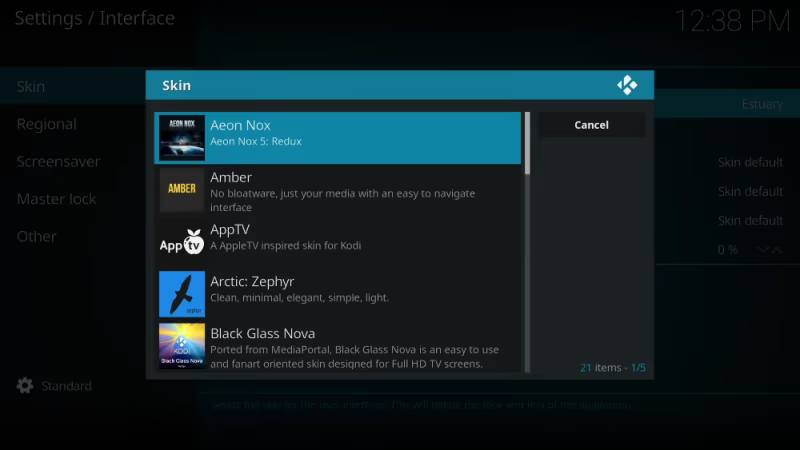
Pick Personalized Skins: Kodi lets you reskin its interface for a more customized Apple TV look and feel. Choose a visual style matching your preferences from sleek modern options like Arctic Zephyr 2 to mimics of Xbox and Netflix UI.
Enhance Streaming With VPN: Since Kodi taps into many online sources, I recommend pairing it with a fast, secure VPN to unlock extra content. Switching your virtual location via VPN also hides privacy as you stream rare add-ons. Perfect combo!
The great news is Kodi conveniently saves all settings, paired services, add-ons, watch history and other preferences as you customize things to your liking. It truly evolves into a personalized home entertainment hub.
After some initial setup, Kodi will have you streaming more content than the default Apple TV interface ever could.
#Bottom Line
-
Use Xcode on a Mac to sideload and install Kodi IPA file onto Apple TV
-
Models before 2017 use cable; 2017-now install wirelessly
-
Signing into Xcode with Developer account means less frequent renewal
-
Add-ons expand streaming options like free movies and niche sports
-
Pick customized skins for unique Apple TV interface
-
Pair Kodi streaming with a quality VPN service for privacy
For similar guides on other platforms, check out Kodi on LG TVs, Kodi on Samsung TVs, and Kodi on Roku TVs.
#Frequently Asked Questions
#Is Kodi available in the Apple TV App Store?
No, Apple does not allow Kodi in their App Store. You must sideload it using Xcode on a Mac, which signs the app with your Apple ID before deploying it to your Apple TV.
#Does Kodi work on older Apple TV 2 and 3 models?
Kodi dropped support for Apple TV generations 1 through 3. The Xcode sideloading method only works on the Apple TV HD (4th generation) and all Apple TV 4K models released from 2017 onward.
#What happens when the free Apple ID certificate expires after 7 days?
You need to reconnect your Apple TV to Xcode and repeat the signing process. The whole thing takes about five minutes if you still have the signed IPA file saved on your Mac. A paid Apple Developer account ($99/year) extends the certificate to one full year.
#Is installing Kodi on Apple TV legal?
Yes, Kodi is 100% legal open-source software distributed under the GPL license. The sideloading process itself does not violate any laws. However, streaming copyrighted content without permission through third-party add-ons is illegal regardless of the platform you use.
#Can I use a Windows PC instead of a Mac to install Kodi?
No. Xcode is only available on macOS, so you need a Mac for the sideloading process. Some users borrow a friend’s Mac or use a macOS virtual machine, though Apple’s licensing terms restrict running macOS on non-Apple hardware.
#What are the risks of using third-party Kodi add-ons?
Some unofficial add-ons scrape pirated streams, bundle malware, or collect personal data without your consent. Stick to add-ons from the official Kodi repository or well-known trusted sources. Pairing Kodi with a VPN adds an extra layer of privacy protection when streaming from lesser-known sources.
#Do I need to reinstall all my add-ons after resigning the certificate?
No. Resigning the certificate only refreshes the app’s authorization on your Apple TV. All your installed add-ons, skins, settings, and watch history stay intact between signing cycles.