Jellyfin is a popular free media server that lets you organize and stream your personal media library to devices around your home. The Jellyfin app installs directly on Roku, giving you access to your movies, shows, music and more right on your TV. This guide covers the full setup process, from installing the channel to troubleshooting playback issues.
- Jellyfin’s Roku channel is free — available in the Roku Channel Store since mid-2020 with no subscription required
- Setup takes under 5 minutes — install the channel, enter your server IP and credentials, then start streaming
- Direct play reduces buffering — Roku handles most common codecs without server-side transcoding
- Screen mirroring works as a backup — cast from Android or iOS when the native channel has compatibility issues
- No ongoing costs at all — both Jellyfin server software and the Roku channel are 100% open source
#How Does Jellyfin Work With Roku?

Jellyfin is an open source alternative to proprietary media center platforms like Plex and Emby. The software organizes your media files into a searchable database with rich metadata. You can then stream this content to phones, tablets, streaming boxes and smart TVs throughout your home.
Roku devices are one of the most popular platforms for streaming Jellyfin. As of mid-2020, a dedicated Jellyfin channel is available in the Roku Channel Store, which means direct access without screen mirroring.
Setting up the integration is straightforward. Connect your Roku to an existing Jellyfin server in a few steps, and the Roku app lets you browse and play content directly from your centralized media library.
#What Are the Benefits of Using Jellyfin on Roku?
Here are some of the main advantages of accessing your Jellyfin server through a Roku device:
✔️ Easy centralized media access – Browse and play all videos, music and photos from one app instead of spread across services
✔️ Works with existing media server – Integrate with a Jellyfin server you already have running on a NAS, PC, cloud instance etc.
✔️ No ongoing fees – Use 100% free and open source software
✔️ Optimized streaming – Jellyfin’s codec support enables smooth direct play streaming
✔️ Consistent experience – Familiar Roku interface tailored for the living room TV
✔️ Screen mirroring – Stream Jellyfin from mobile as fallback method
✔️ Roku responsiveness – Snappy navigation compared to some smart TV clients
✔️ Share access – Securely distribute to family and friends without cost
#Requirements to Run Jellyfin on Roku
To access Jellyfin via your Roku device, you will need:
On Roku:
-
Roku streaming player, Roku TV or Roku stick with network connection
-
Jellyfin channel installed from Roku Channel Store
For Jellyfin Server:
-
Windows, Linux or Mac device to run Jellyfin server software
-
Content libraries for media files added to Jellyfin
-
Device on local network or port forwarding enabled
Ensure your Roku and the device running Jellyfin are on the same home network to discover available servers.
#How to Install the Jellyfin Channel on Roku
Jellyfin has an official channel available in the Roku store that handles authentication and streaming. There are two methods to add it — directly through the streaming player or remotely from your Roku account.
#Method 1: Add via Roku Channel Store
-
On your TV, open the Roku Home Screen
-
Navigate to Streaming Channels > Search Channels
-
Enter “Jellyfin”
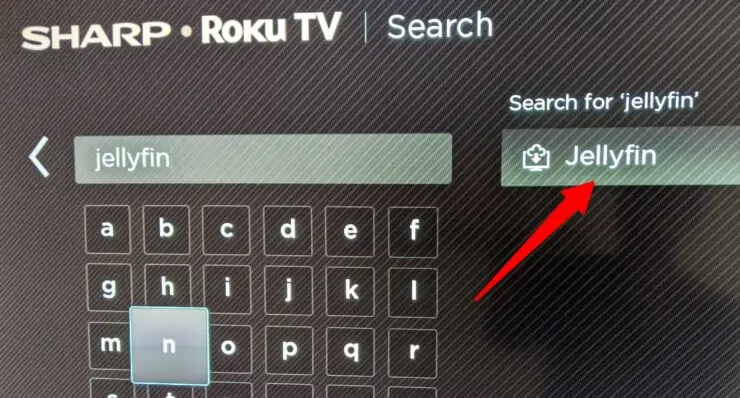
- Select the Jellyfin channel and click Add Channel
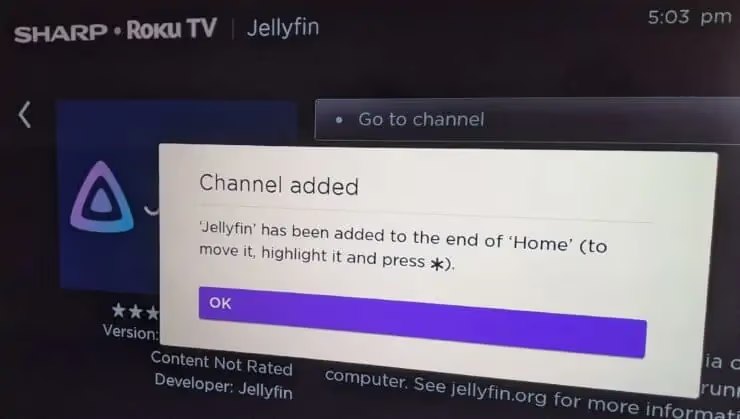
It will install the app to your Roku account and device.
#Method 2: Install from Roku Website
-
In a web browser, visit the Roku channels site
-
Enter your Roku account details to login
-
Search for “Jellyfin”
-
Click the Add Channel button
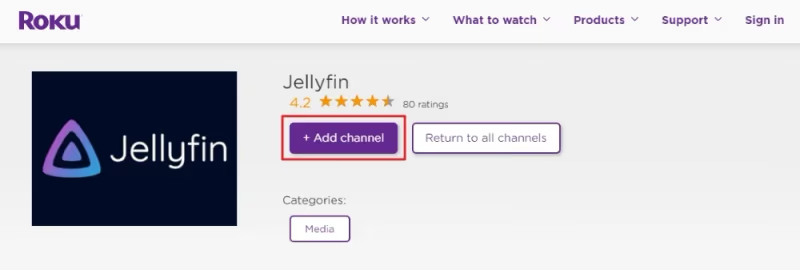
This will automatically add it your Roku player over the internet.
Note: If adding remotely, it can take up to 24 hours for the channel icon to appear on your device.
#Setup and Configuration of Jellyfin on Roku
Once the Jellyfin Roku app is installed, follow these steps for initial configuration:
-
Launch the Jellyfin channel from your Roku’s home screen
-
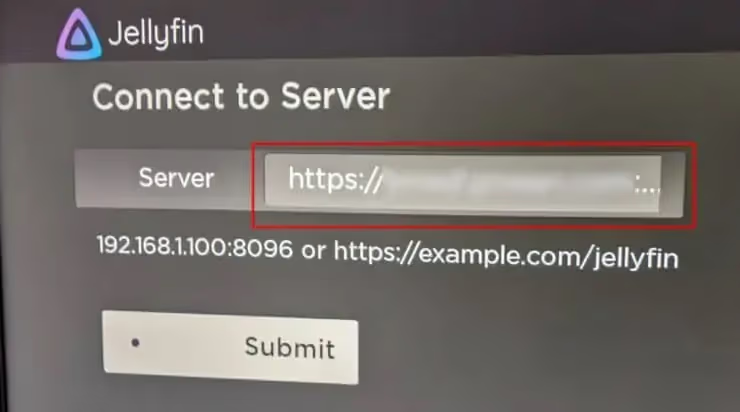
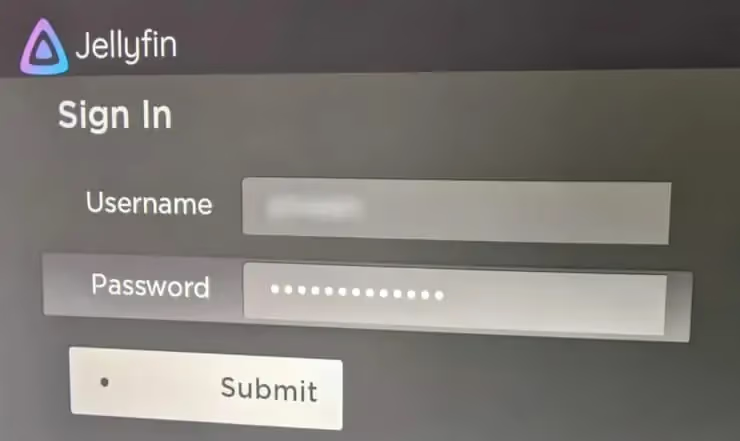
Enter the following connection details:
Server Address: Local IP or hostname of system running Jellyfin
-
Server Port (optional): HTTP port used if not 80 or 443
-
Username: Your account on the Jellyfin server
-
Password: Corresponding password for the account
-
Select Connect to add your server
-
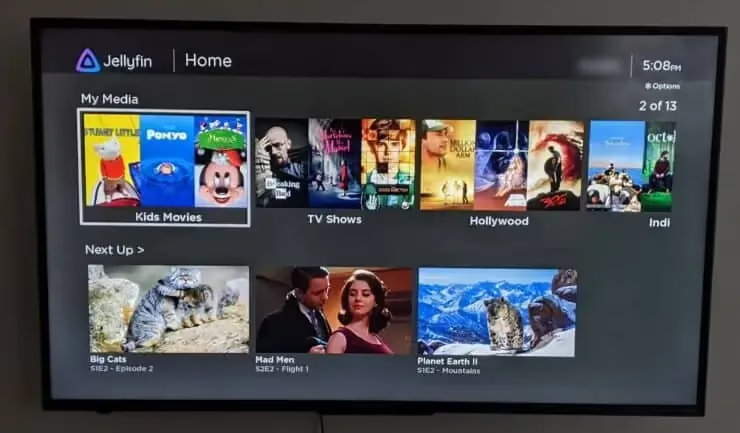
After validating credentials, it will display the main libraries similar to the mobile experience
For remote access outside your home, port forwarding would need to be configured on your router for secure external connections.
Now that everything is set up, here are ways to access and stream content from your Jellyfin server through the Roku client.
#Accessing Your Media Library
The Roku app presents your Jellyfin media in a nicely organized interface similar to other streaming channels.
It separates out categories like:
📽️ Movies – Movie posters and descriptions
📺 TV Shows – Episodes sorted by season
🎵 Music – Artists, albums and songs
🖼️ Photos – Photo album library
📚Books – Cover art and descriptions
From each area, you can browse your collections and directly play items on your TV through the Roku.
If you have large media libraries, search is also provided to quickly lookup specific titles.
Playback controls function as expected, allowing pause, skip, subtitles and more. Items will directly stream from the server without needing to download to the device first.
#How Can You Stream via Screen Mirroring?
An alternative way to access Jellyfin on a Roku is by screen mirroring the mobile app through the device. This works as a fallback option if you prefer the native mobile interface or are away from home without remote access enabled.
#From an Android device:
-
Connect phone and Roku to same Wi-Fi network
-
Install Jellyfin Android app
-
Launch app and login to your account
-
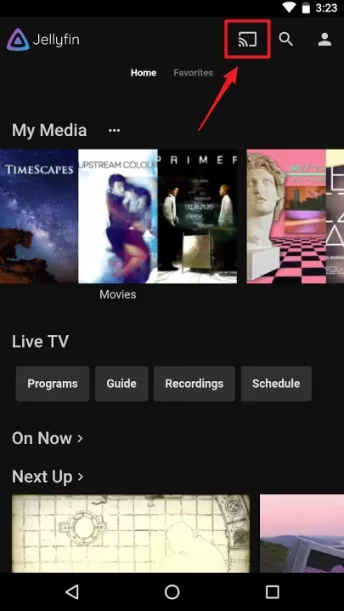
Open quick settings and tap Screen Mirroring
-
Select your Roku to initiate casting session
#From an iOS device:
-
Connect iPhone/iPad with Roku on local network
-
Install Jellyfin iOS app
-
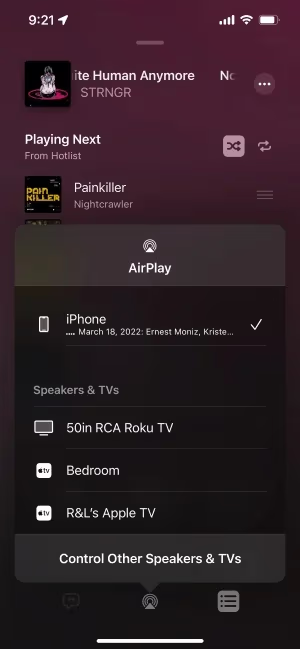
Initiate AirPlay mirroring to Roku
-
Launch Jellyfin app and select content to stream
While slightly more complex, this gives added flexibility in how you access your library.
#Tips for Improving Performance
For smooth streaming especially with high bitrate files, try these Jellyfin server tweaks:
-
Direct play media instead of transcoding when possible
-
Optimize transcoding settings in dashboard
-
Lower remote streaming bitrate caps
-
Use wired network connection for server
-
Enable hardware acceleration encoding
-
Switch to more powerful server hardware if needed
Also adjust Roku display settings:
-
Set screensaver delay to higher value
-
Disable 24Hz mode for compatibility
Testing different Jellyfin clients can help narrow down any issues to server-side or client-app specific problems.
#Troubleshooting Common Jellyfin Roku Issues
If running into problems with playback or streaming failures, here are some troubleshooting steps to resolve common Jellyfin on Roku issues:
🚫 Can’t connect to media server
-
Double check IP address entered is correct
-
Try from another device to confirm server is running
-
Verify router firewall isn’t blocking access
-
Reboot router if connection problems persist
🚫 Failing streams or media won’t play
-
Inspect dashboard during playback for clues
-
Enable verbose logs in admin settings
-
Force direct play instead of transcoding
-
Lower client stream bitrate temporarily
-
Convert media with handbrake if needed
🚫 Application crashed or closed unexpectedly
-
Force close app fully and clear cache
-
Restart Roku device
-
Update Roku and check for firmware patches
-
Factory reset Roku if other apps also affected
🚫 Interface sluggish or slow to respond
-
Restart Roku to clear cached data
-
Switch to a faster Roku model if hardware limited
-
Lower thumbnail sizes and timeouts
As this app is actively developed, it’s also worth reporting confirmed issues on the Jellyfin Roku GitHub to help improve compatibility.
#Jellyfin Roku App Development & Feature Requests
The Roku platform uses a proprietary language called BrightScript for channel development. This presents a higher learning curve compared to writing traditional Android or iOS apps.
Feature additions like multi-server support and options for customizing interface timeouts have lagged behind other Jellyfin client applications.
However, given Roku’s popularity, the team plans to achieve parity by porting shared components from the other native clients.
The public roadmap and feature requests are tracked on GitHub if you want to submit and vote on pending enhancements.
Contributions are also welcomed from developers interested in working on expanding BrightScript and Roku integration. See also Jellyfin setup on Firestick and Jellyfin on Apple TV.
#What Are the Best Alternatives to Jellyfin for Roku?
While Jellyfin is a great free option, here are some other top choices:
🎬 Plex – Popular proprietary media solution.
🎬 Emby – Leading premium multi-profile sharing platform.
🎬 Channels DVR – Specializes in integrating live television.
🎬 PlayOn Cloud – Streams recordings from online sources.
🎬 YouTube – View your playlists and subscriptions.
Most operate on similar client-server models with Roku channels available. Each balances different functionality, pricing and customization so explore to see the right fit. See this guide comparing alternatives to Jellyfin.
Jellyfin stands out through completely free and open development for community direction. For more on how Jellyfin compares, see this Jellyfin vs Plex breakdown.
#Bottom Line
Accessing a centralized Jellyfin media server through Roku provides an easy way to aggregate and stream personal libraries in an intuitive interface designed for the living room TV experience.
Now that you have the app installed and connected, take some time to further customize your media collections, share access with family members and optimize your server.
Jellyfin lets you build your own fully featured home media solution without any subscription or ongoing costs. As the Roku client matures, it is a solid hub for enjoying your own content. See how to setup Jellyfin on Samsung Smart TVs for another great streaming platform.
To stay up on the latest with Jellyfin, check out the active forums full of tips from the community.
#FAQ
#Can you install Jellyfin directly on a Roku device?
Yes. Jellyfin has an official channel in the Roku Channel Store that you can install for free. Search for “Jellyfin” in the channel store, add it, and enter your server details to start streaming.
#Does Jellyfin on Roku support 4K playback?
Jellyfin on Roku supports 4K playback if your Roku hardware supports it and the media file codec is compatible. Roku Ultra and Roku Streaming Stick 4K handle most 4K content through direct play. If the file format requires transcoding, your server needs enough processing power to handle 4K conversion in real time.
#Is Jellyfin completely free to use with Roku?
Jellyfin is 100% free and open source with no premium tiers or subscription fees. Both the server software and the Roku channel cost nothing. This makes it different from Plex and Emby, which lock some features behind paid plans.
#Why won’t my Roku connect to the Jellyfin server?
The most common cause is a wrong server IP address or your Roku being on a different network than your Jellyfin server. Verify both devices share the same Wi-Fi network, double-check the IP, and confirm the server is actually running by testing from another device like your phone.
#Can you access Jellyfin on Roku from outside your home?
Yes, but you need to configure port forwarding on your router first. Point the external port to your Jellyfin server’s local IP and port, then use your public IP address or a dynamic DNS hostname in the Roku app. For security, enable HTTPS on the Jellyfin server before exposing it to the internet.
#What codecs does the Jellyfin Roku channel support?
The Roku channel supports H.264, H.265/HEVC, and MPEG-2 for video, along with AAC, MP3, and AC3 for audio. If your media uses an unsupported codec, Jellyfin will transcode it automatically on the server side, which can cause buffering on lower-powered servers.
#How do you fix buffering issues with Jellyfin on Roku?
Start by enabling direct play in the Jellyfin dashboard to avoid unnecessary transcoding. If buffering persists, lower the remote streaming bitrate cap, switch your server to a wired Ethernet connection, and enable hardware-accelerated encoding. A wired connection on the Roku side also helps with high-bitrate 4K files.
#Does Jellyfin on Roku support subtitles?
Jellyfin on Roku supports SRT and embedded subtitle formats. External ASS/SSA subtitles may trigger transcoding since Roku cannot render those natively. For the best experience, use SRT files or burn subtitles into the video file during encoding.