Have you ever come home to find your Insignia TV off even though you didn’t turn it off? Or does your TV abruptly turn off while watching your favorite show? This frustrating issue has multiple potential causes.
- Sleep timer is the #1 culprit — most random shutdowns trace back to an auto-off timer accidentally enabled in Settings
- Loose cables cause instant shutoffs — a wobbly HDMI or power cord losing contact for even a second triggers a power-down
- Firmware updates fix stability bugs — Insignia pushes periodic updates that patch known shutdown glitches
- Overheating forces emergency reboots — blocked vents or dust buildup can push internal temps past safe limits
- A surge protector prevents power-spike shutdowns — voltage spikes trip the TV’s built-in protection circuit and cut power
#What Causes an Insignia TV to Turn Off by Itself?
Many owners of Insignia smart TVs experience frustrations with their TV seemingly turning itself off randomly while in use. There are a handful of reasons this can occur:
#1. Faulty Power Button or IR Remote
If the power button on your Insignia TV or IR remote is sticking or damaged, unwanted power commands could be repeatedly sent. This tells your TV to turn off when you don’t want it to. Try inspecting the buttons on both devices.
#2. Loose or Damaged Cables
Another simple possibility – a loose HDMI or other connection cable. If a cable connecting your devices gets jiggled and momentarily loses contact, your TV could shut off from lack of signal.
#3. Sleep Timer Enabled
Many users accidentally trigger the TV sleep timer function without realizing it. This causes the TV to abruptly shut down after X minutes.
#4. Outdated Firmware
Your Insignia smart TV firmware needs periodic updating to fix bugs and optimize performance. Outdated firmware often contributes to glitchy shut off behaviors.
#5. Overheating Issues
As with any electronics, excess heat equals problems. If your TV overheats from poor ventilation, blocked fans, or intense use, forced reboots can occur.
#6. Power Surges
Spikes in electrical power can cause temporary shut downs. This could trigger auto-off protections in your TV. Consider adding a surge protector.
#7. Hardware Defects
In some cases, underlying hardware components like the motherboard or power unit are failing. Professional repair or replacement may be needed here.
#8. Software Glitches
Even smart TVs run complex software that can get “buggy” over time. Conflicts or corrupted data in the software can also lead to random powering down.
#How Do You Troubleshoot Each Cause?
Now that we’ve covered the main reasons your Insignia TV could be turning itself off unexpectedly, let’s go through some troubleshooting steps for each potential cause:
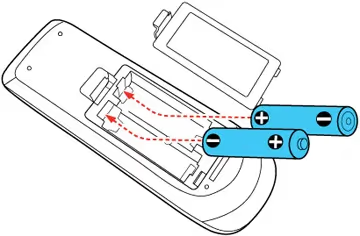
Faulty Buttons / Remotes: Inspect buttons for visible damage. Ensure no buttons are stuck depressed. Replace remote batteries. Try alternate remote if available.
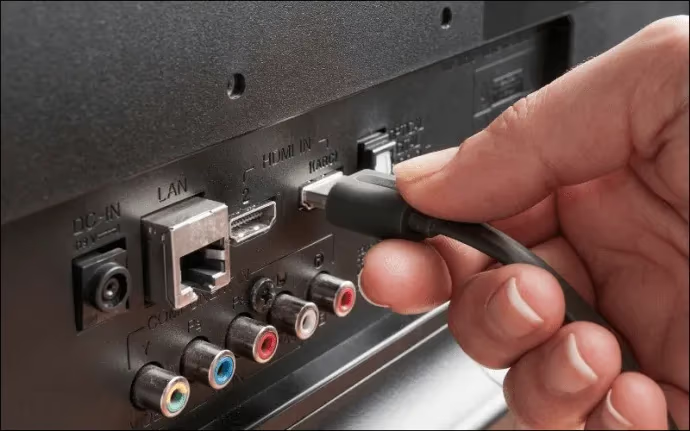
Loose/Damaged Cables: Check that all video and power cables are fully inserted in ports without wiggle room. Swap cables connecting TV and source devices.
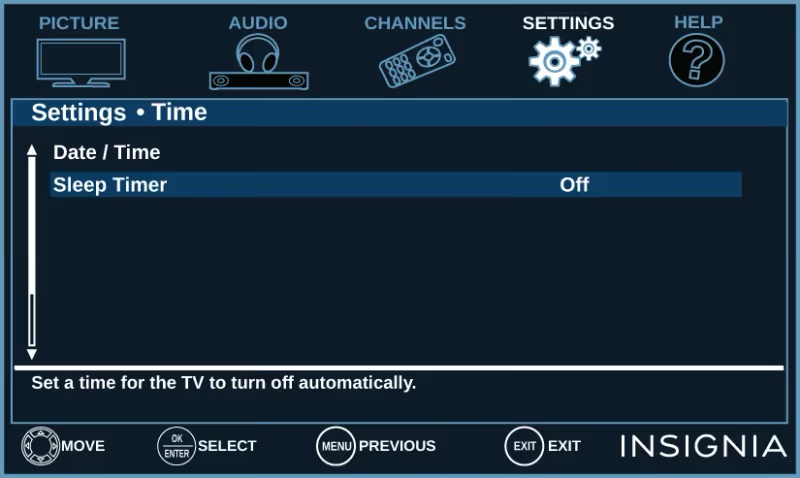
Sleep Timer Enabled: Check settings menu and Features menu for any timers enabled. Turn off any auto-sleep functions.
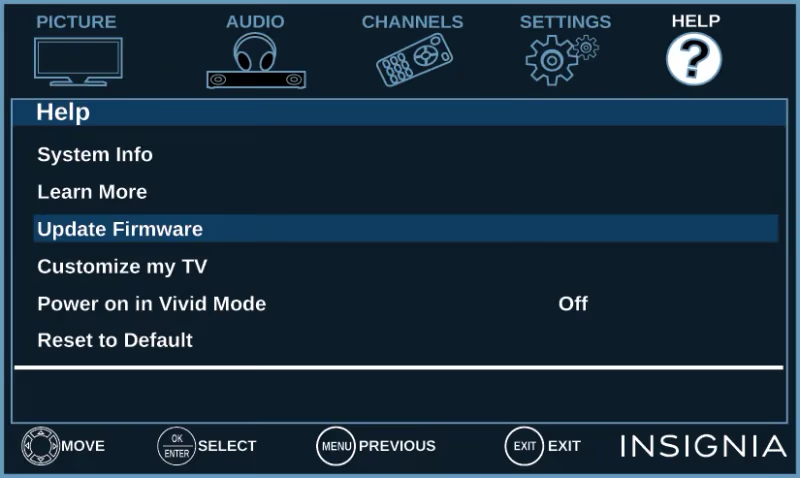
Outdated Firmware: Select Menu > Help > Update Firmware. Initiate search for latest firmware from Insignia. Download and install updates.
Overheating: Check vents for dust buildup. Allow ample ventilation room around TV. Use external fan pointed at back vents. Reduce high-intensity usage periods.
Power Surges: Connect TV and components to a certified surge protecting power strip. Use in wall surge protectors for whole home protection.
Hardware Defects: Set up service appointment at certified Insignia repair center. Qualified technicians have tools to diagnose component issues.
Software Glitches: Try restarting the TV from settings menu. If problem persists, schedule service for potential reflash/rebuild.
#Fixing an Insignia TV That Turns Off Randomly
For several of the common causes above like cabling, sleep timers, or firmware, you likely can fix the issue yourself without professional help:
Loose cables – Securely re-seat all video and power cables at both ends. Swap damaged HDMI cords for new high speed certified cables.
Sleep mode active – Using either the remote or on-set buttons, access the Features or Settings menu. Navigate to the “Timer” or “Auto Shut Off” sections and disable ANY active sleep functions.
Outdated firmware – Manually check for system updates in your TV settings. Select “Download and Install” to update firmware, fixing stability bugs.
Remote or button issues – If buttons seem damaged or stuck, try remapping the remote to exclude the problem button. Or invest just $10-15 in a simple replacement remote.
In many cases, those simple do-it-yourself troubleshooting tips will resolve your Insignia TV shutting itself off randomly.
#When Should You Call an Expert?
However, more complex issues like Insignia TV hardware or software failures will require professional service to properly diagnose and repair:
Hardware defects – If you’ve ruled out the other simpler causes, underlying component failure is likely at play. Many mainboards, backlights, power units and other parts can only be tested and replaced by certified technicians.
Software glitches – While updates may temporarily fix them, recurring crashes or shut downs suggest software corruption. Professionals can best examine logs and possibly reflash or rebuild the core software as needed.
In those cases where the self-shut off triggers persist despite cable checks and firmware updates, call in an expert service tech. Search for “Insignia TV repair near me” to find an authorized provider in your region.
#Preventing Future TV Shut Offs
Once you’ve fixed your Insignia TV shutting down by itself for one of the reasons above, use these pro tips to avoid future unexpected power downs:
-
Connect your TV and other A/V gear to an Uninterruptable Power Supply (UPS) or line conditioning power strip to regulate voltage and isolate from surges or brownouts.
-
Maintain ample ventilation space around the TV – at least 3-4 inches clearance on all sides, keeping vents dust-free.
-
Disable any auto-sleep functionality in Settings menu if not needed. Sleep modes can activate inadvertently.
-
Disengage Quick Start+ mode to avoid background processes taxing system resources while “off”.
-
Consider an extended warranty for parts/labor coverage in case future component defects occur.
#FAQ
#Why does my Insignia TV turn off after a few minutes?
The most common cause is a sleep timer that was accidentally enabled. Go to Settings > Timer and disable any auto-off or sleep timer entries. If the timer was already off, check whether the TV is overheating by feeling the back panel near the vents.
#How do I stop my Insignia TV from randomly turning off?
Start by updating the firmware, reseating all HDMI and power cables, and disabling sleep mode. Plug the TV into a surge protector to guard against voltage spikes. If the shutdowns continue after all of that, the issue is likely hardware-related and needs professional service.
#Why does my Insignia TV turn off and the red light blinks?
A blinking red standby light usually points to a hardware fault such as a failing power board or backlight driver. Try unplugging the TV for 60 seconds and plugging it back in. If the blinking pattern repeats, note how many times it flashes because that count often maps to a specific error code in Insignia’s service manual.
#How do I factory reset my Insignia smart TV?
Go to Settings > Device Preferences > Factory Reset and confirm. The process takes about two minutes and wipes all apps, accounts, and custom settings back to out-of-box defaults. You will need to reconnect to Wi-Fi and sign into your streaming accounts afterward.
#Can a power surge damage my Insignia TV permanently?
A single large spike can fry the power supply board or main logic board beyond repair. Smaller repeated surges degrade components over time, leading to random shutoffs that get worse. A UPS or surge-protecting power strip is the cheapest insurance against this.
#Does turning off Quick Start+ help prevent random shutdowns?
Yes. Quick Start+ keeps background processes running while the TV appears off, which can cause software conflicts that trigger unexpected reboots. Disabling it in Settings > Device Preferences forces a clean shutdown and reduces the chance of glitch-driven power cycling.
#How do I know if my Insignia TV is overheating?
Touch the back panel after the TV has been on for an hour. If it feels too hot to hold your hand against comfortably, ventilation is insufficient. Make sure there are at least 3-4 inches of clearance on all sides, and vacuum any dust from the vent slots.
#Bottom Line
Having an Insignia TV powering down unexpectedly can certainly be disruptive and annoying. But as we’ve covered here, the problem can often be easily diagnosed and resolved with some diligent troubleshooting.
Common culprits like loose cables, remote issues, or Insignia TV screen flickering can be fixed yourself in just minutes. However, for Insignia TV hardware or software failures, seeking professional repair services may be your best and most cost-effective solution.
To recap, if your Insignia TV shuts off randomly:
-
Thoroughly check cables, remotes, sleep settings
-
Update firmware to latest stable version
-
Check ventilation and cooling provisions
-
Consider adding surge protection
-
Disable unnecessary sleep functions
-
Or rely on authorized techs for complex issues like Insignia HDMI ports not working or using an Insignia TV without a remote
We hope these troubleshooting tips help you stop your Insignia TV from powering itself down unexpectedly. Just run through some DIY fixes before deciding if professional repair is ultimately needed.