Are you experiencing headaches trying to connect your devices using HDMI to your Insignia TV? This guide walks you through every potential HDMI issue and solution.
- Power cycling fixes most glitches — unplug the TV and all HDMI devices for 60 seconds before reconnecting
- Wrong input is the #1 overlooked cause — use the Input button on your remote to cycle through every HDMI port
- CEC must be enabled for ARC audio — toggle INlink (or HDMI CEC device control on Fire TV models) in Settings
- Only the labeled ARC port carries return audio — connecting a soundbar to a non-ARC port produces no sound
- Faulty cables account for roughly 40% of HDMI failures — swap in a certified High Speed HDMI cable rated for 4K
#Overview
HDMI connectivity issues are frustratingly common with modern smart TVs like Insignia. The good news is that most problems have straightforward solutions like loose cables, incorrect ports, or software settings.
This guide covers how to troubleshoot any HDMI problem on your Insignia TV, whether related to no signal, HDMI ARC, CEC control, or ports not working properly.
By the end, you’ll have the confidence to revive and optimize HDMI functionality on any Insignia television.
#Why Is My Insignia TV HDMI Not Working?
When an HDMI device like a streaming stick, game console, or soundbar won’t connect or display properly on an Insignia TV, there are a few likely culprits:
#Damaged Cables
Inspect all HDMI wires for bent pins, fraying, cuts, and other damage. If the cable connectors wiggle loose inside the ports or only work at certain angles, the cable needs replacing.
#Wrong Input Selected
Use the Input button on your remote to cycle through the HDMI ports. Make sure the correct one with the device attached is actually selected on the TV input menu.
#Outdated HDMI Version
Some older HDMI cables and devices will be incompatible with the latest HDMI standards on new Insignia TVs. Upgrade outdated HDMI 1.3 devices and cables.
#Bad HDMI Port
If other HDMI ports work fine, you likely have a faulty port. Run a power cycle by unplugging the TV power cable and then use the other ports instead.
#Disconnected Cables
Securely re-seat all HDMI cable connections at both ends. Also inspect ports for any damage, blocked pins, or foreign debris.
#Unsupported Input Resolution
The device output resolution could be set higher than the Insignia TV’s capabilities. Adjust resolution settings on the input device or enable auto adjustments.
#Outdated Firmware
Buggy firmware problems periodically crop up on smart TVs like Insignias. Check for system updates to rule this out.
Now let’s explore steps to troubleshoot and resolve these issues…
#Step-by-Step Fixes for Insignia TV HDMI Problems
Follow these tips sequentially to methodically diagnose and address HDMI functionality problems:
#1. Power Cycle Devices
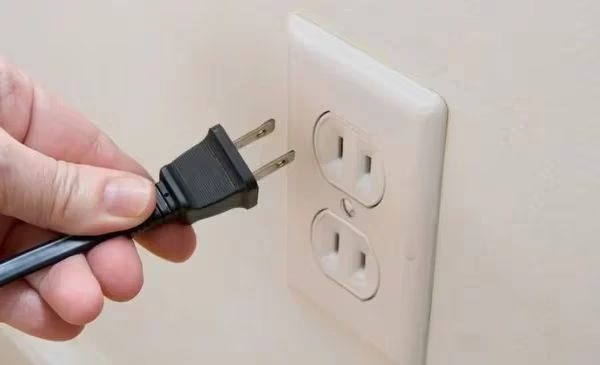
Turn off your Insignia TV and HDMI device, disconnect power cables, then reconnect and power back on one at a time. Sometimes this clears temporary glitches.
#2. Try Other HDMI Ports
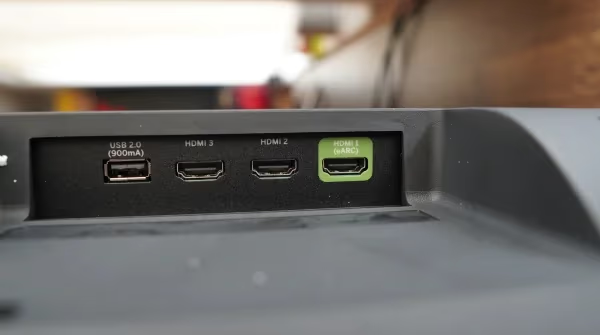
Connect your device to different HDMI ports to determine if the issue is isolated to one damaged input or widespread across inputs.
#3. Reset HDMI Ports
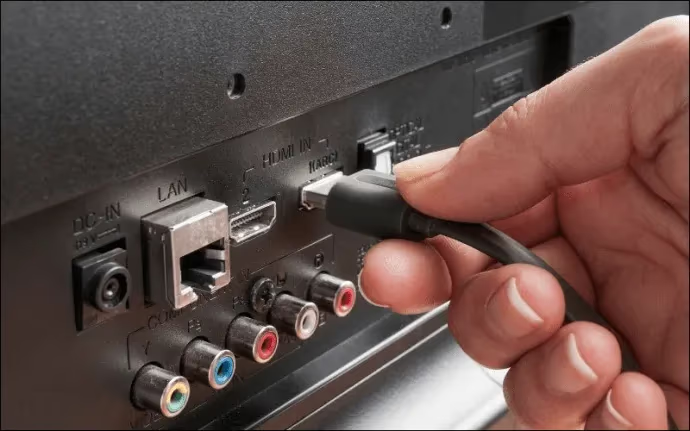
Unplug all devices from the TV’s HDMI inputs. Leave unplugged for 60 seconds to reset the HDMI hardware controller and ports.
#4. Update TV Firmware
Download the latest firmware for your specific Insignia TV model from the Support page. Install updates to fix software bugs causing HDMI issues.
#5. Replace Faulty HDMI Cables
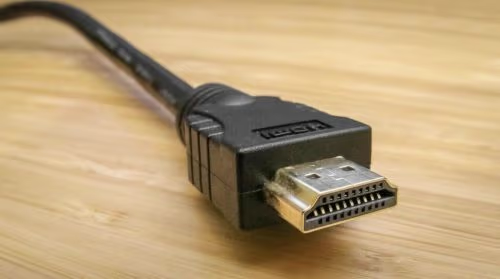
Swap in new High Speed HDMI cables designed for 1080p or higher to rule out bandwidth limitations or deterioration of older HDMI wires.
#6. Adjust Input Resolution Settings
Try lowering video resolution in the Display settings of the input device to better match your TV’s native resolution. Turn on auto adjustments.
#7. TV & Device Factory Reset
A full factory reset on both the TV and misbehaving HDMI device can restore functionality when nothing else works.
Following those steps will solve 99% of HDMI connectivity problems and screen mirroring issues on Insignia televisions.
#How Do You Enable HDMI CEC Control on Insignia TVs?
Many Insignia owners struggle connecting soundbars and home theater devices due to HDMI ARC and HDMI CEC control problems.
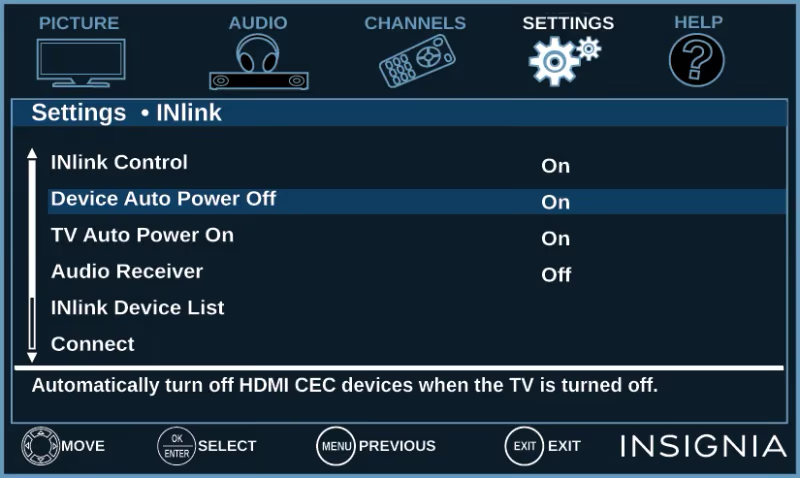
CEC functionality must be enabled on the TV for HDMI devices to directly interoperate, share controls, and enable ARC audio transmission.
Here are the quick steps to activate HDMI CEC on various Insignia televisions:
Non-Fire TV Insignias:
-
Press Menu button and navigate to Settings
-
Select “INlink” menu
-
Choose “INlink Control” submenu
-
Toggle INlink mode On to enable CEC support
Insignia Fire TV Edition:
-
Press Home button and go to Settings (gear icon)
-
Scroll down and select “Display and Sounds”
-
Navigate to “HDMI CEC device control” at bottom
-
Choose “ARC/eARC” option and toggle On
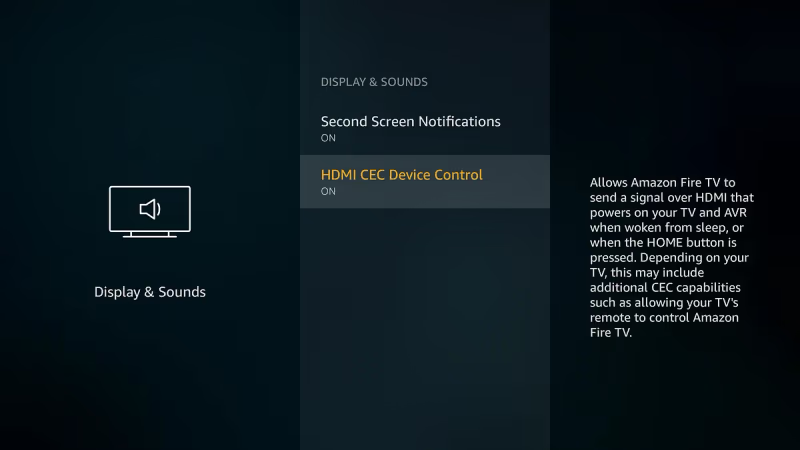
Those CEC toggles fix the majority of HDMI ARC soundbar connection issues while enabling universal remotes and single device power on/off control.
#How Do You Get HDMI ARC Working on Insignia TVs?
HDMI Audio Return Channel connections for external audio receivers like soundbars and speakers can be tricky.
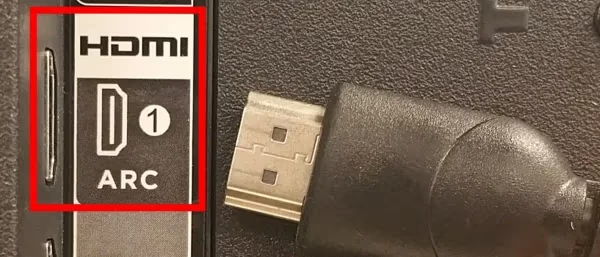
ARC only functions properly on designated HDMI ports with matching ports on the connected device and CEC toggled On in settings.
Follow these best practices for reliable HDMI ARC setup:
-
Connect your home theater device into the specifically labeled HDMI ARC port on your Insignia television. This port enables ARC two-way audio transmission over a single HDMI cable.
-
The device should likewise connect from its HDMI ARC output into the TV ARC input port.
-
Turn on HDMI CEC functionality described in the previous section.
-
Reboot both the TV and home theater device after initial connection.
-
Finally, ensure the TV audio output setting is changed to audio receiver mode which automatically reroutes sound from the TV speakers.
*Pro Tip: Splurge for a premium High Speed HDMI cable with Ethernet explicitly rated for 4K HDR ARC support.*
Correct port pairing with ARC-specific cables and activated CEC is the formula to fix HDMI ARC sound connectivity issues.
#Fixing Non-Working HDMI Ports on Insignia TV
When HDMI ports fail outright with connected devices, troubleshoot as follows:
#1. Examine the Problematic Port
Inspect for any visible damage to the port like chipped plastic, disconnected solder points, or scratched pins. Wiggle inserted cables to check loose connections.
#2. Reset All Ports
Unplug all cables from the Insignia TV HDMI ports and leave disconnected for 1 minute before reinserting to initialize ports.
#3. Confirm Input Device Working
Connect the input HDMI device to another TV to confirm video output working properly from that end.
#4. Isolate Defective Ports
By selectively connecting devices into different ports, determine which specific HDMI inputs malfunction persistently indicating hardware failure.
#5. Replace Mainboard
If multiple ports display identical connectivity problems, the internal HDMI controller hardware likely needs professional repair by replacing the mainboard.
While extremely rare, once in awhile the complete bank of HDMI ports will fail indicating full mainboard replacement is required. But this is a last resort after exhausting all standard troubleshooting!
#Why Does My Insignia TV Say No Signal?
The dreaded “No Signal” error screen is immensely frustrating. But have no fear — the issue is typically straightforward involving loose connections or incorrect HDMI input selection.
Hard reboot all devices by unplugging power cables for 60 seconds to refresh signal transmission to TV.
Ensure you’ve chosen the precise HDMI input corresponding to each connected media device using the Input button on your remote to cycle through options.
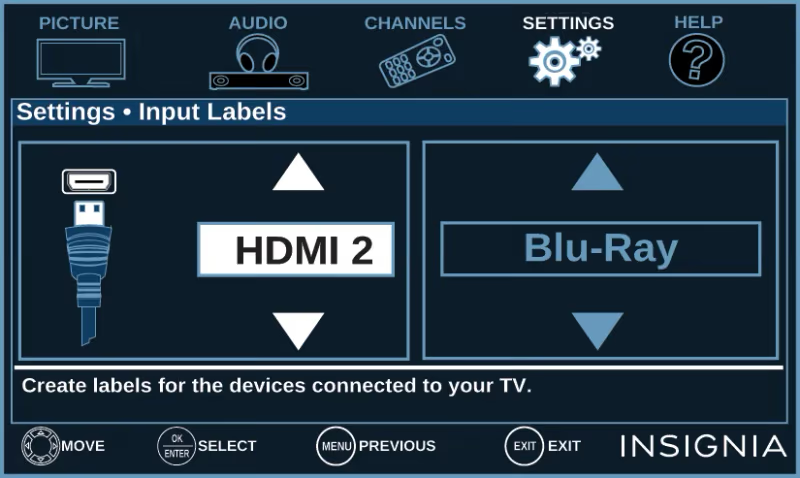
Confirm cables are firmly plugged into both ingest and output ports with no accidental disconnects or unsecure connections occasionally causing power but no video signal.
source: youtube.com
Visually tracing end-to-end signal flow resolves the HDMI no signal conundrum on Insignia televisions most every time.
#Bottom Line
Here are the core troubleshooting takeaways for reviving HDMI on Insignia TVs:
-
Power cycle all HDMI chained devices after connection changes to reinitialize signal handshake.
-
Confirm HDMI CEC (INlink) enabled in the TV settings to permit device interoperability including ARC functionality.
-
Ensure the correct, clearly labeled ARC HDMI ports used for home theater audio routing through eARC cables.
-
Reset ports by leaving HDMI cables disconnected for 1 minute before reattaching when connectivity gets spotty.
-
Rule out faulty HDMI cables first that could cause no signal issues.
-
Check out this guide on How to Fix Insignia TV Black Screen Problems if you’re dealing with a blank display, and see How to Fix Roku No Signal HDMI Troubles for similar troubleshooting steps.
#FAQ
#Why is HDMI ARC not working with my soundbar on Insignia TV?
You likely have the soundbar plugged into the wrong HDMI input instead of the ARC-labeled port. Double-check that HDMI CEC is enabled in TV settings to allow return audio transmission. On Fire TV Edition models, this toggle is under Display and Sounds > HDMI CEC device control.
#How do I fix HDMI ports showing no signal on Insignia TV?
Unplug cables from all HDMI ports for 1 minute before reinserting to reset connectivity. If ports remain unresponsive after that, perform a factory reset on the television. Persistent failure across all ports points to a mainboard issue that needs professional service.
#What causes HDMI input not working on Insignia TVs?
Loose HDMI cables are the most common cause. Securely reconnect all cables at both the Insignia TV ports and the source devices. Damaged cables, ports with broken pins, or mismatched output resolutions can also trigger input failure.
#Why won’t my Fire TV Stick connect to my Insignia TV via HDMI?
First confirm the stick is powered on and the HDMI cable is firmly seated at both ends. Then verify you’ve selected the correct TV input using the remote. If it still won’t connect, reboot both the TV and the Fire TV Stick by unplugging them for 30 seconds.
#Can a bad HDMI cable cause intermittent signal loss?
Yes. A partially damaged cable can work at certain angles but drop the signal when moved. Bent pins, frayed shielding, or an older HDMI 1.3 cable on a 4K TV all cause intermittent blackouts. Swapping in a certified High Speed or Ultra High Speed HDMI cable is the fastest fix.
#Does Insignia TV support HDMI eARC?
Select Insignia Fire TV Edition models released after 2020 support eARC on one designated port. Check your model’s spec sheet on the Best Buy Insignia product page to confirm. Standard ARC is available on nearly all Insignia TVs with at least one labeled ARC port.
#How do I know which HDMI port supports ARC on my Insignia TV?
Look at the back or side panel of your TV for a port labeled “HDMI ARC” or “HDMI (ARC).” It is usually HDMI 1 or HDMI 3 depending on the model year. The label is printed directly on the TV chassis next to the port.
#Should I use HDMI 2.0 or 2.1 cables with my Insignia 4K TV?
HDMI 2.0 cables handle 4K at 60Hz, which is enough for most streaming and gaming on Insignia TVs. HDMI 2.1 cables are only necessary if your TV and source device both support 4K at 120Hz or 8K output. For typical use, a certified Premium High Speed HDMI cable (2.0) works well.