Your Insignia Fire TV screen keeps flickering, and you need it fixed now. This problem affects most Insignia models sold through Best Buy, from 32-inch 720p sets to 55-inch 4K Fire TV editions. The good news: about 80% of flickering cases come down to three fixable causes. This guide walks through each one, starting with the quickest solutions.
- Loose HDMI cables cause most flickering on Insignia TVs, and reseating both ends of the cable fixes it in under a minute
- Lowering backlight brightness to 40-50% eliminates flicker caused by the Dynamic Backlight feature overdriving the LED panel
- A full power cycle (unplug for 60 seconds) clears temporary memory bugs that trigger intermittent screen blinking
- Firmware updates fix display glitches that Insignia patches regularly through Fire TV’s automatic update system
- Failing LED backlight strips are the most common hardware cause and require professional repair if other fixes do not work
#Why Does Your Insignia TV Flicker?
Insignia TVs use LED backlights behind an LCD panel to produce the image you see on screen. When something disrupts the signal between your source device, the TV’s processor, and the backlight array, you get flickering. The disruption falls into one of two categories.
Signal issues happen outside the TV. A damaged HDMI cable, a wobbly connection, or a source device sending an incompatible resolution all cause the display to blink or flash. These are the easiest problems to solve.
Internal issues happen inside the TV itself. Outdated firmware can mismanage the backlight driver. A failing T-Con board sends corrupted timing signals to the panel. Worn-out LED strips produce uneven light output. These take more effort but are still fixable in most cases.
Knowing which category your flicker belongs to saves time. If the screen flickers on every input and app, it points to an internal cause. If it only flickers on one HDMI port or with one streaming app, the problem is external.
#How Do You Fix Insignia TV Screen Flickering?
Work through these fixes in order. Each step rules out a specific cause, so skipping ahead means you might miss the actual problem.
#Check All Cables and Connections
Start here. It takes two minutes and solves the problem more often than any other fix.
- Unplug the HDMI cable from both the TV and the source device, then plug it back in firmly
- Try a different HDMI port on the TV if one is available
- Swap the HDMI cable for a known working one, especially if yours is older than 3 years
- Test with a different source device to confirm the TV itself is the issue
If the flickering only happens with one device or one port, you have found your answer. A new high-speed HDMI cable costs under $10 and eliminates cable-related flicker for good.
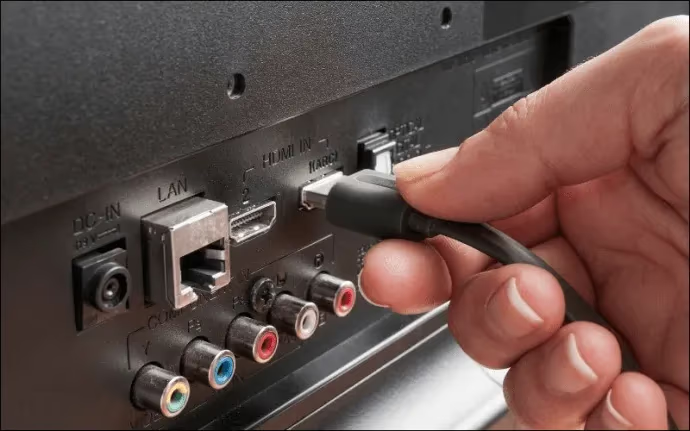
If your Insignia TV HDMI ports have stopped working entirely, that points to a different hardware issue covered in our dedicated guide.
#Adjust Picture Settings
Insignia TVs ship with backlight brightness set high and dynamic features turned on. This combination pushes the LED panel hard, and on some units it causes visible flicker. Here is what to change.
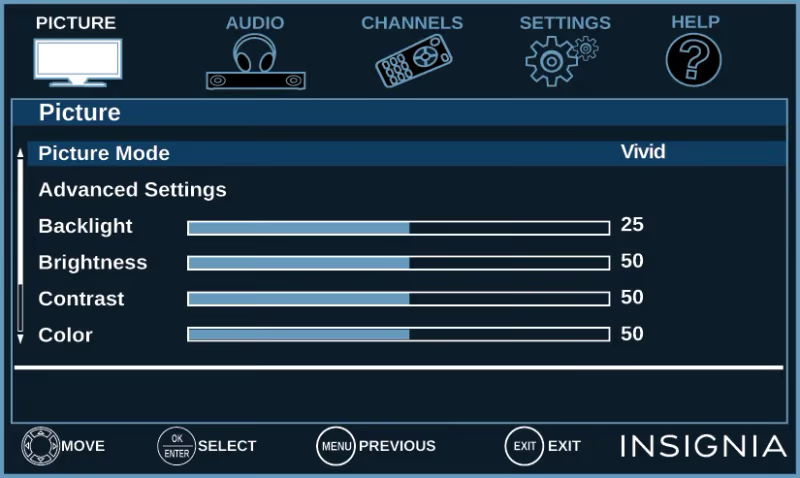
Open Settings > Display & Sounds > Picture on your Insignia Fire TV. Then adjust these settings:
- Backlight: Drop it to 40-50%. Most rooms do not need full brightness, and lower values reduce stress on the LED driver
- Dynamic Backlight: Turn it off. This feature constantly adjusts brightness based on content, which can appear as flickering during dark scenes
- Dynamic Contrast: Disable it. Same principle as dynamic backlight, but for contrast ratios
After changing these three settings, watch the TV for 10-15 minutes across different content types. If the flickering stops, leave these settings as they are.
#Power Cycle the TV
A power cycle clears the TV’s temporary memory and resets the backlight driver. This fixes flickering caused by software glitches that build up over weeks of standby mode.
- Turn off the TV and unplug it from the wall outlet
- Press and hold the power button on the TV (not the remote) for 15 seconds
- Wait 60 seconds with the TV unplugged
- Plug it back in and turn it on
This is different from simply turning the TV off and on with the remote. The remote puts the TV in standby mode, which keeps memory active. Unplugging forces a complete reset of the power supply and driver boards.
If your Insignia TV turns off by itself regularly, power supply problems might be causing both the shutdowns and the flickering.
#Update the Firmware
Insignia Fire TV models receive firmware updates through Amazon’s servers. These updates often include fixes for display-related bugs that cause flickering on specific panel revisions.
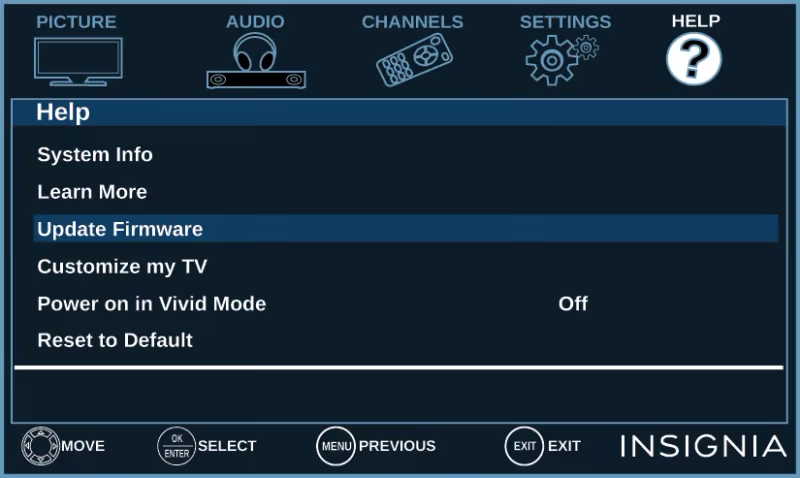
To check for updates: Settings > My Fire TV > About > Check for Updates.
If the TV cannot connect to the internet or the menu is inaccessible due to severe flickering, you can update via USB. Download the latest firmware from Insignia’s support page on Best Buy, copy it to a FAT32-formatted USB drive, and insert it into the TV’s USB port.
After the update completes, perform a factory reset to ensure the new firmware loads cleanly: Settings > My Fire TV > Reset to Factory Defaults.
#Inspect Internal Hardware
If none of the above fixes stop the flickering, the problem is likely hardware. The most common internal causes on Insignia TVs are:
Failing LED backlight strips. Individual LEDs burn out or develop cold solder joints over time. You will notice the flicker is worse in specific areas of the screen, or the screen has dark patches alongside the blinking.
Loose ribbon cables. The flat cables connecting the T-Con board to the LCD panel can work loose from thermal expansion and contraction cycles. Reseating them sometimes fixes intermittent flicker.
Faulty T-Con board. This board converts the video signal into timing pulses for the LCD panel. When it fails partially, you get flickering, horizontal lines, or color distortion.
Opening the TV voids any remaining warranty. If your Insignia is still under Best Buy’s warranty or Geek Squad protection plan, contact them first. For out-of-warranty sets, a local TV repair shop can diagnose and replace a T-Con board for $50-$100 in parts.
#What If the Flickering Only Happens With Streaming Apps?
Sometimes the flicker appears only when using Netflix, Hulu, or other streaming apps. This points to a software problem rather than hardware.
Try these targeted fixes:
- Clear the app’s cache: Settings > Applications > Manage Installed Applications > [App Name] > Clear Cache
- Uninstall and reinstall the streaming app
- Switch the app’s streaming quality to a lower resolution temporarily, then switch it back
- Sign out of your Amazon account on the TV and sign back in
If your Insignia Fire TV gets stuck on a loading screen when opening apps, the root cause may overlap with what triggers the flickering.
App-related flicker usually disappears after a firmware update or cache clear. If it persists across all apps, circle back to the hardware inspection steps above.
#Does the Flickering Pattern Tell You Anything?
Yes. How the screen flickers narrows down the cause before you start troubleshooting.
Rapid blinking (multiple times per second): Usually a backlight driver issue or failing LED strips. The driver circuit cannot maintain consistent power to the LEDs, so they pulse visibly.
Slow dimming and brightening: Almost always the Dynamic Backlight or Ambient Light Sensor adjusting brightness automatically. Turn both features off in picture settings.
Flickering in one area only: Points to a specific LED strip or connection failure on that side of the panel. This requires opening the TV to inspect the backlight array.
Flickering only at certain times: If it happens after the TV has been on for an hour or more, heat buildup on a solder joint or capacitor is the likely cause. The component works fine when cool but fails as it warms up.
Black screen flashes: The screen goes completely dark for a split second, then comes back. This pattern usually indicates a loose T-Con ribbon cable or a failing power supply board. Check both connections if you open the TV.
#Bottom Line
Start with cables and picture settings. These two fixes solve Insignia TV flickering in most cases without spending any money. If the flicker survives a power cycle and firmware update, you are looking at a hardware issue that needs hands-on inspection. LED backlight strips and T-Con boards are the usual culprits on Insignia models, and both are replaceable parts that a repair technician can swap out. For TVs still under Best Buy’s protection plan, let Geek Squad handle it at no cost.
#FAQ
#Why does my Insignia TV flicker only at night?
Your TV’s Ambient Light Sensor is adjusting the backlight based on room brightness. As natural light fades, the sensor continuously recalibrates, causing visible flicker. Turn it off in Settings > Display & Sounds > Picture > Ambient Light Detection.
#Can a bad HDMI cable cause screen flickering?
Absolutely. A damaged or low-quality HDMI cable is the single most common external cause of TV flickering. Cables degrade over time, especially at the connector ends where repeated plugging and unplugging bends the pins. Replace any cable older than 3-4 years with a certified High Speed HDMI cable.
#Will a factory reset fix Insignia TV flickering?
A factory reset fixes flickering caused by corrupted software settings or app conflicts. It will not fix hardware-related flicker from failing backlights or damaged boards. Perform a factory reset only after backing up your streaming app login credentials, since you will need to sign into everything again.
#How much does it cost to repair a flickering Insignia TV?
Repair costs depend on the failed component. A new T-Con board runs $30-$60 for the part, and a repair shop charges $50-$100 for labor. Full LED backlight strip replacement costs $100-$200 total. Compare this against the original purchase price of your TV to decide if repair makes financial sense.
#Is Insignia TV flickering covered under warranty?
Best Buy’s standard manufacturer warranty covers Insignia TVs for one year from the purchase date. Screen flickering caused by defective components falls under this coverage. Geek Squad Protection plans extend coverage to 2-5 years and include accidental damage. Bring your receipt and the TV to any Best Buy store for service.
#Does screen flickering damage the TV over time?
Flickering itself does not cause additional damage to the LCD panel. However, the underlying cause of the flicker often worsens. A failing LED strip will eventually die completely, and a bad capacitor on the power board can overheat and damage nearby components. Fix the flicker early rather than waiting for a complete failure.
#Why does my Insignia TV flicker when I turn it on but then stop?
Cold solder joints on the backlight driver board cause this behavior. When the TV is cold, the metal connection is slightly contracted and makes poor contact. As the board warms up from normal operation, the metal expands and completes the circuit. This pattern will get worse over time until the joint fails completely.
#Can I fix Insignia TV backlight flickering myself?
Replacing LED backlight strips requires opening the TV, removing the LCD panel, and soldering or swapping the strip connectors. It is doable with basic tools and a repair video guide, but the LCD panel is extremely fragile. One wrong move cracks the panel and turns a $100 repair into a total loss. Unless you have experience with TV repair, a professional is the safer choice.