Having an Insignia TV that suddenly goes black can be frustrating. But before you throw it out or buy a replacement, there are several fixes you can try yourself to get your TV working again.As an electronics repair technician with over 15 years of experience, I’ve seen all kinds of issues with TVs, including black screen problems on Insignia models.
Below, I’ll cover the most common reasons for Insignia TV black screen problems and walk you through solutions to try, from basic troubleshooting to more advanced fixes involving hardware components.
- Power cycle first — unplugging the TV for 60 seconds resolves the majority of temporary black screen glitches
- Wrong input source — toggling through HDMI 1, HDMI 2, and other ports catches the most overlooked cause of a blank display
- Loose HDMI cables — reseating both ends of every video cable rules out signal loss in under a minute
- Factory reset option — holding the pinhole reset button for 15-20 seconds clears corrupted settings without needing screen access
- Backlight failure test — shining a flashlight at the screen reveals whether LED strips have burned out, which requires professional repair
#What Causes an Insignia TV Black Screen?
There are several possible explanations for an Insignia television displaying a black screen:
#Power Issues Causing Black Screen
-
Loose, damaged, or faulty power cord resulting in no power to TV
-
Faulty electrical outlet supplying insufficient or interrupted power
-
Power surges causing TV to turn off to protect components
Much like with Element, LG and Philips TVs, interrupted, inadequate or fluctuating power from outlets or cords is a prevalent trigger for Insignia units suddenly going black as well.
#Remote Control Problems Preventing Turn On
-
Low or unresponsive remote preventing TV from powering on
-
Infrared sensor on TV blocked, rendering remote ineffective
-
Button on remote control stuck resulting in no commands sent
#Wrong Input Source Selection
-
Input set to inactive HDMI or other port with no device connected
-
Streaming box, cable box or other external device powered off
-
Correct input selection not chosen for attached peripheral
#Cable and Connection Issues
-
Damaged, loose, or incorrectly connected HDMI cable
-
Faulty or dusty HDMI ports preventing signal
-
External streaming device disconnected or powered off
-
Impaired coaxial cable attenuating signal
As with many TV brands prone to black screen issues like Vizio, Sharp and Hisense, examining the HDMI ports and cables should be an early troubleshooting step for Insignia TVs.
#Hardware Problems Inside TV
-
Backlights damaged resulting in no screen illumination
-
Faulty capacitors on power supply board affecting power
-
Defective main board or T-con board preventing operation
-
Other internal component failures disrupting normal functioning
Now let’s look at steps to troubleshoot and resolve these issues, starting from basic fixes before opening up TV.
#How Do You Fix an Insignia TV With a Black Screen?
#1. Perform Power Cycle on TV
The first step is to power cycle, or force a full reboot of the TV hardware and software. This resets any temporary glitches:
-
Unplug TV from power source and press power button to discharge residual energy
-
Wait 1-2 minutes then reconnect power cord to outlet
-
Power on TV using remote control or power button to confirm issue resolves
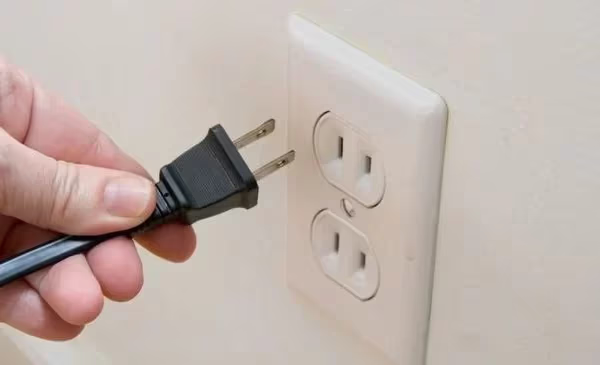
This Insignia TV black screen fix only takes a few minutes and commonly corrects any minor software issues preventing normal start up.
#2. Check Remote Control and Replace Batteries
An unresponsive remote is one of the most common reasons an Insignia TV won’t turn on and displays black screen:
-
Ensure remote has line of sight path to IR sensor on TV
-
If backlight on remote turned off, press button to reactive
-
Replace remote batteries trying multiple new sets if needed
-
Remove batteries and press every button to ensure none stuck
-
As last resort, use control keys directly on TV to power on
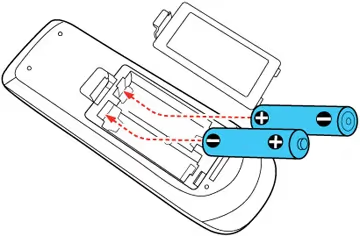
While unusual for it to occur simultaneously, it’s possible for both remote and TV batteries to need replacing to restore normal function.
#3. Verify Source Input Set Properly
If TV powers on but only shows black screen:
-
Press input or source button displaying list of ports
-
Toggle through HDMI 1, HDMI 2, Component, etc to set active input
-
Directly select input match port used by cable box, streaming stick
-
Ensure attached peripheral devices are powered on and connected
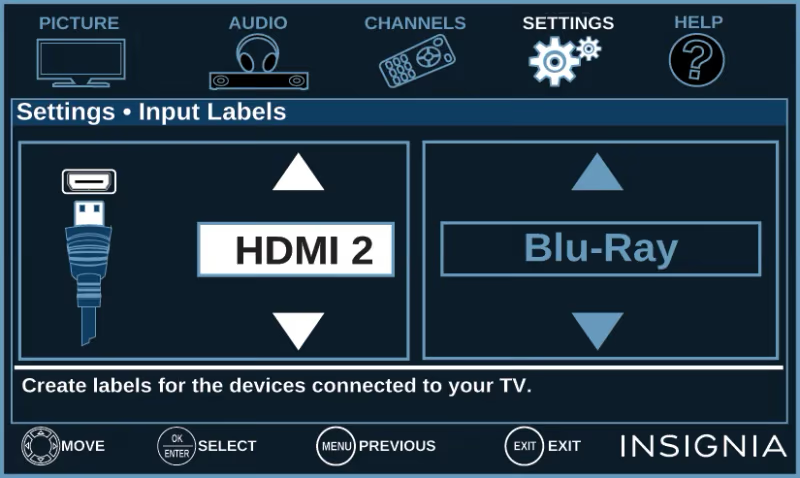
Cycle through inputs one by one to correct settings mix up preventing video signal from displaying properly.
#4. Examine Cable and Video Connections
Cables connecting devices to TV can sometimes work loose over time. To confirm:
-
Check HDMI, coaxial, component, and other video cables
-
Remove and reseat both ends checking for loose port connections
-
Test different cables if available to isolate signal issues
-
Verify external streaming boxes, cable boxes, etc are powered on
-
Connect devices to alternate ports if accessible to test
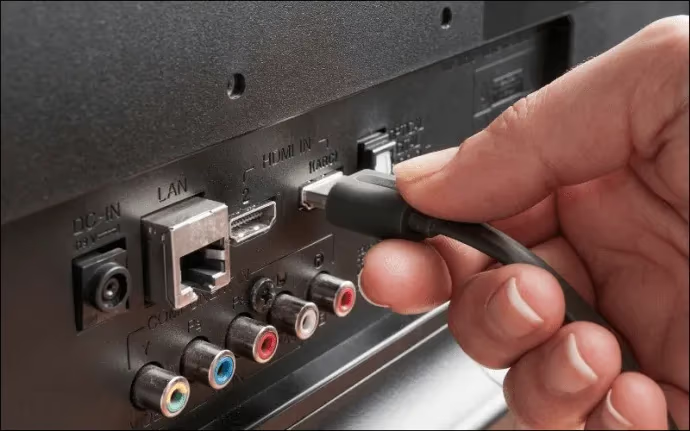
If jiggling connections restores signal, consider securing cables ends with electrical tape or zip ties as extra protection.
#5. Perform TV Factory Reset
Resetting an Insignia TV clears any corrupted settings that could be preventing normal start up:
-
Locate small pinhole reset button on TV rear panel
-
With TV powered off, use bent paperclip to press button for 15-20 seconds
-
With button still depressed, power on TV till logo appears then release
-
Allow unit to reboot to factory default configuration
-
Run thru setup prompts connecting to internet to install latest software
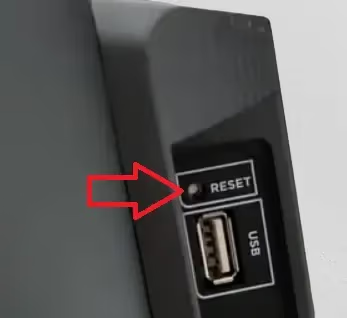
This failsafes TV back to original settings in hope any problematic modifications are cleared out and resolved.
#6. Inspect Internal LED Backlights
The LED backlights provide screen illumination, failure causes black display:
-
Ensure TV powers on and basic functions present
-
Darken room then shine bright flashlight at screen
-
Some picture visibility indicates black levels or LEDs issue
-
No image detected points to total backlight malfunction
Replacing LED strips requires disassembling unit. Given complexity, recommended to hire service technician to restore display visibility in case of failure.
If backlight LED strips burn out causing black screen, specialized repair help may be needed, much like for TCL TVs which commonly face similar failures.
#7. Test Power Board Capacitors
Bulging, leaking or blown capacitors on power supply board can interrupt electricity:
-
Unplug TV then remove back cover to access boards
-
Visually inspect tops and sides for noticeable swelling
-
Brown sticky substance leakage confirms failure
-
Take photos before testing capacitance values with multimeter
-
Match readings against labeling to detect issues
Faulty capacitors should be replaced matching voltage, temperature, microfarad ratings. This Insignia TV repair restores steady power flow to components.
#8. Troubleshoot Defective Circuit Boards
If no standby light when powered, main board has failed. Blank screen but TV turns on indicates T-con board:
-
Use visual inspection and multimeter to check for damage
-
Test for shorts, opens, and voltage abnormalities
-
Reflow solder joints connecting boards to detect cold joints
-
Replace clearly identified damaged main/T-con boards
Circuit boards replacement is advanced fix best left to specialized TV repair experts without proper tools, testing equipment, and experience.
#9. Contact Insignia Support
If black screen persists after exhausting self-directed troubleshooting steps above, seek assistance from manufacturer:
-
Call Insignia TV tech support at 1-877-467-4289
-
Provide model and serial when prompted for tailored assistance
-
Confirm whether TV under 1 year factory warranty for free service
-
Get referred to authorized Insignia repair center for out-of-warranty models
Insignia agents can facilitate part replacements down to component level and properly diagnose trickier hardware faults causing black screen issue.
#Preventative Tips for Insignia TVs
Once functional again, utilize these best practices to minimize future black screen failures:
-
Allow adequate ventilation around TV to prevent overheating
-
Keep TV inlet ports dust-free with periodic compressed air cleaning
-
Ensure steady, surge-free AC power supply to avoid electrical spikes
-
Maintain latest firmware via automatic updates for bug fixes
-
Handle remote gently to protect IR sensor and internal electronics
-
Secure cabling to prevent loosening video signal connections
Following these Insignia TV usage care guidelines reduces risk and duration of no picture issues recurring.
#Frequently Asked Questions
#Why does my Insignia TV have sound but no picture?
If TV powers on but black screen remains, common culprits are incorrect input selected, disconnected cables, or faulty external streaming device power off. Methodically check connections and accessories first.
#What should I do if changing Insignia TV inputs doesn’t help?
Test cables, power cycle TV, perform factory reset of settings if adjusting inputs proves ineffective resolving no picture issue. Hardware faults like backlights or boards could require professional service next.
#Why does my Insignia TV have a black screen after turning on?
Failure to fully power on from standby mode points to power board, main board or connections issue. Check accessible items like cables first then capacitors and boards may need replacing by a repair tech if problem continues.
#How do I reset an Insignia TV without being able to see the display?
Locate the small pinhole button on the lower back panel and hold it for 20 seconds with the TV powered off. This forces a factory reset that clears corrupted settings. Release the button once the TV powers back on and runs through initialization.
#Can a power surge cause an Insignia TV black screen?
Yes. A sudden voltage spike can trip the TV’s internal protection circuit, shutting the display off entirely. Unplug the TV for at least 60 seconds to let the protection circuit reset, then plug it back in. Using a surge protector going forward helps prevent repeat occurrences.
#How do I know if my Insignia TV backlight is broken?
Turn the TV on in a dark room and hold a bright flashlight close to the screen at an angle. If you can see a faint image, the backlights have failed but the panel still works. Backlight replacement involves opening the TV, so most owners take it to a repair shop.
#Is it worth repairing an Insignia TV with a black screen?
That depends on the TV’s age and the repair cost. Replacing a single blown capacitor or an HDMI board runs $50-$100 at a local shop, which is worthwhile for a newer set. If the main board or panel needs replacement, the cost often exceeds half the price of a new TV, making replacement the better option.